

How to speed up a slow laptop without upgrading is possible with the right system optimizations and simple fixes.
In this guide, you’ll learn how to speed up a slow laptop without upgrading using practical steps that improve performance instantly.
Why Is Your Laptop Slow?
A slow laptop usually points to software overhead, not hardware limits. The system spends time managing tasks instead of running your apps. This leads to lag, long load times, and delayed input.
Here are the main technical causes:
Too Many Startup Apps
Startup programs load during boot and reserve RAM and CPU cycles early. This increases boot time and reduces resources for active tasks.
- Each startup app creates background services and scheduled tasks
- Some apps add tray processes and auto-update agents
- High startup load increases disk activity during login
When many apps launch together, the system queues tasks. This creates delays before the desktop becomes usable.
Background Processes
Modern operating systems run dozens of background services. These include system services, app agents, and sync engines.
- Services use CPU time slices even when idle
- Many processes keep RAM allocated and do not release it quickly
- Background indexing and telemetry increase disk usage
You may not see these processes, but they compete for resources. This reduces available memory and increases context switching overhead.
Low Storage Space
Storage affects both speed and system stability. When free space drops, the system cannot efficiently manage temporary data.
- Operating systems use virtual memory (page file or swap) on disk
- Low space limits paging operations and slows multitasking
- Fragmented or full drives increase read and write latency
On HDDs, this causes longer seek times. On SSDs, low free space reduces write performance due to wear-leveling limits.
Outdated Software
Software updates include performance patches, driver optimizations, and security fixes. Running older versions can reduce efficiency.
- Old drivers may not use hardware acceleration properly
- Outdated OS builds can have memory leaks or scheduling issues
- Apps may consume more CPU due to compatibility layers
Modern updates improve resource allocation and reduce unnecessary background load.
Summary
A slow laptop results from resource contention across CPU, RAM, and storage.
Startup load, background services, low disk space, and outdated software are the main causes.
Fixing these areas increases responsiveness without hardware upgrades.
15 Proven Ways to Speed Up a Slow Laptop Without Upgrading
You can speed up a slow laptop without upgrading it by disabling startup apps, reducing background processes, freeing storage, and updating software. These methods improve performance by lowering CPU load, freeing RAM, and optimizing disk usage.
Most laptops slow down due to software overload, not hardware limits. Too many apps, services, and files compete for system resources. This creates lag, slow startup, and poor multitasking.
In this section, we cover 15 proven methods that fix these issues step by step. Each method targets a specific problem like memory usage, disk speed, or system efficiency. You can apply them easily without technical expertise.
These methods will help you achieve:
- Faster startup and shutdown
- Smoother multitasking and app response
- Better overall system stability
Apply these fixes one by one and observe the improvement. This helps you identify the exact cause of the slowdown.
In most cases, these methods are enough. Upgrade hardware only when software optimization no longer improves performance.
Disable Startup Programs
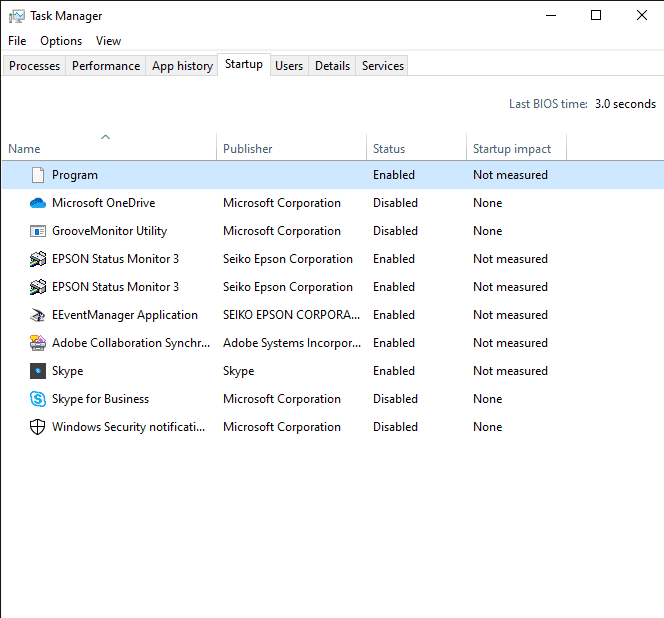
Disabling startup programs speeds up your laptop by reducing boot load and freeing RAM and CPU at login. Fewer apps start automatically, so the system becomes usable faster. Further, disabling startup apps can reduce boot time by 30–50%
Startup apps launch with the operating system and reserve resources early. Many add background services and update agents. This creates high disk activity and delays after login.
When you disable unnecessary startup programs, you reduce resource contention. The system loads fewer tasks, so it reaches an idle state faster. This improves both startup time and overall responsiveness.
Why This Works
Startup load directly affects boot performance and early system stability. Too many apps compete for CPU time and disk access.
- Lower CPU usage during boot
- Less RAM reserved by idle apps
- Reduced disk I/O during login
How to Disable Startup Programs (Windows)
- Press Ctrl + Shift + Esc to open Task Manager
- Go to the Startup tab
- Check the Startup Impact column
- Right-click on unnecessary apps and select Disable
Focus on high-impact apps you do not use daily.
How to Disable Startup Programs (Mac)
- Open System Settings → General → Login Items
- Review apps under “Open at Login”
- Select unwanted apps and click Remove (-)
You can also disable background permissions for some apps.
Best Practice (Important)
Do not disable system-critical apps or security tools. Keep essential drivers and antivirus active.
A good rule:
Disable apps you can open manually when needed.
Summary
Disabling startup programs is one of the fastest ways to improve laptop speed.
It reduces boot time and frees resources immediately.
Uninstall Unused Apps
Uninstalling unused apps speeds up your laptop by freeing storage, reducing background services, and lowering system load. Fewer installed programs mean fewer processes competing for CPU and RAM.
Many apps install background services, auto-updaters, and scheduled tasks. These keep running even when you do not open the app. Over time, they increase memory usage and slow down the system.
Removing unused apps reduces this hidden load. It also frees disk space, which improves read and write performance. This helps your laptop respond faster during everyday tasks.
Why This Works
Unused software creates unnecessary system overhead. It affects performance even when idle.
- Frees disk space and reduces file system clutter
- Stops background services and update agents
- Lowers RAM and CPU usage
How to Uninstall Apps (Windows)
- Open Settings → Apps → Installed Apps
- Sort by size or last used
- Select unwanted apps and click Uninstall
- Follow the on-screen steps
Check for pre-installed apps you never use.
How to Uninstall Apps (Mac)
- Open Finder → Applications
- Drag unused apps to Trash
- Empty the Trash to remove them completely

Best Practice (Important)
Avoid removing system apps or drivers.
Keep apps you use regularly or that support hardware.
A simple rule:
If you have not used an app in months, remove it.
Summary
Uninstalling unused apps reduces background load and frees storage.
It improves speed and keeps your system clean.
Clean Disk Space
Cleaning disk space speeds up your laptop by freeing storage, improving disk access time, and reducing system overhead. More free space allows the system to manage files and virtual memory efficiently.
Over time, your laptop collects temporary files, cache data, logs, and leftover installation files. These files increase disk usage and slow down read and write operations. When storage gets low, the system struggles to handle background tasks smoothly.
Clearing disk space removes unnecessary data and improves overall responsiveness. It also helps apps load faster and reduces system lag.
Why This Works
Low storage directly affects system performance and multitasking ability.
- Frees space for virtual memory and system operations
- Reduces disk fragmentation and access delays
- Improves app launch speed and file handling
How to Clean Disk Space (Windows)
- Press Windows + S and search for Disk Cleanup
- Select your system drive (usually C:)
- Check items like temporary files, the recycle bin, and cache
- Click OK and confirm deletion
You can also use Storage Settings → Temporary Files for more control.
How to Clean Disk Space (Mac)
- Go to Apple Menu → About This Mac → Storage
- Click Manage
- Review recommendations like removing junk files and old documents
- Empty Trash regularly
Best Practice (Important)
Keep at least 15–20% free storage for smooth performance.
Avoid deleting system files or important app data.
Focus on:
- Temporary files
- Downloads folder
- Unused large files
Summary
Cleaning disk space improves speed by reducing storage pressure.
It helps your laptop run more smoothly and respond faster. Cleaning disk space can free several GB and improve responsiveness
Turn Off Visual Effects
Turning off visual effects speeds up your laptop by reducing GPU and CPU load and freeing RAM used for animations. Fewer effects mean faster window actions and smoother navigation.
Modern systems use animations for menus, windows, and transitions. These effects look good, but they consume resources. On low-end laptops, they can cause delays and stutter.
Disabling these effects shifts priority to performance. The system spends fewer cycles on rendering and more on your tasks. This improves responsiveness, especially when switching apps.
Why This Works
Visual effects use GPU time and system memory for rendering.
- Reduces GPU and CPU usage during UI actions
- Frees RAM used by animation buffers
- Improves responsiveness when multitasking
How to Turn Off Visual Effects (Windows)
- Press Windows + S and search “Adjust the appearance and performance of Windows”
- Open Performance Options
- Select Adjust for best performance
- Or disable specific effects like animations and shadows
- Click Apply and OK
How to Turn Off Visual Effects (Mac)
- Open System Settings → Accessibility
- Go to Display
- Enable Reduce motion
- Enable Reduce transparency
These settings reduce animation load and improve speed.
Best Practice (Important)
Do not disable everything if you prefer some visual clarity.
You can keep essential effects and turn off heavy animations.
Focus on:
- Animations
- Transparency effects
- Shadows
Summary
Turning off visual effects improves speed by reducing rendering load.
It makes your laptop feel faster and more responsive.
Update OS and Drivers
Updating your operating system and drivers can speed up a slow laptop by improving performance, fixing bugs, and optimizing hardware usage. Updates often include better memory management and faster system processes.
Outdated software can cause inefficiency and compatibility issues. Old drivers may not use hardware acceleration properly. This leads to higher CPU usage and slower response.
Modern updates improve how the system schedules tasks and uses resources. They also fix memory leaks and reduce unnecessary background activity. This results in smoother performance and better stability.
Why This Works
Updates improve how your system interacts with hardware and software.
- Fix bugs that slow down performance
- Improve CPU, GPU, and memory optimization
- Enhance system stability and compatibility
How to Update OS and Drivers (Windows)
- Open Settings → Windows Update
- Click Check for updates
- Install available updates and restart
For drivers:
- Open Device Manager
- Right-click a device → Update driver
How to Update OS and Drivers (Mac)
- Go to System Settings → General → Software Update
- Install any available updates
- Restart your system
Mac updates usually include driver improvements automatically.
Best Practice (Important)
Keep automatic updates enabled for security and performance.
Avoid third-party driver tools that may install incorrect versions.
Check updates regularly if automatic updates are off.
Summary
Updating your system improves performance and stability.
It ensures your laptop uses hardware efficiently.
Scan for Malware
Scanning for malware can speed up a slow laptop by removing hidden programs that use CPU, RAM, and disk in the background. Malware often runs silently and degrades performance.
Malicious software includes adware, spyware, and crypto-miners. These programs start with the system and keep running. They can increase CPU usage, create network traffic, and slow down apps.
A full system scan detects and removes these threats. This frees resources and restores normal system behavior. You may notice faster startup and smoother multitasking after the cleanup.
Why This Works
Malware consumes resources without user control.
- Uses CPU and RAM continuously
- Creates unwanted background processes
- Causes high disk and network activity
Removing it reduces system load and improves responsiveness.
How to Scan for Malware (Windows)
- Open Windows Security
- Go to Virus & threat protection
- Click Scan options
- Select Full scan and start the scan
You can also use an offline scan for deeper detection.
How to Scan for Malware (Mac)
- macOS has built-in protections like XProtect
- Use System Settings → Privacy & Security to review security status
- Run a trusted third-party antivirus if needed
Avoid unknown or unverified security tools.
Best Practice (Important)
Keep real-time protection enabled.
Do not install multiple antivirus tools at once.
Be careful with downloads and browser extensions.
Summary
Malware can slow down your laptop without clear signs.
Regular scans help keep your system clean and fast.
Use a Lightweight Browser
Using a lightweight browser speeds up a slow laptop by reducing RAM usage, CPU load, and background activity. A lighter browser opens pages faster and keeps more memory free for other tasks.
Modern browsers can consume large amounts of RAM, especially with many tabs and extensions. Some browsers also run multiple background processes for syncing, updates, and features. This increases system load and slows down performance.
A lightweight browser uses fewer processes and less memory. It focuses on speed and efficiency instead of heavy features. This makes a noticeable difference on low-end or older laptops.
Why This Works
Browsers are often the biggest resource consumers on a laptop.
- Reduces RAM usage per tab
- Lowers CPU usage during browsing
- Minimizes background processes and services
This frees resources for other apps and improves multitasking.
How to Choose a Lightweight Browser
Look for browsers that focus on performance and low resource usage.
- Disable unnecessary extensions
- Avoid running too many tabs at once
- Use built-in task managers to monitor usage
You can also try browsers designed for low-end systems.
Best Practice (Important)
Even lightweight browsers can slow down with too many extensions.
Keep only essential add-ons and close unused tabs.
A simple rule:
Fewer tabs and extensions = better performance.
Summary
A lightweight browser reduces system load and improves speed.
It helps your laptop run more smoothly during everyday use.
Disable Background Apps
Disabling background apps speeds up a slow laptop by reducing RAM usage, CPU activity, and hidden processes. Fewer apps run silently, so your system stays responsive.
Many apps continue running after you close them. They sync data, check updates, and send notifications. These tasks consume resources and increase context switching.
Turning off background apps limits this hidden load. It frees memory and reduces CPU spikes. You will notice smoother multitasking and less lag.
Why This Works
Background activity competes with your active tasks.
- Frees RAM held by idle apps
- Lowers CPU usage from sync and update services
- Reduces disk and network activity
This keeps more resources available for the apps you use.
How to Disable Background Apps (Windows)
- Open Settings → Apps → Installed apps
- Select an app → Advanced options
- Set Background app permissions to Never
For system-wide control:
- Go to Settings → Privacy & security → Background apps
- Turn off apps you do not need
How to Disable Background Apps (Mac)
- Open System Settings → General → Login Items
- Review Allow in Background section
- Turn off apps you do not need
Also, check Activity Monitor for persistent processes.
Best Practice (Important)
Do not disable essential system or security apps.
Keep apps active if they provide critical syncing or alerts.
Focus on:
- Messaging apps
- Cloud sync tools
- Auto-updaters
Summary
Disabling background apps reduces hidden system load.
It improves speed, stability, and multitasking performance.
Adjust Power Settings
Adjusting power settings can speed up a slow laptop by allowing the CPU and system components to run at higher performance levels. Power-saving modes often limit speed to conserve battery.
Most laptops use balanced or power saver modes by default. These modes reduce CPU frequency, limit background activity, and slow down performance. This helps battery life, but it also causes lag.
Switching to a higher performance mode removes these limits. The system can use full processing power when needed. This improves responsiveness, especially during multitasking.
Why This Works
Power plans control how your system uses CPU and hardware resources.
- Increases CPU performance and responsiveness
- Reduces delays in processing tasks
- Improves overall system speed under load
This allows your laptop to perform at its full capability.
How to Adjust Power Settings (Windows)
- Open Settings → System → Power & battery
- Find Power mode
- Select the best performance
For advanced settings:
- Open Control Panel → Power Options
- Choose High performance plan
How to Adjust Power Settings (Mac)
- Open System Settings → Battery
- Enable High Power Mode (if available)
- Turn off Low Power Mode
This allows the system to use more resources when needed.
Best Practice (Important)
Use high performance mode when plugged in.
Switch to balanced mode when on battery to save power.
A simple rule:
Performance mode for speed, power saver for battery.
Summary
Adjusting power settings unlocks your laptop’s full performance.
It improves speed without any hardware changes.
Clean Browser Cache and Extensions
Cleaning browser cache and removing unused extensions speeds up your laptop by reducing RAM usage and improving page load time. Browsers often consume the most resources during daily use.
Browsers store cached files like images, scripts, and site data. This helps load pages faster, but over time, the cache becomes large and outdated. Extensions also run background processes and use memory even when idle.
Clearing the cache and limiting extensions reduces this overhead. It improves browsing speed and frees system resources for other tasks.
Why This Works
Browsers create a hidden load through cache and extensions.
- Frees RAM used by extensions and background scripts
- Removes outdated cache that slows page loading
- Reduces CPU usage during browsing
This makes your system more responsive, especially with multiple tabs open.
How to Clear Cache (Chrome / Edge)
- Open browser Settings
- Go to Privacy and security
- Click Clear browsing data
- Select Cached images and files
- Choose time range → Click Clear data
How to Manage Extensions
- Open browser menu → Extensions
- Review installed extensions
- Disable or remove unused ones
Keep only essential extensions to reduce load.
Best Practice (Important)
Do not clear saved passwords unless needed.
Avoid installing too many extensions.
A simple rule:
Fewer extensions = faster browser.
Summary
Cleaning the cache and extensions reduces browser load.
It improves speed and frees system resources.
Disable Search Indexing (Selective)
Disabling or limiting search indexing can speed up a slow laptop by reducing constant disk and CPU activity in the background. This is especially useful on older systems or HDD-based laptops.
Search indexing scans files and creates a database for faster file search. While helpful, it runs continuously in the background. This can increase disk usage and slow down overall performance.
By limiting indexing to essential folders, you reduce unnecessary background activity. This improves responsiveness without losing search functionality.
Why This Works
Indexing creates a constant background load, even when you are not searching.
- Reduces disk usage and read/write operations
- Frees CPU resources used for indexing tasks
- Improves responsiveness during multitasking
This is more effective on systems with slower storage.
How to Disable or Limit Indexing (Windows)
- Open Control Panel → Indexing Options
- Click Modify
- Uncheck folders you do not need indexed
- Click OK
To disable completely:
- Click Advanced → Troubleshooting → Rebuild or Stop indexing service
How to Manage Indexing (Mac)
- Open System Settings → Siri & Spotlight
- Go to Spotlight Privacy
- Add folders you want to exclude from indexing
This limits indexing without disabling search entirely.
Best Practice (Important)
Do not disable indexing completely if you rely on fast file search.
Limit it to important folders like documents.
A simple rule:
Index less, but keep what you use often.
Summary
Reducing search indexing lowers background system load.
It improves speed, especially on older or slower laptops.
Manage Virtual Memory (Page File)
Managing virtual memory speeds up a slow laptop by improving how the system handles memory when RAM is full. It reduces lag during multitasking and heavy app usage.
Virtual memory uses disk space as extra memory, called the page file on Windows and swap on Mac. When RAM fills up, the system moves inactive data to disk. If this is poorly configured, performance drops.
Optimizing virtual memory ensures smoother task switching and fewer slowdowns. It helps your system stay stable under load without upgrading RAM.
Why This Works
Virtual memory supports RAM when demand increases.
- Prevents system freeze when RAM is full
- Improves multitasking stability
- Reduces app crashes under heavy load
Proper configuration reduces delays caused by memory swapping.
How to Adjust Virtual Memory (Windows)
- Press Windows + S → search Advanced system settings
- Open Performance → Settings → Advanced
- Under Virtual Memory, click Change
- Uncheck Automatically manage paging file size
- Select your drive and set:
- Initial size: 1.5× RAM
- Maximum size: 2–3× RAM
- Click Set → OK and restart
How Virtual Memory Works (Mac)
macOS manages swap memory automatically. You cannot set it manually.
To improve performance:
- Keep enough free storage space
- Close unused apps to reduce memory pressure
Best Practice (Important)
Do not set very low virtual memory values.
Avoid disabling it completely.
A simple rule:
More virtual memory helps when RAM is limited.
Summary
Managing virtual memory increases responsiveness during heavy usage.
It helps your laptop handle multitasking without slowing down.
Defragment or Optimize Drives
Optimizing your drive can speed up a slow laptop by improving how data is stored and accessed. It reduces delays when opening files and launching apps.
Over time, files become scattered across the disk. This is called fragmentation. On HDDs, the read head must move more to access scattered data. This increases access time and slows performance.
Defragmentation rearranges data into continuous blocks. This reduces seek time and improves read speed. On SSDs, the system uses optimization (TRIM) instead of defragmentation to maintain performance.
Why This Works
Storage layout affects how quickly your system reads data.
- Reduces file access time on HDDs
- Improves read/write efficiency
- Helps apps load faster
This is more noticeable on older laptops with hard drives.
How to Optimize Drives (Windows)
- Press Windows + S and search for Defragment and Optimize Drives
- Select your drive
- Click Optimize
Windows automatically detects HDD vs SSD and applies the correct method.
How to Optimize Drives (Mac)
macOS handles optimization automatically for SSDs.
You do not need manual defragmentation.
To improve performance:
- Keep enough free storage space
- Avoid filling the disk completely
Best Practice (Important)
Do not defragment SSDs manually.
Let the system handle SSD optimization.
A simple rule:
Defrag HDD, optimize SSD.
Summary
Drive optimization improves file access speed and system responsiveness.
It helps your laptop run more smoothly without hardware changes.
Reset or Reinstall OS (Last Resort)
Resetting or reinstalling the operating system can speed up a slow laptop by removing deep software issues and restoring a clean system state. It clears accumulated errors, junk files, and broken settings.
Over time, systems collect leftover files, misconfigured settings, and hidden conflicts. These issues can slow performance even after basic cleanup. A reset removes these problems and returns the system to a fresh state.
This method is useful when other fixes do not improve speed. It provides the biggest performance reset without changing hardware.
Why This Works
A reset removes long-term system clutter and conflicts.
- Deletes unused files and corrupted data
- Removes problematic apps and services
- Restores default system settings
This reduces background load and improves stability.
How to Reset OS (Windows)
- Open Settings → System → Recovery
- Click Reset this PC
- Choose Keep my files or Remove everything
- Follow the on-screen steps
Use “Keep my files” if you want to retain personal data.
How to Reinstall macOS
- Restart your Mac and enter macOS Recovery (Command + R)
- Select Reinstall macOS
- Follow the installation steps
Back up your data before starting.
Best Practice (Important)
Always back up important files before resetting.
Ensure you have login details and app installers ready.
Use this only when other methods fail.
Summary
Resetting your system removes deep issues and restores performance.
It is the most effective fix when all other methods fail.
Keep Desktop and Startup Clean
Keeping your desktop and startup clean speeds up a slow laptop by reducing load at login and lowering memory usage. Fewer visible files and fewer auto-load items mean faster response.
A crowded desktop is not only visual clutter. Each icon can require system resources to render and manage. Large files and shortcuts on the desktop also increase load during login.
Startup clutter adds another layer of slowdown. Many apps try to launch at boot and stay active. This increases CPU usage and delays system readiness.
Cleaning both areas improves startup speed and keeps the system responsive.
Why This Works
Desktop and startup items affect early system performance.
- Reduces memory used for rendering desktop items
- Lowers CPU load during startup
- Improves login and boot speed
This helps your laptop reach an idle state faster.
How to Clean a Desktop
- Move large files to folders like Documents or Downloads
- Delete unused shortcuts and files
- Keep only essential items on the desktop
A clean desktop improves both speed and organization.
How to Keep Startup Clean
- Review startup apps regularly
- Disable unnecessary programs from launching
- Avoid installing apps that auto-start by default
This prevents resource overload during boot.
Best Practice (Important)
Keep your desktop minimal and organized.
Avoid storing large files directly on it.
A simple rule:
Clean desktop + fewer startup apps = faster system.
Summary
Reducing desktop and startup clutter improves speed and responsiveness.
It helps your laptop start faster and run smoother.
Best Settings for Faster Performance (Windows & Mac)
Now let’s look at deeper fixes for faster responsiveness. The fastest way to speed up a laptop is to tune system settings for performance, not visuals or battery saving. These changes reduce background load and improve how CPU, RAM, and disk are used.
Below are practical settings for both platforms. Follow them step by step and test the results after each change.
Windows Optimization
Windows gives you granular control over performance. The goal is to reduce background activity and prioritize active tasks.
1) Set Power Mode to Best Performance
Use a higher CPU boost and faster scheduling.
- Go to Settings → System → Power & battery → Power mode
- Select Best performance
- For desktops: Control Panel → Power Options → High performance
2) Reduce Visual Effects
Lower GPU and CPU work for UI rendering.
- Search Performance Options
- Choose Adjust for best performance
- Or disable: animations, transparency, and shadows
3) Limit Background Apps
Stop idle apps from using RAM and CPU.
- Settings → Apps → Installed apps → Advanced options
- Set Background app permissions → Never
- Also check Privacy & security → Background apps
4) Optimize Virtual Memory (Page File)
Stabilize performance under heavy load.
- Advanced system settings → Performance → Advanced
- Set paging file to 5×–2× RAM on the system drive
- Restart after applying
5) Disable Non-Essential Services (Careful)
Reduce constant background load.
- Press Windows + R → services.msc
- Set rarely used services to Manual (not Disabled)
- Examples: print spooler (if unused), fax service
6) Keep Storage Optimized
Ensure smooth disk operations.
- Settings → Storage → Storage Sense → On
- Schedule automatic cleanup
- Keep 15–20% free space on the system drive
Windows Summary
Focus on performance mode, fewer background apps, and optimized memory.
This reduces system overhead and improves responsiveness.
Mac Optimization
macOS manages many settings automatically, but you can still reduce load and improve speed.
1) Disable Login Items and Background Allowance
Prevent apps from launching and running silently.
- System Settings → General → Login Items
- Remove unused apps
- Turn off items under Allow in Background
2) Reduce Motion and Transparency
Lower GPU usage and improve UI responsiveness.
- System Settings → Accessibility → Display
- Enable Reduce motion
- Enable Reduce transparency
3) Manage Activity Monitor (Manual Control)
Stop heavy processes when needed.
- Open Activity Monitor
- Sort by CPU or Memory
- Quit apps that use excessive resources
4) Optimize Storage
Keep enough free space for swap memory.
- Apple Menu → About This Mac → Storage → Manage
- Remove large files and unused apps
- Empty Trash regularly
macOS uses swap memory heavily, so free space is critical.
5) Control Spotlight Indexing
Limit background indexing load.
- System Settings → Siri & Spotlight → Spotlight Privacy
- Exclude large or unused folders
This reduces disk activity on older Macs.
6) Update macOS Regularly
Ensure efficient resource management.
- System Settings → General → Software Update
- Install updates and restart
Updates often improve memory handling and system performance.
Mac Summary
Focus on reducing background apps, freeing storage, and limiting visual effects.
This improves system efficiency without manual tuning complexity.
Final Takeaway
Both systems benefit from the same principle:
Reduce background load and prioritize active tasks.
- Windows → more manual control, deeper tuning
- Mac → fewer settings, but still effective optimizations
Apply these settings gradually and monitor improvements.
What NOT to Do (Common Mistakes)
Many “speed up” tips can backfire and make your laptop slower or unstable. Avoid these common mistakes to keep your system safe and consistent.
Installing Fake “Booster” Apps
Avoid one-click “PC booster” tools that promise instant speed gains. Many add background services, ads, or bundled software.
These tools often run constant scans and auto-start tasks. They consume CPU and RAM instead of freeing them. Some also change system settings without clear control.
- Add unnecessary background processes
- Show ads or install bundled apps
- Create conflicts with built-in tools
Better choice: use built-in utilities like Disk Cleanup, Storage Sense, and system settings.
Running Too Many Cleaners
Using multiple cleaners at the same time can cause conflicts and instability. Each tool may scan, delete, and optimize in different ways.
Frequent “deep cleaning” can remove useful cache and force apps to rebuild data. This increases disk activity and slows apps after each cleanup.
- Duplicate scans increase CPU and disk load
- Over-cleaning removes helpful cache files
- Conflicting changes can break app behavior
Better choice: use one trusted tool and run it occasionally, not daily.
Ignoring Updates
Skipping system and driver updates can reduce performance and stability. Updates include fixes for bugs, memory leaks, and scheduling issues.
Outdated drivers may not use hardware acceleration correctly. Older OS builds can waste resources and cause compatibility problems.
- Missed performance and stability fixes
- Inefficient hardware usage
- Higher risk of errors and slowdowns
Better choice: keep automatic updates enabled and restart when required.
Summary
Avoid tools and habits that add hidden load or remove useful data.
Use built-in features, limit cleanup tools, and keep your system updated.
When You Actually Need an Upgrade
You should upgrade hardware only when software fixes no longer improve performance. If your laptop still feels slow after optimization, a hardware limit is likely the cause.
This section helps you decide between an SSD upgrade and a RAM upgrade. Each solves a different bottleneck, so choose based on your symptoms.
SSD Upgrade (Best for Overall Speed)
Upgrade to an SSD if your laptop feels slow during startup, file access, or app loading. Storage speed affects almost every task.
HDDs have high latency and slow read speeds. SSDs offer much faster access times and higher throughput. This reduces boot time and improves responsiveness across the system.
Signs you need an SSD
- Long boot time and slow login
- Apps take time to open
- High disk usage in the task manager
Impact
- Faster boot and shutdown
- Quicker app launches
- Smoother overall system response
RAM Upgrade (Best for Multitasking)
Upgrade RAM if your laptop slows down when multiple apps or browser tabs are open. RAM controls how many tasks you can run smoothly.
When RAM is full, the system uses the disk as virtual memory. This causes delays and stutter. More RAM reduces swapping and keeps active data in memory.
Signs you need more RAM
- The system slows down with many tabs or apps
- Frequent lag during multitasking
- High memory usage in the task manager
Impact
- Better multitasking performance
- Fewer slowdowns under load
- Improved stability during heavy tasks
Which Upgrade Is Better?
- Choose SSD → for faster system response and boot time
- Choose RAM → for smoother multitasking and heavy usage
Summary
Start with an SSD if your system still uses a hard drive. Add RAM if you face slowdowns during multitasking. Upgrade only after trying all software optimizations.
How to Speed Up a Slow Laptop Without Upgrading (2026 Guide)
You can speed up a slow laptop without upgrading by reducing startup load, freeing storage, and optimizing system settings. These changes improve performance by lowering CPU usage, freeing RAM, and improving disk efficiency.
This guide is for anyone using a slow Windows or Mac laptop, especially on low-end or older devices. It works for students, professionals, and everyday users who want better speed without spending money.
You can expect faster startup, smoother multitasking, and quicker app response. Most users notice visible improvements within minutes after applying the first few steps.
Quick Fixes to Speed Up Your Laptop (Instant Results)
If quick fixes are not enough, try these methods. You can speed up a slow laptop instantly by restarting it, closing unused apps, and clearing temporary files. These steps free RAM, reduce CPU load, and improve disk performance within minutes.
These fixes work best when your laptop feels slow after long use. They do not require any setup and give immediate results. Start with these before moving to deeper optimizations.
Restart Your System
A restart clears active memory and stops stuck processes. It resets background services that build up over time.
- Clears RAM and temporary system states
- Stops hidden processes and memory leaks
- Improves responsiveness after long sessions
Close Unused Apps
Open apps continue using CPU and RAM even when idle. Closing them frees resources for active tasks.
- Reduces memory pressure
- Lowers CPU usage
- Improves multitasking performance
Clear Temporary Files
Temporary files accumulate from apps and system processes. Removing them frees storage and improves disk speed.
- Deletes cache and junk files
- Reduces disk load
- Speeds up app and system operations
Summary
These quick fixes reduce system load immediately.
They are the fastest way to improve laptop performance without technical changes.
Which Method Works Best for Your Laptop?
The best method depends on your main problem. Identify the symptom first, then apply the right fix. This gives faster results than trying everything at once.
Slow startup
Best fix → Disable startup apps
If your laptop takes too long to boot, the startup load is too high. Many apps launch at login and delay system readiness.
- Disable high-impact startup programs
- Keep only essential apps enabled
- Restart and compare boot time
Lag during multitasking
Best fix → Close background apps or manage RAM
If your system slows with multiple apps or tabs, memory is the bottleneck. The system starts using the disk as virtual memory, which causes lag.
- Close unused apps and tabs
- Disable background processes
- Consider a RAM upgrade if usage stays high
Slow overall performance
Best fix → Clean disk space or switch to SSD
If everything feels slow, storage is likely the issue. Full or slow drives reduce system responsiveness.
- Remove temporary files and large unused data
- Keep at least 15–20% free space
- Upgrade to an SSD if using an HDD
High CPU or random slowdowns
Best fix → Scan for malware and reduce background load
Unexpected slowdowns often come from hidden processes or malicious software.
- Run a full system scan
- Stop unnecessary background services
- Monitor CPU usage in system tools
Summary
Match the fix to your problem for faster results.
Start with simple changes, then move to advanced fixes if needed.
Common Laptop Problems and Fixes
Match your symptom to the right fix to get fast results. Each issue points to a specific bottleneck, so use a targeted solution first.
The laptop takes a long time to boot
Fix → Disable startup apps
Too many apps launch at login and delay system readiness.
- Disable high-impact startup programs
- Keep only essential apps enabled
- Restart and measure improvement
Laptop freezes or stutters randomly
Fix → Reduce background processes
Freezes often come from CPU spikes or memory pressure.
- Close unused apps and services
- Disable non-essential background apps
- Check the system monitor for high CPU or RAM usage
The browser is slow or laggy
Fix → Clear cache and remove extensions
Browsers store large cache files and run extensions in the background.
- Clear cached data
- Remove unused extensions
- Reduce the number of open tabs
Disk usage shows 100%
Fix → Limit indexing and clean storage
High disk usage slows file access and system response.
- Reduce search indexing
- Delete temporary files
- Free up storage space
Laptop overheats and slows down
Fix → Improve cooling and airflow
Overheating causes thermal throttling, which reduces CPU speed.
- Clean vents and fans
- Use a flat surface for airflow
- Avoid blocking the air intake
Apps take too long to open
Fix → Upgrade to SSD or clean disk
Slow storage increases load time for apps and files.
- Remove unnecessary files
- Keep enough free space
- Switch to SSD if using HDD
Summary
Identify the exact problem before applying fixes.
Targeted solutions improve speed faster than general cleanup.
Free Tools to Improve Laptop Speed
You can speed up your laptop using built-in tools that manage memory, storage, and background activity. These tools are safe, effective, and already available on your system.
Built-in Windows Tools
Windows includes several utilities that help you monitor and improve performance. They give direct control over apps, storage, and system load.
- Task Manager → Check CPU, RAM, and disk usage
- Disk Cleanup / Storage Sense → Remove temporary files and free space
- Startup Apps (Task Manager) → Disable high-impact programs
Use these tools regularly to keep your system optimized.
Activity Monitor (Mac)
macOS provides Activity Monitor to track system performance in real time. It helps you identify apps that consume high resources.
- View CPU, memory, and energy usage
- Quit apps that use excessive resources
- Monitor system pressure and performance
This tool is useful when your Mac feels slow or unresponsive.
Storage Management Tools
Both Windows and Mac offer built-in storage tools to manage disk space. These tools help remove unnecessary files and optimize storage usage.
- Windows: Settings → Storage → Storage Sense
- Mac: About This Mac → Storage → Manage
- Identify large files and unused apps
Keeping storage clean improves speed and stability.
Summary
Built-in tools are the safest way to improve laptop performance.
Use them to monitor usage, clean storage, and control background activity.
Hidden Causes That Slow Down Your Laptop
Some slowdowns come from hidden factors that run in the background and are easy to miss. These issues increase CPU load, reduce memory efficiency, or limit hardware performance. Fixing them often gives noticeable improvement.
Bloatware and Preinstalled Apps
Manufacturers often include trial software and utility tools. These apps run services, update agents, and startup tasks.
- Consume RAM and CPU even when unused
- Add background processes and auto-start entries
- Increase boot time and system load
Remove apps you do not use and disable related startup items.
Malware and Viruses
Malicious software can run silently and use system resources. Some programs mine cryptocurrency or display ads in the background.
- Causes high CPU and memory usage
- Create unknown processes and network activity
- Slow down apps and system response
Run regular scans and remove suspicious apps or extensions.
Power Saver Mode
Power saver reduces CPU speed and limits performance to extend battery life. This can make your laptop feel slow during normal use.
- Lowers CPU frequency and responsiveness
- Delays task execution under load
- Reduces overall system speed
Switch to balanced or performance mode when you need speed.
Overheating and Thermal Throttling
High temperature forces the CPU and GPU to slow down to prevent damage. This reduces performance during heavy tasks.
- Causes sudden slowdowns under load
- Reduces sustained performance
- May trigger system instability
Keep vents clean and ensure proper airflow.
Hard Drive Health Issues
A failing or slow drive increases access time and causes delays. Bad sectors or wear can reduce performance over time.
- Slows file access and app loading
- Causes freezing or long wait times
- Increases disk usage spikes
Check disk health and replace aging drives if needed.
Summary
Hidden issues often cause unexplained slowdowns.
Fixing them improves stability and overall system performance.
You’re right—those are important gaps. Add this section to cover them and strengthen both SEO and user trust.
Additional Causes of Slow Laptop (Often Ignored)
Many slowdowns come from hidden issues like bloatware, power settings, overheating, and disk health. Fixing these can deliver quick gains without upgrades.
Bloatware and Preinstalled Apps
Bloatware runs in the background and consumes RAM and CPU. Many laptops ship with trial apps and vendor tools that auto-start.
- Uninstall unused preinstalled apps
- Disable vendor utilities you don’t use
- Check the startup list for hidden launchers
Result: less background load and faster boot.
Malware and Viruses
Malware can silently use CPU, RAM, and the network, causing constant slowdowns. Adware and crypto-miners are common culprits.
- Run a full system scan regularly
- Remove unknown extensions and apps
- Keep real-time protection enabled
Result: stable performance and fewer random spikes.
Power Saver Mode
Power saver limits CPU frequency and slows performance. It is useful for battery, but not for speed.
- Switch to Balanced or Best performance when plugged in
- Avoid heavy tasks in power saver mode
Result: better responsiveness and faster task execution.
Hard Drive Issues (HDD/SSD Health)
A failing or slow drive can cause long load times and freezing. Bad sectors and high latency reduce performance.
- Check disk health with built-in tools
- Replace the old HDD with an SSD if possible
- Keep enough free space for optimal operation
Result: faster file access and fewer system stalls.
Overheating (Thermal Throttling)
High temperatures force the CPU to slow down to protect itself. This reduces performance under load.
- Clean air vents and fans
- Use a hard, flat surface for airflow
- Monitor temperature with system tools
Result: stable performance during heavy tasks.
How to Keep Your Laptop Fast (Prevention Guide)
Keeping your laptop fast is easier than fixing it later. A few simple habits reduce background load, prevent clutter, and maintain stable performance over time.
Monthly Maintenance Checklist
Run a short check once a month to keep the system clean and efficient.
- Clear temporary files and empty the recycle bin
- Review and disable new startup apps
- Check CPU, RAM, and disk usage in system tools
This prevents resource buildup and keeps performance consistent.
Safe App Installation Habits
Every app you install can add services, startup tasks, and background processes. Install only what you need.
- Avoid bundled software and unknown sources
- Choose lightweight alternatives when possible
- Review permissions and auto-start settings
Fewer apps mean less background load and better responsiveness.
Storage Management Habits
Storage affects speed, especially when space runs low. Maintain enough free space for smooth system operation.
- Keep at least 15–20% storage free
- Remove unused files and large downloads
- Organize files into folders instead of cluttering the desktop
Good storage habits improve disk performance and reduce slowdowns.
Summary
Regular maintenance and smart usage prevent performance issues.
These habits keep your laptop fast without needing frequent fixes.
How to Prevent Future Slowdowns
Preventing issues is easier than fixing them later. A few habits keep your laptop fast over time.
- Keep startup apps minimal
- Clean storage once a month
- Update system and drivers regularly
Also:
- Avoid installing unnecessary apps
- Limit browser extensions
- Restart your laptop periodically
Summary
Hidden issues like bloatware, overheating, and disk health often cause slowdowns.
Fix these and maintain simple habits to keep your laptop fast long-term.
FAQs on How to Speed Up a Slow Laptop Without Upgrading
Why is my laptop slow even after a cleanup?
Your laptop may still be slow due to background processes, outdated drivers, or hardware limits. Cleanup removes junk files, but it does not fix memory pressure or disk bottlenecks. Check startup apps, background services, and update your system. If lag continues, your hardware may be the limiting factor.
How can I make my laptop faster for free?
You can speed up your laptop for free by disabling startup apps, closing background processes, and freeing disk space. Also, reduce visual effects and keep your system updated. These steps lower CPU and RAM usage and improve responsiveness without spending money.
Does resetting a laptop improve speed?
Yes, resetting a laptop improves speed by removing software clutter, broken settings, and hidden conflicts. It restores the system to a clean state and reduces background load. Use this as a last option after trying other optimization methods.
Conclusion on How to Speed Up a Slow Laptop Without Upgrading
Most laptop slowdowns come from software, not hardware. Too many apps, background processes, and low storage create an unnecessary load. These issues build up over time and reduce performance.
You can fix most of these problems without spending money. Simple steps like managing startup apps, cleaning storage, and adjusting settings make a clear difference. These changes improve speed, stability, and responsiveness.
If your laptop still feels slow after these fixes, then consider an upgrade. Start with an SSD for overall speed or RAM for better multitasking.
Try these steps and see the difference today.
Last Updated: May 2026