

Introduction
To turn off AI features in Windows 11, change the setting for each feature you want to disable, or uninstall an optional app such as Copilot when Windows allows it. There is no single switch that turns off every AI feature.
Windows 11 includes AI-powered features across its operating system and built-in apps. These features can help you write text, edit images, summarize information, improve video calls, and complete everyday tasks. However, not everyone wants AI integrated into their computer.
You may want to turn off AI features in Windows 11 to protect your privacy, reduce unwanted suggestions, simplify the interface, or maintain greater control over how your PC works. You might also want to remove Copilot, disable Recall, stop AI actions from appearing in menus, or turn off specific features in apps such as Paint, Notepad, Microsoft Edge, and Outlook.
The good news is that you can disable or remove many of these features. However, Windows 11 does not provide one universal switch that turns off every AI function. Some features have individual settings, others can be hidden or uninstalled, and certain options require supported policies or advanced configuration.
In this guide, you will learn how to turn off AI features in Windows 11 step by step. We will cover ordinary settings, app-specific controls, Copilot+ PC features, and advanced methods using Registry Editor and registry scripts. You will also learn how to verify changes, troubleshoot missing settings, and reverse modifications when necessary.
The exact instructions may differ depending on your Windows version, device hardware, installed app versions, and account or organization settings. We will explain these differences where they matter so you can choose the appropriate method for your PC and apply it safely.
1. Understanding AI Features in Windows 11
Windows 11 includes artificial intelligence (AI) features that help users search for information, edit images, improve video calls, write text, and complete everyday tasks. Some features are built into Windows, while others are available through Microsoft apps such as Paint, Notepad, Photos, Edge, and Outlook.
However, not every AI feature works in the same way. Some use cloud-based services, while others process information directly on your computer. Some appear as visible buttons or menus, while others operate through Windows settings or supported hardware.
Before turning off AI features in Windows 11, it helps to understand what each feature does, which controls are available, and how disabling one feature affects the rest of your system.
What Counts as an AI Feature in Windows 11?
An AI feature is a tool that uses machine learning or other artificial intelligence techniques to recognize information, generate content, improve media, or help you complete tasks.
Windows 11 includes several types of AI-powered features. The exact selection depends on your device, Windows version, and installed applications.
- AI assistants and writing tools
Microsoft Copilot provides an AI assistant for answering questions, generating content, and helping with tasks. Related features may appear in applications such as Notepad, Microsoft Edge, and Microsoft 365.
- AI-powered search and screen analysis
Features such as Windows Recall and Click to Do help eligible users find previously viewed content or interact with text and images on their screens. These features are particularly relevant to supported Copilot+ PCs.
- AI image creation and editing
Microsoft Paint and Photos offer AI-assisted functions for tasks such as generating images, removing backgrounds, editing photographs, and removing unwanted objects. Available tools depend on the application version and device capabilities.
- AI camera and audio effects
Windows Studio Effects can improve video calls with options such as background blur, automatic framing, eye contact correction, and voice focus. Supported effects depend on the computer’s hardware and available drivers.
- AI features in Microsoft applications
Microsoft Edge, Outlook, OneDrive, and other Microsoft applications may offer AI-assisted features. Their controls can differ from the settings used to manage Windows itself.
These categories help explain why disabling one AI feature does not necessarily disable every other AI function on your computer. For example, uninstalling the Copilot app does not automatically remove AI tools built into Paint or disable Recall on a compatible device.
Which AI Features Can You Turn Off, Hide, or Uninstall?
Windows 11 does not have one universal switch that disables every AI feature. Instead, you must choose the appropriate method for each feature.
There are three main types of changes you can make.
- Turn off an AI feature
Some features have a dedicated setting that lets you disable their functionality without removing the application.
For example, eligible Copilot+ PCs provide a Click to Do setting under Settings > Privacy & security > Click to Do. Turning it off prevents its normal activation methods from opening the feature. However, some entry points may remain visible in other applications.
Windows Studio Effects also provides controls for enabling or disabling supported camera and audio effects.
- Hide an AI button or entry point
Some controls only change what appears on your screen. You might be able to hide a Copilot icon, remove a shortcut, or disable a visible integration without turning off the underlying AI service.
This distinction matters because hiding a button does not prove that the associated functionality has been disabled.
- Uninstall an AI application or remove an optional feature
Some AI applications can be uninstalled through Windows Settings or their application management options. Certain optional Windows features can also be removed using supported Windows tools.
Recall, for example, is an optional Windows feature on supported devices. Microsoft documents a removal procedure through the Windows features interface. Removing Recall also deletes its previously saved snapshots.
However, uninstalling an application does not necessarily remove every related component, policy, or AI capability elsewhere in Windows.
The following table summarizes the differences.
| Method | What it changes | Example |
| Disable | Turns off a feature’s functionality | Disabling Click to Do |
| Hide | Removes a visible button or entry point | Hiding an application icon |
| Uninstall | Removes an application | Uninstalling the Copilot app |
| Remove an optional feature | Removes a supported Windows component | Removing Recall |
| Apply a policy | Controls a feature through supported administrative settings | Managing eligible Windows AI features |
For most users, start with the relevant Windows or application settings. Use Registry Editor or administrative policies only when the standard controls do not meet your needs and a documented method is available.
Windows 11 AI Features vs. Copilot+ PC Features
Not every Windows 11 computer supports the same AI features. Some are available through ordinary applications, while others depend on specialized hardware.
Standard Windows 11 PCs
Most Windows 11 computers can run supported applications such as Copilot, Paint, Notepad, Photos, and Microsoft Edge. The availability of individual AI functions depends on the application version, account, region, and service requirements.
These features do not necessarily require a dedicated AI processor.
Copilot+ PCs
Copilot+ PCs are a category of Windows computers designed to support advanced on-device AI experiences. They meet Microsoft’s hardware requirements, including a neural processing unit (NPU) capable of at least 40 trillion operations per second (TOPS), along with other system requirements.
Depending on the device and Windows version, Copilot+ PC features can include:
- Recall: Helps eligible users find previously viewed content through saved snapshots.
- Click to Do: Identifies text and images on the screen and offers relevant actions.
- Windows Studio Effects: Uses supported hardware to enhance camera and microphone output.
- Other on-device AI capabilities: Certain features use local AI models rather than relying entirely on cloud processing.
For example, Microsoft’s Click to Do documentation identifies supported Copilot+ PC hardware requirements and explains how to disable the feature through Windows Settings. Windows Studio Effects also requires compatible hardware and drivers.
You should therefore avoid following instructions intended for Copilot+ PCs if your computer does not support those features. If an option is missing, your device might not meet the requirements, or your Windows version may use a different control.
Before proceeding, check your Windows version and build, confirm whether your PC supports Copilot+ features, and update the relevant applications when necessary.
What to Know Before Disabling Windows AI Features
Before changing AI settings, take a few minutes to understand the potential effects. This helps prevent unnecessary troubleshooting and makes it easier to reverse changes later.
Check your Windows version. Windows 11 features and settings can change between releases. Instructions that work on one build may not apply to another.
Check your hardware. Recall, Click to Do, and certain Studio Effects capabilities depend on supported hardware. If you cannot find a setting, first confirm that your device supports the feature.
Understand the difference between local and cloud processing. Some AI features process information locally. Others connect to online services. Disabling a local feature does not automatically disable cloud-based AI services in other applications.
Back up before advanced changes. If you plan to use Registry Editor or a registry script, create an appropriate backup and understand how to reverse the change. Do not apply registry files from unknown sources.
Be careful with organizational devices. On a work or school computer, some settings may be controlled by an administrator. A greyed-out option does not necessarily mean Windows is malfunctioning.
Keep security protections enabled. Microsoft Defender uses cloud-delivered protection and other detection technologies to help identify threats. Disabling user-facing AI features is different from weakening antivirus protection. Do not turn off essential security controls simply to remove Copilot or other visible AI features.
Verify every change. After disabling a feature, reopen its settings or test the relevant function. If a button disappears, confirm whether the underlying functionality has also been disabled.
The safest approach is to start with ordinary settings, use supported application or Windows feature removal options when appropriate, and reserve registry modifications for cases where a verified policy or configuration change is genuinely needed.
With these distinctions in mind, you can choose the correct method for each feature instead of applying one broad change that may not achieve the intended result.
2. Prepare Your PC Before Changing AI Settings
Before turning off AI features in Windows 11, check your system configuration and prepare a way to recover from unexpected problems. Some instructions depend on your Windows version, while others apply only to compatible Copilot+ PCs or devices managed by an organization.
These preliminary checks will help you follow the correct instructions, avoid unnecessary registry changes, and troubleshoot settings that are missing or unavailable.
Check Your Windows Version, Edition, and Build
Windows 11 features and settings can change between releases. Checking your Windows version first helps you determine whether the instructions in this guide apply to your computer.
Follow these steps to check your Windows version:
- Press Windows + R to open the Run dialog.
- Type winver and press Enter.
- Review the About Windows window.
- Note the Windows version and OS build number.
The window identifies your installed Windows release and provides its build information. Keep these details available if a setting does not appear where expected.
You can also find additional system information through Windows Settings.
- Open Settings by pressing Windows + I.
- Select System.
- Scroll down and select About.
- Under Windows specifications, check the edition, version, and OS build.
The edition matters because certain administrative controls and policies are available only on specific Windows editions or managed systems.
For example, a setting available on one Windows 11 release might be absent or behave differently on another. If a feature-specific tutorial does not match your screen, verify your Windows version before attempting advanced fixes.
Check Whether Your PC Supports Copilot+ Features
Some Windows AI features require more than a standard Windows 11 installation. Recall and Click to Do, for example, are associated with eligible Copilot+ PCs.
Copilot+ PCs must meet Microsoft’s hardware requirements, including a neural processing unit (NPU) capable of at least 40 trillion operations per second (TOPS), along with other requirements for memory, storage, and system compatibility.
Here is how to check your computer’s specifications:
- Open Settings.
- Select System > About.
- Review your processor, installed RAM, and system information.
- Check the manufacturer’s specifications to determine whether the device meets Copilot+ PC requirements.
Windows Settings may not display a single, definitive Copilot+ eligibility label on every device. Therefore, do not rely on the processor name alone to determine compatibility.
If your computer does not support Copilot+ features, you may not see settings for Recall or Click to Do. This does not necessarily indicate a Windows problem. It may simply mean that the feature is unavailable on your hardware or software configuration.
Also check the relevant app versions. Features in Paint, Photos, Notepad, Edge, and Microsoft 365 can change independently of the Windows version.
Create a Restore Point and Back Up Important Settings
Most ordinary Windows settings changes do not require a restore point. However, creating one before advanced troubleshooting can provide an additional recovery option, particularly when you plan to change system configuration.
A restore point records selected system files, installed applications, the Windows Registry, and other system settings at a particular time. It is not a complete backup of your personal files.
To create a system restore point:
- Open the Start menu and search for Create a restore point.
- Open the matching Control Panel result.
- Under the System Protection tab, select your Windows system drive.
- If protection is enabled, select Create.
- Enter a descriptive name, such as Before Windows AI Changes.
- Select Create and wait for Windows to confirm completion.
If system protection is disabled, you may need to enable it and configure disk usage first. The option may also be restricted by organizational policies.
For registry modifications, create a separate backup of the specific registry key before changing it:
- Open Registry Editor by searching for regedit in Start.
- Navigate to the documented key you intend to modify.
- Select the key and choose File > Export.
- Save the exported .reg file somewhere accessible.
Exporting a key preserves its current values so that you can restore them if necessary. It does not replace a full system backup, and importing a file should only be done after checking that it contains the intended settings.
Important: Do not edit or delete registry entries simply because their names contain terms such as AI, Copilot, or Intelligence. Confirm what the key controls and whether the change is supported for your Windows version.
Check Whether Your PC Is Managed by an Organization
If you use a work or school computer, your administrator may control certain Windows AI features through Group Policy, mobile device management (MDM), or other organizational policies.
These policies can affect Copilot, privacy settings, Microsoft Edge, Microsoft 365 applications, and other system features. They may also prevent you from changing particular settings.
Look for signs that your PC is managed:
- Open Settings.
- Select Accounts.
- Select Access work or school.
- Check whether a work or school account is connected and whether the device is associated with an organization.
A connected account does not automatically mean that every setting is managed. However, if a setting is greyed out, displays a message that an administrator controls it, or changes back after a restart, an organizational policy may be responsible.
On supported Windows editions, administrators may also configure policies through Group Policy. Registry-based policy settings can be managed or overwritten by these controls.
If the computer belongs to your employer or school, consult the administrator before attempting to override managed settings. Do not disconnect an organizational account or remove management software merely to disable an AI feature.
For a personal computer, these restrictions are less likely unless you have configured management policies yourself.
Before continuing: Confirm your Windows version, identify which AI features your device supports, and create appropriate backups if you plan to use advanced methods. You can then follow the relevant feature-specific instructions without applying unnecessary system changes.
3. How to Turn Off or Remove Copilot in Windows 11
Microsoft Copilot is an AI assistant that helps users answer questions, generate content, and complete tasks. Windows 11 provides access to Copilot through a standalone app, while other Copilot experiences are available in Microsoft Edge and Microsoft 365 applications.
If you do not want to use Copilot, you can uninstall its standalone app, change the way Search appears on the taskbar, or manage the app through supported organizational policies. The correct method depends on whether you want to remove the app, hide a visible entry point, or prevent the app from being installed or launched.
Important: Uninstalling the standalone Copilot app does not automatically disable Copilot in Edge, Word, Excel, Outlook, or other Microsoft services. Those integrations must be managed separately.
Uninstall the Copilot App
If you want to remove the standalone Microsoft Copilot app from your Windows 11 computer, start with the standard uninstall option. This is the simplest method for most personal computers and does not require Registry Editor or PowerShell.
Step 1: Open the installed apps list
- Press Windows + I to open Settings.
- Select Apps.
- Open Installed apps.
- Type Copilot in the search box.
Step 2: Uninstall Copilot
- Locate the Microsoft Copilot app in the results.
- Select the three-dot menu beside the app.
- Choose Uninstall.
- Confirm the action if Windows asks for confirmation.
- Wait for Windows to finish removing the app.
Step 3: Confirm that Copilot has been removed
Open the Start menu and search for Copilot. The standalone app should no longer appear as an installed application. If it remains visible, check the Installed apps list again and confirm whether the entry is the actual Copilot app or a different Microsoft application or shortcut.
What happens after uninstalling Copilot?
Removing the app removes that particular entry point from your computer. It does not disable every Copilot service associated with your Microsoft account, nor does it remove AI features built into other applications.
For example, Copilot in Microsoft Edge and Microsoft 365 may remain available. We will cover those controls in their respective sections.
What if the Uninstall option is missing?
First, confirm that you selected the standalone Microsoft Copilot app rather than another application with a similar name. If the option remains unavailable, the app may be managed by your organization or subject to device-specific restrictions.
On a work or school computer, contact your administrator before attempting advanced removal methods. On a personal computer, check for Windows updates and follow Microsoft’s current app-removal guidance.
Change or Hide Windows Search on the Taskbar
Windows 11 offers several ways to display Search on the taskbar. However, there is no universal Windows setting that removes every Copilot-related icon or AI entry point from Windows Search while leaving all other Search elements unchanged.
The correct solution depends on what you see on your screen.
Method 1: Change how Search appears on the taskbar
If you want to remove the large Search box or reduce its visibility, change the taskbar’s Search display setting.
- Open Settings.
- Select Personalization.
- Open Taskbar.
- Expand the Search options, if available.
- Choose the display option that suits you, such as Search icon only or Hide.
The available options can vary by Windows version and build.
Choosing Hide removes the Search entry point from the taskbar. It does not disable the Windows Search service or uninstall Copilot. You can still open Start and search for installed apps and files.
Method 2: Remove the standalone Copilot app
If the icon you are seeing is an entry for the standalone Copilot app, uninstalling the app using the previous procedure is the appropriate starting point.
If the icon remains after uninstalling Copilot, determine whether it belongs to Windows Search, a taskbar shortcut, a search result, or another Microsoft application. Do not change unrelated registry settings simply because an icon looks similar to Copilot.
Method 3: Check for organization-managed Search settings
On managed computers, administrators can control aspects of the Windows interface and application availability through supported policies. These controls may differ from the taskbar settings available to an individual user.
Before applying a policy, identify the exact element you want to remove. Hiding Search, removing the Copilot app, and disabling an AI feature are three different actions.
Disable Copilot Through Supported Policies
On a work or school computer, administrators may need to prevent Copilot from being installed or launched across multiple devices. Windows provides administrative controls for managing the standalone Copilot app, but the appropriate policy depends on the Windows version, edition, and Copilot experience.
For most personal computers, uninstalling the app through Settings is sufficient. You do not need to edit the registry or configure an administrative policy just to remove an application.
Option 1: Use an organization-managed app policy
Microsoft documents AppLocker as a way for administrators to block the consumer Microsoft Copilot app. A suitable AppLocker policy can prevent the app from being installed or block it from launching, depending on the policy configuration.
This is an administrative solution, not the preferred method for a typical home computer. AppLocker configuration requires appropriate administrative permissions and careful testing because application-control policies can affect which applications users are allowed to run.
Administrators should follow Microsoft’s current guidance for the Windows version and management environment they use.
Option 2: Use the supported RemoveMicrosoftCopilotApp policy where eligible
Microsoft also documents a RemoveMicrosoftCopilotApp policy for eligible managed Windows 11 devices running version 24H2 or later. Its availability is restricted by edition and deployment conditions.
When enabled on a qualifying device, this policy can uninstall the standalone Copilot app when the documented conditions are met. Those conditions include the presence of both Microsoft 365 Copilot and Microsoft Copilot, and restrictions relating to how the app was installed and recently used. The policy does not universally remove Copilot from every device or prevent users from reinstalling the app.
Check Microsoft’s current Windows AI policy documentation before using this method. Do not assume that the policy is available on every Windows 11 edition.
What about the TurnOffWindowsCopilot policy?
Older Windows documentation describes a TurnOffWindowsCopilot policy that disables the legacy Copilot in Windows experience and removes its taskbar icon. However, Microsoft marks this policy as deprecated and recommends newer app-management approaches for the updated Copilot experience.
Do not rely on this legacy policy as a universal way to disable the current standalone Copilot app.
How to verify the result
After applying an appropriate policy, verify the result using the relevant management tools and app settings:
- Check whether the standalone Copilot app is installed.
- Confirm whether the policy is applied to the intended user or device.
- Test whether the app can be launched.
- Check whether the application or policy returns to its previous state after a restart or policy refresh.
If the app remains available, confirm that the policy applies to the correct Copilot experience and is supported by your Windows edition. Removing an app, hiding its icon, and blocking its execution are separate outcomes.
For most home users, begin with the Settings-based uninstall method. Reserve administrative policies for managed environments or situations where an administrator needs to control application installation and use across devices.
4. How to Disable AI Features in Windows 11 Apps
Windows 11 includes AI features in several built-in applications and Microsoft services. These features can help you write, edit images, summarize information, and search for content. However, the controls differ from one application to another.
Some apps provide a dedicated setting to turn off Copilot or other AI functions. Others let you hide an AI button or stop using a particular feature without disabling the underlying technology.
The following instructions explain what you can change in File Explorer, Microsoft Edge, Notepad, Photos, Paint, Outlook, Microsoft 365, and OneDrive. Follow the instructions for the application you want to configure. You do not need to disable every AI feature on your computer.
Identify and Manage AI Actions in File Explorer
File Explorer is the built-in Windows application for browsing files and folders. Depending on your Windows version and device, you may encounter AI-powered actions when working with selected files or images.
However, Windows 11 does not provide one universal File Explorer setting that removes every AI-related action from the context menu. The correct method depends on which feature provides the action.
Step 1: Identify where the AI action appears
- Open File Explorer by pressing Windows + E.
- Right-click a file or image.
- Examine the available commands in the context menu.
- If necessary, select Show more options to inspect the classic context menu.
Determine whether the command belongs to File Explorer itself, a third-party application, or a Windows feature such as Click to Do.
Step 2: Check whether the action belongs to Click to Do
On eligible Copilot+ PCs, Click to Do can provide actions for selected text and images. Depending on the content, these actions may include opening an image in Photos or Paint, removing an image background, or performing a visual search.
If the action you want to disable originates from Click to Do, use the Click to Do settings described later in this guide.
Disabling Click to Do does not remove unrelated commands supplied by File Explorer or other applications.
Step 3: Check for application-specific controls
If the command comes from another application, open that application’s settings and look for context-menu integration or related options. Not every application provides a control for removing its context-menu entries.
Avoid deleting arbitrary registry entries to remove an AI action. First identify the component that provides it and confirm whether Microsoft or the application developer documents a supported removal method.
What if the AI action remains visible?
Update Windows and the relevant application, then check the feature’s own settings. If no supported control exists, the action may not be independently removable on your system.
Manage Copilot and AI Settings in Microsoft Edge
Microsoft Edge includes Copilot features that can help summarize webpages, analyze documents, answer questions, and work with browsing context. Depending on your version, Copilot may appear in the toolbar, sidebar, or other browser interfaces.
You can manage its privacy settings and available entry points. However, hiding the Copilot button is not the same as disabling every Copilot capability in Edge.
Step 1: Open the Copilot settings
- Open Microsoft Edge.
- Select the three-dot menu in the upper-right corner.
- Look for Copilot and AI in the menu.
- Open the relevant settings.
The wording and location may differ between Edge versions.
Step 2: Control access to browsing information
If your main concern is privacy, look for the setting named Allow Copilot to read context clues on the web.
Turn this setting off to prevent Copilot from using the current webpage, page title, open tabs, and browser history as browsing context for its responses.
This setting controls access to browsing context. It does not necessarily disable Copilot itself.
Step 3: Manage the visible Copilot interface
Check the available Copilot and sidebar controls in Edge. If your version provides an option to hide the Copilot button or disable a particular integration, use that control.
Some versions may offer additional Copilot experiences, such as a Copilot new-tab page. These may have their own settings.
Step 4: Verify the changes
Open a webpage and inspect the browser interface. Confirm that the setting you changed has taken effect.
If you disabled browsing context, do not assume that Copilot has been completely disabled. If your goal is to remove every available Copilot entry point, inspect the other relevant settings separately.
For organization-managed browsers, some controls may be enforced through administrative policies.
Disable Copilot Features in Notepad
Microsoft Notepad has introduced AI-assisted writing features, including tools for rewriting and summarizing text. Availability depends on the Notepad version and Windows configuration.
Microsoft’s documentation describes AI writing features in Notepad, including a setting for users who prefer not to use them. Availability can differ between Windows Insider builds and general releases.
Step 1: Open Notepad settings
- Open Notepad from the Start menu.
- Select the Settings gear or settings menu.
- Look for the AI section, if available.
- Review the available writing features.
Step 2: Turn off the available AI writing features
If your version provides a dedicated control for AI features, turn it off. Depending on the version, this may disable features such as Rewrite and Summarize.
If Notepad offers separate controls for individual AI functions, review each one rather than assuming that a single switch controls every feature.
Step 3: Verify the change
Open a text document and select some text. Check whether AI writing options remain available in the toolbar or context menu.
If the AI section is missing, check your Notepad version and update the application through the Microsoft Store when appropriate. Some features may be limited to particular Windows Insider channels or may not be available on your device.
Important: Disabling AI writing features in Notepad does not disable Copilot in Windows or other Microsoft applications.
Manage AI Features in Microsoft Photos
The Microsoft Photos app includes AI-assisted image-editing tools. Depending on the app version and device, these can include background removal, background blur, and other editing capabilities.
Some Photos features use AI processing locally on your device. For example, Microsoft documents local processing for background separation. Therefore, disabling an online service would not necessarily disable these local editing tools.
Step 1: Open Microsoft Photos
- Open the Photos app.
- Select an image.
- Open the editing interface.
- Inspect the available editing tools.
Depending on the version, you may see background editing, object removal, or other AI-assisted options.
Step 2: Check the available controls
Look for settings associated with the particular feature you want to stop using.
If the app provides a dedicated toggle, use it. If a feature is available only as an editing command, you may simply need to avoid using that command.
Step 3: Understand the limitations
Microsoft Photos does not necessarily provide a single global switch that disables every AI-assisted editing and search capability.
If you want to stop using AI image editing, avoid the relevant tools. If your concern involves AI-powered photo search or cloud-connected content, review the corresponding account and app settings separately.
Step 4: Confirm the result
Reopen the editing interface and check whether the feature you disabled remains available. If the feature has no dedicated off switch, do not assume that uninstalling or resetting Photos is necessary.
Manage AI Features in Microsoft Paint
Microsoft Paint includes AI-assisted tools such as Cocreator, Image Creator, and other features that can vary by application version and hardware.
Some features require a compatible Copilot+ PC, an updated Paint app, a Microsoft account, or AI credits. Others may be available under different requirements.
Step 1: Open Paint and identify its AI tools
- Open Microsoft Paint.
- Inspect the toolbar and available side panels.
- Identify the feature you want to stop using, such as Cocreator or Image Creator.
- Check whether the feature has its own settings.
Step 2: Disable or stop using the relevant feature
If the feature has a dedicated setting to turn it off, use that control. If it appears only as a toolbar command or side panel, closing the panel or avoiding the command may be the only available user-level option.
Do not assume that removing an icon disables the underlying AI functionality.
Step 3: Review account and AI-credit requirements
Some Paint AI features rely on online services and AI credits. If your goal is to limit AI usage rather than remove a visible button, review the applicable account settings and any available family or organizational controls.
Step 4: Verify the result
Restart Paint and check whether your changes persist.
There is no universal, supported Windows setting that guarantees the removal of every AI feature from every Paint version. Do not use unverified registry edits to remove Paint components.
Turn Off Copilot in Outlook and Other Microsoft 365 Apps
Microsoft 365 applications may include Copilot features for writing, summarizing, analyzing information, and completing office tasks.
The available controls depend on the application, its version, your account type, and whether the device is managed by an organization.
Turn off Copilot in Word, Excel, PowerPoint, and OneNote
For supported Microsoft 365 desktop versions signed in with a personal Microsoft account, you may have an Enable Copilot checkbox.
To check it:
- Open Word, Excel, or PowerPoint.
- Select File > Options > Copilot.
- Clear Enable Copilot, if the option is available.
- Select OK.
- Close and restart the application.
The setting applies separately to each supported application on that device. If you want to disable Copilot in multiple applications, repeat the process in each one.
OneNote has its own availability and version requirements. Follow the settings provided by your installed version rather than assuming every app uses the same menu.
If the checkbox is missing, check for application updates and confirm your account type. Microsoft’s documented instructions note that this checkbox is not available for work or school accounts.
Turn off Copilot in the new Outlook for Windows
The new Outlook for Windows has a different control.
- Open the new Outlook app.
- Select Settings.
- Open the Copilot section, if available.
- Turn off the Turn on Copilot
- Close and reopen Outlook if necessary.
The setting may apply across Outlook clients for the selected account, depending on the supported implementation.
Classic Outlook for Windows may not offer the same toggle. If you use classic Outlook, check your version and available account or privacy settings before assuming that the new Outlook instructions apply.
Understand the effect of Microsoft 365 privacy settings
If your version does not provide an individual Copilot toggle, Microsoft may offer account privacy settings that control connected experiences.
For example, turning off experiences that analyze content can disable Copilot in supported Microsoft 365 apps. However, this may also disable other useful capabilities, such as suggested replies, text predictions, or design features.
Review the consequences before changing a broader privacy setting.
How to verify the change
Restart the application and inspect its Copilot controls. Confirm that the specific feature you intended to disable is unavailable or turned off.
Remember that disabling Copilot in Word does not automatically disable it in every other Microsoft 365 app. Account-level and organization-managed controls may behave differently.
Manage AI Features in OneDrive
OneDrive is Microsoft’s cloud storage service. It includes file synchronization, sharing, photo management, and search capabilities. Some OneDrive experiences may use AI-assisted features, depending on your account, service, and subscription.
However, OneDrive does not have one universal switch that disables every AI-related function across the service. The available controls depend on the particular feature you want to manage.
Step 1: Identify the AI feature
Open OneDrive and determine what you want to disable. For example, you may be concerned about an AI-assisted search experience, an integration with Copilot, or a feature that analyzes document content.
Check whether the feature appears in the OneDrive app, the web interface, or another Microsoft application. These may have different controls.
Step 2: Check the available settings
Open OneDrive’s settings and review the available options. If the feature has a dedicated toggle, use it.
If the AI function is provided by another Microsoft service, such as Copilot in Microsoft 365, its control may be located in that service rather than in OneDrive.
Step 3: Review account and organization policies
Work and school accounts may be subject to organization-managed policies. These can affect available integrations and AI capabilities.
If a setting is unavailable or locked, consult your administrator rather than attempting to bypass the policy.
Step 4: Verify the result
Reopen OneDrive and test the relevant function. Confirm that the feature you intended to disable is no longer active or accessible.
Do not disable OneDrive synchronization simply to turn off an AI integration unless you specifically want to stop syncing files. Synchronization and AI functionality are different capabilities.
Important: Disabling an AI feature in OneDrive does not automatically disable Copilot in Outlook, Edge, or other Microsoft applications. Manage each integration according to its own settings and supported controls.
5. How to Disable Other Windows AI Features
Windows 11 includes AI-related features beyond the Copilot app and Microsoft applications. Some are integrated into system settings, while others work with compatible hardware or provide specialized functions such as screen analysis, voice control, and camera enhancement.
Disabling these features requires different approaches. You can switch off certain functions through Settings, manage others through their own applications, or use supported administrative policies when available.
The following instructions explain how to manage these features, verify your changes, and troubleshoot common problems. If a setting does not appear on your computer, check your Windows version and device compatibility before attempting an advanced fix.
Manage AI Features in Windows Settings Search
Windows 11 has traditionally used Search to help users find settings, files, and applications. On eligible devices and Windows versions, Microsoft is also introducing AI-assisted search experiences within Settings.
For example, Microsoft’s newer Settings agent can interpret natural-language requests and suggest relevant settings. It runs a lightweight model locally on the device and does not automatically change settings without the user’s approval.
How to check whether your PC has AI-powered Settings search
- Press Windows + I to open Settings.
- Select System or another settings category.
- Locate the search box at the top of the Settings window.
- Enter a natural-language request, such as asking Windows how to change a system setting.
- Check whether your version provides AI-generated suggestions or a settings agent.
The availability of this experience depends on the Windows version, device, and feature rollout.
How to disable it
There is no universal switch available across all Windows 11 installations that disables every AI-assisted Settings search capability. If your build provides a dedicated control for the Settings agent, use that control.
If no such setting is available, do not assume that disabling Windows Search or removing the Search icon will disable the Settings agent. These are different functions.
For managed devices, administrators should consult Microsoft’s current Windows AI policy documentation to determine whether a supported control applies to the feature and Windows build in use.
How to verify the result
Reopen Settings and test the search experience. If the AI-assisted interface is still available, confirm whether your device supports a dedicated off switch. Do not modify unrelated registry entries simply because the search interface uses AI.
Manage Input Insights and Typing Data Collection
Windows 11 includes personalization features that learn from the words you type or write. These features can improve typing suggestions, handwriting recognition, and personalized input.
If your concern is privacy, you can disable typing personalization without turning off the entire keyboard or handwriting system.
Step 1: Open the typing personalization settings
- Press Windows + I.
- Select Privacy & security.
- Open Inking & typing personalization.
- Review the available personalization controls.
Step 2: Turn off the custom word list
If the setting Custom inking and typing word list is available, switch it off.
Microsoft states that turning off this setting clears the custom word list associated with typing and inking personalization.
The exact controls may vary by Windows version. Follow the labels displayed on your computer.
Step 3: Review related privacy settings
If you want to manage more than typing personalization, review the other controls under Privacy & security. Speech recognition, diagnostic data, and personalization are separate settings, so changing one does not necessarily disable the others.
What does this change?
Turning off the custom word list limits this particular form of personalization. It does not disable all keyboard suggestions, speech recognition, cloud-connected services, or AI capabilities in other applications.
To verify the change, return to the personalization settings and confirm that the control remains off.
Disable Click to Do and Its Keyboard Shortcut
Click to Do is a feature available on compatible Copilot+ PCs. It analyzes content displayed on the screen and offers actions for selected text and images.
For example, it can help you copy text, search for information, or open supported content in another application. Its screen analysis is performed locally on the device, although information may be shared with another service when you choose an action that requires it.
If you do not want to use this feature, Windows provides a dedicated setting to disable it.
Step 1: Open Click to Do settings
- Press Windows + I.
- Select Privacy & security.
- Open Click to Do.
- Switch the Click to Do setting to Off.
This is the standard method for users on supported Copilot+ PCs.
Step 2: Test the activation shortcuts
When Click to Do is enabled, supported activation methods include:
- Windows + Q
- Windows key + mouse click
- A rightward swipe on a supported touchscreen
After disabling Click to Do, test the activation methods available on your device. They should no longer open the normal Click to Do interface.
Important limitation: You might still see Click to Do entry points in other applications, including Snipping Tool. If you select one while Click to Do is disabled, Windows may display an error instead of opening the feature.
Disabling Click to Do does not necessarily disable Click to Do functionality inside Recall. Recall has separate controls, which are covered later in this section.
What if the Click to Do setting is missing?
Check whether your computer is a compatible Copilot+ PC and whether your Windows version supports the feature. If the setting is absent, do not attempt to create registry entries without confirming that the relevant policy is supported by your system.
Manage AI Features in Snipping Tool
Snipping Tool is Windows 11’s built-in screenshot utility. Depending on your version, it can provide features such as text extraction, text actions, and integration with Click to Do.
These capabilities do not all use the same control. Disabling Click to Do does not necessarily remove every AI-assisted or intelligent editing feature in Snipping Tool.
Step 1: Open Snipping Tool
- Open the Start menu.
- Search for Snipping Tool.
- Launch the application.
- Inspect the toolbar and available settings.
Step 2: Identify the feature you want to disable
If your goal is to stop screen analysis through Click to Do, use the dedicated Click to Do setting described above.
If you want to stop using a particular text or image feature, check the Snipping Tool settings and the options displayed after capturing a screenshot. Some tools are ordinary application functions rather than independently configurable AI services.
Step 3: Understand the limitations
Snipping Tool does not provide one universal switch that disables every intelligent text, image, or screenshot feature across all versions.
If you cannot find a dedicated off switch, do not assume that uninstalling Snipping Tool is necessary. First identify which feature you want to disable and whether Microsoft provides a supported control for it.
Step 4: Verify the result
Capture a test screenshot and inspect the available actions. Confirm that the particular feature you intended to disable no longer works as expected.
If an entry for Click to Do remains visible but no longer opens the feature, that does not mean the setting failed. The entry point and the underlying functionality are separate.
Turn Off Windows Studio Effects and Related Voice Effects
Windows Studio Effects uses supported hardware to improve camera and microphone output. Depending on your device, available effects may include background blur, automatic framing, eye contact correction, and voice focus.
Some effects rely on an NPU or other compatible hardware. Therefore, the available controls differ between PCs.
Step 1: Open Quick Settings
- Select the network, volume, or battery icons beside the clock on the taskbar.
- Look for Studio Effects.
- Select the tile to open its controls.
If the tile is not visible, you may need to add it to Quick Settings. On some devices, Studio Effects can also be accessed through Settings > Bluetooth & devices > Cameras, where supported.
Step 2: Turn off the available effects
Disable the individual effects you do not want, such as background effects, eye contact correction, automatic framing, or voice focus.
If your device offers a master control to disable Studio Effects, you can use it instead. Available options depend on your Windows version and hardware.
Step 3: Check microphone and camera applications
Video-conferencing applications may have their own background effects, noise suppression, and camera enhancements. Turning off Windows Studio Effects does not necessarily disable similar effects provided by Zoom, Teams, or other applications.
If an effect remains active during a call, check the settings in the application you are using.
What if Studio Effects is missing?
Open the camera settings and check whether your hardware supports the feature. If Studio Effects is unavailable, your PC may lack the required NPU or compatible drivers.
Do not install unofficial drivers or modify registry entries to force unsupported effects to appear.
Manage Voice Access Settings
Voice Access is a Windows accessibility feature that lets users control their computer and dictate text using voice commands. It is not simply another Copilot feature, and disabling it is not necessary to turn off Windows AI generally.
However, if you do not use voice control, you can stop Voice Access from running or starting automatically.
Step 1: Open Voice Access settings
- Open Settings.
- Select Accessibility.
- Open Speech.
- Locate the Voice Access controls, where available.
You can also search for Voice Access from the Start menu.
Step 2: Turn off Voice Access
If Voice Access is currently running, use its interface to turn it off or close the feature. Review the option for starting Voice Access after you sign in, if your version provides one, and disable it if you do not want it to start automatically.
The exact controls can vary between Windows releases.
Step 3: Check other speech settings separately
Voice Access is different from Windows Studio Effects, speech recognition, voice typing, and microphone enhancements. Disabling Voice Access does not automatically disable those other features.
If your goal is privacy, review the relevant speech and microphone settings separately.
Important: Voice Access is an accessibility tool. If you rely on it to operate your computer, consider its effect on your normal workflow before disabling it.
Disable Gaming Copilot Where Supported
Gaming Copilot is an AI assistant experience associated with Microsoft’s gaming ecosystem. Its availability and controls can vary by Windows version, Xbox app version, region, and account.
Do not confuse Gaming Copilot with the standalone Microsoft Copilot app or with ordinary Windows gaming settings.
Step 1: Check whether Gaming Copilot is available
- Open the Xbox app or the relevant supported gaming interface.
- Look for Gaming Copilot or its associated settings.
- Check whether the feature is enabled and whether an option to turn it off is provided.
If you cannot find the feature, it may not be available for your device, account, or application version.
Step 2: Turn off the feature where supported
If your version provides a dedicated Gaming Copilot toggle, switch it off. If the feature is accessed through a particular gaming interface, check that interface for its own control.
Avoid using registry scripts designed for the standalone Copilot app unless Microsoft explicitly documents that the policy also applies to Gaming Copilot.
Step 3: Verify the change
Restart the relevant application if necessary and check whether Gaming Copilot remains available.
If there is no dedicated off switch, do not assume that uninstalling the standalone Copilot app will remove the gaming integration. These are separate experiences.
Disable and Remove Windows Recall
Windows Recall is an optional feature available on compatible Copilot+ PCs. It can save periodic snapshots of your screen so you can later search for information you have viewed.
Recall has privacy implications because its snapshots may contain information displayed in supported applications. Microsoft provides controls for pausing snapshot saving, managing the saved data, and removing the optional feature.
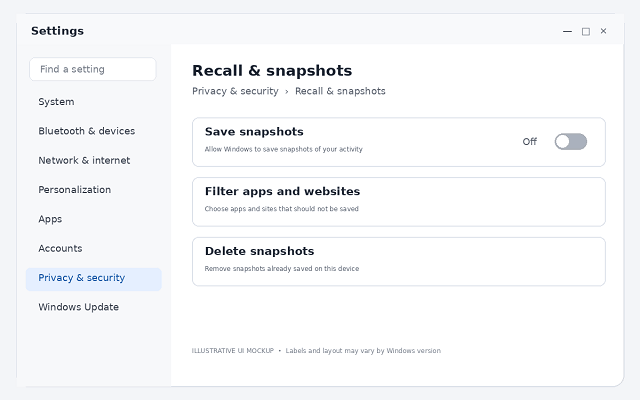
If you do not want Recall to save snapshots, you can turn off snapshot saving. If you want to remove Recall itself, use the Windows optional-features interface where available.
Option 1: Turn off snapshot saving
- Open Settings.
- Select Privacy & security.
- Open Recall & snapshots.
- Find the option to save snapshots.
- Switch Save snapshots to Off.
Use this option if you want to stop Recall from saving new snapshots without removing the entire optional feature.
You can also pause snapshot saving temporarily through the Recall interface, where supported.
Filter Apps and Websites from Recall Snapshots
Turning off Save snapshots stops new snapshots from being saved, but it does not necessarily delete snapshots already stored on your PC. If you want to keep Recall available while reducing what it captures, add sensitive apps and websites to its filter lists.
To filter an app or website, open Settings > Privacy & security > Recall & snapshots. Under the relevant filtering section, choose Add app or Add website, then select the app or enter the website address. The available controls and supported browsers can vary by Windows version.
Recall’s Sensitive information filtering option is enabled by default on supported configurations. It is designed to prevent snapshots from being saved when potentially sensitive information, such as passwords or payment details, is detected. It is a safeguard, not a guarantee that every sensitive item will be identified.
Website filtering applies to foreground tabs in supported browsers. It does not prevent a browser, internet service provider, website, or organization from recording or tracking that the site was visited. Some embedded content or browser-history details may also appear in snapshots.
Delete Existing Recall Snapshots
If you want to remove previously saved content without uninstalling Recall, open Settings > Privacy & security > Recall & snapshots and expand Delete snapshots. Choose Delete all to remove all saved snapshots, or select an available time range and delete snapshots from that period.
You can also delete an individual snapshot from Recall search results. If a snapshot contains content from an app or website you did not previously filter, Recall may offer an option to delete all snapshots associated with that app or site. You can then add it to the filter list to reduce future captures.
Recall processes and stores snapshots locally on the device, and access to Recall settings is protected with Windows Hello. However, Windows diagnostic data remains a separate privacy control. Filtering or deleting Recall snapshots does not turn off diagnostic data collection or browser tracking.
For the latest steps, consult Microsoft’s guides on filtering apps, websites, and sensitive information in Recall and managing Recall snapshots and disk space.
Option 2: Remove Recall through Windows Features
If you want to remove Recall rather than merely stop snapshot saving:
- Open the Start menu.
- Search for Turn Windows features on or off.
- Open the matching Windows Features dialog.
- Find Recall, if it is listed.
- Clear the checkbox.
- Select OK and follow the prompts.
- Restart your PC when requested.
After the restart, Recall should be removed as an optional feature.
Important: Removing Recall deletes previously saved Recall snapshots. If you later reinstall or re-enable Recall, those deleted snapshots are not restored.
If Recall is not listed, confirm your Windows version and whether your PC supports the feature. On organization-managed devices, an administrator may also control whether Recall is available.
Option 3: Advanced removal on supported managed devices
For managed devices, Microsoft documents administrative policies that can disable Recall and remove its component files. Administrators may also use the supported Windows optional-feature management tools where applicable.
This is an advanced procedure and should be used only when the device and Windows build support it. Do not run removal commands copied from an unverified source.
How to verify Recall is disabled or removed
After making the change, reopen Windows Settings and check the Recall & snapshots page. If you removed the optional feature, verify that it is no longer installed and that Windows has completed any requested restart.
If the settings remain available, check whether you only turned off snapshot saving rather than removing Recall.
Remember that disabling Recall does not disable Click to Do everywhere. These features have separate controls, and Click to Do may also operate independently of Recall.
6. Privacy Controls Beyond Windows AI Features
Turning off a Windows AI feature does not automatically stop every kind of data collection or disable AI services you access through a browser. Windows feature settings, diagnostic data, connected experiences, browser privacy settings, and cloud-service account controls serve different purposes. Review the control that matches your concern rather than assuming one switch covers everything.
Distinguish Windows AI from Browser and Cloud Services
Some AI features are built into Windows and may process information locally on your device. For example, Recall stores and analyzes its snapshots locally, while Click to Do performs its initial screen analysis locally on supported PCs. Other features, including many Copilot experiences, send requests to an online service to generate responses or perform tasks.
You can turn off a Windows feature and still access AI through a website, a browser sidebar, or a separate application. Disabling the standalone Copilot app does not block Copilot on the web, Copilot in Edge, or third-party AI websites. To manage those services, review the browser’s settings, the service’s account and privacy controls, and any organization or network policies that apply.
Local processing does not mean that every action stays local. If you choose an action that opens a cloud service, shares content with another app, or uploads a file, that separate action may send information outside your PC. Check what the feature does before using it with sensitive documents.
Manage Connected Experiences and Optional Diagnostic Data
Connected experiences are Windows or Microsoft 365 features that rely on online services to provide functions such as syncing, online content, cloud-backed assistance, or other enhanced features. They are not all AI features. Turning off optional diagnostic data does not automatically turn off connected experiences, and disabling a connected experience may affect useful features beyond AI.
To review Windows diagnostic data, open Settings > Privacy & security > Diagnostics & feedback. You can turn off Send optional diagnostic data if you do not want to send the additional usage and device information included in that category. Windows still sends required diagnostic data on ordinary consumer configurations; the available choices can differ on managed devices.
On the same page, review options such as Tailored experiences or Personalized offers, if shown. These control certain personalized tips, recommendations, and offers based on diagnostic data. They are not a universal switch for AI, cloud services, or all Microsoft data processing.
Connected experiences have their own controls. In Windows, review the settings for the particular online feature you use. In supported Microsoft 365 desktop apps, open File > Account and look for Account Privacy or Manage Settings. Options such as experiences that analyze content or download online content can affect Copilot and other features, so read the descriptions before disabling them. Some controls may be managed by your organization or vary by app and account type.
Important distinction: required diagnostic data, optional diagnostic data, and required service data for connected experiences are separate categories. Turning off optional diagnostic data does not necessarily stop the service data needed for a connected experience to work. See Microsoft’s guidance on Diagnostics, feedback, and privacy in Windows and required service data for Windows.
Review Typing Personalization and Inking Data
Windows typing and inking personalization is separate from Copilot and from optional diagnostic data. To manage the custom word list, open Settings > Privacy & security > Inking & typing personalization and turn off Custom inking and typing word list, if that control is available. Microsoft says this clears the custom word list associated with that personalization feature.
Also review Settings > Privacy & security > Diagnostics & feedback for the Improve inking & typing option, if available on your build. This is a separate choice about sending samples of typing or handwriting input to help improve those features. Its availability and wording can vary by Windows version. Turning off typing personalization does not disable voice typing, speech recognition, keyboard suggestions, or AI in other apps.
For speech and voice privacy, review Settings > Privacy & security > Speech and the microphone permissions under Settings > Privacy & security > Microphone. These controls address different activities: turning off Voice Access, for example, does not automatically turn off voice typing or app-level microphone access.
For Microsoft 365, browser-based AI, and other cloud services, check their privacy controls separately. If you use a work or school account, some options may be controlled by an administrator. Keep in mind that changing diagnostic-data settings is not the same as disabling a feature, and disabling a feature is not the same as deleting data that was already stored.
Practical takeaway: Decide what you want to limit—AI functionality, saved local content, optional diagnostic data, or cloud-connected services—then change the matching setting and verify the result. This avoids disabling useful features unnecessarily or assuming that one privacy control covers every service.
7. Advanced Methods to Disable Windows AI Features
Windows 11 provides several ways to manage AI features beyond the standard Settings app. Some features support administrative policies, while others require app-specific controls or cannot be disabled through a documented registry setting.
Registry Editor gives you direct access to Windows configuration data. However, changing the wrong value can cause unexpected behavior. Use these advanced methods only when ordinary settings do not provide the control you need.
The safest approach is to identify the exact feature, find its documented policy, back up the relevant settings, and test the change. Avoid deleting Windows components simply because their names contain terms such as AI, Copilot, or Fabric.
When to Use Registry Editor Instead of Windows Settings
Use Registry Editor when a documented policy requires a registry value, when you need to inspect a policy applied to your computer, or when you are troubleshooting a setting that does not appear in the Windows interface.
For most users, the Settings app remains the best option. It provides supported controls without requiring manual changes to Windows configuration data.
Consider these differences before choosing a method:
| Method | Best use | Main limitation |
| Windows Settings | Turning individual features on or off | Some controls are unavailable on certain devices or app versions |
| Group Policy Editor | Applying supported policies on compatible Windows editions | Available policy settings vary by Windows version and edition |
| Registry Editor | Inspecting or applying documented registry-based policies | Incorrect edits can cause configuration problems |
| Registry script | Applying a reviewed set of registry changes | A script can modify unintended settings if its contents are incorrect |
| Windows component removal | Removing a supported optional component | Not every AI feature is a separately removable component |
Do not use the registry simply because a tutorial claims it offers a more powerful way to disable AI. A registry value only works when Windows or the relevant application recognizes that value.
Find Supported Registry Policies for Specific AI Features
Before creating a registry value, check Microsoft’s documentation for the exact feature and your Windows version. Microsoft publishes the WindowsAI Policy CSP documentation, which lists supported AI-related policies, their registry mappings, applicable editions, and version requirements.
For example, Microsoft’s documentation describes several policy-based controls:
| AI feature | Documented policy or value | Registry location |
| Recall availability | AllowRecallEnablement | HKEY_LOCAL_MACHINE\SOFTWARE\Policies\Microsoft\Windows\WindowsAI |
| Saving Recall snapshots | DisableAIDataAnalysis | HKEY_LOCAL_MACHINE\SOFTWARE\Policies\Microsoft\Windows\WindowsAI or the corresponding user policy location |
| Click to Do | DisableClickToDo | HKEY_LOCAL_MACHINE\SOFTWARE\Policies\Microsoft\Windows\WindowsAI or the corresponding user policy location |
| Paint Cocreator | DisableCocreator | HKEY_LOCAL_MACHINE\Software\Microsoft\Windows\CurrentVersion\Policies\Paint |
| Paint Image Creator | DisableImageCreator | HKEY_LOCAL_MACHINE\Software\Microsoft\Windows\CurrentVersion\Policies\Paint |
| Settings agentic search | DisableSettingsAgent | HKEY_LOCAL_MACHINE\SOFTWARE\Policies\Microsoft\Windows\WindowsAI |
These are documented policy mappings, not a universal list of values that every Windows 11 PC supports. Some apply only to specific Windows builds, editions, or management scenarios. For policies that support both device and user scope, the correct registry location depends on how the policy is configured. In Microsoft’s current policy reference, DisableClickToDo and DisableSettingsAgent are listed for Windows Insider Preview applicability, while Paint policies have their own edition and build requirements. Do not use those entries on a stable release unless the current documentation explicitly supports your configuration.
The policy’s meaning also matters. For example, DisableAIDataAnalysis controls saving snapshots for Recall; it does not disable every AI feature in Windows. Similarly, a Paint policy can disable a particular AI tool without removing Paint itself. Microsoft’s policy reference provides the applicable requirements and behavior for each setting.
Important: Policy values usually describe the action Windows should take. A value of 1 may mean that a feature is disabled, while another policy may use a different meaning. Always confirm the documented value before editing it.
The older TurnOffWindowsCopilot policy is also documented, but Microsoft marks it as deprecated. Do not assume it controls the newer standalone Copilot app on every Windows 11 build.
Back Up and Modify Registry Settings Safely
Before making registry changes, create a restore point when System Protection is available. Also export the specific registry key you intend to modify. These backups serve different purposes: a restore point can help recover system configuration, while an exported key lets you restore the settings contained in that export.
Follow these steps to back up a registry key:
- Press Windows + R, type regedit, and press Enter.
- Approve the User Account Control prompt if it appears.
- Navigate to the exact registry key identified in the official policy documentation.
- Select the key and choose File > Export.
- Save the exported file with a descriptive name, such as WindowsAI-policy-backup.reg.
- Keep the backup somewhere you can access if the change causes a problem.
Next, inspect the key before changing anything. Check whether the policy value already exists, whether its data matches the documented configuration, and whether another management tool controls it.
If you need to create or modify a value, follow the documented value name, data type, registry path, and setting. Do not create an entire set of guessed values based on names found in online discussions.
If the PC belongs to an employer or school, do not override its policies without authorization. An administrator may manage the same setting through Group Policy or a device-management service.
Create and Inspect a Registry Script
A registry script is a plain-text .reg file that adds, changes, or removes registry values when you import it. It can save time when you need to apply a small set of verified changes, but it does not make those changes safer automatically.
For example, Microsoft documents a registry policy for disabling Paint Cocreator on specified Windows 11 builds and supported editions. The following illustrates the format; use it only if the current Microsoft policy documentation confirms that your Windows edition and build support it:
Windows Registry Editor Version 5.00 [HKEY_LOCAL_MACHINE\Software\Microsoft\Windows\CurrentVersion\Policies\Paint]”DisableCocreator”=dword:00000001
This example is not a universal AI-disabling script. Microsoft’s current policy reference lists Paint Cocreator policy support for specified Windows 11 builds and supported editions, including Pro, Enterprise, and Education. The policy disables Cocreator in Paint; it does not remove Paint or disable other AI features. Check the current WindowsAI Policy CSP documentation before using it.
To create a registry script safely:
- Open Notepad.
- Enter the registry header and only the verified policy values you need.
- Check every key path, value name, and data type against the official documentation.
- Save the file with a .reg extension, such as Disable-ClickToDo.reg. Select All files in the Save as type field so Notepad does not append .txt.
- Right-click the saved file or open it in a text editor to inspect its contents before importing it.
A registry script can contain instructions that delete keys or overwrite existing values. Read the complete file before applying it. Never import a script from an unknown source merely because its filename promises to remove all Windows AI features.
Apply a Registry Script and Verify Its Results
Once you have checked the script and backed up the relevant key, you can apply it.
- Double-click the .reg
- Review the confirmation prompt and verify that the file is the one you intended to import.
- Confirm the import only if you trust the file and understand its changes.
- Restart Windows if the policy documentation or feature requires it.
- Open the affected feature and check whether it behaves as expected.
You can also reopen Registry Editor and navigate to the relevant key to confirm that the value exists and has the expected data. This confirms the registry configuration, but it does not prove that the feature is disabled. Windows may ignore an unsupported value, apply a different policy, or require a restart.
For a more complete check, review the corresponding Windows Settings page, open the relevant app, and test the specific feature. If the setting is managed by an organization, ask the administrator to verify the effective policy.
If the feature still works, do not keep adding registry values at random. Check the policy’s supported Windows versions, confirm whether the value belongs under the user or device policy path, and look for conflicting settings.
Restore Previous Settings and Reverse Registry Changes
If a registry change causes problems, reverse it rather than adding more unverified edits.
The correct reversal depends on what you changed. If you exported the original key, you can import that backup to restore its saved values. However, importing a key export may overwrite values that have changed since the backup was created. Review the file first and avoid restoring an old key over newer, intentional configuration changes.
For a policy value you created yourself, you may be able to delete that specific value or set the policy back to Not Configured through Group Policy Editor. Removing a policy value generally returns control to Windows’ default behavior; it does not guarantee that the feature will remain disabled.
If you changed a value that existed before your edit, restore its original data rather than deleting it. If you cannot identify the original state, use your backup or seek help before making further changes.
After reversing a change:
- Restart the PC if required.
- Check the relevant policy and Settings page.
- Open the affected app and test its behavior.
- Confirm that unrelated Windows functions still work.
A System Restore point may help if broader system configuration problems occur, but it should not replace a targeted registry backup.
Understand the Limits of Removing CBS Packages or AI Components
 Some online guides recommend removing Windows component packages through the Component-Based Servicing (CBS) system or deleting services with names associated with AI. This is a much riskier approach than changing a documented policy.
CBS is part of Windows servicing. It manages Windows components and their installation or maintenance. Packages listed in servicing records are not necessarily standalone AI applications that can be safely removed. Deleting packages, changing servicing records, or removing files manually can damage Windows updates, repairs, or system stability.
Use Windows’ supported optional-feature controls or Microsoft’s documented removal procedure when a component is explicitly supported for removal. For example, Microsoft documents a supported method for removing the Recall optional component in applicable managed-device scenarios. See Manage Recall for Windows clients for the relevant requirements and commands.
Do not run package-removal commands against a component merely because its name contains AI. First establish what the component does, whether it is removable on your build, and whether Microsoft documents a supported removal method.
The same caution applies to services such as an alleged AI Fabric Service. Verify the exact service name, executable path, publisher, and purpose on your own computer before changing its startup type or attempting removal. A name mentioned in a third-party guide is not enough to establish that a service is unnecessary or safe to remove.
Finally, do not confuse user-facing AI features with Windows security protections. Microsoft Defender’s security and cloud-delivered protection features are not equivalent to Copilot or image-generation tools. Disabling security protections can leave your computer more exposed, so keep core antivirus and threat-protection features enabled unless you have a specific, well-understood reason and a suitable alternative.
Practical takeaway: Start with supported Windows settings and documented policies. Use Registry Editor only for a specific, verified control, and avoid removing CBS packages or unidentified services as a general way to turn off AI in Windows 11.
8. Troubleshooting Windows 11 AI Settings
You may find that an AI setting is missing, a disabled feature returns, or a registry change has no visible effect. These problems do not always mean Windows is ignoring your preferences. The feature may require specific hardware, a newer Windows build, an updated app, or an administrator-controlled policy.
Before making further changes, identify the exact feature and confirm how it is managed. The following troubleshooting steps help you narrow down the cause without making unnecessary system changes.
Why Is an AI Setting Missing from Windows Settings?
An AI setting may be missing because your PC does not support the feature, your Windows version is too old, or the relevant app has a different interface. Some controls also depend on your region, account, Windows edition, and organization policies.
Start by checking your Windows version and build.
- Press Windows + R.
- Type winver and press Enter.
- Note the Windows version and OS build.
- Open Settings > Windows Update and install available updates if appropriate.
- Open the app associated with the feature and check whether it needs an update.
Next, check the hardware requirements. Features such as Recall and Click to Do are associated with Copilot+ PCs, so they will not be available on every Windows 11 computer. Microsoft also documents different availability requirements for individual AI features.
If the setting is still missing, consider these possibilities:
- Unsupported hardware: Your PC may not meet the feature’s hardware requirements.
- Different app version: Microsoft may have moved or changed the control.
- Windows edition limitations: Some administrative policies require Pro, Enterprise, Education, or another supported edition.
- Regional or account restrictions: Certain features depend on location, language, or account eligibility.
- Organization management: Your employer or school may hide or lock the setting.
For example, Microsoft documents Click to Do as a Copilot+ PC feature with a dedicated control under Settings > Privacy & security > Click to Do. If that page is absent, check your device eligibility and Windows build before trying registry changes. Microsoft’s Click to Do guide explains its availability and controls.
Why Does Copilot or Another AI Feature Keep Returning?
An AI feature may return after a Windows update, an app update, a policy refresh, or a change to your account or device configuration. It is also possible that you disabled one version of a feature while another integration remains available.
First, identify what has returned. A Copilot taskbar icon, the standalone Copilot app, Copilot inside Edge, and Copilot in Microsoft 365 are separate experiences. Removing one does not necessarily remove the others.
Try the following checks:
- Open Settings > Apps > Installed apps and search for Microsoft Copilot.
- If the standalone app is installed and you no longer want it, use its available uninstall option.
- Check the relevant app’s own settings, such as Edge, Notepad, Paint, or Outlook.
- Review the Windows taskbar settings if the issue is only a visible icon.
- If the PC is managed by an organization, ask whether a policy reinstalls, pins, or controls the app.
Microsoft documents separate methods for removing or blocking the consumer Copilot app on supported managed devices. Its older TurnOffWindowsCopilot policy is deprecated and does not control every version of the newer Copilot experience. See Microsoft’s Windows Copilot management guidance.
Avoid repeatedly uninstalling the app without finding out why it returns. If an update or management policy is responsible, address that cause using a supported method rather than deleting unrelated Windows components.
Why Is a Registry Change Not Working?
A registry change may have no effect because the value is incorrect, the policy is unsupported on your Windows build, or another configuration overrides it. In some cases, the registry value is present but does not control the feature you intended to disable.
Check these points in order.
Confirm the registry path. Open Registry Editor and navigate to the exact key documented for the feature. A value under a user-specific key may behave differently from one under a computer-wide policy key.
Check the value name and data. Verify the spelling, data type, and expected value. Some policies use DWORD (32-bit) Value, even on 64-bit Windows. Do not assume that setting every value to 1 disables the corresponding feature.
Verify policy support. Read the relevant entry in Microsoft’s WindowsAI Policy CSP reference. Check its supported editions, applicable Windows versions, scope, and documented behavior.
Restart or refresh when required. Some changes take effect only after a restart or policy refresh. Follow the instructions for the specific policy instead of restarting repeatedly without checking its requirements.
Check for a different integration. Disabling a Windows AI feature does not necessarily disable the same service in a separate app. For example, disabling a Windows Copilot policy is not a universal switch for Copilot in Edge or Microsoft 365.
If the value is correct but the feature remains available, stop adding more registry entries. Recheck the documented policy and determine whether the control applies to your version of the feature.
How to Diagnose Conflicts Between Windows Settings and Policies
Windows settings and administrative policies can control the same feature. When they conflict, the effective behavior may not match the option you changed in the Settings app.
This is particularly relevant on computers managed by an employer, school, or device-management service. A policy may restrict a setting, prevent an app from running, or remove a feature from the device.
Start with the following checks.
- Open Settings > Accounts > Access work or school and check whether an organization account is connected.
- If your Windows edition includes Group Policy Editor, press Windows + R, enter msc, and press Enter.
- Review the relevant policy under the documented administrative template path.
- If your device is managed, contact its administrator before changing organization-controlled settings.
For example, Microsoft’s Windows AI policies include controls for features such as Recall and Click to Do. Their scope and availability differ, so the correct policy depends on the feature and device configuration. Review the official policy documentation before drawing conclusions about a conflict.
On a managed PC, the policy displayed in Group Policy Editor may not show every setting delivered through mobile device management. If you cannot identify the effective configuration, ask the administrator to check the applicable policy in the management system.
Do not try to bypass workplace or school restrictions by changing registry values. Resolve the conflict through the supported management process.
How to Confirm That an AI Feature Is Actually Disabled
Hiding an icon or changing a registry value does not automatically prove that an AI feature is disabled. You need to check the setting and test the specific function.
Use this verification process after making a change.
- Check the control you changed. Reopen the relevant Settings page or app preferences. Confirm that the feature is switched off or that the documented policy is configured as intended.
- Test the actual feature. If you disabled Click to Do, test its supported shortcut. If you disabled an AI tool in Paint, open Paint and check whether that tool remains available. If you uninstalled Copilot, confirm that the standalone app no longer appears in Installed apps.
- Distinguish hiding from disabling. A missing taskbar icon may only mean that the entry point is hidden. The underlying app or service may still be available through Start, another app, or a keyboard shortcut.
- Check whether a restart is required. Some changes take effect immediately, while others require a restart or policy refresh. Follow the feature’s documented instructions.
- Check related apps separately. Disabling AI in Windows does not automatically disable Copilot in Edge, Outlook, Word, or other Microsoft applications. Review each relevant app if your goal is to reduce AI integrations across your computer.
- Recheck after updates. If a Windows or app update changes the interface or policy behavior, verify the setting again. Do not assume that an older registry workaround remains effective.
Keep a short record of the feature, the setting or policy you changed, and the date of the change. This makes it easier to identify the cause if the feature returns or an app behaves differently.
Practical takeaway: Troubleshoot the feature itself before changing the registry again. Confirm compatibility, inspect the relevant setting, check for organization policies, and test the feature directly. These steps help distinguish a genuine configuration problem from a hidden icon or an unrelated AI integration.
9. Should You Disable AI-Powered Security in Microsoft Defender?
You generally should not disable AI-assisted security features in Microsoft Defender just to turn off AI in Windows 11. These protections serve a different purpose from Copilot, AI writing tools, image generators, and other user-facing features.
Windows 11 uses machine learning, behavior analysis, and cloud-delivered threat intelligence to help identify malware and suspicious activity. These technologies work alongside traditional antivirus scanning to protect your computer against known and emerging threats. Microsoft recommends keeping cloud-delivered protection enabled. Microsoft Defender cloud protection documentation.
User-Facing AI Features vs. AI-Powered Security
User-facing AI features help you complete tasks, generate content, or interact with Windows. Security-focused AI works in the background to detect and block potential threats.
| Feature type | Examples | Recommended action |
| AI assistants | Microsoft Copilot and Copilot integrations | Disable or remove the features you do not want |
| AI writing and image tools | Notepad writing tools, Paint Cocreator | Use available app-specific controls |
| AI screen analysis | Recall and Click to Do | Manage through supported privacy and feature settings |
| Antivirus protection | Microsoft Defender real-time protection | Keep enabled unless a suitable alternative is protecting your device |
| Cloud-delivered security | Defender cloud-delivered protection | Keep enabled for stronger detection of emerging threats |
| Suspicious file analysis | Automatic sample submission | Review the privacy settings and available options rather than disabling protection indiscriminately |
Disabling Copilot does not require you to disable Microsoft Defender. You can remove unwanted AI interfaces while keeping the security features that protect your files and applications.
Why Microsoft Defender Uses AI and Machine Learning
Traditional antivirus software often relies on known threat signatures. Modern malware can change quickly, making signature-based detection alone insufficient.
Microsoft Defender combines several detection methods. These include real-time scanning, behavior monitoring, heuristics, security intelligence updates, and cloud-assisted analysis. Machine learning can help identify suspicious files and activity that do not match previously known threats. Microsoft’s overview of Defender Antivirus explains how these protection layers work together.
Cloud-delivered protection also allows Defender to use current information from Microsoft’s security services. This can improve its ability to detect and respond to new threats without relying only on locally stored signatures.
Turning off these protections can reduce your computer’s ability to detect emerging malware. It may also disable or limit security capabilities that depend on cloud services. For that reason, disabling Defender’s cloud protection is not a recommended way to reduce unwanted AI functionality.
How to Check Your Microsoft Defender Security Settings
You can review the important protection settings without changing your AI preferences.
- Open the Start menu and search for Windows Security.
- Select Virus & threat protection.
- Under Virus & threat protection settings, select Manage settings.
- Confirm that Real-time protection is turned on.
- Confirm that Cloud-delivered protection is turned on.
- Review Automatic sample submission and choose an appropriate setting for your privacy needs.
Microsoft recommends keeping cloud-delivered protection enabled. Automatic sample submission is a separate control that affects whether suspicious files are sent to Microsoft for analysis. If you have privacy concerns, review that setting and its available options rather than disabling your entire antivirus protection. Microsoft’s Windows Security instructions explain these controls.
The settings available to you may differ if your PC is managed by an organization or uses another antivirus product. If another antivirus is installed and registered with Windows, Microsoft Defender Antivirus may switch to a different operating mode automatically.
What If You Want More Privacy Without Weakening Security?
You can reduce unwanted AI integrations without sacrificing essential protection.
Start by removing or disabling features you do not use, such as the standalone Copilot app, optional AI writing tools, or supported screen-analysis features. Review the privacy controls for each app separately because disabling one feature does not necessarily affect other applications.
For security-related privacy concerns, review automatic sample submission and your organization’s privacy policies. Cloud-delivered protection and sample submission are related but distinct settings. Changing one does not necessarily require turning off the other.
Avoid registry scripts that disable Defender services, remove security components, or switch off multiple protections under the label of removing Windows AI. Such scripts can leave your computer exposed without actually removing the user-facing AI features you wanted to disable.
Final recommendation: Disable the optional AI features you do not want, but keep Microsoft Defender’s real-time antivirus and cloud-delivered protection enabled. This gives you more control over Windows AI features without unnecessarily weakening your PC’s security.
Use these Microsoft support pages to verify feature availability and settings. Windows menus can change between builds, so check the instructions that match your device.
- Manage privacy and snapshots in Recall
- Uninstall the Microsoft Copilot app
- Manage speech, inking, typing, and privacy
- Manage diagnostics and feedback in Windows
- Uninstall apps in Windows
Official Microsoft References
Frequently Asked Questions
Can I turn off all AI features in Windows 11?
No. Windows 11 does not provide one universal switch that disables every AI feature across the operating system and its apps. You can uninstall Copilot, turn off supported features such as Recall, and manage AI tools individually in apps like Paint, Notepad, Edge, and Microsoft 365. Some features also depend on your Windows version, hardware, and device policies.
Can I disable AI without using Registry Editor?
Yes. You can disable or remove many AI features through Windows Settings, app settings, and supported Windows optional-feature controls. For example, you can uninstall the standalone Copilot app through Settings > Apps > Installed apps and manage Recall through Settings > Privacy & security > Recall & snapshots. Registry Editor is mainly useful for specific documented policies or advanced troubleshooting.
Does removing Copilot disable AI in other apps?
No. Removing the standalone Copilot app does not automatically disable AI features in Microsoft Edge, Paint, Notepad, Outlook, or other Microsoft 365 apps. These features have separate controls, and some may remain available through their respective apps or services. Review each app individually to disable the features you do not want.
Will Windows updates re-enable AI features?
Sometimes. Windows or app updates can change feature availability, settings, and the way certain controls work. Organization policies may also affect whether a feature remains available. After a significant update, check the settings for any AI features you previously disabled and verify that they still behave as expected.
Can disabling AI improve performance or privacy?
It can, depending on the feature. Turning off an unused background feature may reduce some activity, but you should not expect a noticeable performance improvement from disabling every AI option. Privacy benefits also depend on what the feature does. For example, disabling Recall snapshot saving prevents new snapshots from being saved, while disabling a visible Copilot icon alone does not necessarily change data processing in other apps.
Is it safe to use registry scripts to disable AI?
Registry scripts can be safe when they contain verified changes for supported Windows policies, but incorrect scripts can cause configuration problems. Back up the relevant registry key, inspect every line, and check Microsoft’s documentation before importing a file. Avoid scripts that promise to remove all AI features or delete Windows packages and unidentified services. Use Windows Settings or documented policies whenever possible.
Final Thoughts: Take Control of AI Features in Windows 11
Windows 11 includes AI features across its settings, built-in apps, and Microsoft services. Some people find these tools useful, while others prefer a simpler interface and greater control over their PC.
The good news is that you can disable or remove many unwanted AI features without changing every Windows setting. You can uninstall the standalone Copilot app, manage Recall, turn off supported features in Paint and Notepad, and adjust AI controls in Microsoft Edge and Microsoft 365 apps.
However, Windows 11 does not have one switch that disables every AI function. Some features require specific hardware, while others depend on your Windows build, app version, or organization policies. Hiding an icon also does not necessarily disable the underlying feature.
For most users, the best approach is to start with Windows Settings and each app’s built-in controls. Use Group Policy or Registry Editor only when a documented policy provides the control you need. Always back up your settings before making advanced changes, and avoid scripts that promise to remove every AI component or delete unidentified Windows services.
Most importantly, keep essential security protections enabled. Turning off Copilot and optional AI tools does not require disabling Microsoft Defender’s real-time antivirus or cloud-delivered protection.
Take a feature-by-feature approach. Disable what you do not need, keep the tools that benefit you, and verify each change after applying it. This gives you greater control over AI in Windows 11 while helping maintain your PC’s stability, privacy, and security.