
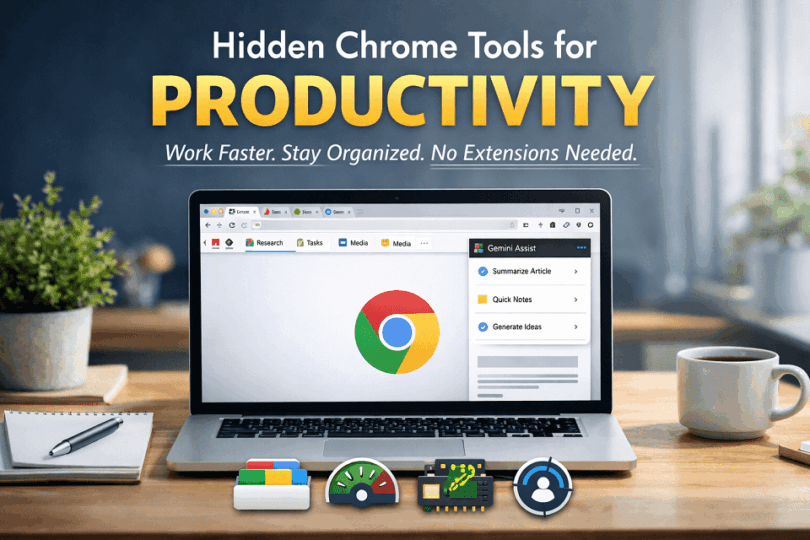

Google Chrome has powerful built-in productivity tools that most users never explore. From tab grouping to task management shortcuts, these hidden Chrome tools for productivity can save time and reduce distractions instantly.
Introduction:
Google Chrome is the most used web browser in the world. Millions of people use it daily for work, study, research, and entertainment. But most users only use Chrome for basic browsing. They open tabs, search on Google, and install extensions.
What many people do not realize is this: Chrome already has powerful built-in productivity tools.
You do not always need extra extensions to work faster. In fact, too many extensions can slow down your browser and consume memory. Chrome includes hidden tools that help you:
- Organize tabs
- Reduce distractions
- Improve focus
- Manage memory usage
- Save time every day
These features are built into Chrome. They are free, secure, and easy to use.
In this guide, you will discover hidden Chrome tools for productivity that most people ignore. Each tool is practical. Each one can improve your workflow immediately.
If you use Chrome for work, school, blogging, research, or business, this guide will help you get more done with less effort.
Quick Answer: Chrome includes built-in productivity tools like Tab Groups, Task Manager, Memory Saver, Focus Mode, and AI side panel features that help you work faster without installing extensions.
12 Hidden Chrome Tools for Productivity
Google Chrome includes several built-in tools that improve focus, organization, and workflow. Most users never explore them. Below are powerful Chrome features that can help you work faster without installing extra extensions.
- Tab Groups (Organize Work Instantly)
What it does: Lets you color-code and collapse tabs into organized clusters.
Why it boosts productivity:
- Reduces tab clutter
- Improves focus
- Helps manage multiple projects
ProDigital Tip: Right-click a tab → “Add to new group”.
- Chrome Task Manager (Yes, Chrome Has One)
Shortcut: Shift + Esc
It shows:
- Memory usage
- CPU usage
- Misbehaving tabs
Perfect when Chrome feels slow.
- Live Captions for Meetings & Videos
Enable via:
Settings → Accessibility → Live Caption
Useful for:
- Noisy environments
- Watching tutorials silently
- Accessibility needs
- Reading Mode (Distraction-Free Content)
Removes:
- Ads
- Sidebars
- Visual clutter
Ideal for research and long articles.
- Tab Search (Find Any Tab in Seconds)
Press: Ctrl + Shift + A
Great for users with 20+ open tabs.
- Focus Mode (Open as App)
Turn any website into a distraction-free app:
- Three dots → More Tools → Create Shortcut → Open as Window
Excellent for:
- Gmail
- Notion
- Trello
- Docs
- Built-in Password Manager
Chrome’s native password tool:
- Generates strong passwords
- Auto-fills securely
- Syncs across devices
- Performance Saver Mode
Settings → Performance → Memory Saver
Suspends inactive tabs automatically.
- Clipboard History (via ChromeOS & Windows Integration)
Improves copy-paste workflow when synced with a Google account.
- Google Lens Inside Chrome
Right-click → Search Image with Google
Powerful for:
- Research
- Product comparison
- Visual identification
- Pin Tabs
Keeps important tools permanently visible.
- Omnibox Shortcuts
Type:
- calc for calculations
- timer for quick timers
- Website name + Tab to search directly
Tab Groups (Organize Your Work Instantly)
Tab Groups help you organize multiple Chrome tabs into labeled and color-coded sections so you can work without visual clutter.
If you often keep many tabs open, then your browser can quickly become messy. Tab Groups bring structure and clarity. They enable you to group related tabs under a single label and manage them as a unified unit.
How to Use Tab Groups
- Right-click on a tab.
- Select Add tab to new group.
- Give the group a name.
- Choose a color.
After creating a group, you can drag other related tabs into it. This helps you organize work based on projects or tasks.
Why It Improves Productivity
Tab Groups reduce visual overload. Instead of scrolling through dozens of tabs, you see clearly labeled sections. You can collapse a group when you are not using it and expand it when needed.
You can also move an entire group together to reorganize your workspace. If a project is finished, you can close all related tabs at once.
This feature is useful when managing client work, research tasks, study materials, or personal browsing sessions. A clean tab layout improves focus and helps you switch between tasks more efficiently.
Over time, this small habit can save significant time and mental effort.
Chrome Task Manager (Control Memory Usage)
Chrome Task Manager shows which tabs, extensions, and processes are using your system memory and CPU in real time.
Many users restart Chrome when it becomes slow. However, Chrome has a built-in Task Manager that helps you identify the exact problem.
How to Open Chrome Task Manager
- Press Shift + Esc on your keyboard.
- Or click the three dots menu.
- Go to More Tools.
- Select Task Manager.
Once opened, you will see a list of active tabs, extensions, and background processes.
Why It Improves Productivity
The Task Manager shows how much memory and CPU each tab is consuming. If one tab is using excessive resources, then you can end only that process instead of closing the entire browser.
This is useful when:
- A website freezes
- A tab becomes unresponsive
- Chrome starts lagging
- An extension consumes too much memory
Instead of guessing the issue, you get clear data. You can quickly close the problematic tab and continue working without losing other open pages.
This small feature prevents unnecessary restarts and protects your workflow from interruptions.
Tab Search (Find Any Tab in Seconds)
Tab Search lets you instantly find any open Chrome tab by typing its name instead of manually scanning through dozens of tabs.
If you work with many tabs open, then finding the right one can waste valuable time. Scrolling left and right across the tab bar is inefficient during research or multitasking.
How to Use Tab Search
- Press Ctrl + Shift + A.
- Click the small dropdown arrow in the top-right corner of Chrome.
- Type a keyword from the tab title.
- Select the correct tab from the list.
Chrome immediately switches you to that tab.
Why It Improves Productivity
Tab Search removes friction from multitasking. Instead of reopening the same page because you cannot find it, you can search and jump directly to it.
This reduces duplicate tabs and keeps your workspace clean. It also saves time when switching between documents, research articles, or dashboards.
When you repeat this action several times a day, the time saved becomes significant. It is a small tool, but it makes a noticeable difference in workflow efficiency.
Reading Mode (Distraction-Free Viewing)
Reading Mode removes ads, pop-ups, and sidebars so you can focus only on the main content of a webpage.
Modern websites are filled with banners, notifications, and visual elements that compete for attention. While these elements are useful for publishers, they often reduce focus for readers.
Reading Mode simplifies the page layout and highlights the core text.
How to Enable Reading Mode
- Open the Chrome side panel.
- Select Reading mode if available.
- Or enable it through Chrome settings under Appearance (depending on version).
- Some versions may require enabling it via Chrome flags.
Once activated, the page appears cleaner and easier to read.
Why It Improves Productivity
Reading Mode reduces visual noise. When distractions disappear, your brain processes information faster. This is useful when reading long tutorials, research papers, or documentation.
You can adjust font size and style in some versions. This improves comfort during extended reading sessions. A clean interface also reduces eye strain.
For students, researchers, bloggers, and professionals, this tool improves comprehension and helps maintain focus for longer periods.
Tab Search (Find Any Tab in Seconds)
Tab Search helps you quickly locate any open tab by typing its title instead of manually scanning through the tab bar.
When you have many tabs open, finding the right one becomes difficult. You may scroll left and right or open the same page again because you cannot find it. Tab Search solves this problem instantly.
How to Use Tab Search
- Press Ctrl + Shift + A.
- Or click the small arrow at the top-right of the tab bar.
- Type a keyword from the tab title.
- Click the result to switch to that tab.
Chrome shows a searchable list of all open tabs across windows.
Why It Improves Productivity
Tab Search reduces time spent navigating. Instead of reopening duplicate pages, you can jump directly to the tab you need.
It also keeps your browser organized. Fewer duplicate tabs mean lower memory usage and less clutter. When you switch between research documents, dashboards, and articles multiple times a day, this small feature saves noticeable time.
Simple tools like this remove friction from your workflow and make multitasking smoother.
Focus Mode (Open as App)
Focus Mode lets you open any website in a separate app-like window without tabs, bookmarks, or distractions.
Many people work inside web apps such as Gmail, Notion, Trello, or Google Docs. When these tools are open in a regular browser tab, other tabs can easily distract you. Focus Mode removes that distraction.
How to Enable Focus Mode
- Click the three dots menu in Chrome.
- Go to More Tools.
- Select Create Shortcut.
- Check Open as Window and confirm.
Chrome will create a standalone window for that website. It looks and behaves like a desktop app.
Why It Improves Productivity
Opening a site as a separate window isolates it from your main browser activity. You do not see other tabs, notifications, or unnecessary clutter.
This helps when:
- Writing emails
- Managing projects
- Attending virtual meetings
- Working on documents
It creates mental separation between tasks. When tools are separated, your focus improves. Over time, this reduces context switching and increases efficiency during deep work sessions.
Built-in Password Manager
Chrome’s built-in Password Manager securely stores, generates, and autofills passwords so you can log in faster without remembering every credential.
Many users install third-party password tools. However, Chrome already includes a secure password system that syncs across devices when you sign in with your Google account.
How to Access the Password Manager
- Open Chrome Settings.
- Go to Autofill and passwords.
- Click Google Password Manager.
- View, edit, or delete saved passwords.
Chrome can also suggest strong passwords when creating new accounts.
Why It Improves Productivity
You save time during logins because Chrome autofills credentials instantly. There is no need to reset forgotten passwords frequently.
It also improves security. Chrome alerts you if:
- A password is weak.
- A password has been reused.
- A password appears in a data breach.
Stronger passwords reduce the risk of account compromise. Fewer security issues mean fewer interruptions in your workflow.
For daily users, this feature combines convenience and protection in one simple system.
Performance Saver Mode
Performance Saver Mode reduces memory usage by putting inactive tabs to sleep so Chrome runs faster and more smoothly.
When many tabs stay open for long periods, they consume RAM even if you are not using them. This can slow down your system on laptops with limited memory.
Performance Saver automatically manages this in the background.
How to Enable Performance Saver
- Open Chrome Settings.
- Go to Performance.
- Turn on Memory Saver.
- Add important websites to the “Always keep active” list if needed.
Once enabled, Chrome suspends inactive tabs and reloads them only when you return.
Why It Improves Productivity
A faster browser means fewer interruptions. You experience less lag when switching tabs or opening new pages.
This is particularly helpful when:
- Running multiple web apps
- Working on older laptops
- Managing heavy research sessions
- Attending online meetings in the browser
Better performance reduces frustration and keeps your workflow smooth throughout the day.
Clipboard History (via ChromeOS & Windows Integration)
Clipboard History lets you access multiple copied items instead of only the most recent one. This improves copy-paste efficiency.
While this feature is managed by the operating system, it works seamlessly with Chrome. If you copy text, links, or images while browsing, then you can quickly reuse them without copying again.
How to Enable Clipboard History (Windows)
- Press Win + V.
- Click Turn On when prompted.
- Copy multiple items as usual.
- Press Win + V anytime to view history.
On ChromeOS, a similar clipboard history shortcut is available using the search key + V.
Why It Improves Productivity
Normally, copying a new item replaces the previous one. Clipboard History removes that limitation. You can copy several links, quotes, or snippets and paste them one by one later.
This is useful when:
- Writing blog posts
- Doing research
- Collecting references
- Managing data entry
Instead of switching back and forth between tabs repeatedly, you gather content once and paste it efficiently. Small workflow improvements like this significantly reduce repetitive actions and save time.
Google Lens Inside Chrome
Google Lens inside Chrome lets you search using images instead of text. This is making research faster and more visual.
Many users manually describe what they see in an image. With Google Lens, you can search directly from the image itself. This works on products, landmarks, text, and even objects inside a picture.
How to Use Google Lens in Chrome
- Right-click on any image.
- Select Search image with Google Lens.
- Highlight a specific area if needed.
- View related results in the side panel.
You can also use Lens to copy text from images or translate it instantly.
Why It Improves Productivity
Visual search reduces effort. Instead of typing long descriptions, you get immediate results based on what you see.
It is especially useful when:
- Comparing products
- Identifying objects
- Extracting text from images
- Researching visual content
For bloggers, students, and professionals, this tool speeds up image-based research and content creation. It removes unnecessary steps and improves workflow efficiency.
Omnibox Shortcuts
The Chrome Omnibox (address bar) can perform calculations, conversions, and direct site searches without opening new tabs.
Most users use the address bar only for typing website names or search queries. However, the Omnibox works like a mini productivity tool built into Chrome.
What You Can Do with Omnibox
- Type math problems like 45*12 to get instant results.
- Convert units such as 10 USD to INR or 5 km to miles.
- Type a website name and press Tab to search inside it.
- Start quick searches without opening Google first.
These actions happen directly in the address bar.
Why It Improves Productivity
You avoid switching between tabs for simple tasks. Small actions like opening a calculator or searching inside a website may seem minor, but they add up over time.
For example, instead of:
Opening Google → Typing a query → Clicking search → Navigating results,
You simply type in the address bar and get results instantly.
This reduces friction in your workflow. The Omnibox saves seconds repeatedly, which turns into meaningful time savings across weeks and months.
Pin Tabs (Keep Important Sites Always Accessible)
Pin Tabs allows you to lock important websites to the left side of your browser so they stay visible and protected from accidental closure.
If you frequently use tools like Gmail, project dashboards, or messaging apps, reopening them repeatedly wastes time. Pinning keeps them fixed in place.
How to Pin a Tab
- Right-click on any open tab.
- Select Pin.
- The tab shrinks and moves to the left.
- It stays pinned even after reopening Chrome (if session restore is enabled).
Pinned tabs take up less space and cannot be closed accidentally with normal tab shortcuts.
Why It Improves Productivity
Pin Tabs reduces repetitive actions. Instead of reopening essential tools multiple times a day, they remain ready for use.
It also keeps your browser organized. Important tabs stay separated from temporary research tabs.
This small feature creates consistency in your workflow. When your key tools are always visible, task switching becomes faster and more efficient.
Why Most Users Don’t Know About These Chrome Tools
Most Chrome users only use the browser for basic tasks like searching, opening tabs, and installing extensions. They rarely explore settings or built-in features.
There are several reasons why these powerful tools remain hidden.
First, Chrome does not actively promote many of its advanced features. Tools like Tab Search, Task Manager, or Memory Saver are available, but they are not clearly visible on the main interface.
Second, many tutorials online focus on extensions. When users search for productivity tips, they often see lists of third-party add-ons instead of built-in Chrome tools. This creates the impression that extra software is necessary.
Third, users tend to stick to familiar habits. If someone has been browsing the same way for years, then they may never look for new features unless a problem occurs.
Another reason is interface simplicity. Chrome is designed to look clean and minimal. While this improves usability, it also hides deeper functionality inside menus and settings.
As a result, many people install heavy extensions for features that already exist inside the browser. This increases memory usage and can slow down performance.
Understanding these built-in tools gives you an advantage. You work faster, reduce clutter, and avoid unnecessary add-ons. Sometimes, productivity improves not by adding more tools, but by using what you already have.
Hidden Chrome Tools vs Extensions
Many users install extensions to improve productivity. Extensions can be powerful. However, Chrome already includes several built-in tools that handle common tasks efficiently.
Before adding new extensions, it is important to understand the difference.
Built-in Chrome tools are developed and maintained by Google. They are optimized for performance and security. Since they are part of the browser, they do not require separate installation.
Extensions, on the other hand, are third-party add-ons. They can add advanced features, but they also consume memory and may request additional permissions.
When Built-in Tools Are Better
Built-in tools are ideal when you want:
- Faster browser performance
- Better security and stability
- Minimal memory usage
- Simple, distraction-free workflow
For example, Tab Groups, Task Manager, and Memory Saver already solve common productivity issues without adding extra load to the browser.
When Extensions Make Sense
Extensions are useful when you need specialized features that Chrome does not provide natively. For example, advanced grammar checking, automation tools, or niche productivity systems.
However, installing too many extensions can slow down Chrome and increase security risks.
Below is a clear comparison to help you decide:
| Feature Area | Hidden Chrome Tools | Extensions |
| Installation Required | No | Yes |
| Performance Impact | Lightweight and optimized | Can increase memory and CPU usage |
| Security Risk | Maintained by Google | Depends on a third-party developer |
| Updates | Automatic with Chrome updates | Separate updates required |
| Best For | Every day productivity and stability | Advanced or specialized features |
In most cases, it is better to use built-in tools first. Add extensions only when necessary. This keeps your browser faster, cleaner, and more secure.
Emerging or AI-Powered Chrome Productivity Features
Chrome is evolving from a simple browser into a smart, AI-enhanced workspace. Gone are the days when the address bar and basic tools were all you had. Google has been rolling out new artificial intelligence features that make browsing faster, more intuitive, and more productive for research, multitasking, and content work.
1. Gemini in Chrome — Your AI Assistant Inside the Browser
Chrome now integrates Gemini AI directly into the browser as an assistant you can access from any tab. Instead of switching between tabs or copy-pasting text into another app, Gemini can:
- Summarize long articles and pages.
- Answer questions based on what you’re reading.
- Provide insights without leaving the tab.
- Compare information across multiple tabs.
This feature turns the browser into a more intelligent workspace. You can get quick takeaways, clarify complex ideas, or generate outlines based on open page content without extra tools.
2. Persistent AI Side Panel for Multitasking
The new Gemini side panel stays open alongside your tab so you can multitask more effectively. You can keep your main work visible while using the side panel to:
- Summarize pages.
- Draft emails or messages.
- Compare research findings.
- Brainstorm ideas in real time.
This split-screen productivity boost means you don’t have to constantly switch between tabs for different tasks, saving time and reducing context loss during deep work.
3. Auto-Browse — Let the Browser Do the Work
Chrome is introducing an agentic AI feature called Auto Browse that can perform multi-step tasks on your behalf. Unlike a simple assistant that suggests actions, this tool can navigate the web, compare options, and complete tasks based on your instructions.
Auto Browse can help with:
- Researching flight or hotel options.
- Comparing product prices across sites.
- Filling forms or gathering segmented data.
- Planning schedules or extracting information from emails.
This is one of the most advanced productivity tools because it turns browsing into an automated workflow, reducing repetitive tasks for you.
4. AI-Powered Image Editing and Summaries
With AI now part of Chrome’s side panel, you can also:
- Transform or edit images without leaving the browser.
- Extract meaningful summaries from visual content.
- Get AI descriptions of images directly in the browser window.
These capabilities help content creators and researchers handle visual information faster without resorting to external tools.
5. Context-Aware Suggestions and Smarter Search
Chrome’s AI upgrades extend to smarter search experiences right from the browser:
- The Omnibox (address bar) will eventually provide AI Mode for contextual answers.
- You will see richer, more relevant suggestions that consider your open tabs and browsing history.
- AI aids like scam protection and improved password protection are also being enhanced with intelligence.
These changes reduce the number of steps needed to find answers or solve problems online.
Summary — What These AI Productivity Features Mean for You
Chrome is no longer just a portal to the web; it is becoming a dynamic productivity platform. Unlike extensions that need separate installation, these native AI tools work inside the browser, helping you:
- Understand complex information faster.
- Automate repetitive browsing tasks.
- Keep research and writing workflows streamlined.
- Reduce context-switching between tools.
Leveraging these features can significantly boost workflow efficiency without bloating your browser with third-party add-ons.
Chrome Accessibility Tools That Boost Productivity
Accessibility features are designed to help users with different needs. However, many of these tools also improve focus, readability, and efficiency for everyone.
Chrome includes several built-in accessibility settings that can enhance your daily workflow without installing extensions.
1. Live Caption (Real-Time Subtitles)
Live Caption automatically generates subtitles for audio and video played in Chrome.
You can enable it from:
Settings → Accessibility → Turn on Live Caption.
This tool helps when:
- Watching tutorials in a noisy place
- Attending meetings without headphones
- Improving comprehension while learning
- Reviewing video content quietly
Reading and listening together improve retention. It also allows you to consume content silently during travel or shared workspaces.
2. Page Zoom and Text Scaling
Chrome allows you to adjust page zoom and font size for better readability.
You can:
- Press Ctrl + Plus (+) to zoom in
- Press Ctrl + Minus (−) to zoom out
- Set default zoom in Settings → Appearance
- Adjust font size globally
Larger text reduces eye strain during long reading sessions. This is useful when working on research, documentation, or detailed content.
Better readability means longer focus and less fatigue.
3. High Contrast and Color Adjustments
High contrast and dark mode settings improve visual clarity and reduce strain.
Chrome supports system-based dark mode and theme customization. You can also use high-contrast settings through your operating system.
These settings help when:
- Working at night
- Reading text-heavy pages
- Reducing glare
- Improving visual clarity
Comfortable viewing conditions increase concentration and reduce distractions caused by eye discomfort.
4. Keyboard Navigation and Shortcuts
Chrome supports full keyboard navigation, allowing you to browse without relying on a mouse.
You can:
- Use Tab to move between elements
- Press Ctrl + L to jump to the address bar
- Use Ctrl + W to close tabs
- Use Ctrl + Shift + T to reopen closed tabs
Keyboard navigation speeds up workflow. It reduces hand movement and improves efficiency, especially for power users.
Why Accessibility Features Improve Productivity
Accessibility tools are not limited to specific users. They enhance clarity, reduce distractions, and make browsing more comfortable.
When text is easier to read, navigation is faster, and audio is supported by captions, your brain processes information more efficiently.
Productivity often improves through small usability changes. Chrome’s accessibility tools provide these improvements without adding extra software.
Hidden Keyboard Shortcuts Users Love
Keyboard shortcuts are one of the fastest ways to boost productivity in Chrome. Most users know basic shortcuts like Ctrl + T for a new tab. However, many powerful shortcuts remain underused.
These shortcuts reduce mouse movement, speed up navigation, and improve multitasking.
1. Reopen Closed Tabs Instantly
Press Ctrl + Shift + T to reopen the last closed tab.
You can press it multiple times to reopen several closed tabs in order.
This shortcut is helpful when:
- You accidentally close an important page
- Your browser crashes
- You want to restore a previous session
- You close a research tab by mistake
Instead of searching again, you recover your work instantly.
2. Jump Between Tabs Quickly
Use Ctrl + Tab to move to the next tab.
Use Ctrl + Shift + Tab to move to the previous tab.
You can also press Ctrl + 1 to Ctrl + 8 to jump directly to a specific tab position.
This makes multitasking smoother. Instead of clicking tabs manually, you move through them instantly.
3. Search Inside a Page
Press Ctrl + F to search for specific words on a webpage.
This feature is useful when:
- Reading long articles
- Scanning documentation
- Finding keywords quickly
- Reviewing reports
Instead of scrolling manually, you jump directly to relevant content.
4. Move the Cursor to the Address Bar
Press Ctrl + L to instantly highlight the address bar.
This allows you to:
- Type a new search
- Paste a URL
- Edit the current address
- Start a quick calculation
It removes the need to click manually with a mouse.
5. Open a Link in a New Background Tab
Hold Ctrl and click a link to open it in a new tab without leaving the current page.
You can continue reading while loading other pages in the background.
This is especially useful during research sessions. You gather multiple sources first, and then review them one by one.
Why Keyboard Shortcuts Matter
Keyboard shortcuts remove small delays from your workflow. Each action may save only a few seconds. However, repeated dozens of times daily, the time saved becomes significant.
They also reduce context switching between keyboard and mouse. This improves speed and keeps you focused.
For power users, shortcuts turn Chrome into a faster and more efficient work environment.
Advanced Tab Management Techniques
Managing tabs is not only about opening and closing them. Chrome offers deeper tab controls that help you stay organized during heavy research or multitasking sessions.
When used correctly, these techniques reduce clutter, save memory, and improve focus.
1. Save and Sync Tab Groups Across Devices
Chrome allows you to save tab groups and access them across devices when sync is enabled.
If you are logged into your Google account, your saved tab groups can appear on another laptop or desktop.
To use this feature:
- Create a tab group.
- Right-click the group name.
- Choose the option to save it (if available in your version).
- Enable sync in Chrome settings.
This is useful when switching between office and home systems. Your research sessions remain organized everywhere.
2. Automatically Group Similar Tabs
Chrome sometimes suggests grouping similar tabs automatically. This feature detects related pages, such as product comparisons or research articles.
Instead of manually organizing everything, Chrome assists you with grouping suggestions.
This helps when:
- Comparing multiple products
- Researching a topic deeply
- Working on large projects
- Managing event planning or bookings
It reduces manual effort and keeps your browser structured.
3. Use Multiple Windows for Task Separation
You can drag any tab out to create a separate Chrome window.
This is helpful when you want a clear separation between tasks. For example, one window for meetings and another for research.
You can also:
- Use different windows for different clients.
- Keep one window in full-screen mode.
- Arrange windows side by side for comparison.
- Minimize distraction by isolating workflows.
This technique improves mental clarity during multitasking.
4. Restore Previous Sessions Automatically
Chrome can reopen all tabs from your last session automatically.
To enable:
- Go to Settings.
- Open the On startup
- Select Continue where you left off.
If Chrome closes unexpectedly or your system restarts, your work is restored.
This prevents loss of important research tabs and saves time reopening pages manually.
Why Advanced Tab Management Matters
Most productivity loss in browsers comes from poor tab control. When tabs are scattered and unmanaged, switching between tasks becomes inefficient.
Advanced tab management techniques create structure. They reduce visual noise, improve system performance, and protect ongoing work.
Small structural changes inside your browser can significantly improve daily workflow efficiency.
Situational Productivity Tips
Chrome’s built-in tools become more powerful when you use them in the right situation. Instead of using every feature all the time, apply them based on your task.
Here are practical scenarios where specific Chrome tools make a real difference.
1. During Heavy Research Sessions
When researching a topic, you often open many sources. This can quickly create tab clutter.
In this situation:
- Use Tab Groups to organize sources by topic.
- Use Tab Search to find specific articles quickly.
- Use Ctrl + Click to open links in background tabs.
- Use Ctrl + Shift + T to restore accidentally closed tabs.
This keeps your research structured and prevents duplicate pages.
2. When Chrome Feels Slow
If Chrome starts lagging, do not restart immediately.
Instead:
- Open Chrome Task Manager (Shift + Esc).
- Identify heavy tabs or extensions.
- Enable Memory Saver
- Close unnecessary background tabs.
This approach fixes the problem without losing your work.
3. During Deep Work Sessions
When writing, coding, or preparing reports, distractions reduce focus.
In this case:
- Use Focus Mode (Open as Window) for key tools.
- Pin only essential tabs.
- Close unrelated browsing windows.
- Enable dark mode or adjust zoom for comfort.
This creates a clean environment that supports concentration.
4. While Attending Online Meetings
Meetings require multitasking. You may need notes, reference documents, or chat windows open.
To stay organized:
- Use Live Caption for better clarity.
- Keep meeting links pinned.
- Use a separate Chrome window for notes.
- Avoid unnecessary tabs in the same window.
This prevents confusion and keeps attention on the discussion.
5. When Managing Multiple Accounts
If you handle work and personal accounts in the same browser, mixing them can create mistakes.
Use:
- Chrome Profiles for account separation.
- Different windows for different roles.
- Saved tab groups for recurring tasks.
- Sync settings for cross-device access.
This reduces errors and improves clarity.
Why Situational Usage Matters
Productivity improves when tools match the task. Using every feature at once creates complexity. Using the right feature at the right time creates efficiency.
Chrome becomes a powerful productivity platform when you apply its tools strategically based on your workflow.
FAQs on Hidden Chrome Tools for Productivity
Is Google Chrome good for productivity?
Yes, Google Chrome includes built-in productivity tools like Tab Groups, Task Manager, Memory Saver, and Reading Mode that help organize work and reduce distractions. These features improve workflow without requiring extra extensions.
Chrome allows users to manage tabs efficiently, monitor memory usage, and open websites in distraction-free windows. When used properly, it becomes a powerful work tool, not just a browser.
How do I find hidden Chrome features?
You can find hidden Chrome features inside Settings, the three-dot menu, and built-in shortcuts like Shift + Esc or Ctrl + Shift + A.
Explore sections such as:
Performance
Accessibility
Appearance
Autofill and Passwords
Many productivity tools are located in these areas, but are not highlighted on the main interface.
Do Chrome extensions slow down the browser?
Yes, installing too many extensions can slow down Chrome because they consume memory and CPU resources.
Each extension runs in the background. This increases RAM usage and may affect startup speed. Using built-in Chrome tools instead of multiple extensions can improve performance.
Are Chrome’s built-in tools safe to use?
Yes, Chrome’s built-in tools are developed and maintained by Google, making them generally safer than third-party extensions.
They receive automatic updates with Chrome updates and follow Google’s security standards. Extensions, however, depend on external developers and may request additional permissions.
What is the fastest way to manage many open tabs in Chrome?
The fastest way to manage multiple tabs is by using Tab Groups and Tab Search together.
Tab Groups organize related tabs into labeled sections. Tab Search helps you quickly locate any open tab by typing its name. This combination reduces clutter and improves multitasking efficiency.
Conclusion
Google Chrome is more than a simple web browser. It includes powerful built-in tools that improve organization, speed, and focus. Most users never explore these features because they rely on extensions or stick to old habits.
By using tools like Tab Groups, Task Manager, Memory Saver, and Focus Mode, you can reduce clutter and work more efficiently. These features are already installed, secure, and optimized for performance.
Instead of adding more extensions, start by mastering what Chrome already offers. Small improvements in tab management, memory control, and workflow separation can make a noticeable difference in your daily productivity.
The goal is not to add more tools. The goal is to use smarter tools.
Explore your Chrome settings today. You may discover that the productivity boost you need is already built into your browser.