
Last Updated: August 25, 2026 • Reading Time: 95 minutes
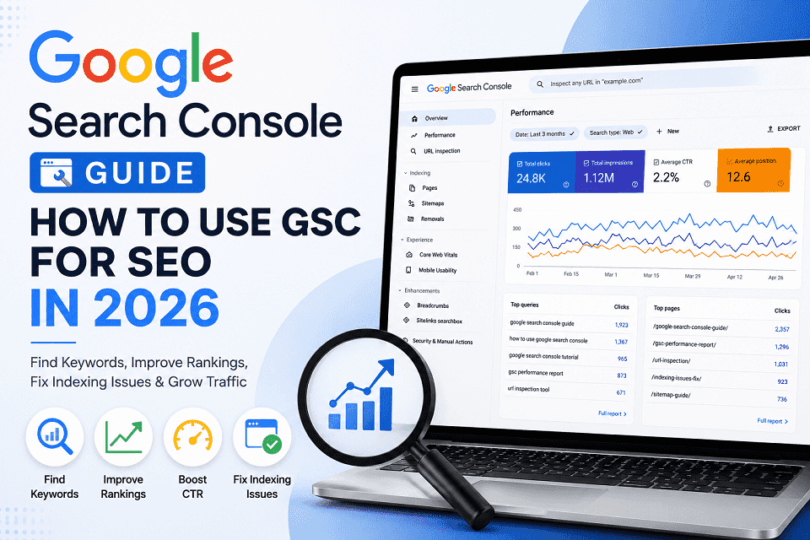
Google Search Console is one of the most useful free SEO tools available today. It shows how your website performs in Google Search. You can use it to find search queries, monitor clicks, check indexing, diagnose technical problems, and discover new SEO opportunities.
But many website owners use only a small part of what GSC offers.
This Google Search Console Guide shows you how to use GSC for practical SEO, not just how to set up an account. You will learn how to understand the Performance report, find keywords with ranking potential, improve organic click-through rates, identify pages losing traffic, fix indexing issues, and turn Search Console data into better content decisions.
The guide also covers the latest Google Search Console features and workflows in 2026. Whether you are a beginner, blogger, website owner, or SEO professional, you will learn what to look for in GSC and, more importantly, what to do with the data you find.
Let’s start with the basics and then move into the SEO strategies that can help you get more value from Google Search Console.
Google Search Console at a Glance
Google Search Console (GSC) is a free Google tool for monitoring how your website appears in Google Search. It helps you understand search performance, indexing, crawling, and technical issues. You can also use its data to find SEO opportunities and improve existing content.
What Google Search Console Can Help You Do
Google Search Console can help you:
See which searches bring visitors to your website. Track clicks, impressions, CTR, and average position. Check whether Google has indexed your pages. Identify crawling, indexing, and security issues. Submit sitemaps and inspect individual URLs. Find pages and queries with SEO growth opportunities. Monitor changes in organic search performance.
The Performance report is especially useful for SEO. It lets you analyze queries, pages, countries, devices, search appearance, clicks, impressions, CTR, and average position.
Who Should Use Google Search Console?
Google Search Console is useful for almost every website owner.
Bloggers and content creators can use it to discover keywords, monitor article performance, and find content that needs updating.
Business website owners can monitor their search visibility and identify technical problems that could affect organic traffic.
SEO professionals can use GSC data to analyze rankings, discover new keyword opportunities, diagnose traffic drops, and prioritize optimization work.
You do not need to be an SEO expert to use Search Console. The basic reports are relatively easy to understand, while the deeper filters and comparisons provide more advanced SEO insights.
What Google Search Console Does Not Do
Google Search Console is powerful, but it is not a complete SEO platform.
It does not provide every keyword your competitors rank for. It also does not show all Google searches that involve your website. Some queries are omitted or anonymized, and Search Console data has its own reporting limitations.
GSC also does not guarantee higher rankings. It provides information about your website’s performance and how Google interacts with it. You still need quality content, relevant internal links, strong technical SEO, and a good user experience.
It is also important to remember that Search Console and Google Analytics measure different things.
Google Search Console vs Google Analytics
Google Search Console focuses on what happens before and around your appearance in Google Search. Google Analytics focuses more on what visitors do after they reach your website.
| Google Search Console | Google Analytics |
| Search queries | User behavior |
| Google Search clicks | Sessions and engagement |
| Search impressions | Traffic sources |
| Average search position | Conversions |
| Search CTR | Events and interactions |
| Indexing and crawling | On-site activity |
For example, GSC can show that an article received 10,000 impressions and 300 clicks from Google Search. Analytics can help you understand what those 300 visitors did after arriving.
The two platforms therefore complement each other rather than replace one another. Google recommends using Search Console for Search performance and Analytics for understanding what visitors do on your site.
In simple terms: use Google Search Console to understand your visibility in Google, and use Google Analytics to understand what visitors do after they arrive.
How to Set Up Google Search Console
Setting up Google Search Console takes only a few minutes for most websites. You need a Google account and access to the website or domain you want to monitor. Google requires you to verify ownership before you can access the property’s Search Console data and tools.
For most website owners, the setup process is straightforward:
Add your property → choose the property type → verify ownership → wait for data → start monitoring Search performance.
How to Add Your Website to Google Search Console
Start by opening Google Search Console and selecting Add property from the property selector.
Google currently offers two main website property types:
Domain property — covers the entire domain, including subdomains and different protocols. URL-prefix property — covers only URLs that begin with the exact prefix you enter.
For a typical website, the Domain property is usually the better starting point because it provides broader coverage.
For example, a Domain property for:
example.com
can include:
https://example.com/
https://www.example.com/
https://blog.example.com/
and other subdomains and protocols associated with that domain.
Domain Property vs URL-Prefix Property
The difference is important because the two property types collect data differently.
| Feature | Domain Property | URL-Prefix Property |
| Covers entire domain | ✅ | ❌ |
| Includes subdomains | ✅ | ❌ |
| Includes HTTP and HTTPS | ✅ | ❌ |
| Can specify a URL path | ❌ | ✅ |
| Verification | DNS record | Several methods |
| Best for most full websites | ✅ | — |
A Domain property requires DNS verification in most cases. It includes all subdomains and protocols under the domain you enter. A URL-prefix property includes only URLs matching the exact protocol, domain, and path you specify.
For example:
Domain property:
example.com
URL-prefix property:
https://example.com/
The URL-prefix version does not automatically include http://example.com/ or another subdomain.
How to Verify Website Ownership
After adding the property, Google asks you to prove that you control it.
For a Domain property, verification is normally completed by adding a DNS record through your domain provider. For a URL-prefix property, Google provides several verification options, depending on your setup.
The available methods can include:
HTML file upload HTML tag DNS record Google Analytics Google Tag Manager
Google’s verification process provides the exact instructions for the method available to you.
Once you’ve completed the required step, return to Search Console and select Verify.
Tip: Keep your verification method in place. Removing the verification token can cause you to lose verified ownership.
How to Add Users and Permissions
You do not need to manage a website alone.
A verified owner can open Settings → Users and permissions and add other Google accounts to the property. Search Console provides different permission levels so you can control what each person can access.
The main roles are:
Owner: Full control, including user management and property settings.
Full user: Access to most data and tools, with some restrictions.
Restricted user: Limited access to Search Console data.
For an SEO consultant or content team member, giving access to the appropriate user level is generally better than sharing your Google account credentials.
How Long Does Google Search Console Take to Show Data?
Do not expect a newly added property to populate with historical data immediately.
Google says a newly created or newly added site can take up to a week to generate data. Once data collection is underway, normal Search Console data is generally available with a delay of around 2–3 days.
There is an important distinction here:
Verification and data availability are not the same thing.
Your property can be successfully verified while the reports are still empty.
If you still see no data after several days, check that you added the correct property, especially the protocol and domain. For example, adding an http:// URL-prefix property when your site uses https:// can cause problems.
What to Do After Verification
Getting verified is only the beginning. Your next steps should prepare Search Console for useful SEO monitoring.
1. Confirm the correct property
Make sure you’ve selected the property that represents the website you actually want to analyze.
2. Submit your XML sitemap
Submit your site’s sitemap through the Sitemaps section so Google can discover important URLs more efficiently.
3. Inspect important URLs
Use the URL Inspection tool to check important pages and understand how Google sees them.
4. Check indexing
Review the Page Indexing report for pages that are indexed, excluded, or affected by potential issues.
5. Review Performance data
Once enough data accumulates, examine your queries, pages, clicks, impressions, CTR, and average position.
6. Set up appropriate access
Add your SEO team, developer, or agency using individual Google accounts rather than sharing credentials.
Google’s own getting-started workflow follows the same broad progression: add and verify the site, understand how Google has found and indexed its pages, use reports to identify issues, and then move into more advanced SEO analysis.
Pro tip: Don’t start changing your site’s SEO simply because Search Console shows a report or warning. First understand what the issue means, whether it affects important URLs, and whether it actually needs fixing. Search Console can report many URLs and situations that are normal rather than problems.
Google Search Console Reports Explained
Once your website is verified, Google Search Console gives you access to several reports and tools. Each serves a different purpose. Some help you understand search performance, while others help you investigate indexing, technical SEO, security, and structured data.
You do not need to check every report every day. For most websites, the Overview, Performance, Page Indexing, URL Inspection, and Sitemaps areas are the most useful starting points. Google itself recommends using the Overview page for a quick health check and the relevant reports when you need to investigate a change or problem.
Overview Report
The Overview page is your Search Console dashboard. It brings together important information about your property’s search performance, indexing, recommendations, enhancements, and any critical issues.
Sudden changes in search clicks. Indexing problems. Manual actions. Security issues. Enhancement or rich-result problems.
The Overview page is particularly useful when you want a quick health check before opening individual reports.
Insights Report
The Insights report provides a simplified view of important search-performance trends and content changes. Google says this report is still being gradually introduced, so it may not appear for every property. Use it as a quick overview, then move to the Performance report when you need deeper analysis.
Performance Report
The Performance report is arguably the most valuable report for SEO.
It shows how your website performs in Google Search and can reveal:
Clicks — how many users clicked your results. Impressions — how often your pages appeared. CTR — the percentage of impressions that resulted in clicks. Average position — the reported average position of your results.
You can break the data down by queries, pages, countries, devices, search appearance, and dates. You can also compare time periods and apply filters to find specific opportunities.
This is the report we will use extensively later in this guide to find low-hanging keywords, declining pages, high-impression/low-CTR pages, and new content opportunities.
Page Indexing Report
The Page Indexing report shows how many pages Google has attempted to crawl and whether those pages were indexed.
It broadly separates URLs into indexed and non-indexed states and provides reasons for pages that aren’t indexed.
This can help you investigate issues such as:
Pages that are not indexed. Crawled but currently not indexed pages. Pages excluded for technical reasons. Duplicate or canonical-related issues. Other indexing states.
Remember that not every non-indexed URL is an SEO problem. Some pages should not be indexed by design.
URL Inspection Tool
The URL Inspection tool lets you investigate an individual URL.
It shows what Google knows about that page and can help you determine whether the URL is indexed, why it isn’t indexed, and whether Google can access the page. You can also run a live test and request indexing for an individual URL.
Use it when:
A new page isn’t appearing in Google. You have substantially updated an important page. A page reports an indexing problem. You want to check Google’s indexed version. You want to test the live version after fixing an issue.
Sitemaps Report
The Sitemaps report lets you submit XML sitemaps and monitor information about submitted sitemaps.
A sitemap can help Google discover important URLs, particularly on larger, newer, or frequently updated websites.
After submitting one, you can monitor its processing status and investigate any reported problems.
Core Web Vitals Report
The Core Web Vitals report helps you understand real-world page experience measurements for eligible URLs.
It focuses on Google’s Core Web Vitals, which measure important aspects of loading performance, responsiveness, and visual stability.
The report can help identify groups of pages that need performance improvements rather than forcing you to investigate every URL separately.
HTTPS Report
The HTTPS report helps you identify pages that may have HTTPS-related issues.
For modern websites, HTTPS is expected. Problems can occur when important pages, resources, or configurations create inconsistencies between secure and insecure versions.
Search Console also surfaces HTTPS information during URL inspection.
Manual Actions Report
The Manual Actions report tells you whether a Google reviewer has applied a manual action to your website.
A manual action means Google has determined that some aspect of the site does not comply with its spam policies. The report provides details about the issue and what needs to be addressed.
Google specifically recommends checking this report when a manual action appears on your property’s Overview page.
Security Issues Report
The Security Issues report alerts you when Google detects certain security problems affecting your site.
These can include issues involving:
Hacked content. Malware. Social engineering. Other dangerous or compromised content.
Google recommends using this report as the source of truth when investigating security warnings associated with your site.
Links Report
The Links report shows information about links associated with your website.
You can use it to examine:
External sites linking to you. Common link text. Your most-linked pages. Internal links between your own pages.
Google notes that the Links report can be useful for understanding both external and internal linking patterns.
Rich Results and Enhancement Reports
If Google detects supported structured data or other eligible enhancements on your site, Search Console can provide dedicated reports for those features.
Rich result reports can show:
Valid structured-data items. Invalid items. Critical issues. Non-critical issues. Changes after fixes.
Google provides separate reports for supported rich-result types detected on a property. The reports are not necessarily a complete inventory of every structured-data item Google knows about, so URL Inspection can provide additional information for individual pages.
Which Google Search Console Reports Matter Most for SEO?
You don’t need to treat every report equally.
For most content websites, I would prioritize them like this:
| Report | Primary SEO use | Priority |
| Performance | Keywords, traffic, CTR, rankings | ⭐⭐⭐⭐⭐ |
| Page Indexing | Find indexing problems | ⭐⭐⭐⭐⭐ |
| URL Inspection | Diagnose individual pages | ⭐⭐⭐⭐⭐ |
| Sitemaps | Monitor URL discovery | ⭐⭐⭐⭐ |
| Core Web Vitals | Page experience | ⭐⭐⭐⭐ |
| Links | Internal/external link analysis | ⭐⭐⭐⭐ |
| Rich Results | Structured data | ⭐⭐⭐ |
| Overview | Quick health check | ⭐⭐⭐ |
| HTTPS | Security/technical checks | ⭐⭐⭐ |
| Manual Actions | Spam-policy problems | ⭐⭐⭐ |
| Security Issues | Hacked/malicious content | ⭐⭐⭐ |
The important point is that Google Search Console is not just a ranking dashboard. It combines search-performance data with tools for diagnosing crawling, indexing, structured data, security, and other technical issues.
For this guide, however, the Performance report will be our main SEO workhorse. The next section should show readers exactly how to turn its clicks, impressions, queries, CTR, and position data into actionable SEO opportunities.
How to Use the Google Search Console Performance Report
The Performance report is the most important Google Search Console report for practical SEO. It shows how your website performs in Google Search and lets you analyze the queries and pages generating visibility and traffic.
The report includes four core metrics: clicks, impressions, click-through rate (CTR), and average position. You can break the data down by dimensions such as queries, pages, countries, devices, search appearance, and dates. You can also compare periods and apply multiple filters to investigate specific patterns.
For SEO, don’t just look at the numbers. The real value comes from asking what the numbers mean and what you should do next.
Understanding Clicks
Clicks represent how many times users clicked a link from Google Search to your website. It is one of the clearest indicators of organic search traffic coming from Google.
Suppose a page receives 2,000 impressions and 120 clicks. Those 120 clicks represent visits generated directly from the corresponding Google Search results.
Clicks become more useful when you compare them with impressions, CTR, and position. A page can receive more clicks because its rankings improved, because it appeared for more searches, or simply because more people clicked the result.
For SEO analysis, look at click trends rather than one isolated number. A steady increase in clicks usually indicates growing search visibility or stronger search-result performance.
Understanding Impressions
An impression occurs when your website appears in Google Search results in a way that counts under Google’s reporting rules. Impressions help you understand how much search visibility your site receives, even when users do not click.
Impressions are particularly valuable for finding untapped SEO opportunities.
Imagine that an article receives 25,000 impressions but only 300 clicks. That tells you the page is visible, but relatively few searchers are choosing it.
The next question becomes: Why?
The answer could involve ranking position, search intent, competing results, or the way the result is presented. Google itself recommends looking for high-impression, low-CTR opportunities when assessing search performance.
Understanding Click-Through Rate
Click-through rate (CTR) is the percentage of impressions that resulted in clicks.
The calculation is:
CTR = clicks ÷ impressions × 100
For example, 100 clicks from 5,000 impressions produce a 2% CTR. Google uses this same basic calculation for the Performance report.
CTR becomes meaningful only when you consider the query and position.
A result ranking near the top may naturally receive a higher CTR than one appearing on page two. Likewise, informational queries, branded searches, commercial searches, and navigational searches can behave very differently.
Rather than asking “What is a good CTR?”, ask:
“Is this page getting the CTR I would expect for its position and search intent?”
That is a much more useful SEO question.
Understanding Average Position
Average position represents the average position of your site’s highest result for the relevant searches included in the report. Google explains that position is relative to other search results, with position 1 representing the topmost result.
This metric is often misunderstood.
An average position of 6.4 does not mean that every user saw your page in position 6. It is an aggregate measurement across impressions and queries.
Position can also vary depending on factors such as location, device, search history, and the specific query. That is why manually searching a keyword and comparing the result to your GSC average position can produce very different numbers.
Use average position primarily to identify trends and opportunities, not as an exact rank tracker.
How to Analyze Search Queries
The Queries tab shows the search terms for which your website received impressions or clicks.
This is one of the most valuable places to look for SEO insights because it reveals what people are actually searching when your pages appear in Google.
Start by looking at queries with substantial impressions. Then compare their clicks, CTR, and position.
For example, imagine one article is receiving impressions for these terms:
| Query | Impressions | CTR | Position |
| google search console guide | 8,400 | 2.4% | 8.2 |
| how to use google search console | 5,900 | 3.1% | 9.5 |
| google search console seo | 3,200 | 1.7% | 12.4 |
The third query could represent an especially interesting opportunity. It has meaningful visibility, but its average position is weaker and its CTR is low.
You can then investigate whether the existing page properly addresses that search intent.
Google recommends using the Queries view to identify expected and unexpected queries, including queries with high impressions and low CTR.
How to Analyze Top-Performing Pages
Switch to the Pages tab to see which URLs generate the most search clicks and impressions.
Your top pages reveal what Google already considers relevant enough to surface and what your audience is actually clicking.
Look beyond the page with the most clicks.
A page with high impressions but modest clicks may have more optimization potential than a page already receiving substantial traffic. Similarly, a page with strong CTR but relatively low impressions may benefit from broader topical coverage, stronger internal linking, or better targeting of related queries.
Google recommends sorting and filtering pages to evaluate page effectiveness and identify low-CTR opportunities.
One important technical detail is that Search Console generally associates performance data with the canonical URL, rather than treating every duplicate URL as a separate page.
How to Analyze Countries and Devices
The Countries and Devices dimensions can reveal differences in search performance that would otherwise remain hidden.
Country data is particularly useful for websites targeting multiple markets. A page may perform well in one country but receive limited visibility in another.
Device data can also reveal useful patterns. For example, a page might have a reasonable desktop CTR but a much lower mobile CTR.
That may encourage you to examine the mobile search result, title, content structure, page experience, and search intent.
Google specifically recommends looking at country and device information when investigating differences in impressions or CTR.
How to Compare Two Time Periods
Comparisons are much more useful than looking at a single date range.
In the Performance report, use the Date filter and choose Compare. You can compare periods such as the last three months with the previous three months or compare equivalent periods year over year.
For a traffic decline, a year-over-year comparison can help determine whether the change is seasonal or represents a genuine deterioration.
For recently updated content, comparing the period before and after the update can help you measure whether impressions, clicks, CTR, or position changed.
A good comparison should answer a specific question:
What changed, when did it change, and which pages or queries caused the change?
That is much more useful than simply checking whether total traffic is up or down.
How to Filter GSC Data
Filters turn the Performance report from a large dataset into a practical SEO investigation tool.
You can filter by dimensions such as query, page, country, device, and search appearance, and multiple filters can be applied at the same time. For example, you could examine mobile traffic from the United States for a specific group of queries.
You can also click a row in the report to automatically create a filter for that item. This makes it easy to move from a broad overview into a specific query or page.
A useful workflow is:
Start broad → identify an unusual pattern → filter the data → investigate the affected pages or queries → decide what action to take.
One caution: filtering by query or URL can affect the displayed totals because of data truncation and anonymized queries.
How to Use Regex in Search Console
Regular expressions, or regex, let you create more sophisticated query and URL filters.
This becomes useful when you want to analyze a group of related searches rather than one exact term.
For example, you could use:
(how to|what is|guide)
to look for queries containing any of those patterns.
You could also combine several topic variations:
(windows 11|windows 12|microsoft windows)
Search Console uses RE2 syntax for regex filtering. The default matching is generally a partial match and is not case-sensitive unless you explicitly change it.
To use regex, choose Queries or Pages, select Custom (regex), enter your expression, and apply the filter. You can also choose Doesn’t match regex when you want to exclude a group.
For advanced SEO work, regex can be extremely useful for grouping topic variations, branded terms, question queries, URL folders, and other patterns.
How to Export Google Search Console Data
Search Console lets you export the data currently shown in many reports. Depending on the report and export option, you can download data as Google Sheets, Microsoft Excel, or CSV.
Exporting becomes useful when you want to perform deeper analysis outside the Search Console interface.
For example, you can combine GSC data with:
Page titles → content categories → traffic trends → keyword groups → SEO priorities
You can then identify which articles need updating, which keywords deserve dedicated content, and which pages have the strongest growth potential.
There is an important limitation: standard report exports are limited to the rows shown in the report, with Google documenting a 1,000-row limit for representative report data. Larger sites therefore contain more data than a standard report export may expose.
How to Use Google Search Console for SEO
The real SEO value of Google Search Console begins when you move beyond monitoring traffic and start using its data to make decisions.
GSC can show which queries generate visibility, which pages receive clicks, where CTR is weak, and how search performance changes over time. Google also recommends using the Performance report to investigate traffic fluctuations and identify pages or queries with significant changes.
The goal is not to improve every metric at once. Instead, use GSC to answer practical SEO questions:
What is already working? What is underperforming? What should I improve next?
Find the Keywords Your Website Already Ranks For
Open the Performance report and select the Queries tab. You will see search terms for which your website received impressions or clicks.
This is valuable because these are not hypothetical keywords from a third-party database. They are searches for which Google has already shown your website.
Sort the query data by clicks, impressions, CTR, or position to find different types of opportunities. Google specifically recommends sorting these columns when identifying popular queries and analyzing search performance.
For example, suppose an article about laptop problems appears for searches such as:
| Query | Impressions | Clicks | Position |
| laptop fan running loud | 6,800 | 210 | 9.2 |
| why is my laptop fan so loud | 4,900 | 185 | 8.7 |
| laptop fan always running | 2,700 | 72 | 13.6 |
The article is already receiving search visibility for all three topics. That gives you useful evidence about what Google associates with the page.
You can then decide whether the content fully addresses those queries or needs improvement.
Find Low-Hanging Keyword Opportunities
A low-hanging keyword is a search query where your site already has visibility but has room to gain more clicks or a better position.
Look for queries with meaningful impressions and an average position that is not yet near the top of the results. These terms can sometimes produce faster gains than targeting completely new keywords with a new page.
Google’s own Search Console guidance recommends identifying queries with weaker positions but useful performance, then examining the relevant pages and improving them where appropriate.
For example, a query with 8,000 impressions and a position around 11 may deserve more attention than a query with 40 impressions and a position of 4.
The opportunity is not simply “rank higher.” First determine whether your existing page genuinely satisfies the search intent.
Find Page 2 Keywords That Could Reach Page 1
Queries ranking around positions 11–20 are particularly interesting because the page is already close to the first page.
Filter or sort your query data to locate these terms, then identify which URL is receiving the impressions.
Now inspect the page.
Does it completely answer the query? Does it cover important related questions? Is the page title accurate? Could internal links strengthen it? Does another page on your site address the same topic better?
Google’s guidance encourages using Search Console to identify queries that could be improved and then optimizing or creating relevant pages for those searches.
Don’t assume every page-2 keyword is worth pursuing. Prioritize queries with meaningful impressions, strong relevance, and clear business or traffic value.
Find High-Impression, Low-CTR Pages
A page can have excellent visibility but attract relatively few clicks.
That makes high impressions + low CTR one of the most useful combinations to investigate.
Open the Pages tab, select CTR, and look for pages with substantial impressions but weaker click-through rates. Google specifically recommends this method for assessing page effectiveness.
Suppose a page has:
30,000 impressions
450 clicks
1.5% CTR
The page is clearly being shown in Search. The problem may therefore be less about visibility and more about convincing users to click.
Investigate the queries generating those impressions and consider whether the title and description accurately communicate the page’s value. Search intent also matters. A result can have low CTR because users are looking for something different from what the page provides.
Find Pages Losing Organic Traffic
GSC can help you identify exactly which pages are responsible for a traffic decline.
Start by comparing the current period with a previous period. Then switch to the Pages tab and sort by the difference in clicks.
Google specifically recommends examining which pages lost significant clicks when diagnosing a Search traffic decline.
Once you identify a declining page, investigate its queries, impressions, CTR, and average position.
A useful diagnostic sequence is:
Clicks down → impressions down? → position down? → CTR down? → which queries changed?
This helps distinguish different problems.
If impressions have fallen sharply, the page may have lost search visibility. If impressions remain stable but clicks have fallen, CTR may deserve closer attention.
Find Pages Gaining Search Visibility
GSC is equally useful for finding positive changes.
Compare two periods and sort pages by increased impressions or clicks. Pages gaining visibility can reveal topics that Google is increasingly associating with your website.
A growing page may deserve additional support through stronger internal links, related content, or a content refresh.
Google recommends looking at significant changes rather than focusing only on the site’s overall totals.
This can help you discover emerging winners before they become your biggest traffic sources.
Discover Unexpected Search Queries
One of the most useful GSC discoveries is finding queries you did not intentionally target.
An article may begin ranking for related questions, synonyms, long-tail phrases, or subtopics that were not part of your original keyword strategy.
These queries can reveal what Google and users expect from the page.
Suppose you publish an article targeting “Google Search Console Guide” and discover that the page also receives impressions for:
“how to use google search console”
“google search console for seo”
“google search console keyword research”
Those additional queries provide clues for improving the article and developing supporting content.
Google’s own SEO guidance recommends examining unexpected queries and related search patterns when analyzing Search Console data.
Find Content That Needs an Update
Search Console can help identify content decay before a page becomes completely irrelevant.
Compare recent performance with an earlier period and look for pages experiencing sustained declines in clicks, impressions, or position.
Then examine the queries responsible for the change.
A declining page may need updated statistics, additional sections, better search-intent alignment, clearer answers, or stronger internal linking. However, a decline does not automatically mean the content is poor. Google notes that search traffic can change because of seasonality, search demand, ranking-system changes, technical problems, or broader changes in Search.
So investigate the evidence before making major changes.
Identify Potential Keyword Cannibalization
Google Search Console can help you spot signals of possible keyword cannibalization, although it does not provide a dedicated cannibalization report.
Start in the Queries tab. Click a query that matters to your website, then open the Pages tab to see which URLs received impressions or clicks for that query. Google documents this workflow as a way to see which pages are appearing for a specific query.
If several pages repeatedly receive visibility for the same important query, investigate whether they genuinely serve different search intents.
Do not automatically merge or delete pages just because multiple URLs appear for a query. Multiple relevant pages can appear naturally. The real concern is whether your site has several competing pages that should instead have clearer, distinct purposes.
Find Internal Linking Opportunities
GSC can help you identify pages that deserve stronger internal linking.
Look for pages that are already ranking for valuable queries but remain relatively weak in visibility or position. Then compare them with your existing content to find relevant pages that could link to them naturally.
The Links report can also help you understand your internal-link structure and identify pages receiving fewer internal links than important content elsewhere on the site.
For SEO, combine that information with Performance data.
A page with strong topic relevance, meaningful search impressions, and limited internal support can become a useful internal-linking priority.
Find New Content Ideas From Search Queries
Search Console can become a powerful source of first-party content ideas.
Look for recurring queries where your website receives impressions but does not have a page that fully addresses the topic.
For example, an article may receive impressions for a closely related question that deserves its own dedicated guide. Google recommends examining queries and related search patterns to identify opportunities to optimize existing pages or create new ones.
This creates a useful content workflow:
Existing query → identify search intent → check existing coverage → improve the current page or create a new one.
It is usually more valuable than blindly generating article ideas from generic keyword lists because the Search Console data shows that Google is already associating your site with that subject.
How to Find Quick SEO Wins in Google Search Console
Google Search Console can reveal SEO opportunities that are easy to overlook. Instead of starting with a completely new article or major technical project, you can often improve existing pages that already have search visibility.
These are your quick SEO wins: pages and queries where a relatively focused improvement could produce more clicks, better rankings, or stronger organic visibility.
The best opportunities usually appear when a page is already receiving impressions but has room to improve its position, CTR, content relevance, or internal-link support.
Improve Pages Ranking in Positions 5–10
Look in Performance for important queries where the relevant page averages around positions 5–10. These pages already have first-page visibility, so check search intent, content completeness, title clarity, and internal links before deciding what to improve. Prioritize terms with meaningful impressions and real value to your site rather than optimizing every position-8 query.
Improve CTR on High-Impression Pages
Find pages with substantial impressions and comparatively weak CTR. Open the page and inspect the queries generating those impressions, then review the title, snippet, search intent, and competing results. The opportunity is to turn existing visibility into more qualified clicks, not to chase a universal CTR benchmark.
Refresh Pages With Falling Clicks
Compare a recent period with an earlier one and identify pages with meaningful click declines. Check impressions, CTR, and position before rewriting the article. A fall in impressions suggests lost visibility; stable impressions with falling clicks point more strongly toward CTR or intent.
Expand Content Around Valuable Queries
Use the Queries tab to find related searches for which an existing page receives impressions but does not fully address the topic. Expand the article only when the added coverage improves usefulness and search intent. Do not turn the refresh into keyword stuffing.
Improve Titles and Meta Descriptions
Use high-impression, low-CTR pages as candidates for title and snippet review. Align the wording with the dominant search intent and the actual value of the page, then measure the result over a meaningful period. Remember that Google may rewrite titles or snippets in Search.
Strengthen Internal Links to Important Pages
Use Performance data to find important pages with promising queries or positions, then look for relevant contextual links from related content. Strengthen the internal-link structure where it helps readers discover the next useful resource. Do not add links simply to inflate link counts.
How to Use Google Search Console for Keyword Research
Google Search Console can be a valuable keyword research source because it shows the actual searches for which your website already receives impressions and clicks. Unlike traditional keyword tools, GSC gives you first-party data about your own search visibility.
The Queries section of the Performance report is the starting point. From there, you can identify your strongest search terms, uncover long-tail opportunities, find questions, discover terms with high impressions but low CTR, and generate ideas for new or updated content. Google recommends examining both expected and unexpected queries when analyzing Search performance.
How to Find Your Top Search Queries
Open Performance → Search results → Queries to see the searches associated with your site’s Search performance.
You can sort the table by clicks, impressions, CTR, or average position. Each sorting method reveals something different.
Sorting by clicks shows which queries currently send the most Search traffic. Sorting by impressions shows where your site has the greatest visibility. Sorting by position helps identify queries where your pages are already ranking well.
For content planning, don’t focus only on your highest-clicked queries. A query with thousands of impressions but relatively few clicks may represent a much larger opportunity.
How to Find Long-Tail Keywords
Long-tail keywords are more specific searches, often containing several words. They can be particularly useful because they frequently reveal a more precise search intent.
GSC does not label queries as “long-tail.” You need to identify them yourself by examining the Queries table and filtering for longer, more specific phrases.
For example, instead of simply seeing:
google search console
you might discover:
how to use google search console for seo
or:
how to find keywords in google search console
Those longer queries can reveal specific questions or problems your audience wants to solve.
Use the Query filter to narrow the data. You can also use regular expressions when you need more advanced filtering.
How to Find Question-Based Keywords
Question queries are particularly useful for content planning because they often reveal explicit search intent.
Look for phrases containing words such as:
how, what, why, when, and can.
For example, a website publishing SEO content might discover queries such as:
how often should I check google search console
what is average position in google search console
why is my page not indexed
These searches can become FAQ sections, supporting articles, or dedicated guides depending on their search intent and depth.
Regex makes this easier when you want to analyze groups of question queries rather than searching one phrase at a time. Google Search Console supports regex filtering in the Performance report.
How to Find Keywords With High Impressions
High-impression queries show where Google is already giving your website substantial visibility.
Open the Queries tab and sort by Impressions.
These queries are valuable because they can reveal topics where your site already has some level of relevance. You may find that a page receives thousands of impressions despite getting relatively few clicks.
That can happen because the page ranks lower for the query, the result has a weak CTR, or the content does not align closely enough with the search intent.
High impressions therefore should not automatically be interpreted as a success. Think of them as evidence of opportunity.
How to Find Keywords With Low CTR
Low CTR queries can highlight opportunities to capture more traffic from existing visibility.
Start by finding queries with meaningful impressions and then compare their CTR with their average position. A query ranking near the top with an unusually weak CTR may deserve investigation.
Next, open the query and examine the pages receiving impressions. Consider whether the title accurately represents the content, whether the search intent is satisfied, and whether competing results may be presenting a stronger answer.
Google specifically recommends looking at high-impression, low-CTR queries and pages when analyzing Search performance.
Do not chase a universal CTR target. CTR varies significantly by query, position, device, search type, and search intent.
How to Find New Keyword Opportunities
One of the best uses of GSC is finding keywords you didn’t deliberately target.
An article may begin receiving impressions for related concepts, synonyms, questions, and subtopics. These unexpected queries can show you how Google is interpreting your content.
Imagine an article targeting:
“Google Search Console Guide”
but the page also receives impressions for:
google search console for seo
google search console keyword research
how to use google search console
Those queries might suggest that the existing page needs stronger coverage of those subjects.
They can also reveal opportunities beyond the current article. If one related query has distinct search intent and substantial visibility, it might justify a separate supporting article.
This makes GSC particularly useful for content expansion and topical-cluster planning.
How to Turn GSC Queries Into New Articles
Not every query deserves its own article.
The first step is to determine whether the query represents a new search intent or simply a variation of an existing topic.
Suppose your article about Google Search Console receives impressions for:
how to find keywords in google search console
If your existing guide covers the subject only briefly, expanding that section may be enough.
But suppose it also receives substantial impressions for:
google search console vs google analytics
That topic has a distinct informational intent and could justify a separate supporting article.
A practical workflow is:
GSC query → evaluate impressions and position → identify search intent → check existing coverage → improve existing page or create a new article.
This prevents you from creating multiple articles that compete for essentially the same intent.
How to Use Google Search Console to Improve CTR
Click-through rate (CTR) tells you how often people click your search result after seeing it in Google. In Search Console, CTR is calculated by dividing clicks by impressions.
A low CTR does not always mean something is wrong. CTR varies with search position, query type, device, country, and search intent. A result ranking in position 2 will normally have a different CTR from one ranking in position 12.
The useful SEO question is therefore not “What is a good CTR?” but “Is this page earning enough clicks for the visibility it receives?”
Google specifically recommends examining pages and queries with high impressions but low CTR and then reviewing the title, description, and how well the page matches the searcher’s intent.
Find Pages With Low CTR
Open Performance → Search results and select the Pages tab. Add impressions and CTR to the table, then look for pages with substantial impressions but comparatively low click-through rates.
For example, a page receiving 20,000 impressions and a 1.2% CTR deserves more investigation than a page receiving 100 impressions and a 1% CTR.
Next, click the page and switch to Queries. This reveals which searches are generating those impressions.
That step is important because a page can have a low overall CTR for very different reasons. Some queries may perform well while others may attract impressions without generating many clicks.
Compare CTR Across Similar Pages
Comparing similar pages can help you identify unusual CTR patterns.
Suppose three articles on related subjects have similar average positions:
| Page | Impressions | CTR | Position |
| Article A | 12,400 | 5.4% | 5.8 |
| Article B | 11,800 | 2.1% | 6.1 |
| Article C | 10,900 | 4.9% | 6.4 |
Article B stands out. Its position is similar to the other pages, but its CTR is substantially lower.
That does not prove the title is the problem, but it gives you a reason to investigate the page, its queries, its search intent, and competing search results.
Comparison works best when the pages target similar audiences and search intents. Comparing a branded homepage with a detailed informational article would not provide a useful benchmark.
Improve Titles Based on Search Queries
Your GSC queries can reveal what searchers expect from a page.
Suppose your page is titled:
Google Search Console Guide
but receives significant impressions for:
how to use google search console for seo
The existing title may be accurate, but it could communicate the page’s practical value more clearly.
A revised title such as:
Google Search Console Guide: How to Use GSC for SEO in 2026
more directly addresses that intent.
The goal is not to insert every query into the title. Instead, identify the dominant search intent and make the title accurately communicate what the reader will find.
Google may also generate a different title in the search results, so changing your HTML title does not guarantee that Google will display it exactly as written.
Improve Search Snippets
CTR depends on more than the title.
The search snippet can also influence whether someone chooses your result. Review the page description and the opening content to make sure they clearly communicate the value of the page.
For example, a generic description such as:
Learn more about Google Search Console and its features.
does little to distinguish the result.
A stronger description might communicate the specific benefits:
Learn how to use Google Search Console for SEO, find ranking opportunities, improve CTR, fix indexing issues, and analyze organic traffic.
Keep the description accurate. Avoid turning it into a list of keywords or making promises the page does not fulfill.
Also remember that Google can generate snippets dynamically based on the query and page content. Your meta description is therefore an input, not a guaranteed script for what users will see.
Match Search Intent More Closely
Sometimes low CTR is not primarily a title problem.
The deeper problem may be search intent.
Imagine your page ranks for:
how to submit sitemap to google search console
but the article spends most of its space explaining what a sitemap is and barely explains the submission process.
Even a well-written title may not generate strong clicks because the search result does not appear to offer the exact answer the user wants.
Use the GSC Queries tab to identify important search terms, then compare those searches with what the page actually provides.
Ask:
Is the user looking for a definition, tutorial, comparison, solution, list, or specific action?
Then make sure the page fulfills that intent quickly.
Improving search intent can strengthen both CTR and the usefulness of the page.
Measure CTR Changes After Optimization
Never assume an improved title or snippet worked simply because it sounds better.
Record the page’s performance before making the change. Then allow enough time for Google to recrawl and for the page to accumulate meaningful new impressions.
Compare the clicks, impressions, CTR, and average position before and after the change.
For example:
| Metric | Before | After |
| Impressions | 18,500 | 19,200 |
| Clicks | 370 | 520 |
| CTR | 2.0% | 2.7% |
| Position | 7.4 | 7.2 |
Here, CTR and clicks increased while average position stayed relatively stable. That would provide stronger evidence that the result became more compelling to searchers.
However, avoid attributing every change to your optimization. Search demand, competitors, seasonality, Google updates, and other factors can affect performance.
Google recommends comparing periods and looking at multiple metrics rather than relying on one number in isolation.
How to Use Google Search Console to Fix Indexing Problems
Getting a page crawled by Google does not automatically mean it will be indexed. Crawling and indexing are separate processes, and Search Console helps you understand where a URL stands in that process.
For individual URLs, the URL Inspection tool is the best place to investigate indexing problems. It can show Google’s indexed view of the page, test the live URL, identify crawling or indexing blockers, confirm fixes, and let you request indexing.
Before fixing an issue, remember one important rule: a non-indexed URL is not automatically a problem. Some pages should not be indexed, and Google may deliberately exclude pages for valid reasons. Focus your attention on important URLs that you actually want appearing in Search.
How to Check Whether a Page Is Indexed
The quickest method is to enter the complete URL into the URL Inspection search bar at the top of Search Console.
Google will generally show one of two important outcomes:
URL is on Google: Google has the page in its index, although this does not guarantee strong rankings or that the page will appear for every relevant search.
URL is not on Google: Open the Page indexing section to see why Google has not indexed it.
You can also perform a site: search in Google as a secondary check, but URL Inspection provides much more useful diagnostic information. Google recommends using URL Inspection for determining the status of a specific page.
How to Use URL Inspection
Enter the full URL and review the Google Index information first.
Pay particular attention to the page’s indexing status, last crawl, crawl permissions, indexing permissions, and page-fetch information. These details help narrow down the cause of an indexing problem.
You can then select Test Live URL to see whether Google can currently access and process the live version.
This distinction matters. The Google Index view reflects information from Google’s last crawl and indexing process. A live test checks the page as it exists now. If you recently fixed a problem, the live test can help confirm that the fix is working before Google crawls the page again.
URL Is Not on Google
Seeing “URL is not on Google” does not tell you the complete reason by itself.
Expand the Page indexing section. Search Console should provide a more specific status explaining why Google has not indexed the URL.
Common causes include a noindex directive, robots.txt blocking, crawling problems, duplicate or canonical signals, server errors, or the page simply not having been crawled yet.
A newly published page may also need time. Google says that a new page can take anywhere from a day or two to a few weeks to be crawled and indexed, depending on various factors.
So don’t repeatedly request indexing simply because a new article has not appeared immediately.
Crawled – Currently Not Indexed
“Crawled – currently not indexed” means Google has successfully crawled the URL but has not included it in the index at that time.
This status is frequently misunderstood.
It does not necessarily indicate a technical problem. Google may have accessed the page successfully and still decided not to index it.
Before trying technical fixes, examine the page’s overall value. Ask whether it provides original, useful information, satisfies the search intent, overlaps heavily with another page, or offers enough value to deserve a separate search result.
If appropriate, improve the content, consolidate duplicate or overlapping pages, strengthen internal links, and make sure the page is genuinely useful.
Do not assume that repeatedly clicking Request Indexing will solve the problem. There is no guaranteed indexing request that forces Google to include a page.
Discovered – Currently Not Indexed
“Discovered – currently not indexed” generally means Google knows that the URL exists but has not crawled it yet.
This can occur when Google discovers a URL through a sitemap, link, or another source but has not yet allocated a crawl to it.
For important pages, check whether the URL is:
linked from relevant indexed pages → included in your sitemap → accessible to Googlebot → returning a normal HTTP response.
A strong internal linking structure can help Google discover important content naturally. Google also notes that sitemaps can help it discover pages it might otherwise not find through normal crawling.
On larger websites, a large number of discovered-but-not-indexed URLs may also indicate that Google has many URLs to process. Prioritize important pages rather than trying to force every URL into the index.
Duplicate Without User-Selected Canonical
This status indicates that Google sees the URL as a duplicate of another page and that you have not clearly specified which version should be canonical.
For example, two URLs might contain essentially the same content:
example.com/guide/
and
example.com/guide/?ref=123
Google may choose one URL as the canonical version and exclude the other.
The solution is not to make every duplicate URL indexable. Instead, decide which version should represent the content and use appropriate canonical, redirect, internal-linking, and sitemap signals.
The important question is:
Which URL should users and Google treat as the primary version?
If the inspected URL is genuinely supposed to be the canonical page, investigate why Google selected another version.
Alternate Page With Proper Canonical
An “Alternate page with proper canonical” is generally not an error.
It means Google found another URL that is considered the canonical version and the inspected URL is treated as an alternate.
For example, a site may have multiple URLs that intentionally represent the same content, while the canonical tag points Google toward one preferred URL.
If the canonical page is correct, there is usually nothing to fix.
This is an important distinction because Search Console’s indexing reports contain valid exclusions as well as genuine problems.
Page Blocked by robots.txt
If a page is blocked by robots.txt, Google may be unable to crawl its content.
URL Inspection can show whether crawling is allowed for the page.
Check your site’s robots.txt file and determine whether the blocking rule is intentional.
A common mistake is assuming robots.txt should be used to remove a page from Google’s index. That is not its primary purpose. A page that has already been discovered can sometimes remain known to Google even when crawling is blocked.
If you want a page kept out of Google’s index, review Google’s recommended indexing controls rather than relying on robots.txt alone.
Page Excluded by noindex
A page containing a noindex directive tells compliant search engines not to include that page in their index.
URL Inspection can show whether Google considers indexing allowed.
If the page should not appear in Google, the noindex status may be completely intentional.
If it is an important article, product page, landing page, or category page that you want indexed, inspect the page’s HTML or HTTP headers and remove the unintended noindex directive.
After correcting it, use the live test to confirm that indexing is now allowed.
Server Errors
Google needs to successfully fetch a page before it can reliably process and index it.
Server-side problems such as 5xx errors, persistent timeouts, or unavailable pages can prevent successful crawling.
Use URL Inspection to check whether Google was able to fetch the page. If the problem is server-related, also check your hosting logs, CDN, firewall, caching layer, and application errors.
A temporary outage may resolve on its own. A recurring server problem needs a deeper technical fix.
Don’t treat every isolated fetch failure as a major SEO disaster. Look for patterns and persistence, especially when important URLs are affected.
Soft 404 Errors
A soft 404 occurs when a page effectively communicates that the requested content does not exist, even though the server may return a normal-looking HTTP response.
For example, a missing article might return a 200 OK status while displaying:
“Sorry, this page doesn’t exist.”
Google may recognize that the URL does not contain a meaningful page and treat it accordingly.
For a genuinely missing page, use an appropriate 404 or 410 response rather than creating a misleading empty page.
If the URL should contain useful content, restore the intended page and make sure it returns a normal response with meaningful content.
How to Request Indexing
Once you have corrected an indexing problem, open URL Inspection and run Test Live URL.
If the live test confirms that the page is available and eligible, you can use Request Indexing.
Google describes this feature as a way to request crawling of an individual URL. It does not guarantee immediate crawling or indexing.
A sensible workflow is:
Fix the underlying problem → test the live URL → request indexing → wait for Google to recrawl → check the URL again later.
Repeated requests do not make Google index a page faster, and Google recommends allowing time after a sitemap submission or indexing request before assuming that something has gone wrong.
How to Prioritize Indexing Problems
Not every exclusion deserves your attention.
A better approach is to divide URLs into three groups.
Important pages that should be indexed: investigate and fix them.
Pages intentionally excluded: usually leave them alone.
Uncertain or low-value URLs: investigate only when they affect site structure, crawl efficiency, or important search visibility.
For larger sites, the Page Indexing report is useful for identifying patterns and sudden increases in non-indexed URLs. For individual pages, use URL Inspection for a more detailed diagnosis.
The key lesson is simple: don’t try to make every URL indexable. Make sure the pages that matter are crawlable, useful, technically accessible, and clearly represented by the correct canonical URL.
How to Use the Google Search Console Page Indexing Report
The Page Indexing report gives you a sitewide view of the URLs Google has attempted to crawl and whether those pages were indexed. It is one of the most useful reports for diagnosing indexing patterns across a website.
Unlike URL Inspection, which focuses on one URL at a time, the Page Indexing report helps you identify patterns across many pages. This makes it particularly useful when a large number of pages suddenly become excluded or when important content remains outside Google’s index.
The most important rule is simple: not every non-indexed URL is a problem. Your goal is not to get every URL indexed. Your goal is to make sure the pages you actually want in Google are accessible, useful, and indexable.
Indexed Pages vs Non-Indexed Pages
The Page Indexing report divides URLs broadly into indexed and not indexed groups.
An indexed page is a URL that Google has included in its index. This means it is eligible to appear in Google Search, although indexing does not guarantee rankings or consistent visibility.
A non-indexed page is a URL Google knows about but has not included in the index at that point.
Seeing a large number of non-indexed URLs is not automatically a sign of poor SEO. Websites routinely contain URLs that should not appear in search results, including duplicate URLs, redirects, administrative pages, and deliberately excluded content.
What matters is the type of URLs being excluded and the reason for exclusion.
Understanding Why Pages Are Not Indexed
When Search Console reports that pages are not indexed, it groups URLs by the reason Google has excluded them.
Common statuses can involve crawling, canonicalization, redirects, noindex directives, duplicate content, robots.txt restrictions, server problems, or pages that Google has discovered but not yet crawled.
Select a specific issue in the report to see the affected URLs. Then look for patterns rather than immediately fixing every URL.
For example, if hundreds of URLs show a duplicate-related status and all are URL parameters generated by your site’s navigation, that may be completely normal.
However, if important published articles suddenly appear under a non-indexed status, that deserves investigation.
The Page Indexing report is therefore most useful when you combine the reported reason with your knowledge of the website’s URL structure.
How to Investigate Excluded Pages
Start by selecting the indexing status you want to investigate. Search Console will show examples of affected URLs and provide additional information about the reported issue.
Choose a representative URL rather than checking hundreds of pages individually.
Then open that URL in URL Inspection.
URL Inspection lets you investigate the specific page’s indexing status, canonical information, crawl information, and other signals. You can also perform a live test when you have made a change.
A useful diagnostic sequence is:
Page Indexing report → identify the pattern → inspect a representative URL → determine whether exclusion is intentional → fix the underlying issue if necessary.
This approach is much faster than treating every excluded URL as a separate problem.
Which Indexing Issues Need Immediate Attention?
Some indexing issues matter far more than others.
The highest priority is generally an important page that should be indexed but is not.
For example, immediate investigation makes sense when:
An important article suddenly becomes non-indexed.
A large group of previously indexed pages becomes excluded.
Your homepage or major category pages disappear from the index.
Important URLs are blocked by an accidental noindex directive.
Canonical signals unexpectedly point important pages to other URLs.
Server errors affect pages that should remain available.
Your sitemap contains important URLs that Google is repeatedly unable to process.
Sudden changes deserve particular attention because they may indicate a technical deployment, migration problem, accidental robots or meta-tag change, hosting problem, or broader site issue.
Google recommends comparing indexing data over time rather than reacting to every individual status.
When You Should Not Worry About Excluded Pages
Some exclusions are completely normal.
A site may intentionally have URLs with noindex directives. Duplicate versions may correctly point to a canonical URL. Redirected URLs should generally not remain independently indexed. Certain filtered or parameterized URLs may also be excluded.
For example, suppose your website has:
example.com/article/
and:
example.com/article/?utm_source=newsletter
The second URL may be excluded because it represents a variation of the canonical page. That is not necessarily an SEO problem.
Similarly, a page marked “Alternate page with proper canonical” can indicate that Google has correctly recognized another URL as the preferred version.
The important question is not:
“Why isn’t this URL indexed?”
Instead ask:
“Should this URL be indexed?”
That simple change in thinking prevents a lot of unnecessary SEO work.
How to Monitor Indexing Changes
The Page Indexing report becomes much more useful when you monitor it over time.
Pay attention to changes in the balance between indexed and non-indexed URLs, especially after major website changes.
Check the report after a:
Website migration
CMS change
Template redesign
Robots.txt modification
Large content update
Canonical implementation
Major internal-linking change
You are looking for meaningful changes rather than daily fluctuations.
For example, if your website normally has around 2,000 indexed pages and that number suddenly falls to 1,300, investigate immediately.
Conversely, a gradual increase in non-indexed URLs may be perfectly normal if you recently added thousands of low-value URLs, filters, tags, or other intentionally excluded pages.
How to Use URL Inspection in Google Search Console
The URL Inspection tool is one of the most useful action-oriented features in Google Search Console. While the Performance and Page Indexing reports help you understand your website at scale, URL Inspection lets you investigate one specific URL at a time.
You can use it to check whether Google has indexed a page, understand how Google last processed it, inspect canonical information, test the live URL, and request a new crawl after making important changes.
For bloggers and SEO professionals, URL Inspection is especially useful when a new article is not appearing in Search, an important page has indexing problems, or a significant update has just been published.
What URL Inspection Shows
Enter a complete URL into the Search Console inspection bar to investigate that page.
Depending on the URL and property’s data, the tool can provide information about the page’s indexing status, last crawl, crawl availability, canonical URL, referring pages, and other search-related information.
The most important question is usually:
Is this URL on Google?
If it is, you can investigate how Google processed the indexed version.
If it is not, Search Console provides information that can help explain why.
URL Inspection is therefore useful for both routine checks and troubleshooting.
Google-Indexed Version vs Live Test
URL Inspection effectively provides two different perspectives.
The Google-indexed version reflects information from the last time Google crawled and processed the page. It may not reflect changes you made only a few minutes ago.
The Live Test checks the current version of the URL and helps determine whether Google can access and process it now.
This distinction is important after making a technical or content change.
Suppose an important article was accidentally marked noindex. You remove the directive and then run a live test. The live test can confirm that the current page is now available for indexing, even though the indexed information has not yet changed.
Think of it this way:
Indexed version = what Google last processed
Live test = what Google can see now
Check Crawling and Indexing Status
URL Inspection can help answer several important technical questions.
Can Google fetch the page? Is indexing allowed? Was the URL successfully crawled? Is the page currently in Google’s index?
These questions are more useful than simply checking whether the URL appears in a manual Google search.
When a page is not indexed, examine the Page indexing information provided by the tool. Google may identify issues related to crawling, indexing directives, canonicalization, redirects, or other conditions affecting the URL.
If you have recently published a page, give Google some time before assuming there is a problem. Indexing is not instantaneous.
Check Canonical Information
Canonical information is particularly important when your website has similar or duplicate URLs.
URL Inspection can show the Google-selected canonical and the canonical you have indicated for the page. This helps you determine whether Google agrees with your preferred URL.
For example, you may specify:
https://example.com/guide/
as the canonical URL.
If Google selects a different URL, investigate why.
Possible causes include duplicate content, inconsistent internal links, redirects, sitemap signals, or differences in how Google evaluates the pages.
Do not assume that a different Google-selected canonical is automatically an error. Google can choose a canonical that differs from your preference when it considers another version more appropriate.
Check Enhancements and Page Experience
Depending on the URL and available Search Console reports, URL Inspection can provide information about certain enhancements and page experience signals.
This can help you determine whether Google can detect supported structured data or whether the page has issues affecting eligible search features.
For a deeper sitewide review, however, use the relevant Enhancements, Core Web Vitals, and other Search Console reports. URL Inspection is best for understanding one page in context.
This distinction matters because a single URL inspection should not replace a sitewide SEO audit.
Request Indexing After an Update
After publishing a new important page or making a substantial change, you can use URL Inspection to request indexing.
First, run a live test and make sure the page is accessible and indexable. If the page is eligible, you can then select Request Indexing.
Requesting indexing tells Google that you would like the URL crawled. It does not guarantee immediate crawling or indexing.
This feature is most useful when you have made a meaningful change to an important page.
For example, it can make sense after:
Publishing a major new article. Correcting a significant indexing problem. Making a substantial content update. Fixing an important canonical or technical issue.
There is little value in repeatedly submitting the same URL every day.
Common URL Inspection Mistakes
One of the biggest mistakes is assuming that “URL is not on Google” automatically means something is broken.
Some URLs should not be indexed.
Another common mistake is repeatedly requesting indexing without fixing the underlying problem. If the page has poor content, a noindex directive, a canonical conflict, or a server problem, another indexing request will not solve it.
It is also easy to confuse the live test with the indexed version. A successful live test does not mean Google has already updated its index.
Another mistake is checking only the URL Inspection result without examining the actual page. SEO issues often become obvious when you review the page’s content, internal links, canonical tag, robots directives, server response, and overall usefulness.
Finally, avoid treating URL Inspection as a daily ranking tool. Its purpose is to diagnose individual URLs, not to replace the Performance report or a dedicated rank-tracking system.
How to Use Google Search Console for Technical SEO
Google Search Console is not only a traffic and keyword reporting platform. It also provides tools for monitoring crawling, indexing, page experience, HTTPS, structured data, security, and other technical aspects of your website.
Google describes Search Console as a tool for monitoring, maintaining, and troubleshooting a site’s presence in Search. It can help confirm that Google can crawl your site, identify indexing problems, monitor site issues, and diagnose markup problems.
For technical SEO, the important principle is to use GSC to find patterns and prioritize problems. You should not try to fix every warning simply because it appears in a report.
Find Crawl and Indexing Problems
Crawling and indexing problems can prevent otherwise useful pages from appearing in Google Search.
Start with the Page Indexing report to identify patterns across your site. Look for important pages that are excluded, suddenly increasing numbers of non-indexed URLs, or unexpected changes in indexing status.
For individual pages, use URL Inspection to investigate the specific URL. It can show whether Google can access the page, whether indexing is allowed, and information about the indexed version and canonical URL.
Pay particular attention after major website changes. A redesign, migration, CMS update, robots.txt change, or template modification can unintentionally affect large numbers of URLs.
Monitor Core Web Vitals
The Core Web Vitals report provides real-world information about page performance for groups of URLs. It focuses on key aspects of loading performance, responsiveness, and visual stability. Google recommends using the report to identify poorly performing pages and prioritize improvements.
Use the report to find patterns rather than investigating every URL independently.
For example, if hundreds of article pages share the same template and many show poor performance, fixing the underlying template, scripts, images, or layout may improve the experience across the entire group.
Remember that Core Web Vitals are only one part of overall page experience. Do not treat a “good” score as a guarantee of high rankings.
Check HTTPS Issues
HTTPS is an essential part of a modern website’s technical setup.
The HTTPS report shows indexed HTTP and HTTPS URLs and can identify problems preventing Google from evaluating or indexing the corresponding HTTPS versions. Google strongly recommends using HTTPS to protect users and their data.
Common issues can include an invalid certificate, an HTTPS URL redirecting to HTTP, HTTP URLs appearing in sitemaps, or HTTPS pages being blocked from crawling.
Ideally, important site URLs should consistently use HTTPS. Your canonical tags, internal links, redirects, and XML sitemap should also reinforce the preferred HTTPS versions.
Monitor Structured Data
Structured data helps Google understand certain types of content on your pages.
Search Console can show structured-data problems through relevant rich-result reports and the Unparseable structured data report when applicable. These reports help identify issues that prevent Google from properly reading your markup.
When troubleshooting structured data, do not focus only on whether the markup is technically valid. Make sure the structured data accurately represents visible page content and follows Google’s guidelines.
A technically valid implementation does not guarantee that Google will display a rich result.
Monitor Rich Results
When Google detects supported structured data, Search Console can provide dedicated Rich Result reports.
These reports show valid and invalid structured-data items and provide details about critical and non-critical issues. They also let you monitor whether fixes are working after you update your markup.
For example, if a template change causes Product, Recipe, Video, or other supported structured-data items to become invalid, the relevant report can reveal the affected pattern.
One important limitation is that these reports are not a complete inventory of every structured-data item on your site. Google shows a sample, so use URL Inspection when you need to investigate a specific page.
Also keep up with changes to Google’s supported search features. Search Console can continue reporting structured data even when Google’s treatment of a particular rich-result type changes. For example, Google currently notes that FAQ rich results stopped appearing in Search from May 7, 2026.
Review Manual Actions
The Manual Actions report tells you whether a Google reviewer has determined that your site or some of its pages violate Google’s spam policies.
This is different from an ordinary algorithmic ranking decline.
A manual action can result in some or all affected pages being ranked lower or omitted from Google Search. If one appears, Search Console provides information about the issue and the affected pages.
The correct approach is to fix the underlying violation across all affected pages and then submit a Request Review through Search Console.
Do not confuse a manual action with a normal traffic drop. A traffic decline by itself does not mean that Google has issued a manual action.
Check Security Issues
The Security Issues report is designed to identify problems that could harm visitors or compromise your website.
These issues can include hacking, phishing, malware, or unwanted software. Google may display warnings in Search results or browsers when affected content poses a security risk.
Security problems should be treated as a priority rather than as a routine SEO issue.
If Search Console reports a security problem, investigate the affected pages, remove the malicious content or code, secure the website, and then request a security review when appropriate.
It is also important to understand the difference between Security Issues and Manual Actions. Security Issues concern potentially harmful or compromised content, while Manual Actions generally involve violations of Google’s spam policies.
Monitor Sitemaps
Your XML sitemap provides Google with a list of URLs that you want it to discover and potentially crawl.
The Sitemaps report lets you submit sitemaps and monitor whether Google was able to process them successfully. You can investigate processing errors and use sitemap information alongside the Page Indexing report to understand how URLs are being indexed.
For a content website, make sure your sitemap primarily contains canonical, indexable URLs that you actually want Google to find.
A sitemap should not become a list of every URL your CMS happens to generate.
After publishing a group of new articles, the sitemap can help Google discover them. For larger changes, monitor the sitemap processing status and compare it with your indexing data.
Use GSC as a Technical SEO Monitoring System
The strongest technical SEO workflow in Search Console is not simply opening every report every day.
Instead, use the reports to identify meaningful problems and trends.
Start with the Overview page for major warnings and unusual changes. Use Page Indexing for sitewide indexing patterns. Use URL Inspection for individual URLs. Check Core Web Vitals for real-world page experience issues, HTTPS for secure URL problems, Rich Result reports for structured-data issues, and Manual Actions and Security Issues for critical problems. Google itself recommends monitoring spikes in indexing and report errors, as well as significant changes in Performance.
The most effective technical SEO process is:
Detect → investigate → determine impact → fix the root cause → validate → monitor.
That is what makes Google Search Console valuable for technical SEO. It does not replace a full technical SEO audit, but it gives you Google’s own view of many problems that can affect crawling, indexing, search appearance, and site quality.
How to Use the Google Search Console Sitemaps Report
An XML sitemap is one of the simplest ways to help Google discover the important URLs on your website. The Sitemaps report in Google Search Console lets you tell Google where your sitemap is, check whether Google could process it, and investigate errors.
The report is especially useful for larger websites, frequently updated sites, and sites where important pages may not be easily discoverable through internal links. Google also notes that smaller sites with around 500 pages or fewer may not need a sitemap if every important page can be reached through normal links.
What Is an XML Sitemap?
An XML sitemap is a file that lists URLs you want search engines to know about.
A typical sitemap might be available at:
https://example.com/sitemap.xml
The sitemap can provide Google with information about important URLs and, where supported, additional details such as when a page was last modified.
A sitemap does not guarantee that Google will crawl or index every URL listed in it. Think of it as a discovery and prioritization signal, not an indexing command. Google explicitly states that URLs discovered through a sitemap are not guaranteed to be crawled or indexed.
For most websites, your sitemap should contain URLs that are canonical, accessible, useful, and intended for search indexing.
How to Submit a Sitemap
First, make sure your sitemap exists and can be accessed without login restrictions.
Then open:
Google Search Console → Sitemaps
Enter the sitemap URL in the Add a new sitemap field and select Submit.
You are not actually uploading the sitemap file to Google. You are telling Google where the sitemap is located on your website. Google then attempts to fetch and process it.
For example:
https://example.com/sitemap.xml
After submission, Search Console displays the sitemap in the report and shows its processing status.
You can also reference a sitemap through your site’s robots.txt file. However, a sitemap discovered through robots.txt or other methods will not necessarily appear in the Sitemaps report. The report specifically tracks sitemaps submitted through Search Console or the Search Console API.
How to Check Whether Google Read Your Sitemap
After submitting a sitemap, return to the Sitemaps report and check its status.
The main statuses include Success, Has errors, and Couldn’t fetch.
Success means Google was able to fetch and process the sitemap without errors.
Has errors means Google could read the sitemap but encountered one or more problems.
Couldn’t fetch means Google could not retrieve the sitemap itself.
Select the sitemap to open its details. You can see information such as when it was submitted, when Google last read it, its current status, and the number of discovered URLs.
A successful sitemap read does not mean every URL has been indexed. It only confirms that Google could read the sitemap and discover the URLs contained in it.
How to Monitor Indexed URLs From a Sitemap
One particularly useful feature is connecting your sitemap data with the Page Indexing report.
Google allows you to select a sitemap in the Page Indexing report and view indexing information for the URLs associated with that sitemap.
This makes it easier to answer questions such as:
How many URLs in my blog sitemap are indexed?
Which URLs from my sitemap are excluded?
Are important new articles being indexed?
Suppose your sitemap contains 500 article URLs but a significant portion remains excluded. You can investigate those URLs through the Page Indexing report and then use URL Inspection on representative pages.
This creates a useful workflow:
Sitemap → Page Indexing → identify excluded URLs → inspect individual URLs → determine the cause.
Common Sitemap Problems
Most sitemap problems fall into a few broad categories.
The sitemap URL itself may be incorrect or inaccessible. Google may also be unable to fetch it because of server problems, robots.txt restrictions, authentication requirements, or other access issues.
The sitemap can also contain URLs that Google cannot access.
For example, your sitemap might list:
https://example.com/article/
while the actual accessible URL is different.
Other common problems include invalid XML, unsupported formats, too many URLs in a single sitemap, duplicate or malformed entries, and URLs that do not match the expected site configuration.
Google currently allows up to 50,000 URLs or 50 MB uncompressed per sitemap. Larger sites should split their URLs across multiple sitemaps and use a sitemap index to manage them.
One especially important practical rule is to avoid putting non-canonical, redirected, blocked, or intentionally noindexed URLs into your primary sitemap. Your sitemap should reinforce your preferred indexing signals.
When You Need More Than One Sitemap
You do not need multiple sitemaps simply because your website has several hundred pages.
A single sitemap can handle up to 50,000 URLs or 50 MB uncompressed. Once a site exceeds those limits, you should split its URLs into multiple sitemap files and use a sitemap index.
Multiple sitemaps can also make sense for organizational reasons.
A large publication might separate content into:
post-sitemap.xml
page-sitemap.xml
video-sitemap.xml
news-sitemap.xml
or divide articles by content type or site section.
This can make monitoring easier, particularly when you want to determine whether one category of URLs has more indexing problems than another.
For example, separating your blog articles from product pages can make it easier to identify whether indexing problems affect the entire site or only one content type.
How Often Should You Check Your Sitemap?
You do not need to resubmit your sitemap every day.
Once Google has successfully processed a sitemap, it will periodically recrawl it according to its own crawling schedule. Google specifically notes that routine resubmission is generally unnecessary unless there are substantial changes or a previous fetch failed.
Check the Sitemaps report periodically, especially after:
A website migration
A major URL structure change
A large content publishing cycle
A sitemap plugin or CMS change
A significant indexing problem
The goal is not to repeatedly submit the same sitemap. The goal is to make sure Google can consistently read the sitemap and discover the URLs you actually want indexed.
How to Diagnose a Traffic Drop With Google Search Console
A sudden decline in organic traffic can be worrying, but “traffic is down” is not a diagnosis. Google Search Console can help you determine whether the decline is real, which pages and queries are affected, and whether the problem is related to impressions, clicks, CTR, rankings, search type, device, country, or a broader sitewide change.
The most effective approach is to move from broad data to specific evidence. Start with the Performance report, establish when the decline occurred, compare the right periods, and then narrow the analysis to affected pages and queries.
Check Whether Clicks Actually Dropped
Start with Performance → Search results and look at the total clicks over time.
Before assuming there is an SEO problem, check whether the apparent decline is actually a decline in Google Search clicks. Search Console measures traffic from Google Search, not your total website traffic from direct, referral, social, email, or other sources.
Look at the graph and identify when the change began.
A single bad day does not necessarily indicate a meaningful SEO problem. Weekends, holidays, news cycles, seasonality, and normal search-demand changes can create temporary fluctuations.
For longer-term analysis, switch to weekly or monthly granularity. Google notes that aggregating data by week or month can smooth out daily fluctuations and make longer-term trends easier to interpret.
Compare the Correct Date Ranges
Choosing the right comparison period is one of the most important parts of traffic-drop analysis.
For a recent decline, you might compare:
Last 28 days vs previous 28 days
For seasonal businesses or annual content, a year-over-year comparison may be more useful:
August 2026 vs August 2025
Google’s Performance report supports comparisons between different time periods, including consecutive periods and equivalent periods from the previous year.
When possible, compare equivalent periods rather than blindly comparing two unrelated date ranges.
For example, comparing a holiday week with an ordinary week may make a normal seasonal change look like an SEO problem.
Google also recommends using the exact period in which the decline occurred, then comparing it with a suitable previous period.
Check Impressions vs Clicks
Once you confirm that clicks declined, determine whether impressions also declined.
This is one of the most useful diagnostic distinctions.
Clicks down + impressions down usually indicates a visibility or demand issue. Your pages may be appearing less often, fewer people may be searching for the topic, or the affected queries may have changed.
Clicks down + impressions stable points more toward CTR. Your pages are still appearing, but fewer users are clicking them.
Clicks stable + impressions down may indicate that your remaining visibility is performing efficiently, even though total exposure has fallen.
There is no single explanation for each pattern. Use these relationships as clues and then investigate the affected pages and queries.
Check Average Position Trends
Next, review Average position.
A significant ranking decline can help explain falling clicks, especially when impressions have also decreased.
Use the Performance report to isolate the affected page or group of pages, select Average position, and examine the trend over the same period. Google recommends focusing on position history as part of a broader analysis, while emphasizing that impressions and clicks are generally more useful than position alone.
Do not panic over a small movement in average position.
An article moving from position 7.2 to 8.1 may not explain a major traffic decline by itself. Look for large and sustained changes, especially when they coincide with falling impressions and clicks.
Remember that Search Console’s average position is an aggregate metric. It is not the same as a fixed rank that every searcher sees.
Identify Which Pages Lost Traffic
Now determine whether the decline affects one page, several pages, or the entire website.
Open the Pages tab and apply the date comparison covering the decline. Sort the table by the difference in clicks.
The pages with the largest negative changes become your investigation priorities.
Google specifically recommends this approach when diagnosing Search traffic declines: identify the affected pages and determine whether the drop is concentrated or sitewide.
For example:
| Page | Previous clicks | Current clicks | Change |
| /article-a/ | 8,200 | 5,100 | -3,100 |
| /article-b/ | 4,600 | 3,900 | -700 |
| /article-c/ | 2,800 | 2,650 | -150 |
In this example, Article A should receive most of your attention first.
Do not waste time auditing hundreds of pages equally when the majority of the decline comes from a small number of URLs.
Identify Which Queries Declined
Once you identify a declining page, select it to filter the report and open the Queries tab.
Now you can see which search terms contributed to the decline.
Look for queries where:
impressions declined, clicks declined, average position declined, CTR declined.
This helps you understand whether the page lost visibility for its primary topic or whether only certain related queries changed.
For example, if an article previously received significant impressions for five related queries but two have now disappeared, the problem may be concentrated around a particular topic rather than the entire article.
Google recommends examining individual queries and pages when investigating significant changes in Search performance.
Check Device and Country Changes
A traffic decline may be concentrated in a particular device or country.
Use the Devices and Countries dimensions to determine whether mobile, desktop, or a specific market is responsible for the change.
For example, suppose desktop clicks remain stable but mobile clicks fall by 40%. That is a very different problem from a 40% decline across every device.
Similarly, a website targeting multiple countries may see a major decline in one market while other regions remain stable.
Search Console allows you to compare dimensions such as mobile vs desktop or one country against another.
This type of segmentation can quickly turn a vague traffic problem into a much more specific investigation.
Check Search Type Changes
Google Search Console can separate performance by Web, Image, Video, and News search types where applicable.
This matters for websites that receive meaningful visibility outside standard web results.
For example, a decline in image-search clicks does not necessarily mean your normal web rankings have deteriorated.
Use the Search type filter to isolate the source of the decline before drawing conclusions.
This is especially important for publishers, image-heavy websites, video sites, and news-focused properties.
Determine Whether the Problem Is Sitewide or Page-Specific
At this point, you should be able to classify the traffic decline more accurately.
If most important pages show similar declines, you may be dealing with a sitewide issue.
If only one or two pages account for most of the lost clicks, the problem is more likely page-specific.
Google’s traffic-drop troubleshooting guidance specifically recommends determining whether the decline affects a single page, several pages, or the site as a whole.
This distinction dramatically changes the next step.
A page-specific decline might lead you toward content updates, search-intent analysis, internal linking, or query-level investigation.
A sitewide decline may require checking technical changes, indexing, security, manual actions, major algorithmic changes, seasonality, or broader search-demand shifts.
Check for Indexing and Technical Problems
If multiple pages suddenly lose visibility, check whether indexing changed at the same time.
Open the Page Indexing report and look for unusual increases in non-indexed URLs or new exclusion patterns.
For important individual URLs, use URL Inspection to determine whether Google can access the page and whether indexing is allowed.
Also check for accidental changes involving:
robots.txt
noindex directives
canonical URLs
redirects
server errors
HTTPS
Technical issues can sometimes explain a dramatic traffic decline much faster than a page-by-page content audit.
Check for Seasonality and Search Demand Changes
Not every traffic decline originates with your website.
Search interest naturally changes.
Travel content may decline after peak season. Holiday articles can drop sharply after the event. News-driven topics may lose interest once the story fades.
Compare your affected queries and pages over a longer period to determine whether the decline is part of a recurring pattern.
Google recommends considering seasonality and changes in search demand when investigating Search traffic fluctuations.
This is another reason why year-over-year comparisons can be more useful than simply comparing the last seven days with the previous seven days.
What to Do After Finding the Cause
Once you have identified the likely cause, make the smallest appropriate change rather than changing everything at once.
If impressions fell because rankings declined, investigate the affected queries, competitors, content quality, search intent, internal links, and relevant technical factors.
If CTR fell while impressions remained stable, investigate titles, snippets, search intent, and the SERP itself.
If important pages disappeared from the index, fix the underlying indexing or technical issue before requesting indexing.
If only one article declined, focus your content analysis on that page rather than making sitewide changes.
If traffic fell because search demand declined, changing the article may not restore the lost traffic. The better response may be to diversify your content and target topics with more stable demand.
And if you cannot identify a clear cause immediately, do not make multiple major SEO changes simultaneously. Make a well-supported change, document it, and monitor the subsequent data.
How to Use Google Search Console to Refresh Old Content
Older articles can continue generating organic traffic for years, but their performance may gradually decline as search intent changes, competitors publish better content, and your own website grows.
Google Search Console can help you identify which pages need attention and what should be updated. Instead of refreshing every old article on a fixed schedule, use GSC data to prioritize pages showing meaningful changes in clicks, impressions, queries, CTR, or average position.
The best content refreshes are evidence-driven. You use Search Console to understand what changed, then update the page based on what the data and search results suggest.
Find Pages With Declining Clicks
Start in Performance → Search results and compare a recent period with an earlier period.
Open the Pages tab and look for articles with significant declines in clicks. Pay attention to sustained declines rather than isolated daily fluctuations.
For example, an article that received 3,000 clicks during one period and only 1,800 during a comparable period deserves investigation.
Once you identify a declining page, compare its:
Clicks → impressions → CTR → average position
This helps determine whether the problem is declining visibility, weaker CTR, reduced search demand, or a combination of factors.
A drop in clicks alone does not mean the content needs rewriting. First find the reason for the decline.
Find Queries the Existing Article Misses
Open the declining page in the Performance report and review its Queries.
GSC can reveal searches for which the page still receives impressions, including related queries that you may not have deliberately targeted.
Look for important queries where the article has some visibility but does not appear to address the topic fully.
For example, an article targeting “Google Search Console Guide” might receive impressions for:
how to use google search console for seo
google search console keyword research
how to find keywords in google search console
If those subjects are only briefly covered, expanding the article around them may make the content more useful and better aligned with the searches Google already associates with it.
Do not add every query you discover. Focus on relevant topics that improve the reader’s experience.
Identify Changing Search Intent
Search intent can change over time.
An article that worked well two years ago may no longer provide the type of answer searchers expect today.
Look at the queries generating impressions and then examine the current search results for those terms.
Ask whether searchers now expect:
A quick answer
A detailed tutorial
A comparison
A current list
Step-by-step instructions
Updated statistics or examples
For example, an article written as a broad introduction may struggle if the current SERP is dominated by practical tutorials.
GSC helps identify the queries involved. The current search results help you understand what those searchers now want.
Update Titles and Headings
Old titles and headings can become less effective as the content evolves.
Use GSC queries to identify the dominant topics and search intent. Then make sure the page title and major headings clearly reflect what the article actually provides.
Suppose an old article is titled:
Google Search Console Tips
but its current search visibility is concentrated around searches for:
Google Search Console for SEO
A more precise title may better communicate the page’s purpose.
Likewise, outdated headings should be replaced when they no longer represent the content or the way users search for the topic.
Avoid changing titles simply to insert more keywords. The goal is clarity and relevance, not keyword accumulation.
Expand Missing Topics
One of the strongest reasons to refresh an existing article is finding important subtopics that the page does not cover adequately.
Use GSC queries to discover these gaps, then determine whether they belong within the existing article.
Suppose an article about a technology product receives impressions for questions about:
setup
troubleshooting
compatibility
security
If the article only explains the product’s basic features, adding useful sections around those topics could make the page substantially more complete.
The best content expansion answers questions readers are already asking rather than adding paragraphs simply to increase word count.
Improve Internal Links
Content refreshes are also a good opportunity to review internal linking.
First, identify the page’s most important related topics using its GSC queries. Then look through your newer and older articles for relevant places to add contextual internal links.
You can also use Search Console’s Links report to understand the site’s internal-link structure.
For example, suppose an old article remains relevant and ranks for an important topic, but newer related articles receive far more internal links.
Adding relevant links from those newer articles can help users discover the older resource and strengthen the relationship between related content.
Internal links should always make sense in context. Avoid adding links simply to increase the number of links pointing to a page.
Measure Results After the Update
A content refresh is not complete when you publish the changes. You need to measure what happened afterward.
Before updating the article, record its current performance. At minimum, note its clicks, impressions, CTR, average position, and important queries.
After Google has had time to recrawl and reassess the page, compare the new period with the previous one.
For example:
| Metric | Before Update | After Update |
| Clicks | 1,420 | 2,060 |
| Impressions | 38,000 | 44,500 |
| CTR | 3.7% | 4.6% |
| Avg. position | 9.8 | 7.4 |
This type of comparison gives you evidence about whether the update coincided with improved performance.
Do not expect every refresh to produce an immediate ranking increase. Google may need time to recrawl and reevaluate the page, while search demand and competitive conditions can also change.
How to Use Google Search Console for Content Strategy
Google Search Console can do more than report organic traffic. Its query and page data can help shape your content strategy, especially when you use search performance to decide what to publish, update, expand, or connect.
For a content-heavy website like ProDigitalWeb, this creates a useful connection between SEO data and editorial planning. Instead of choosing every topic from keyword-volume estimates alone, you can also use GSC to understand where Google is already giving your website visibility and where that visibility could be expanded.
Turn Search Queries Into New Content Ideas
The Queries section of the Performance report can uncover subjects your website is already associated with.
Look for relevant searches that receive impressions but are not adequately covered by the page currently appearing for them.
For example, suppose an article about Google Search Console receives impressions for:
Google Search Console keyword research
Google Search Console for beginners
how to find low-hanging keywords in GSC
If the main article only mentions these subjects briefly, they could become new sections or separate supporting articles.
The key is to evaluate search intent before creating anything. A query that represents the same intent as an existing page may need better coverage, while a query with a clearly different intent may deserve its own article.
This helps turn GSC data into a continuous source of content ideas rather than relying entirely on brainstorming.
Build Topic Clusters From GSC Data
GSC can also help you build topic clusters around subjects where your site is already gaining search visibility.
Suppose ProDigitalWeb publishes a Google Search Console guide and begins receiving impressions for topics such as:
Google Search Console Performance Report
Google Search Console indexing
Google Search Console URL Inspection
Google Search Console keyword research
Those queries reveal natural subtopics around the main subject.
Instead of putting everything into one enormous article, you can create a pillar-and-supporting-content structure.
The pillar covers the broad topic comprehensively. Supporting articles address narrower search intents and link naturally back to the pillar.
This can produce a stronger topical structure because your content is organized around closely related user needs rather than unrelated keywords.
Identify Content Gaps
A content gap occurs when your website has an opportunity to address a relevant topic more effectively but does not currently have adequate content for it.
GSC can reveal several forms of content gaps.
One common signal is a query where your site receives impressions but has no page that fully satisfies the intent.
Another is a group of related queries where your existing article ranks weakly because it only covers part of the subject.
For example, a technology article might receive impressions for both:
why is my laptop fan so loud
and
how to stop laptop fan noise
If the page explains the causes but provides little troubleshooting guidance, that may represent a content gap within the existing article.
A stronger gap may emerge when a query has a distinct intent and deserves its own dedicated resource.
Find Supporting Articles for High-Value Topics
Once you identify a topic that performs well, look at the queries surrounding it.
These related searches can reveal supporting articles that strengthen the broader topic.
Imagine a ProDigitalWeb article begins ranking for a group of queries about SaaS backup solutions.
The surrounding GSC data might reveal opportunities for articles about:
SaaS backup best practices
Microsoft 365 backup
Google Workspace backup
SaaS backup vs traditional backup
how to choose a SaaS backup solution
Instead of treating these as unrelated keywords, you can organize them into a coherent topic cluster.
This approach is particularly useful when you want to build authority around a commercial or strategic subject.
Identify Pages That Should Become Pillars
Not every article should remain a narrow supporting post.
Sometimes GSC reveals that one page is attracting visibility across a surprisingly broad set of related queries.
That can be a signal that the page has pillar potential.
Look for pages that have:
Strong impressions across many related queries.
Multiple pages or keywords showing consistent search visibility.
A broad topic with several obvious subtopics.
Evidence that readers could benefit from a more comprehensive resource.
Suppose one ProDigitalWeb article about Google Search Console begins ranking for setup, indexing, keyword research, CTR, URL Inspection, and SEO-related queries.
Rather than keeping it as a limited tutorial, you could develop it into the site’s main Google Search Console pillar page and build supporting articles around it.
The GSC data helps reveal that opportunity.
Use GSC Data to Prioritize Content Updates
Content teams often have hundreds of old articles competing for attention. Updating all of them at once is unrealistic.
GSC can help you decide which pages deserve attention first.
Look for pages that already have meaningful impressions but show declining clicks, falling positions, weak CTR, or emerging queries.
A page with substantial existing visibility is often a more interesting optimization candidate than an old page that receives virtually no search impressions.
You can combine three factors:
Search opportunity: How much visibility does the page already receive?
Strategic value: How important is the topic to your site’s goals?
Improvement potential: Can the page realistically become better?
This creates a practical prioritization model.
For example, an article ranking around position 9 for an important topic and receiving thousands of impressions may deserve attention before an article ranking at position 45 with almost no visibility.
Use GSC to Connect Content and Internal Linking
Content strategy should not stop at deciding what to publish.
Once GSC identifies important topics and pages, use those insights to strengthen your internal-linking structure.
A page gaining visibility can become a destination for relevant links from older articles. A new supporting article can link back to an established pillar. Related pages can be connected where the relationship is useful to the reader.
This creates a feedback loop:
GSC data → content opportunity → new or updated article → internal links → stronger topic structure → more search data
Over time, that can make your content strategy increasingly evidence-driven.
Use GSC Data Alongside Keyword Research
GSC should not completely replace keyword research platforms.
Traditional keyword tools help you discover broader market opportunities, estimate search demand, and evaluate competition.
GSC answers a different question:
What is Google already showing my website for?
That distinction is important.
A keyword tool may suggest a topic with strong volume, but GSC may reveal that your website is already receiving impressions for a related long-tail variation.
The strongest strategy combines both sources:
Keyword research tools → discover market opportunities
Google Search Console → discover opportunities emerging on your own website
That gives you both an external market view and a first-party search-performance view.
Build a GSC-Driven Content Strategy
For ProDigitalWeb, I would turn this into a recurring process rather than a one-time exercise.
Start with your strongest topics and review their GSC queries. Identify related searches, declining pages, emerging opportunities, and gaps in existing coverage. Then decide whether each opportunity belongs in an existing article, a supporting article, or a new pillar.
This is where Google Search Console becomes much more than an analytics dashboard.
It can help answer some of the most important editorial questions:
What should we update?
What should we publish next?
Which topics deserve deeper coverage?
Which pages should we strengthen with internal links?
Where are we already gaining authority?
For ProDigitalWeb’s topical-authority strategy, that makes GSC a valuable bridge between SEO performance and content planning. The goal is to let actual search data increasingly influence what you create, update, connect, and prioritize.
Google Search Console for Bloggers and Website Owners
You do not need to be an SEO professional to benefit from Google Search Console. For bloggers, publishers, freelancers, and small business owners, GSC can answer some of the most important questions about organic search performance.
The key is to avoid checking every report every day. A small website can get significant value from a few simple routines: monitor search performance, watch indexing, investigate important changes, and review individual pages when needed.
What Bloggers Should Check Every Month
A monthly GSC review is enough for many smaller websites.
Start with the Performance report and compare the latest period with the previous period or the same period from the previous year. Look for meaningful changes in clicks, impressions, CTR, and average position.
Then examine your top pages and queries. This can show which articles are driving organic traffic and which topics are gaining visibility.
Next, check Page Indexing for unusual changes. You do not need to investigate every excluded URL. Focus on important articles and any sudden increase in non-indexed pages.
Finally, review Core Web Vitals, Manual Actions, Security Issues, and Sitemaps when relevant.
A simple monthly review should answer three questions:
What is growing? What is declining? What needs attention?
What to Check After Publishing a New Article
Publishing an article does not guarantee that Google will immediately discover or index it.
After publishing an important article, check the URL with URL Inspection. Confirm that Google can access the page and that indexing is allowed.
Make sure the article is included in your XML sitemap and has relevant internal links from existing pages. Those links help users and search engines discover the new content.
You can then monitor the Performance report as the page begins receiving impressions.
Do not worry if the article has no data immediately. Search Console needs time to collect information, and Google can take time to crawl and index new content.
The important thing is to establish that the page is accessible, indexable, discoverable, and correctly configured.
What to Check After Updating an Article
A significant content update is a good reason to monitor the page in Search Console.
First, confirm that the updated URL remains indexable. If the changes affect the page’s canonical, structure, or other technical elements, use URL Inspection to verify the live version.
Then record the page’s previous performance so you have a baseline.
After Google has had time to recrawl the page, compare its clicks, impressions, CTR, and average position with the earlier period.
Pay particular attention to the queries that prompted the update.
For example, if you expanded an article to better answer several related searches, check whether those queries begin generating more impressions or clicks.
A content refresh should be treated as an SEO change that needs measurement, not simply as a publishing task.
What to Check After a Traffic Drop
When organic traffic falls, avoid immediately rewriting your entire website.
Start with Performance → Search results and confirm the decline.
Then compare the appropriate time periods and determine whether the change involves clicks, impressions, CTR, or position.
Move from the site level to the Pages report and identify the URLs responsible for the decline. Then inspect the affected queries.
If necessary, segment the data by device, country, and search type.
Finally, check Page Indexing and important URLs through URL Inspection to rule out technical problems.
This approach helps you distinguish a content problem from a ranking change, seasonal decline, indexing issue, or simple change in search demand.
Which GSC Reports Matter Most for Small Websites?
Small websites do not need to monitor every Search Console report equally.
| GSC area | What it helps you understand | Priority |
| Performance | Queries, clicks, impressions, CTR, position | ⭐⭐⭐⭐⭐ |
| Page Indexing | Indexed and non-indexed pages | ⭐⭐⭐⭐⭐ |
| URL Inspection | Individual page problems | ⭐⭐⭐⭐⭐ |
| Sitemaps | URL discovery and sitemap processing | ⭐⭐⭐⭐ |
| Core Web Vitals | Page experience issues | ⭐⭐⭐ |
| Links | Internal and external linking | ⭐⭐⭐ |
| Rich Results | Structured-data issues | ⭐⭐⭐ |
| Manual Actions | Google spam-policy actions | ⭐⭐⭐ |
| Security Issues | Hacking and harmful content | ⭐⭐⭐ |
| HTTPS | HTTPS indexing and security issues | ⭐⭐⭐ |
For most bloggers, Performance and Page Indexing should be the two reports you understand best. URL Inspection becomes important whenever a specific page needs investigation.
Advanced Google Search Console SEO Techniques
The basic Google Search Console workflow is enough for many website owners. But once you understand the core reports, you can use the Performance report more precisely to segment data, isolate patterns, compare audiences, and uncover SEO opportunities that broad reports can hide.
These advanced techniques are especially useful for larger sites, established blogs, publishers, and SEO professionals. They are also valuable for ProDigitalWeb because they allow you to move from “How is the site performing?” to “Exactly where is the opportunity?”
Google’s current Performance report supports multiple filters, comparisons, regex filtering, branded and non-branded query analysis, search-appearance segmentation, and data exports.
Advanced Query and Page Filtering
The simplest way to get more useful GSC data is to stop looking at everything together.
The Performance report lets you filter by queries, pages, countries, devices, search appearance, and dates. You can also filter for multiple queries or URLs.
For example, instead of analyzing every query on your site, you could filter for queries containing:
google search console
Then switch to the Pages tab to see which URLs are receiving visibility for that topic.
You can also filter URLs containing a specific folder, such as:
/seo/
This is particularly useful for websites with clear content sections.
Filtering lets you investigate questions such as:
How are my SEO articles performing?
Which queries bring traffic to my technology section?
Which pages rank for a specific topic?
The narrower the question, the more useful the resulting dataset becomes.
Combining Multiple Filters
The real power comes from combining filters.
Google Search Console allows multiple dimensions to be filtered simultaneously. For example, you could analyze searches from India on mobile devices or examine a group of pages for a particular search topic.
Imagine ProDigitalWeb has a page with strong desktop performance but weak mobile CTR.
You could filter the report to:
Device = Mobile
Then investigate:
Queries → Pages → CTR → Position
This is far more informative than looking at the site’s overall CTR.
You can build similarly focused investigations around country, search type, query, page, and search appearance.
One caution: filtering by queries or URLs can change displayed totals because Search Console omits anonymized queries and may truncate some data.
Comparing Search Performance Over Time
Comparison is one of the most useful advanced techniques in GSC.
Instead of looking only at the current numbers, compare two periods to determine what actually changed.
You can compare consecutive periods or equivalent periods from the previous year. This is particularly useful for identifying content decay, seasonal changes, ranking declines, and the impact of an update.
For example:
July 2026 vs June 2026 can help identify a recent change.
July 2026 vs July 2025 can help separate seasonal changes from genuine year-over-year deterioration.
You can then switch between queries and pages to determine which specific terms or URLs caused the difference.
The important principle is to compare periods that answer a specific business or SEO question, rather than comparing dates randomly.
Segmenting Mobile vs Desktop Performance
Mobile and desktop users can behave very differently in Search.
Use the Devices dimension to compare performance across desktop, mobile, and tablet. Google Search Console supports these device categories in the Performance report.
Suppose your overall page has a 4% CTR.
That number may look healthy until you discover:
Desktop: 6.2% CTR
Mobile: 2.7% CTR
That difference deserves investigation.
Review the affected queries and pages, then consider the mobile search result, title length, intent, page experience, and competing results.
Device segmentation can also reveal whether a traffic decline is concentrated on mobile rather than affecting your entire search presence.
Segmenting Branded vs Non-Branded Queries
Google Search Console now includes a branded vs non-branded query filter for eligible properties. It separates searches that include your brand from broader searches that do not.
This is particularly useful for measuring brand awareness and non-branded SEO growth.
For example, ProDigitalWeb might receive searches such as:
prodigitalweb google search console guide
These are branded searches.
A query such as:
google search console guide
is non-branded.
A healthy growth strategy often involves increasing visibility for valuable non-branded searches because those users may not already know your brand.
The filter is informational rather than a ranking factor, and Google notes that its classifications may occasionally be incorrect. It is also not available for every property, particularly those with low impression volumes.
Analyzing Search Appearance
The Search appearance dimension lets you investigate how your pages appeared in Google’s results.
Depending on what your site is eligible for and what Google has recorded, this can include different result enhancements and search-result formats. Only search-appearance types for which your site has recorded impressions appear as available filters.
This can help answer questions such as:
Are rich-result impressions growing?
Which pages receive enhanced search visibility?
Did a structured-data change affect search appearance?
One important detail is that Search Console’s search-appearance data has specific aggregation rules. Filtering by search appearance does not necessarily mean every click assigned to the URL occurred on that exact feature.
Use the data directionally rather than assuming it represents a perfect click count for each visual element.
Using Regex for Advanced Query Analysis
Regex allows you to group related queries or URLs without creating dozens of separate filters.
Google Search Console uses RE2 regular-expression syntax. The default match is a partial, case-insensitive match unless you specify otherwise.
For example, this regex:
(how to|what is|why is)
can help identify question-style queries.
You could use:
(google search console|gsc|search console)
to capture several variations of a topic.
Or:
(windows 10|windows 11|windows 12)
to analyze several related product terms together.
Regex becomes particularly powerful when you have thousands of queries and want to identify patterns rather than individual keywords.
Use it carefully. An overly broad regex can produce noisy results, while an overly restrictive one may hide useful queries.
Exporting GSC Data for Deeper Analysis
The Search Console interface is excellent for interactive analysis, but sometimes you need more flexibility.
Most Search Console reports allow you to export the currently displayed data as Google Sheets, Microsoft Excel, or CSV.
This makes it easier to combine Search Console data with your own content databases, editorial calendars, keyword lists, or SEO models.
For example, you could export your top pages and add columns for:
Content type
Publication date
Primary keyword
Content cluster
Last update
SEO priority
You can then identify patterns that are difficult to see directly inside GSC.
However, there is an important limitation. Standard report exports represent the data shown in the report and are limited to the available table rows. Google currently documents a 1,000-row limit for representative report data, although report totals can include more data than the exported rows show.
For larger websites, this means a normal export should not be treated as a complete historical keyword database.
A Powerful Advanced GSC Workflow
These techniques become much more useful when combined.
Suppose a ProDigitalWeb article has lost organic traffic.
You could:
Compare the affected month with the previous year → filter to the page → identify declining queries → segment mobile vs desktop → separate branded and non-branded traffic → inspect relevant search appearance → export the data for deeper analysis.
That produces a much clearer diagnosis than simply looking at total clicks.
Likewise, when looking for growth opportunities, you could:
Filter a topic → identify queries ranking around positions 5–20 → isolate high-impression terms → segment by device and country → identify low-CTR opportunities → prioritize pages for optimization.
This is where advanced Search Console analysis becomes genuinely powerful.
Don’t Overinterpret Advanced GSC Data
More filters do not automatically produce better SEO decisions.
Search Console has important data limitations. Some queries are anonymized, table data can be truncated, and the way data is aggregated can cause chart and table totals to differ. Google’s documentation also notes that the newest Performance data can be preliminary.
The goal of advanced analysis is therefore not to create complicated reports.
It is to answer better questions with cleaner evidence.
Use advanced GSC techniques when you need to understand a specific trend, audience, query group, page set, or SEO problem. For everyday monitoring, the standard Performance, Page Indexing, and URL Inspection workflows are usually enough.
Advanced GSC analysis is about segmentation, not complexity. The right filter can reveal an SEO opportunity that disappears inside your site’s overall averages.
How to Use Google Search Console in 2026
Google Search Console continues to evolve, so a 2026 guide should reflect the features and reporting available now. The core workflow remains familiar: use Performance to understand Search visibility, Page Indexing to monitor indexing, and URL Inspection to investigate individual URLs. What has changed is the depth of analysis and the growing visibility into new Search experiences.
What Has Changed in Google Search Console?
Several current features make Search Console more useful for SEO analysis. The branded and non-branded query filter separates searches that include your brand from broader queries; Google says the filter has 16 months of history from its March 2025 introduction and is available only for eligible properties. Search Console also has an experimental AI-powered configuration feature that lets some users describe the analysis they want in natural language and converts that request into filters, comparisons, and metrics. This AI configuration remains limited in rollout and should be reviewed before trusting the resulting setup.
Current Performance Report Features
The Performance report remains the core SEO report. It provides clicks, impressions, average CTR, and average position, with dimensions for queries, pages, countries, devices, search appearance, and dates. Current Search Console also supports Web, Image, Video, and News search types, along with hourly, daily, weekly, and monthly time granularity. The 24-hour view uses hourly data and can include preliminary figures.
Current Indexing and URL Inspection Workflows
The indexing workflow should still follow a simple sequence: identify a pattern in Page Indexing, inspect the affected URL, run a live test when needed, fix the underlying problem, and request indexing only when appropriate. A non-indexed URL is not automatically an error; duplicate, redirected, intentionally blocked, or otherwise excluded URLs may be valid.
Newer Filtering and Data Analysis Options
Search Console allows multiple filters at the same time, including combinations such as country, device, query, page, date, and search appearance. Regex filtering uses RE2 syntax and is useful for grouping similar queries or URLs. These tools are especially valuable when you want to investigate one topic, audience, folder, or query pattern instead of the whole property.
What SEO Data GSC Still Does Not Provide
Search Console is not a complete SEO intelligence platform. It does not expose every query, provide a full competitor keyword database, or replace dedicated crawling, backlink, keyword-research, analytics, or rank-tracking tools. Google omits some anonymized queries and limits the rows shown in some reports, so visible query tables should not be treated as a complete keyword inventory.
How AI Search Changes the Way You Interpret GSC Data
Google introduced dedicated Search Generative AI performance reports in June 2026 and is rolling them out to a subset of sites. These reports provide dedicated visibility data for generative AI features such as AI Overviews and AI Mode, while that activity also remains represented in overall Performance reporting. Google also rolled out platform properties globally in July 2026, allowing creators to analyze eligible Instagram, TikTok, X, and YouTube content in Search Console. For SEO, the practical lesson is to watch both traditional Search performance and emerging AI-search visibility where the relevant reports are available.
Google Search Console in 2026: What You Should Actually Use
Most website owners still need only a focused set of workflows: Performance for queries, pages, clicks, impressions, CTR, and position; Page Indexing for sitewide index health; URL Inspection for individual pages; Sitemaps for discovery; and the relevant Core Web Vitals, HTTPS, structured-data, Manual Actions, and Security Issues reports. Use advanced filters when you have a specific question, and use the new AI and generative-AI reports where they are available to your property.
Google Search Console Data: What the Numbers Really Mean
Google Search Console gives you valuable first-party search data, but the numbers are easy to misinterpret without understanding how Google calculates and reports them.
Your clicks may not match Google Analytics sessions. Your average position may not match the ranking you see yourself. Some queries will be missing, and the newest data can still change. Search Console also uses different aggregation methods and may show only a representative selection of URLs or queries in some reports.
Understanding these limitations is essential. Otherwise, you can make the wrong SEO decision based on a perfectly normal difference in the data.
Why GSC Clicks and Analytics Sessions Do Not Match
It is normal for Google Search Console clicks and Google Analytics sessions to show different numbers.
A Search Console click represents a click from a Google Search result to your site. An Analytics session is a measurement of a visit to your website and is subject to Analytics’ own tracking and attribution rules.
The two systems also process data differently. Search Console may remove duplicate interactions and some bot traffic, while Analytics depends on tracking code and whether the visitor’s browser allows the relevant JavaScript to run. The two platforms can also cover different URL sets and use different time-zone conventions.
For example, Search Console might report 1,000 clicks while Analytics reports fewer sessions from Google organic traffic. That does not automatically mean either system is broken.
There is another important distinction: Search Console measures activity in Google Search, while Analytics measures what happens after visitors reach your website.
So use:
GSC → Search visibility and Search clicks
Analytics → Website visits and visitor behavior
Do not expect the totals to match exactly.
Why Average Position Can Be Misleading
Average position is one of the most misunderstood GSC metrics.
If Search Console shows an average position of 6, it does not mean your page was always ranked sixth.
Google calculates average position across the impressions included in the report. The reported position is based on the topmost position occupied by your property or page for each impression, then averaged over the selected data.
Your actual result can vary because Google Search results are dynamic. Location, device, search history, query context, and the exact search can all affect what a user sees.
This explains why you might see:
Search Console average position: 5.8
while your own Google search shows:
Position 8
There is no contradiction. You are looking at two different measurements.
Google recommends paying more attention to changes and trends in position than treating average position as an exact rank-tracking number. It also emphasizes clicks and impressions as more meaningful measures of search performance.
Why Some Search Queries Are Missing
Search Console does not show every search query associated with your website.
Google removes some queries to protect user privacy, particularly rare or potentially sensitive queries. It also has internal data-storage and reporting limits. As a result, the query table can contain fewer rows than the totals represented in the chart.
This is particularly noticeable on large websites with thousands of long-tail queries.
For example, your site might genuinely receive impressions from hundreds of thousands of different searches, while the visible Search Console table contains only a subset.
That does not mean the missing queries generated no impressions.
It means Search Console is not designed to provide a complete keyword database.
There is another important limitation: many Search Console reports use a representative sample of URLs, while reports such as Page Indexing provide more comprehensive totals.
So never interpret the visible query or URL table as a complete inventory of everything Google knows about your site.
Why GSC Data Can Change
Search Console data can change after you first see it.
Google continuously processes Search data, and there can be a delay between when activity occurs, when Google calculates the numbers, and when those numbers become visible in your account. Google says collected data is normally available after about 2–3 days, although the timing can vary.
Google can also correct or adjust data when it discovers a logging problem or changes how information is processed.
Its current data-anomalies documentation shows real examples from 2026, including temporary reporting issues that affected impressions, clicks, or other Search Console measurements.
This is why you should avoid treating every small historical change as evidence of an SEO problem.
If a report suddenly shows an unusual spike or decline, check Google’s Data anomalies documentation before making major changes.
What Preliminary Data Means
The newest Search Console Performance data can be marked as preliminary.
Google explains that preliminary data is still being collected and may change over the following hours. On the chart, preliminary data appears with a dotted line.
This matters when you’re looking at very recent performance.
Suppose an article appears to have received:
300 clicks yesterday
You check again later and see:
327 clicks yesterday
That does not necessarily mean something unusual happened to the page. The initial number may simply have been incomplete.
For SEO reporting, it is therefore better to avoid drawing strong conclusions from incomplete recent data.
Use completed periods for important comparisons whenever possible.
The 24-hour view is useful for monitoring very recent activity, but Google specifically provides it as a fresh-data view rather than a replacement for longer-term reporting.
Why Your Own Google Search Results May Look Different
One of the most common questions from website owners is:
“Search Console says I’m ranking at position 5. Why am I seeing position 9?”
The answer is that your search is not necessarily the same search represented by the GSC average.
Google Search results can vary according to factors including:
Location
Device
Search history
Search context
Query wording
Your result may therefore differ from the aggregated position reported by Search Console. Google explicitly notes that the position you see for a specific search can differ from the average position displayed in the Performance report.
There is also a broader issue: manually checking your own rankings is only one observation.
Search Console aggregates performance across many impressions and users. That makes it much more useful for trend analysis than repeatedly searching your own keywords and recording the position you happen to see.
Why Chart Totals and Table Totals Can Differ
You may occasionally notice another confusing situation: the chart total is higher than the sum of the visible table rows.
This can happen because Search Console tables have row limits and because rare or anonymized queries may be omitted from the table while still contributing to chart totals. Google currently documents a maximum of 1,000 rows for certain performance tables.
Filtering can also change how data is aggregated.
For example, the Performance report can aggregate results by property or by page, and these two methods can produce different totals for clicks, impressions, CTR, and position.
Therefore, do not try to reverse-engineer every number by simply adding the rows visible on the screen.
The Numbers Are Signals, Not Absolute Truth
Google Search Console is one of the best sources of first-party Search data, but its numbers should be interpreted in context.
Clicks are not the same as Analytics sessions.
Average position is not an exact rank.
Visible queries are not every query.
Today’s numbers may still change.
A missing URL or query does not necessarily mean Google has no data about it.
Once you understand these limitations, GSC becomes much more useful.
The goal is not to chase perfect numbers. It is to identify meaningful trends, investigate significant changes, and use Google’s data to make better SEO decisions.
Common Google Search Console Mistakes to Avoid
Google Search Console provides a huge amount of useful SEO data, but the wrong interpretation can lead to wasted effort. Many website owners focus on individual numbers instead of looking at trends, context, and search intent.
The biggest mistakes usually come from treating GSC as a simple rank tracker or assuming every warning requires immediate action.
Checking Rankings Instead of Trends
Search Console is not designed to function like a traditional daily rank-tracking tool.
The Performance report shows average position across the impressions included in the report. Your actual position can vary by query, location, device, search context, and other factors.
Instead of checking whether a page moved from position 7 to 8 today, look at its performance over a meaningful period.
For example, a page consistently moving from an average position of 18 to 14 and then 10 is showing a much more useful trend than a single day’s movement from 8 to 9.
Use GSC to understand direction and opportunity, not to obsess over every ranking fluctuation.
Obsessing Over Average Position
Average position is useful, but it is easy to overvalue it.
A page with an average position of 6 may generate fewer clicks than another page with an average position of 8 if the second page receives more impressions or has a significantly stronger CTR.
Google also calculates position differently depending on the search result and impression being measured. It is therefore not an exact representation of what every searcher sees.
A better approach is to evaluate position together with impressions, clicks, CTR, and the actual query.
For example:
Position improved + impressions increased + clicks increased
is much more meaningful than:
Position improved by 1.5 points
Treating Every Excluded URL as an Error
The Page Indexing report can contain thousands of non-indexed URLs without indicating an SEO disaster.
Some URLs should not be indexed.
Redirects, duplicate URLs, pages with noindex, alternate canonical versions, and other intentionally excluded URLs can all be legitimate.
The important question is:
Should this URL be indexed?
If the answer is no, there may be nothing to fix.
Focus your attention on important pages that you actually want appearing in Google. Google itself emphasizes that the Page Indexing report contains both indexed and non-indexed URLs and that exclusions do not automatically indicate problems.
Requesting Indexing for Every Updated Page
The Request Indexing feature is useful, but it is not a button that forces Google to index a page.
Repeatedly requesting the same URL will not guarantee faster crawling or indexing. Google recommends using the feature when appropriate, but also notes that indexing is not guaranteed.
You do not need to request indexing every time you:
Fix a typo. Change a sentence. Add a small internal link. Make a minor formatting change.
It makes more sense after substantial updates, important technical fixes, or when you have published an important new page and want to signal that it is ready to be crawled.
The better workflow is:
Make the meaningful change → verify the page is accessible and indexable → request indexing when appropriate → allow Google time to process it.
Ignoring Search Intent
One of the most expensive SEO mistakes is treating GSC queries as keywords that simply need to be inserted into an article.
A page might receive impressions for a particular query without actually satisfying that query well.
For example, a page about Google Search Console basics might receive impressions for:
how to fix crawled currently not indexed
That does not automatically mean you should insert the exact phrase several times.
First determine what the searcher actually wants. If the query represents a distinct problem, the page may need a dedicated section or a separate supporting article.
GSC tells you what people searched for. It does not automatically tell you why they searched for it or exactly how your content should respond.
That requires search-intent analysis and examination of the current SERP.
Changing Titles Without Measuring CTR
Changing a title because you think it sounds better is not the same as running an SEO improvement.
If a page has high impressions and weak CTR, changing the title may be worth testing. But record the page’s current performance first.
After Google has had enough time to process the change, compare CTR, clicks, impressions, and position.
Suppose a page changes from:
Google Search Console Tips
to:
Google Search Console Guide: How to Use GSC for SEO in 2026
If CTR increases while impressions remain reasonably stable, you have evidence that the change may have helped.
Do not assume every CTR movement was caused by the title. Search demand, rankings, competitors, seasonality, and Google Search changes can all influence results.
Confusing GSC Data With Google Analytics Data
Search Console and Google Analytics are complementary tools, but they measure different things.
Search Console focuses on your website’s performance in Google Search.
Google Analytics focuses on what happens on your website after users arrive and tracking data is collected.
A Search Console click is not necessarily equivalent to an Analytics session. The systems have different collection methods, attribution rules, processing, and data limitations.
So don’t spend hours trying to make the two numbers match exactly.
Instead, use each platform for its intended purpose.
GSC: How did people discover us through Google?
Analytics: What happened after they arrived?
Together, they provide a much more complete view of organic performance.
How Often Should You Check Google Search Console?
You do not need to keep Google Search Console open every day. The right checking frequency depends on the size of your website, how frequently you publish, and how actively you are working on SEO.
Google itself says there is no need to check Search Console daily. For most sites, checking around once a month is reasonable, with additional checks after major content or website changes.
For actively managed websites, however, a lighter weekly review can help you spot important changes sooner.
What to Check Weekly
Weekly checks make sense for websites that publish frequently or are actively working on SEO.
Start with the Performance report and look for unusual movements in clicks, impressions, CTR, and average position. You do not need to analyze every query. Look for significant changes that deserve investigation.
Next, glance at Page Indexing for unexpected changes. A sudden increase in non-indexed pages can sometimes reveal a technical problem introduced by a recent site change.
You can also check the Overview page for new warnings, manual actions, or security issues.
For most websites, a weekly check should take only a few minutes. The purpose is early detection, not exhaustive analysis.
What to Check Monthly
A monthly review is more useful for understanding the bigger SEO picture.
Compare the latest month with the previous month or, where seasonality matters, with the same period from the previous year.
Review your strongest queries and pages, pages gaining visibility, pages losing clicks, CTR opportunities, and significant indexing changes.
This is also a good time to identify older articles that may need a content refresh.
A monthly review should answer:
What improved?
What declined?
What changed significantly?
What should we work on next?
Google recommends using Performance data and comparisons to understand changes in Search traffic rather than focusing on isolated daily fluctuations.
What to Check After Publishing Content
You do not need to check Search Console immediately after every article goes live.
For an important new page, first make sure the URL is correctly accessible and included in your site’s normal discovery and sitemap workflow.
Then use URL Inspection when appropriate to confirm that Google can access the page and that indexing is allowed. You can request indexing for an individual URL, but Google does not guarantee immediate crawling or indexing.
After the page has been crawled and begins appearing in Search, monitor its Performance data.
The first useful questions are:
Is Google showing the page?
Which queries are generating impressions?
Is the page gaining clicks?
What related searches is it appearing for?
New pages often need time before enough data accumulates to make meaningful SEO judgments.
What to Check After a Major SEO Change
A major SEO change is a good reason to monitor GSC more closely.
Examples include a site migration, major redesign, URL restructuring, large content update, internal-linking overhaul, canonical changes, robots.txt changes, or significant template modifications.
Before making the change, record a baseline where practical. Afterward, watch Performance, Page Indexing, URL Inspection, Sitemaps, and relevant enhancement reports.
The goal is to detect unintended consequences early.
For example, a redesign might improve page experience while accidentally introducing a noindex directive on a template. A Page Indexing check can reveal the problem far sooner than waiting for organic traffic to collapse.
Which GSC Alerts You Should Never Ignore
Some Search Console alerts deserve immediate attention.
A Security Issues warning should be treated as a priority because it can indicate hacked or harmful content affecting visitors.
A Manual Action should also be investigated promptly because it means Google has determined that a site or some of its pages violate its spam policies.
Sudden, large-scale indexing changes deserve attention too, particularly when important pages that were previously indexed become excluded.
Major server, HTTPS, or crawl-related problems can also affect large portions of a website and should not be dismissed when they persist.
Not every warning requires an emergency response. The key is to determine which pages are affected, whether the issue is intentional, and how much search visibility is at risk.
Google Search Console SEO Checklist
Google Search Console becomes much easier to manage when you have a simple routine. You do not need to inspect every report every day. Use this checklist when setting up a property, publishing content, reviewing technical SEO, or investigating a traffic change.
Setup Checklist
- Add the correct website property to Google Search Console.
- Choose Domain or URL-prefix property based on your needs.
- Verify website ownership.
- Add the appropriate users and permissions.
- Submit your XML sitemap.
- Confirm that important URLs are discoverable and accessible.
- Make sure your preferred HTTPS version is configured correctly.
Technical SEO Checklist
- Review the Page Indexing report for important non-indexed URLs.
- Inspect important URLs with URL Inspection.
- Check for accidental noindex
- Check robots.txt restrictions.
- Review canonical URLs for important pages.
- Monitor Core Web Vitals.
- Check HTTPS issues.
- Review structured-data and rich-result errors.
- Check Manual Actions and Security Issues.
- Monitor sitemap processing and errors.
Content SEO Checklist
- Review top-performing queries.
- Identify pages ranking in positions 5–20.
- Look for high-impression, low-CTR pages.
- Find unexpected queries relevant to existing content.
- Identify pages with declining clicks or impressions.
- Find content that needs updating.
- Look for missing topics and content gaps.
- Identify internal-linking opportunities.
- Turn valuable new search queries into future content ideas.
Monthly Performance Checklist
- Compare clicks with the previous period.
- Compare impressions and CTR.
- Review average-position trends.
- Identify pages gaining visibility.
- Identify pages losing visibility.
- Review important search queries.
- Check mobile versus desktop performance.
- Review important country-level changes.
- Check branded versus non-branded search performance where available.
- Review search appearance and relevant enhancement data.
- Prioritize the next SEO improvements based on evidence.
Traffic-Drop Checklist
When organic traffic declines, avoid immediately changing your content.
- Confirm that Google Search clicks actually declined.
- Compare the correct date ranges.
- Check whether impressions also declined.
- Check CTR changes.
- Check average-position trends.
- Identify the pages responsible for lost clicks.
- Identify the queries that declined.
- Check device and country segments.
- Check Web, Image, Video, or News search performance where relevant.
- Review Page Indexing for unexpected changes.
- Inspect important affected URLs.
- Check for technical, security, or manual-action issues.
- Consider seasonality and changes in search demand.
- Make a focused correction and monitor the results.
Official Google Search Console Resources
Google Search Console overview
Search results Performance report
Performance report filtering and comparisons
Search Generative AI performance reports
Platform properties for social and video
Frequently Asked Questions About Google Search Console
What is Google Search Console?
Google Search Console is a free Google service that helps website owners monitor how their websites appear in Google Search. It provides information about search queries, clicks, impressions, CTR, average position, indexing, crawling, and other search-related issues.
For SEO, its biggest value is helping you understand which pages and queries already have search visibility and where improvement opportunities exist.
Is Google Search Console free?
Yes. Google Search Console is free to use.
You need a Google account and must verify ownership of the website property you want to manage. Once verified, you can access its performance, indexing, URL Inspection, sitemap, and other reports without paying for a Search Console subscription.
Is Google Search Console good for SEO?
Yes. Google Search Console is one of the most useful first-party SEO data sources available.
Its Performance report shows which queries and pages generate clicks and impressions, along with CTR and average position. You can use that information to find ranking opportunities, improve underperforming pages, identify content to refresh, and investigate traffic declines.
It is not a complete SEO platform, however. It does not provide all competitor keyword data, every search query, or all the capabilities of dedicated SEO tools.
How do I use Google Search Console for SEO?
Start with the Performance report.
Review your queries, pages, clicks, impressions, CTR, and average position. Then look for practical opportunities such as pages ranking around positions 5–20, high-impression pages with weak CTR, declining content, and unexpected search queries.
Use Page Indexing to monitor important pages, URL Inspection to troubleshoot individual URLs, and the relevant technical reports to investigate indexing, structured data, security, or other issues.
The basic SEO workflow is:
Find an opportunity → investigate it → improve the page → measure the result.
How do I find keywords in Google Search Console?
Open Performance → Search results → Queries.
The Queries tab shows search terms that generated impressions or clicks for your website. You can sort them by clicks, impressions, CTR, or average position and use filters to investigate specific topics.
You can use this data to find existing ranking keywords, long-tail variations, question queries, low-CTR opportunities, and subjects that could become new or supporting content.
Keep in mind that GSC does not show every query associated with your website. Some queries are anonymized, and Search Console also limits the number of rows displayed in its tables.
How do I check whether my page is indexed?
Enter the page’s full URL into the URL Inspection tool at the top of Google Search Console.
The tool will tell you whether Google has the URL in its index and provide information about the indexed version. You can also use Test Live URL to check the current version of the page.
For a sitewide view, use the Page Indexing report.
Why is my page not indexed by Google?
There are many possible reasons.
The page might contain a noindex directive, be blocked from crawling, have a canonical conflict, return a server error, be a duplicate, or simply not have been crawled or indexed yet.
A newly published page can also need time before Google processes it. Google notes that a non-indexed URL is not automatically a problem. Some pages should not be indexed in the first place.
Use URL Inspection to investigate a specific page and the Page Indexing report to identify patterns across the site.
What is a good CTR in Google Search Console?
There is no universal “good CTR” for every website or keyword.
CTR depends heavily on search position, query type, device, search intent, country, and the type of search result.
Instead of comparing your CTR with an arbitrary benchmark, compare a page’s CTR with its own historical performance and with similar pages or queries at comparable positions.
For example, a page with a high number of impressions and unusually low CTR may deserve investigation even if its CTR would be considered normal for another type of query. Google specifically recommends using low CTR as a signal for investigating page effectiveness.
What does average position mean in GSC?
Average position is the average position of the topmost result from your site across the impressions included in the report.
It does not mean your page appeared at exactly that position for every search.
For example, an average position of 7.3 could represent many different positions across different searches, users, locations, and devices.
That is why you should use average position mainly to identify trends and significant changes, rather than treating it as an exact daily rank tracker. Google itself recommends focusing more on trends in impressions and clicks than position alone.
How often should I check Google Search Console?
For many websites, a monthly review is sufficient.
Google recommends checking the indexing report monthly or after major website changes. More frequent checks can make sense for websites that publish regularly, actively work on SEO, or need to monitor important changes closely.
A practical routine is to monitor major changes weekly, perform a deeper SEO review monthly, and check important URLs after publishing or making significant updates.
Does Google Search Console show all my keywords?
No.
Search Console does not provide a complete list of every query for which your website appeared.
Google omits some anonymized queries for privacy reasons. It also stores and displays only the most important rows in some reports because of internal data limitations.
Therefore, treat the Queries report as a valuable sample of your search visibility, not as a complete keyword database.
This is one reason GSC works best alongside broader keyword research tools.
What is the difference between Google Search Console and Google Analytics?
The simplest distinction is:
Google Search Console tells you how people find your website through Google Search.
Google Analytics helps you understand what visitors do after they arrive.
Search Console focuses on Search performance, including queries, impressions, clicks, CTR, and average position.
Analytics focuses on website activity and visitor behavior after the visit is recorded by its tracking system.
The numbers will therefore not necessarily match. A GSC click and an Analytics session are different measurements collected and processed in different ways.
Use them together rather than trying to force the two platforms to report identical totals.
Final Takeaway: Use Google Search Console as an SEO Decision Tool
Google Search Console is more than a place to check rankings. Its real value is the search-performance evidence behind your website: which queries generate visibility, which pages attract clicks, where CTR is weak, which content is losing momentum, and where indexing or technical problems may exist.
The most effective workflow is simple: Find → Understand → Improve → Measure. Find a change or opportunity in GSC, understand what the data suggests, make a focused SEO improvement, and then return to Search Console to measure the result.
Do not obsess over one ranking position or a single day of traffic. Interpret clicks, impressions, CTR, position, queries, pages, and date ranges together. GSC provides the evidence; your SEO strategy determines what to do with it.
Use Search Console to make better decisions about what to fix, update, expand, connect, and prioritize. That is what turns GSC from a reporting dashboard into a practical SEO decision tool.
Author Bio
Rajkumar RR is a technology blogger, SEO expert, digital marketer, and educator who writes about technology, search optimization, and digital growth. He specializes in creating practical, beginner-friendly guides that help website owners understand complex topics and turn information into actionable strategies. His work at ProDigitalWeb focuses on useful, evidence-based technology and SEO content.
Editor Bio
ProDigitalWeb Editorial Team reviews and refines technology and SEO content for accuracy, clarity, usefulness, and search intent. The editorial team checks technical explanations, improves readability, validates important details against reliable sources, and ensures that articles provide practical value for readers.