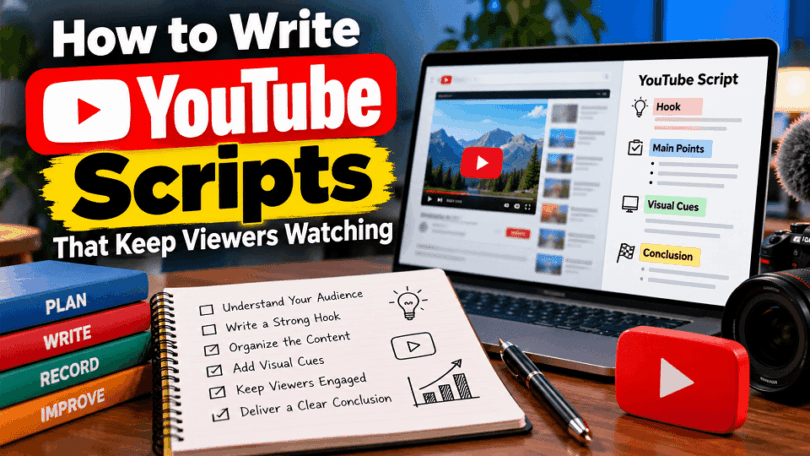

Writing a YouTube script is more than putting words together. A good script connects your video title, thumbnail, opening hook, and main content to the result viewers expect. It helps you explain ideas clearly, maintain interest, and deliver a satisfying answer.
This guide explains how to write YouTube scripts that keep viewers watching. Start by understanding your audience and the questions they want answered. Open with a clear promise, organize the content logically, and use examples, demonstrations, and visual cues to support your narration. Each section should give viewers a reason to continue without delaying the information they came for.
In this guide, you’ll learn how to write a YouTube script step by step, build curiosity without misleading viewers, plan engaging visuals, and use practical script templates. You’ll also see how to apply these techniques to tech tutorials, software demonstrations, reviews, and faceless YouTube videos.
What Is a YouTube Script, and Why Does It Matter?
A YouTube script is a written plan for what you will say and show in a video. It organizes your ideas, explains the main points, and helps you deliver the information in a clear order. A good script also connects the video’s title and thumbnail to the information viewers receive after clicking.
For tech creators, scripting is especially useful. A Windows tutorial may require precise instructions, while a smartphone review needs clear comparisons and practical examples. Planning these details before recording helps reduce mistakes, unnecessary pauses, and confusing explanations.
A script does not need to sound like a formal speech. It should guide the video while leaving room for natural delivery, useful demonstrations, and spontaneous explanations.
YouTube Script vs. Outline vs. Talking Points
These three approaches help you prepare a video, but they offer different levels of detail.
| Format | What it includes | Best suited for |
| Full script | Detailed narration, transitions, and visual directions | Tutorials, explainers, voiceovers, and faceless videos |
| Outline | Main sections and the order in which they appear | Reviews, comparisons, and longer educational videos |
| Talking points | Short reminders of ideas to discuss | Experienced presenters and conversational videos |
A full script gives you more control over wording and sequence. An outline provides structure without fixing every sentence. Talking points offer the most freedom, but they require you to explain each idea clearly while recording.
For example, a Windows troubleshooting video may benefit from a full script because the order of the steps matters. A smartphone review might work better with an outline covering design, performance, battery life, and value.
Choose the format that helps you explain the topic accurately and naturally. You can also combine formats by scripting the opening and important explanations while using talking points for familiar sections.
Do You Need to Write Every Word Before Recording?
No. You do not need a word-for-word script for every YouTube video. The right approach depends on the topic, your experience, and the complexity of the information.
A full script is useful when you need precise instructions, careful explanations, or a polished voiceover. It also helps creators who produce faceless videos and record narration separately from the visuals.
An outline may be enough for a familiar topic or a hands-on product review. It lets you speak naturally while keeping the video organized. However, technical details, product specifications, commands, and important claims should still be checked before recording.
If you are a beginner, start with a more detailed script. Read it aloud, remove sentences that sound unnatural, and practice explaining the ideas in your own voice. As you gain experience, you can switch to outlines or talking points for sections you know well.
The goal is not to memorize every sentence. It is to deliver the right information in a clear, engaging order.
What Makes a YouTube Script Effective?
An effective YouTube script does more than organize narration. It helps the video meet viewers’ expectations from the opening to the final answer.
A strong script has five important qualities.
- A clear promise: The title, thumbnail, and opening establish what viewers will learn or achieve.
- A logical structure: Each section builds on the previous one and moves toward the video’s main purpose.
- Natural narration: The language sounds conversational and is easy to understand when spoken aloud.
- Useful visual direction: Screen recordings, demonstrations, examples, and on-screen text support the explanation.
- A satisfying resolution: The video answers its main question and delivers the result it promised.
Consider a video titled “How to Fix a Windows 11 PIN Error.” An effective script should identify the error, explain the relevant troubleshooting steps, and show viewers how to check whether the solution worked. It should not spend several minutes discussing unrelated Windows features before addressing the problem.
This is the central principle of effective YouTube scripting: every section should help fulfill the video’s promise. When your narration, visuals, and explanations work together, viewers can follow the content more easily and understand what to do next.
How to Write YouTube Scripts That Keep Viewers Watching
Step 1: Plan Your Video Before Writing the Script
Before writing your YouTube script, decide what the video should accomplish and who it should help. Starting with narration before defining these details can lead to unfocused explanations, unnecessary sections, and an opening that fails to meet viewers’ expectations.
A clear plan gives every part of the script a purpose. It also helps you connect the video title, thumbnail, opening hook, and main content to one central goal.
Define Your Target Viewer and Their Main Question
starting a tech YouTube channel.
Start by identifying the person you want to help. Consider their experience level, the problem they face, and what they already know about the topic.
For example, a video about Windows 11 troubleshooting could target beginners who cannot sign in to their computers. These viewers need clear instructions and safe troubleshooting steps. They probably do not need a detailed explanation of Windows authentication architecture.
A video about choosing a laptop for video editing has a different audience. Those viewers may want to compare processor performance, memory, graphics capabilities, display quality, and price.
Write down three things before you begin:
- Target viewer: Who is most likely to watch this video?
- Main question: What problem or decision brought them here?
- Desired outcome: What should they understand or accomplish by the end?
These answers help you decide which information belongs in the script and which details you can leave out.
Research Viewer Questions, Search Intent, and Expectations
Once you know your audience, investigate what they want to learn. The goal is to understand the questions behind their search, not simply collect keywords.
You can start with YouTube search suggestions, relevant comments on existing videos, Google search results, and questions people ask in technology communities. If you have an established channel, your own comments and audience feedback can also reveal recurring problems.
Organize your findings into three groups:
- Primary question: The main problem the video must solve.
- Supporting questions: Related details viewers need to understand the solution.
- Follow-up questions: What viewers may need to know after the main problem is resolved.
For example, someone searching for a way to fix a laptop battery that drains quickly may also want to know which settings consume power, how to identify battery health problems, and when a battery replacement may be necessary.
Not every related question belongs in the same video. Include supporting questions when they help fulfill the main promise. Save unrelated or substantially different topics for separate videos.
This research gives your script a clear direction and helps prevent gaps in the explanation.
Analyze Competing Videos and Identify Content Gaps
Reviewing other videos can help you understand how creators approach the topic and what viewers may still need. Search for your intended topic on YouTube and examine several relevant videos, especially those targeting a similar audience.
Pay attention to how they introduce the problem, organize their explanations, demonstrate important steps, and resolve common questions. Read relevant comments to identify confusion, unanswered questions, or requests for additional detail.
Look for opportunities to improve the viewing experience. For example, competing Windows tutorials might skip a troubleshooting prerequisite, show outdated interface instructions, or fail to explain how to verify whether a fix worked.
Your opportunity is to address those shortcomings with accurate, useful information.
Do not copy another creator’s script, structure, examples, or distinctive presentation. Use your research to understand the topic and then develop your own explanation, demonstrations, and approach.
A useful question to ask is: What can my video explain more clearly, demonstrate more accurately, or help viewers accomplish more easily?
Your answer becomes the foundation of your video’s distinctive value.
Define the Main Promise and Desired Outcome
Before writing the opening, summarize the video’s main promise in one sentence. It should explain what viewers will learn, solve, compare, or accomplish.
For example:
This video will show beginners how to identify common causes of Windows 11 PIN sign-in problems and work through appropriate troubleshooting steps.
This promise establishes a clear boundary for the script. It does not guarantee that every method will work on every computer. Instead, it sets a realistic expectation about the help the video will provide.
Next, decide what evidence or demonstration will show that you have delivered on the promise. A tutorial may need a screen recording. A product comparison may need a side-by-side demonstration. An explainer may need a diagram or a practical example.
Use this planning checklist before drafting:
- The target viewer is clearly defined.
- The main question is specific.
- Important supporting questions have been identified.
- The video offers a useful contribution beyond repeating existing content.
- The main promise is realistic and relevant to the title.
- You know what information or demonstration will support the explanation.
Once these decisions are clear, you can write the title and thumbnail concept, develop the opening hook, and organize the main sections around the viewer’s needs. This makes the next scripting steps more focused and easier to complete.
Step 2: Align Your Script With the Title and Thumbnail
Your YouTube title and thumbnail create an expectation before viewers watch a single second. Your script must fulfill that expectation. When the opening, narration, and visuals deliver what viewers anticipated, they can quickly understand that they have found the right video.
Think of the title, thumbnail, and script as parts of one promise. The title explains the topic, the thumbnail highlights its most compelling aspect, and the script delivers the information behind both.
Make the Title, Thumbnail, and Opening Work Together
Before writing your opening, review your proposed title and thumbnail together. Each should communicate the same central idea without simply repeating the same words.
For example, consider a video about fixing a Windows 11 PIN sign-in problem.
- Title: How to Fix “Your PIN Is No Longer Available” in Windows 11
- Thumbnail: PIN Unavailable?
- Opening: “Seeing the ‘Your PIN is no longer available’ message on your Windows 11 PC? In this video, we’ll walk through the troubleshooting steps you can try to regain access, starting with the simplest options.”
The title identifies the specific problem. The thumbnail makes it easy to recognize at a glance. The opening confirms the issue and explains what viewers can expect.
This alignment also helps you decide what belongs in the script. If the title promises a step-by-step tutorial, viewers should receive clear instructions. If it promises a comparison, the script should establish meaningful differences and help viewers understand which option suits their needs.
Before recording, ask yourself three questions:
- Does the title make a clear promise?
- Does the thumbnail reinforce that promise?
- Does the opening immediately connect the viewer’s problem to the video’s solution?
If these elements point in different directions, revise them before recording.
Confirm the Click by Delivering on the Video’s Promise
Click confirmation means quickly reassuring viewers that the video addresses the reason they clicked. You do this by acknowledging their problem, showing the relevant situation, and establishing what the video will help them accomplish.
Avoid spending the opening on lengthy greetings, channel introductions, or unrelated background information. Start with the viewer’s concern.
For a software tutorial, you could show the actual error message before explaining the first troubleshooting step. For a smartphone review, you could identify the main buying question and show the feature that matters most. For a comparison video, you could establish which options you are comparing and what criteria you will use.
The opening should provide useful confirmation rather than merely promise future value. When appropriate, show a brief demonstration or preview of the result, then move into the explanation.
You can use this simple opening structure:
Viewer’s problem → Confirmation of the topic → Expected outcome → First useful step
For example:
“Does your laptop battery drain quickly even when you’re not running demanding apps? We’ll check the settings and common causes that can increase battery use, then work through practical ways to reduce unnecessary drain. Let’s start by checking which apps are using the most power.”
This opening identifies the problem, establishes a realistic outcome, and moves directly into useful information.
You do not need to reveal every detail immediately. You simply need to make the video’s relevance clear and begin delivering on its promise.
Avoid Misleading Hooks and Unfulfilled Expectations
A dramatic hook can attract attention, but it becomes counterproductive when the video cannot support its claims. Your opening should create interest without exaggerating the likely result or withholding essential information.
For example, a title promising a guaranteed fix for every Windows 11 PIN error sets an unrealistic expectation. Different causes may require different solutions, and some troubleshooting methods may not apply to every device.
A more responsible approach is to explain which common causes the video covers, demonstrate appropriate steps, and acknowledge relevant limitations.
The same principle applies to technology reviews. Do not imply that a product is the best choice for everyone if its advantages depend on budget, workload, or personal requirements. Explain the conditions under which your recommendation makes sense.
Avoid these common mistakes:
- Promising a result the video cannot reliably deliver.
- Using a thumbnail that suggests a feature or outcome the video does not demonstrate.
- Delaying the answer with a long introduction or unrelated story.
- Repeating the title several times without adding useful information.
- Introducing a dramatic question and never resolving it.
A strong hook should make viewers interested in the information that follows. It should not replace the information itself.
The rule is simple: attract attention with an accurate promise, confirm that promise in the opening, and fulfill it throughout the video. This gives your script a clear direction and creates a more trustworthy viewing experience.
Step 3: Choose the Right Structure for Your YouTube Video
Not every YouTube video should follow the same script structure. A troubleshooting tutorial needs clear instructions, while a technology review needs evidence, comparisons, and a useful verdict. An educational explainer must build understanding step by step.
Choose a structure that matches the viewer’s goal. Then organize the script so each section answers an important question and moves the video toward its promised outcome.
Structure a Tech Tutorial or Troubleshooting Video
A tech tutorial should help viewers complete a task or solve a specific problem. The script must present the instructions in a logical order, explain important decisions, and show viewers how to verify the result.
A practical structure looks like this:
- Identify the problem: Confirm the error, task, or difficulty the viewer wants to resolve.
- Explain the likely cause: Provide only the background needed to understand the next steps.
- Check prerequisites: Mention necessary settings, permissions, backups, or compatibility requirements.
- Demonstrate the solution: Walk through the steps in the correct order, showing the relevant screen or procedure.
- Address common complications: Explain what to do when a step fails or a different situation appears.
- Verify the outcome: Show how viewers can determine whether the solution worked.
- Summarize the next action: Reinforce the essential steps and direct viewers to relevant additional help when useful.
For example, a video about fixing a Windows 11 PIN sign-in error should begin by identifying the exact error message. It should then explain the appropriate troubleshooting options, demonstrate each relevant step, and show how to check whether sign-in works again.
Avoid presenting every possible fix as if it applies to every computer. Explain when a method is appropriate and provide alternatives when necessary.
Practical tip: Write the steps in the order viewers should perform them. If a later step depends on an earlier one, make that relationship clear in both the narration and the visuals.
Structure a Technology Review or Comparison
A technology review helps viewers decide whether a product suits their needs. A comparison helps them understand the differences between two or more options.
Both formats need a clear evaluation framework. Without one, the script can become a collection of specifications that leaves viewers unsure what to choose.
For a technology review, consider this structure:
- Introduce the product and target user: Explain what you are reviewing and who may benefit from it.
- Establish the evaluation criteria: Identify the features or performance measures that matter.
- Examine the important features: Cover design, usability, performance, battery life, compatibility, or other relevant factors.
- Show evidence: Use real testing, demonstrations, examples, or clearly attributed specifications.
- Discuss limitations: Explain drawbacks, trade-offs, and circumstances in which the product may disappoint.
- Give a balanced verdict: State who should consider the product and who may prefer an alternative.
For a comparison video, use consistent criteria for every option. If you compare two laptops, for example, evaluate both against the same needs, such as performance, portability, battery life, and price.
Do not assume that the product with the highest specification is automatically the best choice. Explain how differences affect real-world use.
The ending should help viewers make a decision, not simply repeat the features already discussed.
Structure an Explainer or Educational Video
An explainer teaches viewers how something works, why it matters, or how different concepts connect. The main challenge is making unfamiliar information understandable without overwhelming the audience.
Start with the question the video will answer. Introduce the basic concept before moving into more complicated details.
A useful structure is:
- Introduce the question: Explain what viewers will understand by the end.
- Establish the basics: Define essential terms and provide necessary background.
- Explain the process: Break the concept into manageable stages.
- Use examples and analogies: Connect unfamiliar ideas to situations viewers understand.
- Address common misunderstandings: Clarify confusing points or correct misconceptions.
- Show why it matters: Explain practical applications, implications, or limitations.
- Summarize the concept: Connect the main ideas and answer the original question.
For example, a video explaining zero-knowledge proofs should first establish what problem they solve. It can then explain the underlying idea using a simple analogy before introducing the technical process and real-world applications.
Avoid introducing too many technical terms at once. Define each important term when viewers first need it, and use diagrams or demonstrations when they communicate the idea more clearly than narration alone.
Practical tip: After explaining a complex concept, ask whether a beginner could describe it in their own words. If not, simplify the explanation or add a useful example.
Structure a Faceless YouTube Video
A faceless video does not show the creator’s face, but it still needs a clear narrative and purposeful visuals. The script must coordinate narration with screen recordings, demonstrations, graphics, stock footage, or other relevant visual material.
This makes visual planning particularly important. A paragraph of narration may sound clear on its own but become difficult to follow if the screen does not show what the words describe.
Use a structure that combines spoken content with visual instructions:
- Write the narration: Establish the opening, main points, transitions, and conclusion.
- Assign a visual to each section: Decide whether viewers should see a screen recording, demonstration, diagram, product shot, or supporting footage.
- Add on-screen text where useful: Highlight important terms, steps, figures, or warnings.
- Plan visual transitions: Change scenes when the explanation moves to a new idea or benefits from a different demonstration.
- Check narration and visuals together: Make sure the footage supports the words and appears at the appropriate moment.
- Resolve the main question: End with the promised explanation or result before recommending another video.
For a software tutorial, the script might include a narration line explaining how to open a setting, followed by a screen recording showing the exact menu and an on-screen label identifying the option.
For a faceless technology explainer, a diagram may be more effective than generic stock footage. Choose visuals that clarify the subject rather than merely filling the screen.
You can write visual directions in brackets alongside the narration, such as:
Narration: “Open Settings and select the Battery section to review your usage.”
[Visual: Show the relevant settings screen. Highlight the Battery option. Display the navigation path on screen.]
These directions help you record and edit the video without interrupting the spoken explanation.
Remember that faceless videos do not all need the same production style. Some work best with detailed screen recordings, while others rely on diagrams, product demonstrations, or carefully selected footage.
The structure should serve the topic and the viewer’s needs. Once you choose the appropriate format, you can develop the opening hook, organize the main content, and plan the curiosity and resolution points that keep the script moving.
Step 4: Write a Strong Hook and Opening
The opening of your YouTube video sets expectations for everything that follows. Viewers have already made a decision to click based on your title and thumbnail. Your first few sentences should confirm that decision and give them a clear reason to keep watching.
A strong hook does not need exaggerated claims, dramatic music, or a complicated story. It needs to make the topic relevant, establish what viewers can gain, and move naturally into the main content.
The best approach depends on the video format. A troubleshooting tutorial might begin with the error viewers are experiencing. A product review could open with a practical test. An educational explainer might introduce a question that challenges a common assumption.
Start With a Problem, Question, Result, or Demonstration
Choose an opening that fits the subject and gives viewers an immediate reason to pay attention. Four useful approaches work well for technology videos.
- Start with a problem.
Identify a difficulty your audience recognizes.
Example: “Does your Windows 11 laptop keep losing its Wi-Fi connection, even when other devices work normally?”
This opening speaks directly to viewers experiencing the problem and establishes the topic immediately.
- Start with a question.
Ask a question that introduces a meaningful decision or uncertainty.
Example: “Is 16 GB of RAM enough for video editing, or should you invest in 32 GB?”
This approach works well for comparisons, buying guides, and educational videos. Make sure the script answers the question using relevant evidence.
- Start with a result.
Show or explain a useful outcome that the video can genuinely demonstrate.
Example: “Here’s how to identify which applications are using the most battery power on your Windows laptop.”
This gives viewers a clear sense of the practical benefit without promising that one step will solve every battery problem.
- Start with a demonstration.
Show the problem, feature, or process before explaining it in detail.
For example, a software tutorial could display an error message, then show the setting or feature the viewer will learn to use. A smartphone review could open with a real camera comparison before explaining the test conditions.
Choose one primary approach rather than forcing all four into the same opening. The hook should feel like a natural beginning to the video, not a collection of attention-grabbing techniques.
Show Viewers Why the Video Matters
After introducing the topic, explain why the information is useful. Connect the subject to a problem, decision, task, or outcome that matters to the viewer.
For example, a video about checking laptop battery health could explain that battery condition helps users distinguish normal wear from problems that may require further investigation. This gives the viewer a reason to learn the process rather than simply watch a list of settings.
Keep this explanation brief. You do not need to describe every possible benefit or repeat the title in different words.
A useful opening sequence is:
- Identify the problem or question.
- Explain the practical value of addressing it.
- Establish what the video will help viewers understand or accomplish.
- Begin the first useful step.
This sequence works particularly well for tutorials and educational videos because it connects the viewer’s immediate need to the information that follows.
Avoid inventing urgency. Statements suggesting that viewers will damage their computers, waste money, or miss an important opportunity should be supported by the facts. Relevance is more persuasive than unnecessary fear.
Establish Credibility Without a Long Introduction
Viewers need a reason to trust your explanation, especially when the topic involves troubleshooting, product recommendations, or technical claims. However, a lengthy biography or channel introduction can delay the information they came to find.
Establish credibility through the quality of your explanation and the evidence you provide.
For a technology tutorial, show the relevant interface and explain the steps accurately. For a product review, describe the testing method and distinguish personal observations from manufacturer specifications. For an educational explainer, define technical terms and support important claims with reliable evidence.
If your experience is relevant, mention it briefly. For example, you could explain that you tested a feature on a particular software version. Be specific about what you actually tested, and do not imply that one test proves the same result will occur on every device.
Avoid unsupported statements such as “This is the only method that works” or “Everyone agrees this is the best option.” Such claims create expectations that the rest of the video may not be able to support.
The most effective way to establish credibility is to demonstrate knowledge, explain limitations, and deliver useful information. You do not need to prove your expertise before helping the viewer.
Preview the Next Step Without Repeating the Promise
After confirming the video’s promise, give viewers a brief sense of the next steps. For example, explain that you will check the battery report, investigate unusual app activity, and review the available power settings. Do not repeat the title or promise a result the video cannot prove.
For example, a video about improving laptop battery life might preview checking application usage, reviewing power settings, and investigating battery health. Viewers understand the plan and can decide whether it matches their needs.
A product comparison might introduce the criteria used to evaluate two laptops. An educational video might outline the basic concept before explaining how it works.
The important distinction is between previewing the journey and withholding the answer.
Do not hide a simple solution behind several unnecessary teasers. If viewers can benefit from an immediate answer, provide it early and use the remaining sections to explain the details, exceptions, and practical applications.
You can use a simple opening template:
Hook: Identify a relevant problem, question, result, or demonstration.
Click confirmation: Connect the opening to the title and thumbnail.
Value: Explain what viewers will learn or accomplish.
Brief roadmap: Preview the main steps when doing so helps the viewer.
Transition: Begin delivering the information.
For example:
“Is your Windows laptop losing battery power faster than expected? In this video, we’ll check which applications use the most energy, review the settings that affect battery life, and explain when battery health may be the problem. Let’s start by checking your battery usage.”
This opening identifies the problem, establishes a realistic promise, previews the approach, and moves directly into the first step.
Remember that a strong hook is only the beginning. The rest of the script must fulfill the expectation it creates. When your opening and main content work together, viewers can quickly understand the video’s value and follow the explanation with greater confidence.
Step 5: Organize the Main Content Around Viewer Questions
Once your opening establishes the video’s promise, the main content must deliver on it. Organize the script around the questions viewers want answered, the decisions they need to make, or the steps they must follow.
A common mistake is to write everything you know about a topic instead of focusing on what viewers need to know. This can make the video feel unfocused, even when the information is accurate.
Before drafting each section, ask yourself three questions: What does the viewer need to understand? Why does it matter? What should they be able to do or understand afterward?
Use the answers to decide what belongs in the script and what you can remove.
Order the Main Points by Practical Importance
Arrange the main sections in the order viewers need them. Explain prerequisites before an action, show the basic method before advanced alternatives, and place optional background information later. This keeps the structure useful without repeating the opening.
For a troubleshooting tutorial, explain the first appropriate step before discussing less common causes. For a product review, introduce the features that matter most to the target audience before covering minor design details. For an educational explainer, establish the core concept before introducing advanced terminology.
This does not mean every video must reveal its entire conclusion in the first sentence. It means the script should provide useful information early and give each following section a clear purpose.
A practical way to prioritize content is to divide it into three categories:
- Essential information: Details viewers need to achieve the promised outcome.
- Supporting information: Examples, explanations, or context that make the essential points easier to understand.
- Optional information: Interesting details that do not directly support the video’s main purpose.
Keep the essential information central. Include supporting details when they improve understanding, and remove optional material when it slows the explanation.
For example, a video about choosing a laptop for college should prioritize performance, battery life, portability, and budget. A lengthy history of laptop processors would be unnecessary unless it helps viewers make a better decision.
Break Complex Topics Into Clear Sections
A script becomes easier to follow when each section addresses one main idea. Instead of presenting a long explanation without breaks, divide the topic into smaller steps that build on one another.
For a Windows troubleshooting video, you might organize the main content around identifying the error, checking common causes, trying appropriate solutions, and verifying the result. Each section prepares viewers for the next.
For a technology explainer, you might begin with a basic definition, explain how the technology works, and then discuss its practical applications and limitations.
Use descriptive transitions and section headings in your working script. These make it easier to organize the narration, plan visual changes, and identify gaps before recording.
A useful rule is to introduce a new section when the viewer needs to answer a different question or perform a different task. Avoid splitting every small point into a separate section, as excessive fragmentation can make the video feel disjointed.
You should also consider dependencies. If viewers must complete one step before moving to another, make the order explicit. Explain any prerequisites before asking them to proceed.
Use Examples, Demonstrations, and Evidence
Examples make abstract explanations easier to understand. Demonstrations show viewers how a process works, while evidence helps them evaluate whether a claim is trustworthy.
Choose the format that best supports the point you are making.
For a software tutorial, show the actual interface and the steps viewers need to follow. For a smartphone review, demonstrate a feature under relevant conditions. For a technology explainer, use a diagram or analogy to simplify a complicated concept.
Evidence is especially important when discussing product performance, security, troubleshooting, or technical specifications. Distinguish between what you tested, what the manufacturer claims, and what reliable sources establish.
Consider a video comparing two laptops. Rather than simply stating that one has better battery life, explain the testing conditions or identify the source of the figures. If your results apply only to a particular configuration, make that limitation clear.
Plan these elements while writing the script instead of leaving every visual decision until editing. Add notes indicating where a screen recording, comparison table, demonstration, or supporting graphic would help viewers understand the explanation.
The goal is not to add visuals everywhere. It is to provide the right evidence at the moment viewers need it.
Write Natural Transitions Between Sections
Transitions connect ideas and help viewers understand why the next section matters. Without them, a video can feel like a collection of unrelated points.
A good transition briefly connects the current explanation to the next question.
For example, after showing viewers how to check which applications consume battery power, you might say:
“Now that you’ve identified the biggest power consumers, let’s check the Windows settings that can affect battery usage.”
This transition explains the relationship between the two steps and prepares viewers for the next action.
You can also use transitions to introduce a contrast, clarify a limitation, or explain what remains to be resolved.
Avoid repeating phrases such as “But that’s not all,” “You won’t believe what happens next,” or “Stay tuned” throughout the script. These expressions become distracting when they do not introduce meaningful information.
The best transitions are often simple. They tell viewers where the explanation is going and why the next section belongs there.
Keep Each Explanation Focused
Give each paragraph one purpose. Define an unfamiliar term, explain the action, or interpret the result. Use short sentences where they improve spoken clarity, but vary sentence length so the narration does not sound mechanical. Remove a sentence when it repeats an explanation the viewer has already understood.
Use familiar words, direct explanations, and sentences that express one main idea at a time. Define technical terms when viewers first need them, and explain complicated procedures in manageable steps.
For example, instead of writing:
“Navigate to the relevant configuration interface to evaluate the application’s contribution to system resource consumption.”
You could say:
“Open Settings and check which applications are using the most resources.”
The second version is easier to understand and gives viewers a clearer action to follow.
Read your draft aloud before recording. Look for long sentences, repeated words, awkward transitions, and phrases that do not sound like your natural speaking style. Rewrite anything that makes you pause unnecessarily or struggle to explain the point.
For tech tutorials, be especially precise with menu names, commands, settings, and warnings. Simple language should make instructions easier to follow, not remove details that viewers need.
You should also vary your sentence structure. Short sentences help emphasize important instructions, while slightly longer sentences can explain context or connect related ideas. Avoid making every sentence identical in length.
Finally, do not confuse conversational narration with unnecessary filler. Words such as “um,” repeated introductions, and unrelated anecdotes can distract from the explanation when they add no value.
Step 6: Use Curiosity Cycles and Rehooks to Maintain Interest
A well-organized YouTube script gives viewers useful information, but it also creates a natural reason to continue watching. Curiosity cycles and rehooks can help maintain interest when they introduce meaningful questions, connect related ideas, and lead to satisfying answers.
The goal is not to make viewers wait unnecessarily for information. It is to help them understand why the next section matters while continuing to deliver useful content.
For tech creators, this approach works particularly well in troubleshooting tutorials, product comparisons, software demonstrations, and educational videos. Each section can answer one question while preparing viewers for the next relevant question.
What Is a Curiosity Loop in YouTube Scriptwriting?
A curiosity loop introduces a relevant question that the video answers later. Unlike the opening hook, which establishes the overall value of the video, a loop connects one part of the explanation to a later payoff.
For example, a laptop troubleshooting video might explain that several settings can affect battery life, then investigate which settings matter most. The initial question creates interest, while each demonstration adds useful information before the explanation reaches its conclusion.
A simple curiosity loop has three stages:
- Open the loop: Introduce a relevant question, problem, or uncertainty.
- Develop the loop: Provide context, evidence, or steps that help viewers understand the issue.
- Close the loop: Deliver the answer or explain what the evidence reveals.
You do not need to leave every question unanswered until the end of the video. Small loops can open and close within a single section, while a larger question can guide the overall explanation.
For example, a video comparing two laptops might begin by asking which one offers better value for students. It can then compare performance, battery life, portability, and price before delivering a verdict based on the viewer’s needs.
The question gives the comparison a purpose. The evidence and conclusion make the viewing experience worthwhile.
Introduce Useful Questions at Natural Points
Raise a question only when the answer adds context or helps viewers make a decision. For example, after showing a battery usage report, ask whether high app usage is actually unusual. Then explain how to interpret the result in context.
Before adding a curiosity loop, consider whether the answer will help viewers solve a problem, make a decision, understand a concept, or avoid a mistake.
For example, a Windows troubleshooting video might introduce these questions:
- Why does this error appear?
- Which troubleshooting step should I try first?
- What should I do if the first method fails?
- How can I confirm that the problem is resolved?
These questions follow the viewer’s actual needs. They also provide a natural structure for the script.
You can map each question to the section where you plan to answer it. This prevents important questions from being forgotten and helps you decide which information belongs in the video.
Avoid introducing unrelated mysteries simply to create suspense. If a question does not support the video’s main promise, it may distract viewers rather than encourage them to continue.
You should also consider how much information viewers need before they can understand the answer. Some questions require a short explanation, while others need background, a demonstration, or a comparison. Plan enough time to resolve each one properly.
Deliver Payoffs Before Curiosity Becomes Frustration
A payoff is the answer, demonstration, discovery, or conclusion that resolves an earlier question. It should reward viewers for following the explanation and help them move closer to the outcome promised by the video.
The timing depends on the question. A simple question may need an immediate answer, while a complicated comparison may require several sections of evidence before reaching a reliable conclusion.
For example, if viewers want to know whether a particular Windows setting affects battery usage, explain what the setting does and show how to check it. Do not spend several minutes teasing the answer if a direct demonstration would resolve the question.
A useful rule is to provide information as soon as viewers have enough context to understand it. When more explanation is necessary, tell them why and continue making progress toward the answer.
Use this simple planning method:
- Write down each important question introduced in the script.
- Identify the section where you will resolve it.
- Decide what evidence, explanation, or demonstration the answer requires.
- Check that the answer is clear enough for viewers to use.
- Remove any teaser that does not contribute to the explanation.
This is especially important in educational and troubleshooting videos. Withholding essential instructions can make the content harder to follow and reduce viewers’ trust.
Curiosity should support the delivery of useful information, not become a substitute for it.
Rehook Viewers at Meaningful Transitions
A rehook is a short transition that renews interest as the video moves into its next section. Unlike the opening hook, which introduces the video’s overall promise, a rehook gives viewers a reason to pay attention to the next development.
The strongest rehooks arise naturally from the subject.
For example, after explaining how to identify applications that consume excessive battery power, you might say:
“Now that you’ve identified the biggest power consumers, let’s check whether your power settings are contributing to the problem.”
This transition connects the completed step to the next useful investigation. It creates forward momentum without exaggerating what comes next.
You can use several approaches:
Introduce the next practical step. Explain what viewers should check after completing the current task.
Highlight an important distinction. Show why two similar-looking options produce different results.
Address a common complication. Explain what changes when the usual method does not work.
Reveal the implication of a demonstration. Connect the result of a test to the next decision.
For example, a laptop comparison might transition from performance testing to battery life by explaining that strong performance does not necessarily mean a laptop is suitable for travel.
Use rehooks when they help connect ideas or signal a meaningful development. You do not need to add one after every paragraph. A clear transition or a useful answer is often enough to keep the script moving.
Avoid Repetitive Teasers and Artificial Suspense
Curiosity techniques become less effective when the script repeatedly promises something important but delays delivering it. Viewers may begin to recognize the pattern and lose confidence in the narration.
Phrases such as “Wait until you see the final trick” or “The next method will change everything” can feel exaggerated when the following section contains ordinary information.
Instead, explain why the next point matters.
For example, rather than saying, “You won’t believe the next battery-saving trick,” you could say, “Before changing more settings, check the battery’s health. Software adjustments cannot fix every battery problem.”
The second transition introduces a useful distinction and prepares viewers for the next step. It also avoids promising an extraordinary result.
Watch for these common mistakes:
- Opening several curiosity loops without resolving them.
- Repeating the same teaser at every transition.
- Delaying a straightforward answer to increase watch time.
- Creating suspense around information that does not affect the viewer’s decision.
- Ending the video without resolving questions raised earlier.
During editing, review every question and teaser in your script. Confirm that each one receives an appropriate answer, and remove those that exist only to prolong the video.
The principle is simple: use curiosity to guide attention, rehooks to connect ideas, and payoffs to reward viewers with useful answers. When these elements work together, your script feels purposeful rather than artificially stretched.
Step 7: Add Visual Engagement and Editing Directions
A YouTube script should plan not only what viewers hear but also what they see. Visual instructions help you turn narration into a video that is easier to follow, understand, and remember.
This is especially important for tech tutorials, software demonstrations, product reviews, and faceless videos. A clear explanation becomes more useful when viewers can see the setting, feature, process, or result being discussed.
Instead of writing the narration first and deciding on every visual during editing, plan important visual elements alongside the script. This helps you identify missing demonstrations, prepare screen recordings, and avoid footage that adds little value.
Write Visual Instructions Alongside the Narration
Write a visual cue when the viewer needs to see an action, setting, comparison, or detail. Keep directions specific enough to record, but avoid scripting every cursor movement or decorative edit.
Keep these instructions separate from the spoken narration so you can distinguish what viewers hear from what they see.
For example, a Windows tutorial might use this format:
Narration: “Open Settings and select the Battery section to review your recent battery usage.”
[Visual: Show the relevant Windows Settings screen. Highlight the Battery option and display the navigation path on screen.]
Narration: “Look for applications using more power than you would expect.”
[Visual: Show the battery usage screen. Highlight one example and explain what the displayed figures mean.]
This format makes the script easier to record and edit. It also helps you notice when an explanation needs a visual demonstration rather than another sentence of narration.
You do not need to describe every camera movement or editing action. Add directions where they improve clarity, emphasize an important point, or help the production team understand what the scene requires.
Before recording, check that you can obtain or create the planned visuals. If a claim depends on a specific demonstration, prepare the necessary footage or evidence in advance.
Use Screen Recordings, B-Roll, and Demonstrations
Different visual formats serve different purposes. Choose the one that best explains the information in each section.
Screen recordings are useful for software tutorials, settings walkthroughs, troubleshooting, and app demonstrations. They let viewers follow the same steps on their own devices.
B-roll provides supporting footage that complements the main narration. For example, a laptop review might show the keyboard, ports, display, or device being used in different settings.
Demonstrations show how a feature or process works. A smartphone review could compare camera results, while a troubleshooting tutorial could show how to verify whether a change resolved the problem.
Diagrams and graphics help explain relationships or processes that are difficult to show with live footage. They can be useful for topics such as artificial intelligence, computer networking, or cybersecurity.
Plan the visual around the information rather than choosing footage simply to fill the screen.
If you are explaining how to change a Windows setting, show the relevant interface. If you are discussing a laptop’s portability, show the device being carried or used in a realistic setting. If you are explaining an abstract technical concept, a clear diagram may work better than generic stock footage.
Also, use footage you have created, licensed, or otherwise have permission to use. Avoid presenting unrelated footage as proof that a product or method performs in a particular way.
Highlight Important Details With On-Screen Text
On-screen text helps viewers notice essential information without relying entirely on narration. It can highlight menu names, commands, specifications, warnings, comparisons, or key conclusions.
For example, a Windows troubleshooting video might display the exact error message when introducing the problem. During the demonstration, a short label could identify the menu the viewer needs to open.
For a laptop comparison, an on-screen graphic could summarize battery capacity, weight, or price while the narration explains the practical differences.
Use text selectively. A screen filled with captions, labels, statistics, and decorative elements can become harder to understand than the original footage.
Follow these principles:
- Keep each label concise and readable.
- Highlight the information relevant to the current explanation.
- Use consistent typography and placement.
- Make important warnings easy to notice.
- Ensure text remains legible on smaller screens.
- Check that captions and labels do not cover essential interface elements.
Do not use on-screen text simply to repeat every spoken sentence. Use it to emphasize key information, clarify unfamiliar terms, or make important details easier to remember.
When a tutorial involves commands or exact settings, ensure that the displayed text matches the instructions in the narration. Even a small discrepancy can confuse viewers.
Plan Zooms, Cuts, Graphics, and Visual Transitions
Editing choices should help viewers follow the explanation. Zooms can draw attention to small interface elements, cuts can remove unnecessary pauses, and graphics can simplify a complicated comparison.
For example, when showing a software menu, you might zoom in on the option being discussed. Once the viewer understands where to click, return to the full interface to show the next step.
A product review might cut from a close-up of a port to a wider shot showing how the device is used. An educational video might introduce a diagram when the narration begins explaining a process with several connected stages.
Plan important editing cues in the script, especially when timing matters.
[Editing cue: Zoom in on the battery usage figures when they are mentioned. Return to the full Settings screen before moving to the next step.]
Use transitions to show a meaningful change in topic, location, demonstration, or stage of the process. Avoid adding effects merely because a scene feels visually quiet.
The same principle applies to sound effects and background music. They can support the tone of a video, but they should not distract from spoken instructions or important technical details.
Match Editing Rhythm to the Information Being Explained
Editing rhythm refers to the pace at which shots, scenes, graphics, and other visual elements change. The right pace depends on the subject, the complexity of the explanation, and the amount of time viewers need to understand what they see.
A software tutorial may require several seconds on a particular screen so viewers can locate a setting and follow the instructions. A fast-paced product montage may use shorter shots to compare design details or introduce features.
Do not assume that changing the screen every few seconds automatically improves retention. Frequent cuts can make a tutorial harder to follow, while a long, static shot can be appropriate when viewers need time to examine a complicated interface.
Instead, change the visual when the information or viewer’s task changes.
For example:
- Show the complete interface when introducing a process.
- Zoom in when pointing out a specific control.
- Hold the shot long enough for viewers to understand the instruction.
- Switch to a demonstration when explaining the result.
- Use a summary graphic when comparing several options.
Review the script with these questions in mind: Does each visual support the narration? Does the viewer have enough time to understand it? Is a scene change necessary, or would it interrupt the explanation?
For tech creators, the most effective editing is not necessarily the fastest editing. It is editing that makes the information easier to follow while maintaining an appropriate pace.
Before recording, read the narration alongside the visual directions. Check that every important explanation has the support it needs, that demonstrations are planned in advance, and that editing choices serve a clear purpose. This preparation makes production more efficient and helps create a video in which narration and visuals work together.
Step 8: Deliver a Complete Solution and a Satisfying Ending
The final section should close any important gaps. Explain how viewers can check the result, state relevant limitations, and resolve questions raised during the video.
This is particularly important for technology content. A troubleshooting video should explain how to verify whether a fix worked. A product review should help viewers decide whether the product suits their needs. An educational explainer should leave viewers with a clear understanding of the concept.
Plan the ending while writing the main content. This helps you identify missing explanations, unanswered questions, and promises that the script still needs to fulfill.
State the Result and What It Means
Return to the main question you identified during planning. Make sure the script answers it directly rather than ending with a general summary that leaves viewers uncertain.
For a Windows troubleshooting tutorial, the conclusion might summarize the appropriate steps and explain how to confirm that the error has disappeared. For a laptop comparison, it might identify which model suits different users and explain the trade-offs behind each recommendation.
Avoid introducing a major new topic in the final moments. The ending should bring the existing explanation together, not start another lesson.
A useful approach is to summarize the key takeaway in a few sentences. Reinforce the decision, solution, or principle viewers should remember, and clarify any important limitations.
For example, a video about improving laptop battery life could conclude by reminding viewers to identify power-hungry applications, review relevant settings, and investigate battery health if the problem continues.
The summary should reinforce the solution rather than repeat the entire video word for word.
Include Prerequisites, Limitations, and Verification Steps
A solution is not complete if viewers cannot determine whether it applies to their situation or whether it worked.
When writing a tutorial, identify any prerequisites before the relevant step. These might include administrator access, a compatible software version, a backup, or a warning about changing system settings.
Explain limitations honestly. A Windows troubleshooting method may work for one cause of an error but not another. A battery-saving adjustment may reduce power consumption without fixing a worn battery. A product recommendation may depend on budget, workload, or regional availability.
Where appropriate, show viewers how to verify the result.
For example, after demonstrating a Windows setting change, explain what viewers should check to determine whether it had the intended effect. If the result differs from what you showed, provide a safe next step or explain when further investigation is necessary.
Use this checklist when reviewing a tutorial script:
- Have you identified the necessary prerequisites?
- Are the instructions accurate and in the correct order?
- Have you explained relevant risks or limitations?
- Can viewers tell whether the method worked?
- Have you explained what to do if the expected result does not occur?
These details help turn a video from a simple demonstration into a useful guide viewers can follow with greater confidence.
Resolve Important Questions Raised Earlier
If your script introduces questions, promises, or unresolved points, check that each receives an appropriate answer.
Return to your viewer question map and curiosity tracker. Review the questions introduced in the hook, the main sections, and the transitions. Confirm that the script resolves them at the planned points.
For example, a laptop comparison might raise the question of which model offers better battery life. If the video later presents testing results, the conclusion should explain what those results mean for the intended audience.
Similarly, a software tutorial might introduce an alternative method for viewers whose settings differ. If that alternative is important to the main promise, explain it rather than leaving viewers to guess.
Not every minor detail needs a separate conclusion. Some questions can be answered within the section where they arise. The important thing is to avoid leaving viewers with an essential question that the video promised to address.
Do not confuse resolution with explaining every possible detail. Keep the answer focused on the video’s purpose, and direct viewers to a separate resource when a related topic requires a much deeper explanation.
End With a Relevant Call to Action
A call to action (CTA) tells viewers what useful action they can take next. It might encourage them to try a demonstrated technique, ask a relevant question, subscribe for similar tutorials, or watch a related video.
Choose a CTA that fits the content and the viewer’s next likely need.
For example, after a Windows troubleshooting tutorial, you might invite viewers to describe the error they encountered, without asking them to share passwords or other sensitive information. After a laptop comparison, you could ask which features matter most to their buying decision.
Keep the request specific and brief. Avoid stacking several requests for likes, comments, subscriptions, notifications, and shares into the final few seconds.
The main solution should come first. Viewers should not have to subscribe, comment, or watch another video to receive the answer promised in the current one.
A useful ending structure is:
- Summarize the main result.
- Mention an important limitation or next step, if needed.
- Offer one relevant action.
- Recommend a related video when it genuinely helps.
This keeps the conclusion focused while giving interested viewers a natural way to continue.
Use Binge Loops to Guide Viewers to a Related Video
A binge loop connects the current video to another relevant video that answers a related question. The aim is to help interested viewers continue learning, not to withhold information or force them to watch more content.
Think about what a viewer is likely to need after finishing your video.
Someone who has learned to start a tech YouTube channel may next want to understand YouTube SEO. Someone who has finished a Windows troubleshooting tutorial may need a separate guide for a related error. A viewer comparing video editing software may benefit from a tutorial on improving editing workflow.
Use that next step to choose a relevant recommendation.
For example, after explaining how to write an effective YouTube script, you could say:
“Now that you have a script ready, the next step is turning it into a polished video. Watch our guide to the best free video editing software for beginners to compare tools for your workflow.”
This recommendation follows naturally from the current topic and gives viewers a clear reason to continue.
You can prepare binge loops by mapping related videos during the planning stage. Identify the questions that your video answers and the next questions viewers may reasonably ask. Then select an existing or planned video that addresses one of those questions.
Use YouTube end screens, cards where appropriate, and relevant links in the description to support the recommendation. Make sure the suggested video actually delivers on its own promise.
Avoid ending with an unrelated recommendation or teasing a crucial answer that belongs in the current video. If viewers came for a solution, provide it before inviting them to continue.
A satisfying ending completes the current video’s promise and makes the next step optional but useful. When the solution, summary, and recommendation work together, your script serves viewers well without relying on artificial cliffhangers.
How Long Should a YouTube Script Be?
The ideal length of a YouTube script depends on the video’s target duration, speaking pace, and visual content. A short tutorial may need only a few hundred words, while a detailed technology review or educational video may require a longer script.
Instead of writing a fixed number of words to reach a specific duration, start with the information viewers need. Estimate the script length, account for demonstrations and pauses, and adjust the draft after reading it aloud.
Estimate Word Count From the Target Video Length
A simple way to estimate script length is to multiply the intended speaking time by your average narration speed.
For many conversational YouTube videos, a starting estimate of 130–160 spoken words per minute is reasonable. However, technical tutorials may need a slower pace when viewers must follow instructions or examine on-screen details.
Use this formula:
Estimated spoken word count = Speaking time in minutes × Words spoken per minute
The following table provides approximate word counts for continuous narration.
| Speaking time | At 130 words/minute | At 150 words/minute |
| 3 minutes | 390 words | 450 words |
| 5 minutes | 650 words | 750 words |
| 8 minutes | 1,040 words | 1,200 words |
| 10 minutes | 1,300 words | 1,500 words |
| 15 minutes | 1,950 words | 2,250 words |
These figures estimate speaking time, not guaranteed finished-video duration. They assume the narration occupies the entire period without extended demonstrations, pauses, or other nonverbal segments.
For example, if you want to create a 10-minute technology explainer, you could begin with approximately 1,300–1,500 spoken words. If the video includes several screen demonstrations, you may need fewer words to achieve the same overall duration.
Treat these figures as planning estimates. Your natural delivery, topic complexity, and audience’s need for explanation should determine the final length.
Account for Screen Demonstrations, Pauses, and B-Roll
Not every second of a YouTube video contains spoken narration. Viewers may need time to watch a software demonstration, compare product features, read an on-screen instruction, or observe the result of a process.
This is especially important for tech tutorials and faceless videos. A script that contains enough narration for 10 minutes of speech may produce a substantially longer video once demonstrations and pauses are included.
Consider a Windows troubleshooting tutorial. You might spend time showing the error message, navigating through settings, applying a change, and checking whether the solution worked. Narrating every second of these actions would make the explanation repetitive.
Instead, plan the spoken content and visual segments separately.
For each section, estimate:
- Narration time: How long the spoken explanation will take.
- Demonstration time: How long viewers need to see the process.
- Reading time: Whether viewers need time to read commands, labels, or comparison figures.
- Transition time: Whether a scene change or brief pause helps the explanation.
For example, a 10-minute tutorial might contain eight minutes of narration and two minutes of demonstrations with minimal or no speech. The final duration will depend on the actual recording and editing.
Add visual directions to your script so you can identify these segments before recording. Then review the edited video to determine whether each pause provides useful information or simply slows the pace.
Remove Filler Without Rushing the Explanation
A script should be as long as necessary to fulfill its promise and no longer. Adding extra explanations simply to reach a target duration can make a video repetitive, while cutting too aggressively can leave viewers confused.
Review each paragraph and ask whether it answers a question, explains a necessary step, supports a claim, or helps viewers understand the result.
Remove repeated introductions, unnecessary background details, empty transitions, and examples that do not add anything new. Keep explanations that clarify important distinctions, address likely problems, or prevent mistakes.
However, do not remove information merely because it takes time to explain. A troubleshooting tutorial may need to include a warning before a system change. A product comparison may need to explain testing conditions so viewers can interpret the results correctly.
Read the script aloud at your natural recording pace. Mark sentences that sound awkward, sections that repeat earlier points, and instructions that move too quickly for a beginner to follow.
Then record a short test and compare the actual speaking time with your estimate. This will help you develop a more accurate sense of your own narration speed.
The goal is not to make every video longer or shorter. It is to give viewers the information they need at a pace they can comfortably follow. A concise, complete tutorial is more useful than a padded video, and a detailed explanation is worthwhile when the subject genuinely requires it.
A Reusable YouTube Script Template for Beginners
A reusable YouTube script template helps you plan a video before recording. It gives you a consistent way to define the viewer’s problem, align the title and thumbnail, organize the narration, and plan the visuals.
You do not need to follow a rigid formula for every video. Use the template as a starting point, then adapt it to your format. A Windows troubleshooting tutorial needs precise steps, while a technology review may need comparisons, test results, and a clear verdict.
The following templates cover four important stages: planning the video, writing the script, coordinating narration with visuals, and tracking questions through to their resolution.
Video Brief and Viewer Promise Template
Complete this brief before writing the narration. It helps you decide what the video should cover and what viewers should gain from watching it.
Copy and customize this template:
Video topic: [What is the video about?]
Target viewer: [Who is the intended audience?]
Main viewer question: [What problem or decision brings them to this video?]
Proposed title: [What does the video promise?]
Thumbnail message: [What key idea should viewers understand at a glance?]
Expected outcome: [What should viewers learn, solve, or decide?]
Supporting questions: [What else must the video explain?]
Unique value: [What useful explanation, demonstration, or evidence will this video provide?]
Required visuals or evidence: [What must you show or verify?]
Related next video: [What might viewers reasonably want to watch afterward?]
For example, a video about checking laptop battery health might target Windows users who suspect their batteries are wearing out. Its promise could be to show them how to check available battery information and understand what the results mean.
This brief keeps the script focused. If a section does not support the main promise or answer an important supporting question, consider removing it or saving it for another video.
Hook, Main Content, and Conclusion Template
Once the brief is complete, organize the narration into a logical sequence. This template gives beginners a practical starting point without forcing every video into the same structure.
- Hook and click confirmation
- Identify the problem, question, result, or demonstration.
- Confirm that the video addresses the subject promised by the title and thumbnail.
- Explain the practical value of watching.
- Begin delivering useful information promptly.
- Opening context
- Introduce only the background viewers need.
- Explain any important prerequisite.
- Preview the main steps if that helps viewers follow the video.
- Main content
For each major section, fill in the following:
- Viewer question: What does the viewer need to know?
- Explanation: What is the answer or key idea?
- Demonstration: What should viewers see?
- Important detail: Is there a limitation, warning, or common mistake?
- Transition: Why does the next section follow naturally?
Repeat this structure for each main section, adjusting the detail to suit the topic.
- Resolution
- Answer the main viewer question.
- Summarize the essential steps or findings.
- Explain how to verify the result when appropriate.
- Clarify any important limitations.
- Call to action
- Suggest one relevant next action.
- Invite a useful comment or subscription when appropriate.
- Recommend a related video if it genuinely helps viewers continue.
This structure works well for tutorials, explainers, and reviews. You can rearrange sections when the topic requires it, provided the video still delivers on its central promise.
Narration and Visual Direction Template
A narration and visual direction template helps you plan the spoken explanation alongside the footage, screen recordings, graphics, and editing cues.
Use a two-column script for a simple video, or add more columns when you need detailed production notes.
| Narration | Visual direction |
| [What the presenter says] | [What appears on screen] |
| [Explain the next step] | [Show the interface or demonstration] |
| [Clarify an important detail] | [Highlight the relevant setting or text] |
| [Explain the result] | [Show how to verify it] |
For a Windows tutorial, a completed example might look like this:
| Narration | Visual direction |
| “Open Settings and navigate to the relevant battery information.” | Show the appropriate Windows interface and highlight the navigation path. |
| “Review the available battery information to understand its reported condition and usage.” | Show the relevant report or settings screen, using the correct labels for the Windows version. |
| “Compare the results with the guidance provided for your device.” | Display the relevant figures or guidance and explain what they indicate. |
The exact instructions will depend on the Windows version and the information available on the device.
Add editing cues only when they serve a purpose. A zoom can clarify a small interface element, while an on-screen label can help viewers locate a setting. Avoid unnecessary effects that make instructions harder to follow.
Before recording, read the narration alongside the visual directions. Make sure the footage supports the spoken explanation and that you can obtain or create every important visual.
Curiosity Loop and Resolution Tracker
Curiosity loops help organize questions that keep the explanation moving. A tracker ensures that each important question receives an appropriate answer rather than remaining unresolved until the video ends.
Use this template while outlining or revising your script.
| Question or open loop | Why it matters | Planned resolution | Status |
| [What question is introduced?] | [Why does the viewer care?] | [Where and how will it be answered?] | Open / Resolved |
| [What follow-up question arises?] | [How does it support the main promise?] | [What evidence or explanation resolves it?] | Open / Resolved |
| [What complication needs attention?] | [What happens if the normal method fails?] | [What alternative or limitation will be explained?] | Open / Resolved |
For example, a laptop battery troubleshooting video might introduce the question of whether software settings or battery wear are responsible for rapid power loss. The script can investigate power usage first, then explain how available battery-health information may help distinguish between possible causes.
The answer should be delivered when viewers have enough context to understand it. Do not delay a straightforward solution merely to increase watch time.
You can also use the tracker to plan rehooks. After resolving one question, introduce the next relevant step only when it helps viewers move toward the video’s main goal.
Before finalizing the script, check that every important loop is resolved, every major claim has appropriate support, and the ending delivers the promised outcome.
Use these templates together, not as four separate documents that repeat the same information. The video brief defines the promise, the script template organizes the narration, the visual template plans production, and the tracker checks that important questions receive satisfying answers. Together, they create a repeatable workflow you can adapt to your next YouTube video.
Complete YouTube Script Example: A Tech Tutorial
If you’re a small YouTube creator, writing a script can feel harder than choosing a video topic. You may know what you want to explain but struggle to organize the narration, screen recordings, and transitions.
A simple structure can make the process easier. This example shows how to write a five-minute tech tutorial with timed narration, visual directions, and rehooks that help viewers follow each step.
Video Topic, Title, Thumbnail, and Viewer Expectations
Before writing the script, decide what viewers want to learn and what your video will help them accomplish.
Video topic: Finding apps that use battery power on a Windows laptop.
Video title: How to Check Which Apps Are Draining Your Windows Laptop Battery
Thumbnail text: WHAT’S DRAINING IT?
Target audience: Windows laptop users who notice that their battery runs down faster than expected.
Main viewer question: Which apps are using battery power, and how can I investigate them?
Expected outcome: Viewers learn where to find battery usage information, interpret the results, and investigate possible causes.
Video format: Screen recording with voice-over and simple on-screen text.
The title states the task, and the thumbnail highlights the problem. Use the opening to connect both to a realistic outcome. Avoid promising that one app explains every battery problem.
Example Script With Hook and Click Confirmation
Use the opening to identify the problem, state the realistic outcome, and begin the first useful step. Avoid a lengthy channel introduction.
0:00–0:15 — Hook
Narration:
“Does your Windows laptop lose battery faster than expected? Some apps may be using more power than you realize. I’ll show you where to check battery usage and how to investigate the apps that stand out.”
Visual directions:
- Start with a close-up of the Windows battery indicator.
- Cut to a screen recording of Windows Settings.
- Display the on-screen text: “Find apps using your battery.”
Why this works: The hook identifies a familiar problem and promises a specific outcome. It gives viewers a clear reason to continue watching.
0:15–0:30 — Confirm the click
Narration:
“You can start with a built-in Windows feature. It provides battery usage information for your device, so let’s open the report and see what it reveals.”
Visual directions:
- Show the Settings window.
- Move the cursor toward the System section.
- Keep the recording focused on the next action.
Why this works: Click confirmation connects the opening promise to the actual content. Viewers see that the video is moving toward a solution instead of delaying the answer with introductions.
Example Script With Visual Cues and Rehooks
The main content should follow a logical sequence. Each instruction needs a matching demonstration, and every transition should help viewers understand what comes next.
0:30–1:15 — Open the battery usage report
Narration:
“First, press Windows and I together to open Settings. Select System from the sidebar, then choose Power and battery.”
“Find Battery usage and expand that section. You can now review the battery information available for your device.”
Visual directions:
- Show the keyboard shortcut Windows + I.
- Highlight System in the Settings sidebar.
- Select Power & battery.
- Scroll to Battery usage and expand it.
Navigation note: Microsoft documents this path in Windows 11: Settings → System → Power & battery → Battery usage. The page can show battery information and app usage for the device. Labels and available details may vary by Windows version and hardware. If the page looks different, search Settings for “Battery usage.”
Why this works: The narration uses short, sequential instructions. The visual directions tell the creator exactly what to record, while the timing estimate helps with planning the voice-over and screen capture.
1:15–2:00 — Explain how to read the results
Narration:
“Look at the battery usage chart and the app list. If a time-period selector is available, check the selected period before comparing the results.”
“Pay attention to apps that appear to use substantial power. But remember, high usage doesn’t automatically mean something is wrong. Video editing, gaming, and video calls can naturally consume more energy.”
Visual directions:
- Expand the battery usage section.
- Show the available time-period controls, if the device provides them.
- Scroll to the app usage list.
- Add the text: “High usage doesn’t always mean a problem.”
Why this works: The script explains what the information means instead of simply showing a settings page. This makes the tutorial more useful to beginners.
2:00 — Rehook: Introduce the next useful question
Narration:
“Now that you’ve found the report, the important question is whether an app’s usage is actually unusual.”
Visual directions:
- Pause briefly on the app list.
- Highlight one entry without presenting invented measurements as real data.
Why this works: A rehook renews attention by introducing the next practical question. It creates a natural transition without hiding information or manufacturing suspense.
2:00–2:45 — Investigate apps that stand out
Narration:
“Start with apps that appear to use significant power even though you haven’t used them much. Consider what you were doing during the selected period and whether those apps needed to run.”
If an app’s background use seems unusual, check for updates and review its settings. Windows offers a Manage background activity option for supported apps; it is not available for every app.
Visual directions:
- Highlight an app in the usage list.
- Show its available settings.
- For a supported app, show More options → Manage background activity. Explain the available choices before changing one.
- Display the reminder: “Investigate before disabling.”
Why this works: The script moves from observation to a practical next step. It also avoids telling viewers to disable or uninstall apps without understanding their purpose.
2:45 — Rehook: Explain why checking the result matters
Narration:
“Changing a setting is only part of the process. You also need to check whether the change makes a difference.”
Visual directions:
- Show the relevant power settings.
- Transition to the battery usage report.
Why this works: The transition prepares viewers for the verification step. It introduces a useful action instead of repeating the same promise.
2:45–3:30 — Review the available power settings
Narration:
Return to Power & battery and review the options available on the demonstration device. Depending on the device, these may include Energy saver, Power mode, and other power settings. A more efficient mode can reduce power use, but may also affect performance.
“However, some settings can affect performance or background notifications. Choose options that suit your needs rather than changing everything at once.”
Visual directions:
- Return to the Power and battery page.
- Highlight the relevant options on the demonstration device.
- Add a short on-screen note: “Settings may affect performance.”
Why this works: The script explains both the potential benefit and the trade-off. This builds trust and prevents the tutorial from becoming a list of instructions without context.
3:30–4:00 — Verify the results
Narration:
After making a change, use the laptop under comparable conditions and review the report again. Battery use can vary with workload, brightness, connectivity, and background activity, so avoid claiming that one change caused an improvement without a fair comparison.
“If the battery still drains quickly, consider other factors such as screen brightness, demanding workloads, network activity, or battery health. An app usage report is a useful clue, not a complete diagnosis.” For a more detailed battery-health and usage record, Microsoft also explains how to create a Windows battery report.
Visual directions:
- Return to the battery usage report.
- Highlight the report rather than showing an invented before-and-after improvement.
- Display the text: “Change one thing. Check again.”
Why this works: The script closes the troubleshooting loop. Viewers learn how to evaluate a change rather than assuming that every adjustment will improve battery life.
How the Script Delivers the Final Solution
The ending should answer the viewer’s original question, summarize the steps, and offer a relevant next action.
4:00–4:35 — Summarize the solution
Narration:
“Here’s the process to remember. Open Settings, go to System, select Power and battery, and expand Battery usage. Review the app list, investigate unusual activity, and check the relevant settings.”
“Then review the results after normal use. This helps you investigate possible causes without unnecessarily disabling apps.”
Visual directions:
- Display a short checklist:
- Open Battery usage.
- Review the app list.
- Investigate unusual activity.
- Check the results.
- Highlight each step as the narration mentions it.
Why this works: The recap reinforces the key steps and gives viewers something easy to remember. It resolves the main question instead of ending immediately after the demonstration.
4:35–5:00 — End with a relevant call to action
Narration:
“If your laptop still loses power quickly, you may need to investigate battery health or other power-related issues. Watch my related Windows laptop battery guide for more troubleshooting steps.”
“If this tutorial helped, subscribe for more practical Windows tips.”
Visual directions:
- Display a related video in the end screen, if one is available.
- Keep the closing short and focused.
- Avoid unrelated promotions.
Why this works: The next-video recommendation extends the viewer’s learning journey. It should lead to a published video that genuinely helps with the same problem.
The example demonstrates how a complete script connects the title, opening, narration, screen recordings, transitions, and final solution. It also shows how creators can plan the recording before they begin editing.
Technical reference: Microsoft’s guidance for checking battery usage and managing supported apps and its Windows battery-saving tips support the general navigation and background-activity guidance above. Check the current interface on the device being recorded before publishing.
The timestamps are estimates, not strict limits. Actual timing depends on speaking speed, demonstrations, and pauses. This is an illustrative script, not a report of a device test. Record genuine footage from a device you can access, or use clearly labelled illustrative graphics. Do not invent app-usage figures, before-and-after results, or screenshots. Rehooks and visual changes can improve clarity, but they cannot guarantee a specific audience-retention rate.
How to Use AI to Write Better YouTube Scripts
AI can help you plan a YouTube video, organize ideas, and prepare a first draft. It can also suggest hooks, transitions, and examples. However, an AI-generated script is only a starting point. You still need to verify the information and make the narration sound like you. If you are comparing tools for this workflow, see best AI tools for YouTubers.
The best approach is to use AI as a writing assistant, not as a replacement for your judgment. You should control the video’s purpose, technical accuracy, examples, and final message.
Use AI to Research Questions and Build an Outline
Before writing the script, use AI to organize the questions your target audience wants answered. This helps you identify the main topic, supporting questions, and information the video must cover.
For example, if you’re creating a video about Windows laptop battery drain, you could ask AI to suggest common viewer questions, such as:
- Where can I check battery usage in Windows?
- How can I identify apps using significant power?
- Can background activity affect battery life?
- What should I check if the battery still drains quickly?
Next, ask AI to group these questions into a logical outline. Start with the main problem, explain the relevant settings, demonstrate the steps, and finish with verification and other possible causes.
Use this prompt as a starting point:
AI prompt:
“Act as a YouTube script planner for a beginner-friendly technology channel. My video topic is [topic], and my target audience is [audience]. Identify the main viewer question, suggest relevant supporting questions, and organize them into a clear video outline. Prioritize the information viewers need most. Suggest useful demonstrations and identify claims that require verification. Do not write the full script yet.”
Review the suggested outline before moving forward. AI may suggest generic questions or miss important details. Check search results, official documentation, relevant audience comments, and competing videos where appropriate.
Generate and Refine a First Draft
Once the outline is ready, ask AI to turn it into a script. Specify the target video length, speaking style, format, and intended outcome.
For example, a five-minute technology tutorial might need approximately 650–800 spoken words, depending on the speaking pace. A screen-recorded demonstration may need fewer words because viewers also need time to watch the steps.
You can use this prompt:
AI prompt:
“Turn the approved outline into a YouTube script for a five-minute technology tutorial. Use simple, conversational language and short sentences. Begin with a relevant hook, confirm the video’s promise, and move quickly into the main content. Include narration, approximate timestamps, screen-recording directions, on-screen text, and natural transitions. Add rehooks only when they introduce useful information. Avoid repetition, exaggerated promises, and unnecessary introductions. End with a clear solution and a relevant call to action.”
Read the draft aloud before recording. Some sentences may look good on screen but sound unnatural when spoken.
Revise long sentences, remove repeated explanations, and replace vague instructions with specific actions. Check whether the estimated runtime matches the actual amount of narration and demonstration time.
Add Original Insights and Natural Language
AI-generated scripts can sound polished but generic. They may repeat familiar advice without offering a distinctive perspective or a useful example.
Your experience and editorial judgment make the script more valuable. Add details that help viewers understand the topic, avoid mistakes, or make better decisions.
For a technology tutorial, you could include:
- A real demonstration recorded on your own device.
- A common mistake you discovered while testing the steps.
- An explanation of why a setting matters.
- A limitation that viewers should understand before making a change.
- A practical example that connects the instructions to a real problem.
You should also rewrite sentences that don’t match your normal speaking style. Use words you would naturally say while explaining something to a viewer.
For example, instead of saying, “Implement the recommended configuration to optimize system power consumption,” say, “Change the power setting if it suits the way you use your laptop.”
The second version is clearer and easier to deliver as narration.
Originality doesn’t require adding personal stories to every video. It means making deliberate choices about the explanation, examples, demonstrations, and advice instead of publishing an unchecked generic draft.
Fact-Check Technical Claims and Instructions
AI can generate incorrect instructions, outdated menu paths, unsupported features, or confident explanations that sound plausible. These mistakes can damage viewer trust, especially in troubleshooting videos.
Before recording, verify every important technical claim and action.
For a Windows tutorial, open the relevant settings on your own device. Confirm that the menu labels, available options, and instructions match the version you’re demonstrating. If a feature differs across versions, explain that clearly.
Use official documentation when checking operating-system features, software settings, product specifications, or technical limitations. For claims that depend on a particular device or configuration, test the steps where possible.
Pay particular attention to:
- Navigation paths: Confirm that the menus and settings actually exist.
- Technical explanations: Check that the stated cause and effect are accurate.
- Commands and procedures: Test instructions before asking viewers to follow them.
- Statistics and comparisons: Verify figures and identify their sources.
- Safety and limitations: Explain risks, prerequisites, and situations where a method may not work.
If you cannot verify a claim, remove it, qualify it, or investigate it further. Do not invent test results or present AI-generated examples as real measurements.
Finally, watch the completed recording and compare it with the script. Make sure the screen demonstrations match the narration and that the video delivers what the title and thumbnail promise.
AI can reduce the time spent planning and drafting a YouTube script. Your research, testing, original insights, and final review are what make that script reliable and useful to viewers.
Common YouTube Scriptwriting Mistakes to Avoid
A well-written YouTube script does more than explain a topic. It helps viewers understand the information without unnecessary delays or confusion. Even useful videos can lose viewers when the script feels repetitive, misleading, or difficult to follow.
Avoid these common mistakes when writing your next script.
Writing an Opening That Delays the Main Point
One of the most common mistakes is spending too much time introducing yourself, your channel, or the topic before addressing the viewer’s problem.
For example, a video about fixing a Windows error doesn’t need a long explanation of how Windows works. Viewers clicked because they want to understand the error and find a solution.
Start with the problem, explain what the video will help them accomplish, and move into the first useful step. Introduce your background only when it helps establish relevant credibility.
How to improve it: Review the first 30 seconds of your script. Remove sentences that don’t establish the problem, confirm the video’s promise, or help viewers understand what comes next.
Repeating Information or Overloading the Viewer
Repeating the same point in different words makes a script longer without necessarily making it more useful. Overloading viewers with too many details can also make complex topics harder to understand.
This often happens when creators try to include everything they know about a subject. A beginner-friendly tutorial, for example, may become confusing if it introduces advanced settings before explaining the basic steps.
Give each section a clear purpose. Explain an idea once, add an example when it improves understanding, and introduce additional details only when they help viewers complete the task.
How to improve it: Check every paragraph against the video’s main question. If a sentence repeats an earlier point or adds little value, shorten it or remove it. Move optional technical details into a separate section when appropriate.
Using Hooks That the Video Cannot Fulfill
A strong hook creates interest by presenting a problem, question, result, or useful promise. However, a hook becomes misleading when the video fails to deliver what it suggests.
For example, a title promising a way to improve laptop battery life creates a clear expectation. An opening that promises to double battery life without reliable evidence sets an unrealistic one.
Misleading hooks can disappoint viewers even when the rest of the video contains useful information. They also create a mismatch between the title, thumbnail, opening, and actual content.
How to improve it: Before recording, compare your title, thumbnail, hook, and conclusion. Make sure the video delivers the promised information. Use specific, realistic claims and explain limitations where necessary.
Adding Unnecessary Editing Effects or Teasers
Zooms, sound effects, captions, graphics, and quick cuts can make a video easier to follow. However, adding them without a clear purpose can distract viewers from the explanation.
The same applies to artificial suspense. Repeatedly promising a secret tip or delaying a simple answer can frustrate viewers instead of keeping them interested.
For a screen-recorded tutorial, a clear cursor movement or a brief zoom on an important setting may be more useful than several rapid cuts. A rehook works best when it introduces a meaningful next step or explains why the next detail matters.
How to improve it: Add a visual effect when it highlights information, clarifies an action, or improves the transition. Use teasers only when they introduce a genuine question that the video will answer. Let the content determine the editing rhythm.
Reading the Script Without Practicing It
A script can look clear on the page but sound unnatural when spoken aloud. Long sentences, unfamiliar phrases, and abrupt transitions can make narration feel stiff.
Reading without practice can also lead to repeated mistakes during recording. This is especially noticeable in technical videos, where creators must explain steps while keeping the narration clear and the screen demonstration synchronized.
How to improve it: Read the script aloud before recording. Rewrite phrases that feel awkward, break long sentences into shorter ones, and mark pauses around important instructions.
For a screen-recorded tutorial, rehearse the narration alongside the actions you need to demonstrate. If a sentence is difficult to say naturally, simplify it rather than forcing yourself to memorize it.
You don’t need to memorize every word. The goal is to understand the sequence well enough to deliver the explanation naturally and confidently.
A final read-through can reveal problems that are easy to miss while writing. Remove unnecessary introductions, check for repetition, verify every promise, and practice the narration before you begin recording. These small improvements can make your script clearer and easier for viewers to follow.
YouTube Script Checklist Before Recording
Before recording, review your YouTube script from the viewer’s perspective. Check whether the opening matches the video’s promise, the instructions are accurate, and the ending provides a satisfying conclusion.
Use this checklist to catch problems before they become recording or editing issues.
Check the Title, Thumbnail, and Viewer Promise
Your title and thumbnail create an expectation before viewers watch the video. The opening should confirm that expectation, and the main content should deliver on it.
Before recording, check the following:
The title clearly communicates the video’s main benefit or topic.
The thumbnail supports the title without repeating it unnecessarily.
The opening addresses the viewer’s problem or question.
The hook promises something the video can realistically deliver.
The script answers the main viewer question without unnecessary delays.
Every major section contributes to the video’s purpose.
Read the title and opening together. If they suggest different outcomes, revise the script before recording.
Verify Accuracy and Complete Solutions
A clear script is not enough if its instructions are incorrect or incomplete. This matters especially for technology tutorials, troubleshooting videos, software reviews, and product comparisons.
Check each important claim and action before recording.
Technical claims have been verified using reliable sources or practical testing.
Menu paths, commands, and settings match the version being demonstrated.
Prerequisites and important limitations are explained.
Each procedure includes the steps viewers need to follow.
The script explains how to check whether the solution worked.
Examples, statistics, and product specifications are accurate.
No untested claims or invented results are presented as facts.
For troubleshooting videos, ask yourself one additional question: Can a viewer follow these instructions and understand what to do if the first attempt doesn’t work?
If not, add the missing step or explain the relevant alternative.
Review Narration, Pacing, and Visual Cues
The narration and visuals should work together. Viewers should be able to follow the explanation without struggling to understand the instructions or locate the relevant information on screen.
Read the script aloud and check these points:
The narration sounds natural when spoken.
Long or complicated sentences have been simplified.
Repeated explanations and unnecessary filler have been removed.
The estimated runtime allows enough time for demonstrations and pauses.
Screen recordings, B-roll, graphics, and on-screen text support the narration.
Visual directions identify what to show and when to show it.
Transitions connect sections logically.
Rehooks introduce useful information rather than artificial suspense.
Important instructions have enough time on screen to be understood.
For a screen-recorded tutorial, rehearse the narration alongside the actions you plan to demonstrate. This helps you identify timing problems before recording.
You don’t need a visual change every few seconds. Use cuts, zooms, captions, and graphics when they improve understanding or emphasize an important detail.
Check the Ending and Related Video Recommendation
A strong ending resolves the viewer’s main question. It should not introduce an entirely new topic or repeat the entire video unnecessarily.
Before recording the conclusion, confirm that:
The script delivers the result promised in the opening.
Important questions introduced earlier have been answered.
The main steps or takeaways are summarized clearly.
Any remaining limitations or alternative solutions are explained.
The call to action feels natural and relevant.
The recommended next video genuinely helps viewers continue learning.
The closing leaves enough time for the planned end-screen elements.
Choose a related video based on the viewer’s next likely question. For example, someone watching a Windows battery tutorial may benefit from a guide to diagnosing fast battery drain.
Only recommend a video that is already published or will be available when the end screen goes live.
A final review doesn’t guarantee higher retention, but it can prevent avoidable mistakes. Once your script passes this checklist, you’re ready to record with a clearer plan, more reliable information, and a better understanding of what viewers should see and hear.
How to Improve Future Scripts Using Audience Retention Data
Publishing a YouTube video is only part of the process. The next step is learning how viewers respond to your content. YouTube Analytics provides audience-retention data that can help you identify strong sections, confusing explanations, and moments that may need improvement.
Use these insights to refine future scripts rather than guessing why a video performed well or poorly. Retention patterns can suggest where to investigate, but they don’t always reveal the exact reason viewers left.
Identify Where Viewers Stop Watching
Audience retention shows how much of your video people watch and how that viewing changes throughout the video. The retention graph can help you identify moments when viewers leave, skip ahead, or continue watching.
Start by looking for noticeable drops. Then compare those timestamps with the corresponding sections of your script.
For example, imagine a Windows tutorial where many viewers leave during a long explanation before the first demonstration. The introduction may be taking too long to deliver useful information. In your next script, you could shorten the explanation and show the first practical step earlier.
Look for patterns such as:
- A steep drop near the beginning: Review whether the opening matches the title and thumbnail, confirms the viewer’s expectations, and gets to the point quickly.
- A drop during a technical explanation: Check whether the narration is too complicated, repetitive, or difficult to follow.
- A drop during a demonstration: Review whether the screen recording moves too slowly, the cursor is hard to follow, or the instructions don’t match the visuals.
- A gradual decline throughout the video: Examine the overall pacing, structure, and relevance of each section.
Don’t rewrite an entire script because of one drop. Compare the pattern with the content at that moment and look for similar issues across other videos.
Investigate Spikes, Dips, and Repeated Viewing
Audience-retention graphs can reveal more than where viewers stop watching. Certain patterns may help you identify sections worth studying.
Dips indicate moments when viewer retention decreases. Check whether the script repeats information, introduces an unnecessary tangent, or delays an answer. Also consider whether viewers received the information they needed and left satisfied.
Spikes indicate moments when a section receives more attention than surrounding sections. Depending on the report, they can reflect sharing, skipping to a particular point, or rewatching. A spike does not automatically mean that the section is effective.
Repeated viewing can be useful when viewers revisit a complicated instruction, an important demonstration, or a particular explanation. It may indicate that the information is valuable or that viewers need more time to understand it.
For example, viewers may repeatedly watch a screen recording that demonstrates a Windows setting. In a future script, you could slow down that step, zoom in on the relevant option, and explain the action more clearly.
When investigating a pattern, follow this process:
- Find the timestamp where the graph changes.
- Watch that section of the video.
- Read the corresponding script passage.
- Identify a possible explanation.
- Test one reasonable improvement in a future video.
Treat the graph as a starting point for investigation, not proof that a particular writing technique caused the result.
Turn Audience Feedback Into Better Scripts
Retention data shows viewing behavior, but comments and viewer questions can help explain what people found useful or confusing. Combine both sources when planning future videos.
Look for recurring questions in comments. Notice which instructions viewers say they struggled to follow and which details they request you to explain further.
For example, if several viewers ask where to find a particular Windows setting, your next script could include a clearer navigation path, a close-up screen recording, and an explanation of what to do if the option is missing.
Use the feedback to make specific changes:
- Viewers ask basic questions: Explain prerequisites and define unfamiliar terms earlier.
- Viewers report confusing steps: Add a demonstration or break the procedure into smaller actions.
- Viewers request more detail: Expand the section that addresses their problem instead of making every section longer.
- Viewers respond positively to a particular explanation: Consider using a similar teaching approach in relevant future videos.
- Viewers want a related topic: Evaluate whether it deserves a separate video in your content cluster.
You don’t need to make every change at once. Choose the improvement most likely to help viewers, apply it to a future script, and compare the results with similar videos where possible.
Audience retention is most useful as a feedback loop. Write a script, publish the video, study the viewing patterns, and use what you learn to improve the next script. Over time, this process can help you make your explanations clearer and your videos more useful without relying on gimmicks or unsupported assumptions about what keeps people watching.
Frequently Asked Questions on How to Write YouTube Scripts That Keep Viewers Watching
How do beginners write a YouTube script?
Beginners can start by identifying their target audience and the main question their video should answer. Create a simple outline, write a strong opening, organize the main points in a logical order, and finish with a clear solution or takeaway. Add visual directions and read the script aloud before recording.
Should you write a full script or use bullet points?
A full script works well for technical tutorials, educational videos, and detailed explanations where accuracy matters. Bullet points offer more flexibility for conversational videos, personal commentary, and familiar topics. Beginners can also combine both approaches by scripting the opening and important explanations while using bullet points for the remaining sections.
How many words should a 10-minute YouTube script have?
A 10-minute YouTube script typically contains around 1,300–1,600 spoken words at a pace of 130–160 words per minute. However, screen recordings, demonstrations, pauses, and on-screen explanations can reduce the amount of narration needed. Plan your word count around the actual video format rather than relying on a fixed target.
How do you write a YouTube hook that grabs attention?
Start with a problem, question, demonstration, or result that matters to your target audience. Connect the hook directly to the title and thumbnail, then explain what viewers will learn. Avoid lengthy introductions, exaggerated promises, and suspense that delays the information viewers came to find.
Can AI write a complete YouTube script?
Yes. AI can generate a complete first draft from a topic, outline, target audience, and desired video length. However, you should review the draft for accuracy, originality, natural narration, and relevance. Verify technical instructions, add useful examples, and adjust the wording to match your speaking style before recording.
How do you keep viewers watching until the end?
Give viewers useful information early, organize the content logically, and remove unnecessary repetition. Use clear demonstrations, relevant examples, and transitions that introduce meaningful next steps. Deliver the promised solution, resolve questions raised earlier, and recommend a related video when it genuinely helps. Review audience-retention data after publishing to identify opportunities for improvement.
Final Thoughts on Writing Better YouTube Scripts
Writing better YouTube scripts starts with understanding what viewers want to learn. You don’t need complicated storytelling techniques or dramatic hooks for every video. You need a clear promise, useful information, and an explanation that viewers can follow.
Start by planning your video around one main question. Create an outline, write an opening that confirms the viewer’s expectations, and organize the main content into logical steps. Use examples, demonstrations, and visual directions to make difficult ideas easier to understand.
Before recording, read your script aloud and remove unnecessary repetition. Check your technical claims, make sure the visuals support the narration, and confirm that the ending delivers the promised answer. If you use AI to draft your script, add your own judgment, examples, and verified information before publishing.
Remember that a script is a plan, not a guarantee of success. Your delivery, editing, topic, and audience all influence how viewers respond. Review audience-retention data after publishing and use what you learn to improve your next video.
The best way to improve is to write, record, review, and refine. Start with a simple script, focus on helping your audience, and build a repeatable process with every video you create.
Author Bio
Rajkumar R. is a technology blogger, content creator, digital marketer, and SEO enthusiast passionate about making technology easier to understand. He writes about technology, digital tools, YouTube content creation, and online publishing. Through ProDigitalWeb, he shares practical guides, helpful insights, and actionable tips to help readers understand technology and build their digital skills.
Last Updated: October 31, 2026