

Introduction: Wi-Fi vs Ethernet — Why It Matters for Gamers and Streamers
Today, this world has become hyper-connected. The quality of your internet connection can make or break your digital experience when it comes to online gaming and high-resolution streaming. If you are competing in an intense FPS match or live-streaming 4K content on Twitch or YouTube then even the smallest lag or packet drop can derail your performance.
This brings us to a common question asked by millions of users every month:
Wi-Fi vs Ethernet — which is better for gaming and streaming?
The answer is not as straightforward as some might think. Ethernet has long been hailed as the gold standard for speed, stability, and low latency. However, advancements in Wi-Fi technology (like Wi-Fi 6 and 6E) have closed the gap significantly for many use cases.
Despite this evolution, the underlying physical and technical differences between these two connection types still result in vastly different user experiences when latency, jitter, and packet loss are involved.
Why This Debate Matters for Gamers and Streamers
For competitive gamers, latency and reliability are everything. A few milliseconds of lag can be the difference between a win and a loss. Imagine firing first in Valorant or Apex Legends. However, sometimes your data may hit the server a moment too late because of a packet retransmission caused by wireless interference. That is a real problem.
For streamers and content creators, bandwidth stability and upload speeds are critical. A brief fluctuation in your Wi-Fi connection can:
- Trigger buffering in your livestream
- Drop you from a Zoom or OBS session
- Cause bitrate throttling
- Reduce your stream quality mid-broadcast
And it is not only about gamers and content creators. It is all about 4K/8K streamers, smart TV users, and even cloud gamers (GeForce NOW, Xbox Cloud, Stadia). All of whom face real consequences when choosing the wrong type of connection for their setup.
Quick Thesis: Know the Trade-Offs, Choose Smartly
Both Wi-Fi and Ethernet have their place. One is not universally “better” than the other. The right choice depends on several factors:
| Factor | Ethernet | Wi-Fi |
| Latency | Lowest (1–5ms typical) | Higher (10–50ms, can spike) |
| Stability | Highly stable | Susceptible to interference |
| Speed | 1–10 Gbps (depends on cable/NIC) | Varies by standard (Wi-Fi 4–7) |
| Convenience | Requires physical cabling | Fully wireless and flexible |
| Best For | Competitive gaming, live streams | Casual gaming, streaming, and mobile |
Understanding these trade-offs empowers you to optimize your network setup based on what you need most. Understanding these trade-offs helps to decide whether it is low ping for competitive gaming or wireless flexibility for streaming across devices.
In this comprehensive guide, we will break down every critical difference between Wi-Fi and Ethernet across real-world gaming and streaming scenarios. We will also show you how to tune your Wi-Fi to perform as close to Ethernet as possible. Further, we will explain, when it is worth making the switch to a wired connection.
Core Metrics — What Really Impacts Experience
When comparing Wi-Fi and Ethernet for gaming and streaming, many users focus only on raw speed. However, in reality, speed alone is not enough to ensure a smooth, responsive, and stable experience.
To make the right choice between wireless and wired connections, you need to understand the core performance metrics that directly impact gaming responsiveness and streaming quality:
- Bandwidth
- Latency (ping)
- Jitter & packet loss
- Consistency over time
Let us break down each metric and analyze how Wi-Fi and Ethernet perform in real-world conditions.
-
Bandwidth (Mbps vs Gbps): How Much Speed Do You Actually Need?
Bandwidth is the maximum amount of data that your network connection can transfer per second. It is typically measured in megabits per second (Mbps) or gigabits per second (Gbps). Bandwidth directly impacts the speed and performance of your internet connection.
Ethernet Bandwidth:
- CAT5e cables: up to 1 Gbps
- CAT6: supports 10 Gbps over shorter distances
- CAT6A / CAT7: future-proofed for 10 Gbps+
- Wired connections maintain full duplex. Full Duplex means upload and download can happen simultaneously at full speed
Wi-Fi Bandwidth (Theoretical vs Real-World):
| Wi-Fi Standard | Theoretical Max | Real-World Throughput |
| Wi-Fi 4 (802.11n) | 150–300 Mbps | 30–80 Mbps |
| Wi-Fi 5 (802.11ac) | 433–1300 Mbps | 100–450 Mbps |
| Wi-Fi 6 (802.11ax) | Up to 9.6 Gbps | 300 Mbps – 1.2 Gbps |
| Wi-Fi 6E (6 GHz) | Similar to Wi-Fi 6, less interference | |
| Wi-Fi 7 (coming) | 30–46 Gbps | 3–5 Gbps (early tests) |
Important Note: Wi-Fi speeds are affected by:
- Distance from the router
- Obstacles (walls, floors, appliances)
- Interference (Bluetooth, neighbors’ networks)
- Device compatibility (older devices cannot take full advantage of newer Wi-Fi standards)
Bandwidth Requirements (Streaming & Gaming)
| Activity | Required Bandwidth |
| Casual web browsing | 1–5 Mbps |
| 1080p Netflix streaming | 5–8 Mbps |
| 4K HDR streaming | 25 Mbps (sustained) |
| Cloud gaming (GeForce NOW, etc.) | 15–50 Mbps |
| Live-streaming in 1080p/60fps | 6–12 Mbps upload |
| Competitive multiplayer games | <1 Mbps download/upload. However, it needs stability |
Conclusion:
- Ethernet provides consistent full-speed access. It is ideal for downloads, 4K streaming, or streaming to Twitch/YouTube.
- Wi-Fi can handle high bandwidth only under ideal conditions. The ideal conditions are often hard to maintain.
-
Latency (Ping): Why Sub-20ms Is Crucial for Gaming
Latency, or ping, measures the time it takes for a signal to travel from your device to the server and back again to your device. It is typically measured in milliseconds (ms).
In gaming, latency mean the difference between landing a shot and losing a match. In streaming, high latency may not directly affect playback. However, it hurt real-time interactions (chat delay, OBS sync issues).
Competitive Gaming Latency Guidelines:
| Ping (ms) | Experience Level |
| 0–20 ms | Excellent – Pro gaming ready |
| 20–50 ms | Playable – Casual, smooth |
| 50–100 ms | Delays noticeable |
| 100+ ms | Lag – May cause rubberbanding, desync |
Why Wi-Fi Has Higher Latency:
- Shared medium — multiple devices competing for airtime
- Contention and retransmission delays due to interference
- Wi-Fi protocols (CSMA/CA) are not real-time optimized like Ethernet
Real-World Example:
- Wi-Fi ping to game server: 18ms base + 25ms jitter = 43ms
- Ethernet to the same server: 6ms stable
Conclusion:
- Ethernet is always preferred for low-latency. It is best for competitive gaming
- Wi-Fi can be “good enough” for casual gaming. However, it is not suited for tournaments or streaming FPS titles like Valorant or CS:GO
-
Jitter & Packet Loss: The Silent Killers of Streaming and Voice Chat
Jitter is the variation in ping over time. It reflects how consistent your latency is.
High jitter causes:
- Audio popping or desync in Discord/Teams
- Delayed or “rubberbanded” movement in games
- OBS or Zoom frame skips
| Jitter Level | Streaming/Gaming Impact |
| <10 ms (stable) | Excellent experience |
| 10–30 ms | Moderate inconsistencies |
| 30 ms+ | Problematic, unstable |
Packet Loss
This occurs when data packets are dropped en route to the destination. Packet Loss is leading to:
- VoIP dropouts
- Missing frames in video streams
- “Lag spikes” and desync in gaming
Causes of Wi-Fi packet loss:
- Weak signal / long distance
- Channel interference (neighbors’ routers)
- Router overload from too many devices
- Interference from Bluetooth, cordless phones, and microwaves
Conclusion:
- Ethernet offers virtually zero jitter or packet loss.
- Wi-Fi performance degrades as the signal weakens. It is increasing packet retransmissions, jitter, and drops.
-
Consistency Over Time: Burst Speed vs Sustained Performance
Speed tests show peak speeds. However, what matters is how consistent your connection is over a 30-minute gaming session or a 3-hour stream.
Real-world consistency factors:
- Bufferbloat: Background downloads or syncs cause ping spikes
- Signal interference: someone microwaves popcorn mid-stream
- Roaming issues: switching APs in a mesh setup
- Device contention: your smart TV starts a software update
Example:
- Wi-Fi user: 500 Mbps peak on Speedtest, but streaming bitrate drops every 5 minutes
- Ethernet user: 200 Mbps on speedtest but consistent bitrate, no frame drops, stable game performance
Conclusion:
- Ethernet excels in sustained, reliable throughput
- Wi-Fi, even if fast at first, can suffer micro-drops that ruin streaming or gaming stability
Expert Insight
“A fast connection is only as good as it is consistent. Ethernet may feel boring, but it wins every time when stability and responsiveness matter most.”
Key Takeaways
- Bandwidth matters more for streamers.
- Latency matters more for gamers.
- Ethernet consistently outperforms Wi-Fi across latency, jitter, and packet loss
- Wi-Fi can be good enough if:
- You use Wi-Fi 6 or higher
- You have minimal interference
- You are gaming casually or just watching HD content
- For serious streaming or competitive play, Ethernet is non-negotiable
Wi-Fi — Pros, Cons, and When It Is Good Enough
Wi-Fi has become the default way most people connect to the internet. From laptops and smartphones to smart TVs and IoT devices, wireless networking delivers flexibility, convenience, and scalability. However, it also comes with trade-offs that matter when gaming and streaming are involved.
Let us take a closer look at the real advantages and limitations of Wi-Fi. Further, let us know how modern standards like Wi-Fi 6 and 6E have improved their performance. In addition, let us discuss in which situations Wi-Fi is actually good enough, even for gamers and streamers.
Advantages of Wi-Fi: Why It Is So Widely Used
-
Convenience and Mobility
Wi-Fi eliminates the need for physical cables. That is making it ideal for:
- Smartphones, tablets, and laptops
- Living rooms, multi-level homes, and shared spaces
- Temporary setups and portable gaming stations
You can move from room to room without disconnecting, stream Netflix from bed, or play games on a Steam Deck or Nintendo Switch while lounging on the couch. For most casual users, this is a huge win.
-
Supports Multi-Device Environments
Modern households may have:
- 10+ connected devices per person (phones, tablets, smart TVs, doorbells, thermostats)
- Simultaneous users streaming, downloading, or gaming
Wi-Fi routers like Wi-Fi 5 and later can handle dozens of devices at once using MU-MIMO (Multi-User, Multiple Inputs, and Multiple Outputs) technology.
-
Easy Installation and Low Visual Impact
- No drilling holes or running Ethernet cables
- No need for cable management
- Minimal physical clutter, aesthetically pleasing
For renters or those in temporary housing, Wi-Fi is often the only feasible option.
Drawbacks of Wi-Fi: Where It Falls Short
Despite the appeal of wireless freedom, Wi-Fi is inherently less stable and less reliable than Ethernet. That is more particularly happen when gaming or live-streaming are involved.
-
Interference
Wi-Fi signals are radio waves. Therefore, they are more susceptible to disruption from:
- Walls, floors, and furniture
- Other Wi-Fi networks (neighboring routers using the same channel)
- Devices like Bluetooth headsets, cordless phones, baby monitors, and microwaves
2.4 GHz bands have greater range but are more congested. However, 5 GHz is faster but does not penetrate walls as well.
-
Bandwidth Contention
Wi-Fi operates on shared spectrum.
That means:
- All connected devices compete for airtime
- If someone starts a large download or video stream, then everyone else’s experience can suffer
- Unlike Ethernet; Wi-Fi is half-duplex. Half- duplex means only one device can talk at a time
-
Inconsistent Speeds and Latency
Even with strong Wi-Fi signals, you can still face:
- Ping spikes (jitter)
- Fluctuating speeds
- Packet loss during congestion or interference
- Delayed game actions or dropped streaming bitrate
For gamers or professional streamers, these inconsistencies can ruin performance.
Modern Wi-Fi Standards: Improvements with Wi-Fi 6 and 6E
The good news?
Wi-Fi technology has come a long way in recent years.
Wi-Fi 6 (802.11ax)
Introduced in 2019, Wi-Fi 6 delivers:
- OFDMA (Orthogonal Frequency Division Multiple Access): breaks channels into sub-channels. That is allowing simultaneous transmissions to multiple users
- MU-MIMO enhancements: more simultaneous upstream/downstream streams
- Target Wake Time (TWT): improves battery efficiency for smart devices
- BSS Coloring: helps avoid interference from neighboring networks
- Lower latency and higher throughput in high-density environments
Wi-Fi 6E
Wi-Fi 6E extends the capabilities of Wi-Fi 6 into the 6 GHz band:
- Adds up to 7 extra 160 MHz-wide channels
- Much less congested than 2.4 or 5 GHz bands
- Ideal for short-range, high-bandwidth applications (gaming in the same room as the router)
Early Look at Wi-Fi 7 (802.11be)
Coming in 2025 and beyond, Wi-Fi 7 offers:
- 4K QAM modulation for higher data rates
- Multi-Link Operation (MLO): simultaneous use of multiple bands
- 320 MHz-wide channels for ultra-fast speeds
- Aimed at matching Ethernet performance in wireless form
Real-World Use Cases: When Wi-Fi Is Actually “Good Enough”
Despite its drawbacks, Wi-Fi is more than sufficient in many practical scenarios:
- Casual Streaming (HD/4K)
- Watching YouTube, Netflix, or Disney+ in 1080p or even 4K HDR
- Modern Wi-Fi 5/6 routers can easily deliver 25–100 Mbps streams
- Minor jitter or occasional buffering is tolerable in passive viewing
- Mobile and Handheld Gaming
- Gaming on mobile phones, tablets, or handhelds (Nintendo Switch, Steam Deck)
- These devices often lack Ethernet ports anyway
- Wi-Fi 6 reduces latency enough for non-competitive titles
- Shared Apartments or Dorms
- Situations where running cables is not allowed or practical
- Wi-Fi mesh systems or range extenders can distribute coverage efficiently
- Good enough for casual gameplay, Netflix, and Zoom calls
- Smart Home and IoT
- Lights, thermostats, cameras, and appliances do not require ultra-low latency
- Wi-Fi 6/6E improves efficiency by reducing interference among smart devices
Expert Insight
“Wi-Fi is no longer the unstable mess it once was. With Wi-Fi 6 and a well-optimized network, wireless can meet the needs of most users, but not all.”
Key Takeaways
- Wi-Fi wins on convenience and works well for casual streaming, mobile gaming, and smart home setups.
- Latency, jitter, and signal interference are still limiting factors for competitive gaming or professional streaming.
- Modern Wi-Fi standards (6 and 6E) dramatically improve performance. However, Modern Wi-Fi standards cannot fully match Ethernet’s consistency.
- Use Wi-Fi when flexibility matters more than raw precision
Ethernet — Pros, Cons, and Why It Is the Gold Standard
Wi-Fi has evolved dramatically over the years. However, Ethernet remains the undisputed gold standard for anyone serious about online gaming, 4K/8K streaming, or broadcast-grade live streaming. Its physical, wired nature makes it inherently superior in latency, stability, and throughput. Latency, stability, and throughput qualities that wireless connections still struggle to match.
Let us dive into the key advantages, trade-offs, and ideal use cases where Ethernet still reigns supreme.
Benefits of Ethernet: Why It Is Still King in 2025
-
Ultra-Low Latency
Ethernet offers the lowest possible ping. It is often under 1–5 milliseconds, because:
- It uses direct electrical signaling over twisted-pair copper cables
- No radio frequency (RF) conversion or channel contention like in Wi-Fi
- Full-duplex communication (simultaneous upload/download)
- Negligible processing delay in most NICs (network interface cards)
For competitive FPS games (Valorant, CS2, Rainbow Six, Call of Duty), low latency ensures faster response times, tighter hit registration, and fewer input delays.
-
No Interference or Signal Degradation
Unlike Wi-Fi, Ethernet is:
- Not affected by walls, microwaves, Bluetooth, or nearby routers
- Immune to environmental radio noise or signal attenuation
- Reliable across long distances (especially with CAT6/6A cabling)
This guarantees stable frame delivery during streaming or game sessions. That is possible even in dense apartment buildings or industrial environments where Wi-Fi often fails.
-
Consistently High Throughput
Ethernet connections support:
- 1 Gbps with CAT5e
- 2.5/5/10 Gbps with CAT6/6A and capable NICs
- Full-speed symmetric data (same upload and download)
This is ideal for:
- Uploading high-bitrate livestreams (1080p60 or 4K)
- Downloading large games (100GB+) on Steam or Xbox
- Cloud gaming services where every millisecond and packet matters
Even if your ISP speed is 100–300 Mbps, Ethernet ensures you are getting the full available bandwidth. That happens without drops from wireless congestion.
-
Incredible Stability and Zero Packet Loss
- No packet retransmissions from lost wireless frames
- No ping spikes due to device collisions
- No signal noise from overlapping APs or rogue devices
This makes Ethernet essential for streamers, esports players, and broadcasters, where reliability is not optional; it is mandatory.
Drawbacks of Ethernet: The Trade-Off for Precision
As powerful as Ethernet is, it is not without inconveniences. That is especially true in environments that prioritize flexibility or aesthetics.
-
Cabling Hassle
- Running Ethernet across floors, through walls, or around furniture can be a challenge.
- Requires drilling, cable management, or conduit installation in permanent setups
- Laptops, tablets, and smartphones do not support Ethernet without adapters.
-
Limited Mobility
- You are physically tethered to one location.
- Ethernet does not allow roaming between rooms or floors like Wi-Fi or mesh systems.
- Not ideal for shared households or changing setups
-
Visual and Structural Challenges
- Exposed Ethernet cables can be unsightly if not concealed
- May violate rental agreements or building regulations (especially in apartments or dorms)
- Requires thoughtful planning in multi-room gaming studios or streamer setups
Real-World Use Cases: When Ethernet Is Non-Negotiable
Here is where Ethernet truly shines, and where wireless simply cannot compete:
- Console Gaming (PS5, Xbox Series X/S, Switch docked)
- Online multiplayer (Call of Duty, FIFA, Apex Legends) demands consistent ping
- Ethernet ensures game updates and downloads run at full speed
- PC Esports and Competitive FPS
- Low input latency and frame sync are mission-critical
- Ethernet removes variable ping spikes and frame loss
- Professional Streaming Setups
- Livestreaming on OBS or Streamlabs in 1080p60 or 4K
- Consistent upload bitrate is key to preventing frame drops and stuttering
- Even slight jitter on Wi‑Fi can crash or auto-scale your stream quality
- Remote Work / Online Teaching / Zoom Webinars
- Stable video calls, screen sharing, and virtual meetings with zero interruptions
- Vital for teachers, presenters, and virtual events
Expert Insight
“When every millisecond counts, Ethernet is the tool of professionals. Whether you are climbing the esports ladder or broadcasting to thousands, it removes variables that wireless cannot control.”
Bonus: Wired Ethernet Types at a Glance
| Cable Type | Max Speed | Max Distance | Ideal Use Case |
| CAT5e | 1 Gbps | 100 meters | General home networking |
| CAT6 | 10 Gbps | ~55 meters | High-speed gaming setups |
| CAT6A | 10 Gbps | 100 meters | Streaming rigs, multi-room setups |
| CAT7 | 10 Gbps+ | 100 meters | Data centers, shielded environments |
| Powerline Ethernet | 500 Mbps – 1 Gbps | Depends on wiring | Good alternative for non-cabled rooms |
Key Takeaways
- Ethernet guarantees superior performance in speed, stability, and latency
- Ultra-reliable for competitive gaming, 4K+ streaming, and live content creation
- Physically limiting. However, it is increasingly necessary in performance-critical setups
- The best option for gamers, streamers, IT pros, and remote workers
Wi‑Fi vs Ethernet — Head-to-Head Comparison Table
We have explored the technical depth of both Wi-Fi and Ethernet. Let us put them side by side and compare them across the metrics that matter most for gaming, streaming, and real-world reliability.
This table provides a quick-reference summary of how Wi-Fi (by generation) stacks up against Gigabit Ethernet. We are using measurable performance and usability benchmarks.
Performance Comparison by Metric
| Metric | Wi‑Fi 4 (802.11n) | Wi‑Fi 5 (802.11ac) | Wi‑Fi 6/6E (802.11ax) | Gigabit Ethernet (CAT5e/6) |
| Max Theoretical Speed | 150–300 Mbps | Up to 1.3 Gbps | 1.2–9.6 Gbps (6E: cleaner 6GHz band) | 1 Gbps (CAT5e) / 10 Gbps (CAT6) |
| Real-World Speed | 30–80 Mbps | 100–450 Mbps | 300 Mbps – 1.2 Gbps | 900 Mbps – 1 Gbps (stable) |
| Latency (Ping) | 40–100 ms (high) | 20–50 ms (medium) | 10–30 ms (low-medium) | 1–5 ms (ultra-low) |
| Jitter | High | Moderate | Low (especially the 6 GHz band) | Near zero |
| Packet Loss Risk | High in interference zones | Moderate | Low (6 GHz improves this) | Near zero |
| Mobility | Excellent (fully wireless) | Excellent | Excellent | Fixed (tethered) |
| Interference Risk | Very high (2.4 GHz) | High (crowded 5 GHz) | Medium (BSS coloring helps) | None |
| Device Support | Universal | Universal | Newer devices required | Wired NIC or adapter needed |
| Setup Complexity | Plug-and-play | Plug-and-play | Requires compatible hardware | Cables, ports, and routing are needed |
| Stability | Unstable (interference) | Moderate | High (with good setup) | Rock solid |
| Gaming Use | Not ideal | Casual only | Good for casual & some pro | Best option |
| Streaming Use | Risk of buffer/drop | Good for HD/4K | Great with enough bandwidth | Best for live streaming |
Summary Analysis
- Ethernet outperforms Wi-Fi in all core technical metrics (speed consistency, latency, jitter, and reliability)
- Wi-Fi 6/6E dramatically narrows the gap and is “good enough” for most non-competitive scenarios
- The trade-off is clear: Ethernet delivers performance. Whereas Wi-Fi delivers freedom and convenience
Use Case Recommendations (Quick Reference)
| Use Case | Recommended Connection |
| Competitive FPS Gaming | Ethernet (for the lowest ping) |
| 4K/8K Netflix Streaming | Wi-Fi 6 or Ethernet |
| Live Streaming (OBS, Twitch) | Ethernet (stable upload) |
| Cloud Gaming (Stadia, Xbox) | Ethernet > Wi-Fi 6 (5 GHz+) |
| Mobile Gaming (phones, Switch) | Wi-Fi |
| Smart TVs & IoT devices | Wi-Fi (wired optional) |
| Multi-user home environments | Wi-Fi 6 with QoS or Ethernet |
| Video conferencing / Zoom | Ethernet or Wi-Fi 6 |
Key Takeaways
- Wi-Fi 6 and 6E have significantly improved wireless networking in multi-device and streaming scenarios.
- Gigabit Ethernet still dominates when performance must be predictable, consistent, and free from interference.
- Choosing between the two comes down to your environment, hardware, and usage priorities.
Gaming Specific Scenarios — Where Every Millisecond Counts
When it comes to gaming, your network setup is as important as your hardware. If you are fragging in a fast-paced FPS, coordinating attacks in a MOBA, or relying on real-time responsiveness in cloud gaming then latency, jitter, and packet reliability are mission-critical.
In this section, we break down how Ethernet vs Wi-Fi perform in different gaming scenarios, including competitive esports titles, cloud gaming platforms, and multi-gamer households.
Online FPS & MOBAs: Latency and Jitter Matter More Than Speed
In genres like first-person shooters (FPS) and multiplayer online battle arenas (MOBAs), Valorant, CS2, Call of Duty, Apex Legends, League of Legends, or Dota 2, latency and jitter directly impact reaction time, input synchronization, and hit registration.
Key Technical Factors for Competitive Gaming:
| Metric | Ideal Range | Why It Matters |
| Ping (Latency) | <20 ms | Determines how quickly actions register on the server |
| Jitter | <10 ms | Prevents erratic in-game behavior (rubberbanding, delayed skills) |
| Packet Loss | 0% | Essential for accurate input & frame sync |
| Bandwidth | ~1 Mbps | Gaming uses very little bandwidth. However, it must be consistent |
Ethernet Advantage:
- 1–5 ms ping consistently achievable on a wired LAN
- Near-zero jitter and packet loss
- Zero wireless interference (microwaves, Bluetooth, walls)
Wi-Fi Risk Factors:
- Fluctuating latency due to channel contention or interference
- Shared bandwidth among devices in busy homes
- Signal drop-off over distance (especially on 5 GHz)
Verdict:
For FPS, fighting games, battle royale, and real-time strategy, Ethernet is strongly preferred. Even minor fluctuations on Wi-Fi can throw off muscle memory and timing.
Cloud Gaming Platforms (GeForce NOW, Xbox Cloud, Stadia)
Cloud gaming is bandwidth-hungry, latency-sensitive, and heavily dependent on network quality. Since gameplay is rendered remotely and streamed as video, your input must travel to the server and back with minimal delay.
Cloud Gaming Requirements:
| Platform | Recommended Bandwidth | Recommended Latency |
| GeForce NOW | 25 Mbps for 1080p/60fps | <30 ms |
| Xbox Cloud Gaming | 20 Mbps | <35 ms |
| Amazon Luna | 10–30 Mbps | <40 ms |
| PlayStation Remote Play | 15–25 Mbps | <30 ms |
Common Issues on Wi-Fi:
- Latency spikes = controller input lag
- Buffering or video artifacts during fast-paced scenes
- Increased packet retransmission = audio/video desync
Tips for Better Cloud Gaming on Wi-Fi:
- Use Wi-Fi 6 or 6E, preferably in the same room as the router
- Connect to the 5 GHz band instead of the 2.4 GHz band.
- Disable or isolate other devices during gameplay
- Enable QoS (Quality of Service) on your router for traffic prioritization
- Use Ethernet whenever possible for cloud gaming on TVs or desktops
Verdict:
Wi-Fi can be sufficient for cloud gaming if it is properly configured and the network is not congested. Otherwise, Ethernet or wired backhaul is highly recommended for a smooth, console-grade experience.
Multiple Gamers in One Home: QoS and Bandwidth Contention
In households where multiple people game simultaneously, or a mix of streaming, downloading, and gaming is happening, then network contention becomes a serious issue.
Even if you have a 500 Mbps plan, congestion on Wi-Fi can lead to:
- Bandwidth starvation for gaming devices
- Increased jitter or latency from concurrent HD/4K streams
- Bufferbloat, where download traffic delays upload packets. That can ruin real-time performance
Solutions for Multi-Gamer Setups:
- Use QoS (Quality of Service):
- Prioritize gaming and VoIP traffic above downloads and streams
- Available in most modern routers (TP-Link, ASUS, Netgear, Ubiquiti)
- Some support application-based QoS (prioritize Steam or PSN traffic)
- Wired Where It Matters:
- Use Ethernet for gaming PCs and consoles
- Leave mobiles, smart TVs, and IoT devices on Wi-Fi
- Consider Powerline or MoCA adapters to extend Ethernet without rewiring
- Dedicated Bandwidth via Dual-Band or Tri-Band Routers:
- Separate gaming and streaming devices onto different bands (2.4GHz vs 5GHz)
- Wi-Fi 6E allows exclusive access to the 6 GHz band for reduced interference
Verdict:
In busy homes, Ethernet or wired backhaul ensures competitive players are not impacted by other users. Smart QoS and band steering can help Wi-Fi scale. However, it can help you only to a point.
Expert Insight
“Gaming performance is not only about raw speed, it is about predictability. Ethernet gives you a known-good pipeline; Wi‑Fi adds invisible chaos, especially with other players on the same network.”
Key Takeaways
- Online FPS and MOBAs demand ultra-low latency and jitter. Ethernet can consistently deliver that.
- Cloud gaming platforms can work well on Wi-Fi 6/6E. However, Ethernet still provides superior consistency and lower input lag.
- In homes with multiple gamers, smart traffic management (QoS) and hybrid wired/wireless setups are essential for performance balance.
Streaming & Content Creation — Why a Stable Uplink Matters More Than Ever
In streaming and content creation, your internet connection plays a pivotal role in how your content is delivered, perceived, and sustained. If you are uploading pre-recorded videos (VOD) or live-streaming in real time to platforms like Twitch, YouTube Live, or Facebook Gaming then the type of connection you use, Wi-Fi vs Ethernet, can make or break your stream.
This section explores:
- The network differences between VOD uploads and live streaming
- The specific bandwidth and stability demands for high-resolution encoding
- Redundant uplink setups using both Ethernet and Wi-Fi for failover protection
VOD (Video on Demand) vs Live Streaming: Different Networking Requirements
Both VOD and live streaming involve transmitting large amounts of data. However, their network demands differ significantly:
VOD (Video on Demand)
- Pre-recorded content uploaded to platforms like YouTube, Vimeo, or Dropbox
- Upload can be paused/resumed without affecting the viewer experience
- Bandwidth is important for speed. However, latency and jitter are less critical
- File upload completes before playback begins, so there’s no “live pressure.”
VOD is more forgiving of unstable Wi-Fi, though Ethernet still ensures faster, consistent uploads for large video files (10–100 GB+).
Live Streaming
- Real-time encoding and transmission via OBS, Streamlabs, or native platforms
- Latency, jitter, and packet loss are highly sensitive: even a momentary connection dip can:
- Trigger dropped frames
- Degrade resolution and bitrate
- Cause stream interruptions or disconnects
- Streaming platforms use protocols like RTMP, SRT, or WebRTC. Those require low-latency, stable, uninterrupted packet flow.
Live streaming demands low-latency, high-throughput, and consistent upload speeds; this is where Ethernet has a clear edge.
Encoding Needs: Why 4K60 Requires More Than Just Mbps
Your stream quality not only depends on your hardware (CPU/GPU). However, it is also tightly coupled to your upload bandwidth. The bandwidth determines how much video data you can transmit per second.
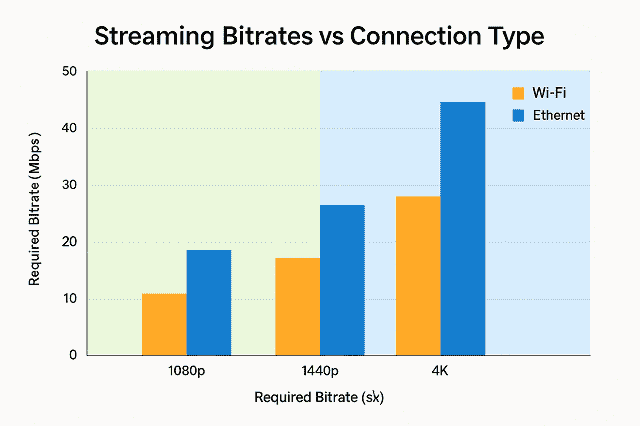
Recommended Upload Bitrates by Resolution and Framerate:
| Resolution | Framerate | Encoding Bitrate (CBR) | Ideal Upload Speed |
| 720p | 30 fps | 2,500–4,000 Kbps | ≥ 6 Mbps |
| 1080p | 60 fps | 4,500–6,000 Kbps | ≥ 10 Mbps |
| 1440p | 60 fps | 8,000–12,000 Kbps | ≥ 20 Mbps |
| 4K (2160p) | 60 fps | 13,000–25,000 Kbps | ≥ 30–50 Mbps |
Important Note:
- These numbers represent sustained upload throughput. They are not peak bursts
- Streaming in CBR (constant bitrate) requires zero interruption. Even a 1-second dip can cause buffering or force auto-scaling to lower resolutions
- Platforms like Twitch cap 1080p60 at ~6,000 Kbps. However, YouTube allows higher bitrates for 1440p and 4K
Wi-Fi Challenges with High-Bitrate Encoding:
- Unpredictable signal fluctuations result in inconsistent throughput
- Contention from other devices can interrupt the stream (someone starts a video call or downloads)
- Packet retransmission or temporary disconnection results in frame drops and bitrate collapse
Ethernet provides stable, symmetric upload bandwidth. The upload bandwidth is non-negotiable for high-quality live streams, at 1440p/4K resolutions or for professional/monetized streams.
Dual Uplink Setups: Ethernet + Wi-Fi Backup for Redundancy
Professional streamers and serious creators often implement redundant uplinks. They are using both Ethernet (primary) and Wi-Fi (secondary)to avoid single-point failure during live broadcasting.
Why Use Dual Uplinks?
- Failsafe: If the Ethernet link drops due to hardware failure or disconnection, the stream can seamlessly continue over Wi-Fi
- Network bonding: Some tools like Speedify, LiveU, or OBS plugins can combine two connections for increased bandwidth and resiliency
- Auto-fallback routing: With proper QoS and NIC priority settings, your OS or router can detect link failure and switch without losing the connection session
Setup Examples:
- OBS with Speedify or Restream Studio:
- Connect Ethernet to one NIC, Wi-Fi to another
- Use bonding/balancing to share the load or set a priority failover
- Router-Level WAN Redundancy:
- Dual-WAN router setups with Ethernet primary + 4G/5G modem or Wi-Fi backup
- Ideal for streamers in rural areas or locations with unstable wired connections
Technical Tip:
If you use dual NICs (one for Ethernet, one for Wi-Fi), ensure:
- Ethernet has a higher priority metric in your OS settings
- Stream software (OBS, vMix, etc.) is bound to the correct interface for stable transmission
Conclusion:
Dual uplink configurations provide a professional-level safeguard. Dual uplink is recommended for live event streamers, esports broadcasters, or anyone earning revenue from real-time content.
Expert Insight
“Uploading a 4K video is one thing—streaming it live with zero buffering is another. That level of stability is something only Ethernet or a dual-uplink setup can guarantee.”
Key Takeaways
- VOD uploads can tolerate occasional instability. However, live streaming demands a rock-solid uplink.
- High-quality streams (1080p60 and 4K60) require not only bandwidth, but stable, sustained throughput; something Wi-Fi often fails to provide
- Ethernet is essential for high-bitrate encoding, OBS stability, and preventing frame drops.
- Dual uplink setups offer next-level reliability with automatic fallback or link bonding for streamers who cannot afford downtime.
Hybrid Solutions: Best of Both Worlds
In modern households and professional setups, the network demands are no longer limited to a single gaming PC or a single streaming device. With smartphones, smart TVs, gaming consoles, laptops, and work-from-home rigs all competing for bandwidth. Therefore, the ideal approach is not choosing between Ethernet and Wi-Fi, but strategically combining both.
A well-planned hybrid network infrastructure allows you to leverage Ethernet’s speed and stability. It matters most while still enjoying the mobility and convenience of Wi-Fi across multiple devices.
In this section, let us cover:
- When to use Ethernet vs Wi-Fi
- How to extend wired connections using Powerline adapters and MoCA
- How to create an efficient mesh Wi-Fi network with wired backhaul for maximum speed and coverage
Ethernet for Primary Devices, Wi‑Fi for Mobility and Backups
Best Practice:
Use Ethernet for latency-sensitive, bandwidth-intensive, or mission-critical devices. Use Wi-Fi for casual browsing, mobile use, and secondary streaming.
Devices that should be connected via Ethernet:
- Gaming desktops and consoles (for online multiplayer)
- Streaming PCs using OBS/Streamlabs
- 4K smart TVs or Apple TV boxes streaming high-bitrate content
- Work-from-home systems that rely on Zoom, Teams, or large file uploads
Devices better suited for Wi-Fi:
- Smartphones and tablets
- Smart speakers, thermostats, and IoT devices
- Laptops that are frequently moved
- Guest devices or backup connections
Why it works:
This splits offloads the high-throughput, real-time traffic to dedicated wired lines. That is freeing up Wi-Fi bandwidth. Further, it is reducing contention for remaining wireless devices. It also helps QoS (Quality of Service) features work more effectively when Wi-Fi is no longer the bottleneck.
Powerline Adapters and MoCA: Extending Ethernet Without Drilling
Not everyone has Ethernet wiring throughout their home. That, too, for everyone running CAT6 through walls, is not always feasible. This is where Powerline Ethernet adapters and MoCA (Multimedia over Coax Alliance) bridges come into play.
Powerline Adapters
How they work:
Powerline adapters use your home’s existing electrical wiring to transmit Ethernet signals between rooms.
| Feature | Details |
| Speed (Real-world) | 100–500 Mbps typically |
| Latency | Low, often better than Wi-Fi |
| Setup | Plug-and-play (2 units, no config) |
| Best Use Cases | Extending Ethernet to another floor or room without drilling |
Pros:
- Quick setup — plug into power outlets
- Often faster and more stable than mid-range Wi-Fi
- Great for older homes with thick walls blocking Wi-Fi
Cons:
- Performance depends on the quality of your electrical wiring
- Avoid plugging into surge protectors or UPS outlets
- Not ideal for large transfers or streaming beyond 1080p
MoCA (Multimedia over Coax)
How it works:
MoCA uses existing coaxial TV cable lines (often already run in multi-room setups) to deliver Ethernet-grade speed.
| Feature | Details |
| Speed (MoCA 2.5) | Up to 2.5 Gbps |
| Latency | Very low – ideal for gaming |
| Setup | Requires MoCA adapters on both ends |
| Best Use Cases | Homes with unused or split coax jacks (especially where cable TV was once used) |
Pros:
- Performance nearly matches true Ethernet
- Lower latency than both Wi-Fi and Powerline
- Highly stable for streaming and gaming
Cons:
- Requires coaxial ports in target rooms
- Slightly higher cost than Powerline
- Not supported in homes with active cable TV services that interfere with bandwidth
Verdict:
Both Powerline and MoCA are excellent alternatives for Wi-Fi. They are for extending wired connectivity without invasive installations. MoCA offers the closest experience to Ethernet. That is making it ideal for streamers, remote workers, and serious gamers.
Mesh Wi-Fi with Wired Backhaul: Best of Both Worlds
Mesh Wi-Fi systems like Eero, ASUS AiMesh, TP-Link Deco, or Netgear Orbi allow you to create a seamless, high-performance wireless network that spans large homes, multi-floor setups, and even outdoor zones.
But here is the secret: Mesh networks work best when nodes are connected via wired backhaul.
What is Wired Backhaul?
Instead of mesh satellites communicating wirelessly (which adds latency and reduces bandwidth), they connect to the main router using Ethernet or MoCA. That is turning the mesh system into a wired backbone for wireless access points.
| Advantage | Benefit |
| Wired Backhaul | Maximizes mesh throughput and reduces hop latency |
| No Wireless Repeats | Prevents bandwidth halving between nodes |
| Stability | Consistent performance across all zones |
Use Case Example:
- Main gaming PC and router in one room
- Mesh satellite in a second room connected via Ethernet
- Wi-Fi clients in the second room now enjoy near-Ethernet speed
Conclusion:
A wired backhaul mesh system combines the flexibility of Wi-Fi with the stability of Ethernet. The wired backhaul mesh system is ideal for large homes, offices, and multi-user environments.
Expert Insight
“Hybrid networking is no longer a luxury; it is a necessity. Employ Ethernet where you need performance, Wi‑Fi where you need freedom. Done right, it is the best of both worlds.”
Key Takeaways
- Ethernet should always be prioritized for devices where latency, packet loss, or stability matter (gaming PCs, stream rigs, workstations)
- Wi-Fi is ideal for mobile, smart, and casual-use devices
- Powerline and MoCA allow you to extend Ethernet without expensive rewiring
- Mesh networks with wired backhaul combine strong wireless coverage with Ethernet-like stability
Tips to Get Wi‑Fi as Close to Ethernet Performance
Ethernet is the benchmark for stable, low-latency connectivity. However, modern Wi-Fi, when configured correctly, it can come surprisingly close in performance. With the advent of Wi‑Fi 6 and Wi‑Fi 6E, along with smart configuration and optimization techniques, it is possible to achieve wired-like speed, responsiveness, and reliability for most use cases.
This section focuses on actionable methods to help you minimize the performance gap between Wi-Fi and Ethernet for gaming, streaming, and real-time communication.
-
Optimize Wi‑Fi Placement, Channels, and Router Hardware
Router Placement: Avoid Dead Zones
Wi‑Fi signal strength and quality drop significantly with distance and obstructions like walls, furniture, and floors.
Best Practices for Router Placement:
- Place your router centrally in the home to distribute the signal evenly
- Elevate the router on a shelf or wall mount to reduce floor-level obstructions
- Avoid corners, closets, or behind electronics (TVs, metal objects cause signal reflections)
- Maintain line-of-sight to key devices whenever possible
Frequency Band Selection: 2.4 GHz vs 5 GHz vs 6 GHz
| Band | Pros | Cons | Best Use Case |
| 2.4 GHz | Greater range, penetrates walls | More interference, lower speeds | Large homes with wall obstructions |
| 5 GHz | Faster speeds, less crowded | Shorter range, doesn’t penetrate well | Gaming & streaming in the same room |
| 6 GHz (Wi‑Fi 6E) | Super low interference | Only works with the latest devices | High-performance streaming & gaming in open spaces |
Manual Channel Selection:
- Use apps like WiFi Analyzer (Android) or NetSpot (Windows/macOS) to check for overlapping SSIDs
- Choose non-overlapping channels:
- 2.4 GHz: Channels 1, 6, or 11
- 5 GHz: Avoid DFS channels if interference is common
- 6 GHz: Usually clean—auto works well
Upgrade Your Router If Necessary
Not all routers are built equally. An older router (Wi‑Fi 4) will always underperform compared to modern tri-band Wi‑-Fi 6/6E routers that support:
- OFDMA and MU-MIMO for efficient multi-device communication
- Beamforming for a stronger directional signal
- BSS Coloring to reduce co-channel interference
- Dual-core or quad-core CPUs to handle more concurrent streams without bottlenecks
Recommendation: Use routers with at least 4 spatial streams, 160 MHz channel support, and QoS controls for pro-level optimization.
-
Configure QoS (Quality of Service) for Gaming and Streaming Priority
QoS allows you to prioritize critical traffic like online gaming, video conferencing, or live streaming over less time-sensitive tasks like downloads, cloud syncs, or media streaming.
Types of QoS Available:
| QoS Type | Description | Ideal Use |
| App-based QoS | Prioritize specific apps (Twitch, Zoom, Steam) | Gaming & streaming setups |
| Device-based QoS | Assign bandwidth priority to a device’s MAC/IP address | Shared networks with mixed devices |
| Port-based QoS | Assign priority to specific ports (UDP 3074 for Xbox Live) | Advanced/pro setups |
| Dynamic QoS (DQoS) | Auto-optimization based on real-time traffic analysis | Home users wanting simple automation |
Example:
- Prioritize UDP traffic for game consoles and streaming encoders (OBS)
- Deprioritize large downloads or smart TV updates during gameplay
- On Netgear Nighthawk or ASUS AiMesh, assign gaming mode or enable adaptive QoS profiles
ProDigitalWeb Tip: Monitor QoS logs to identify bandwidth hogs. This is especially helpful in multi-user households.
-
Monitor and Adapt Signal Performance in Real-Time
To keep Wi-Fi performance consistently high, real-time monitoring is essential. Wireless environments are dynamic. The overall performance may be hindered by interference and neighboring networks. Even device changes can impact performance.
Use These Tools for Signal Analysis:
| Tool/App | Platform | Key Features |
| NetSpot | Windows/macOS | Heatmapping, channel analysis, signal strength mapping |
| WiFi Analyzer | Android | Signal strength, channel usage, and interference scanning |
| inSSIDer | Windows/macOS | Detailed SSID stats, SNR, channel overlap |
| Ubiquiti UniFi | Advanced | Live RF monitoring, per-client latency tracking |
Check Regularly For:
- Signal-to-noise ratio (SNR): Aim for 25 dB or higher
- Channel utilization: Avoid using >60% of capacity
- Packet retries or retransmissions: Excessive retries indicate interference or congestion
Adapt Your Setup Based on Data:
- Reposition the router or mesh satellites to eliminate cold zones
- Switch the frequency band if a channel is congested
- Adjust antenna orientation or enable beamforming
- Consider switching to Ethernet for devices with consistently poor signal
Expert Insight
“Wi‑Fi can get very close to Ethernet. However, it is possible if you treat it like a precision instrument. That means analyzing spectrum use, tweaking channels, and making smart hardware choices.”
Key Takeaways
- Router placement and channel selection play a massive role in wireless performance.
- Modern routers with Wi-Fi 6/6E offer dramatically improved stability, lower latency, and better device handling.
- QoS configuration ensures that gaming and streaming traffic get priority when bandwidth is shared.
- Real-time monitoring tools help detect interference, congestion, and signal drops. That is allowing for dynamic optimization.
- Though Ethernet still holds the crown, optimized Wi-Fi can deliver 85–95% of Ethernet performance in controlled environments.
When Ethernet Is not an Option: Workarounds for Better Connectivity
Ethernet remains the gold standard for speed, latency, and stability. However, it is not always practical or possible in older homes, rental properties, outdoor setups, or multi-floor buildings. If running physical Ethernet cable is out of reach, there are still effective alternative networking methods that can deliver near-Ethernet performance with proper configuration and planning.
This section explores practical, technical workarounds to bridge the gap in performance when Ethernet is not an option, including:
- High-quality powerline adapters
- DIY directional antennas like cantennas
- Outdoor or basement-specific networking strategies
-
Using High-Quality Powerline Adapters Over Existing Electrical Wiring
Powerline networking uses your home’s AC power circuit to transmit data between adapters plugged into standard electrical outlets. It is one of the most accessible alternatives to Ethernet when you cannot run CAT6 cables through walls.
How It Works:
- Two adapters form a data circuit using the copper wiring in your electrical system
- One plugs near your router and connects via Ethernet
- The other plugs near the device you want to connect to also use Ethernet
Technical Performance:
| Factor | Typical Performance |
| Real-world throughput | 100–500 Mbps (depends on wiring) |
| Latency | Low (~3–15 ms, better than Wi-Fi) |
| Jitter | Minimal in high-quality models |
| Supported protocols | HomePlug AV2 or G.hn recommended |
Best Practices:
- Use HomePlug AV2 MIMO or G.hn Wave 2 models (TP-Link, Devolo, Zyxel)
- Plug directly into the wall outlet (not into surge protectors or power strips)
- Keep both adapters on the same circuit or electrical phase for best results
- Use shielded Ethernet cables between devices and adapters to reduce EMI
When to Use:
- In older buildings where Ethernet cabling is infeasible
- When the Wi-Fi signal drops significantly across rooms or floors
- For consoles, smart TVs, or streaming boxes far from the router
-
DIY Directional Antennas (Cantenna) for Remote Gaming Setups
When your router is too far or blocked by thick walls, then range extenders are not enough. However, a directional antenna like a cantenna can provide a focused beam of signal. Cantenna is great for long-range or point-to-point Wi-Fi use.
What is a Cantenna?
A cantenna is a homemade directional antenna made from a metal can (like a Pringles tube or coffee can) that focuses Wi-Fi signals in a single direction. It is increasing signal gain and reducing multipath interference.
Technical Specs:
- Designed for 2.4 GHz Wi-Fi (can be modified for 5 GHz)
- Operates as a waveguide antenna
- Feed point (N-type connector) placed 1.9 inches (¼ wavelength) above the base
- Probe length typically 1.2 inches (~¼ wavelength)
Benefits of Cantennas:
| Feature | Impact |
| Directional gain | ~8–12 dBi with proper build |
| Extended range | Can reach 2–3× further than stock antennas |
| Lower noise floor | Focuses signal, reduces interference |
| Cost-effective | Built for <$10 with basic tools |
Use Cases:
- Gaming from detached rooms, basements, or attics
- Pointing to Wi-Fi APs in another building or floor
- Rural setups with long-distance access needs
Caution: Cantennas require line-of-sight and careful positioning for optimal gain. Not ideal for mobile use or multi-device coverage.
-
Outdoor, Garage, or Basement Solutions
In many homes, Wi-Fi signal degrades drastically in basements, outdoor offices, or detached garages due to:
- Concrete barriers and rebar in foundations
- Metal walls, HVAC ducts, and wiring interference
- Extreme range from the primary router
Here is how to handle those environments without Ethernet:
Outdoor Access Point (AP)
- Install a weatherproof Wi-Fi AP (Ubiquiti UniFi AC Mesh, TP-Link EAP225-Outdoor) near exterior walls
- Connect via Power over Ethernet (PoE) for cleaner cable runs
- Create a dedicated SSID for outdoor zones (guest networks, IoT, etc.)
Basement Networking Tips:
- Use Powerline with AV2 MIMO. It often works better through vertical wiring than across floors
- Consider placing a Wi-Fi extender at stair landings to serve as a repeater from ground level
- If concrete blocks signal entirely then run flat CAT6 cable under baseboards to a dedicated AP or mesh node
Mesh with Wired Backhaul:
If cabling is possible, even partially:
- Connect mesh satellites via Powerline or MoCA backhaul
- Set up a tri-band mesh system ( Netgear Orbi, ASUS ZenWiFi XT8)
- Position nodes near entrances to maximize basement or backyard coverage
Expert Insight
“You do not always need to drill or rewire to get Ethernet-grade performance. With the right combination of Powerline, coax, and directional signal strategies, even hard-to-reach spaces can achieve stable, low-latency connectivity.”
Key Takeaways
- Powerline and MoCA adapters offer a practical, fast, and low-latency workaround when Ethernet wiring is not possible
- Cantennas and directional antennas are great for focused, long-range connections in remote areas or hard-to-reach rooms
- For outdoor and basement setups, combine mesh systems, Powerline/MoCA, and APs for full coverage without performance sacrifice
- With the right strategy, you can get close to Ethernet stability and speed, even in places where physical wiring is impossible
Business & Professional Use Cases — Network Choices That Drive Reliability
When it comes to mission-critical networking environments like conference rooms, esports venues, and live-streaming studios, network infrastructure is not only about convenience. It is about guaranteed performance, zero downtime, and minimal packet loss. A single frame drop or latency spike in these settings can result in lost revenue, reputational damage, or poor user experience.
This section explores how Wi-Fi and Ethernet are deployed in enterprise-grade setups. It helps you to know when to use dedicated wired connections and how to evaluate network investment through a cost-benefit lens for high-performance IT environments.
-
Conference Rooms, Esports Events, and Live-Stream Studios: Demands at Scale
Conference Rooms & Hybrid Meetings
Today’s conference rooms are expected to support:
- Real-time HD/4K video conferencing (Zoom, MS Teams, Google Meet)
- Screen sharing and cloud document collaboration
- Wireless casting (Miracast, AirPlay, Chromecast)
- VoIP calling, IoT control systems, and remote participants
Network Requirements:
- Low jitter for voice clarity
- Consistent 5–20 Mbps upload for HD video feeds
- QoS prioritization for streaming and VoIP over background updates
- Roaming handoff (for mobile attendees) across multiple access points
Solution:
- Wi-Fi 6/6E with WPA3 Enterprise for multi-user environments
- Dedicated Ethernet drops for AV equipment and presentation hosts
- VLAN tagging for guest network isolation
Esports Events and Competitive Gaming Arenas
Esports LAN events and gaming arenas demand sub-millisecond latency, zero jitter, and packet-perfect delivery across a controlled network.
Critical Requirements:
- 1 Gbps+ symmetrical wired connections per PC or console
- Layer 2/3 switches with buffering and traffic shaping
- Multicast support for simultaneous stream delivery
- Redundant uplinks and dual-homed switches for failover
Example:
At events like DreamHack or Valorant Champs, each player station is connected via shielded CAT6 or CAT6A Ethernet. That is routed through enterprise-grade Cisco or Juniper switches. Further, they are paired with dedicated VLANs per team for isolation.
Why Wi-Fi is avoided:
- RF interference from hundreds of attendees
- Spectators using phones/tablets overload 2.4/5 GHz bands
- Even with Wi-Fi 6E, multi-client environments degrade latency unpredictably
Live-Stream Studios & Production Rooms
Streaming studios rely on:
- High-bandwidth video ingest from cameras (via NDI, SDI-over-IP, HDMI encoders)
- Real-time OBS/vMix streaming with consistent upload bitrate
- Multicamera sync and live control room switching
Network Needs:
| Component | Network Demands |
| NDI/NDI | HX |
| OBS/Streamlabs | 6–25 Mbps upload (1080p60 to 4K60) |
| Audio/VoIP sync | Jitter <10 ms, latency <30 ms |
Solution:
- Wired gigabit Ethernet across all streaming PCs, mixers, and encoders
- Dedicated media VLANs to separate broadcast traffic
- Uninterruptible Power Supply (UPS) and network redundancy for resilience
-
Dedicated Ethernet Drops vs Enterprise-Grade WI-Fi
| Network Type | Strengths | Weaknesses |
| Ethernet Drops | Ultra-low latency, zero interference, consistent throughput | Requires physical installation, less flexible |
| Enterprise Wi-Fi | Scalable, supports mobile and BYOD devices, fast roaming (802.11r) | Can be unstable in high-density or metal-constrained areas |
Ethernet is preferred for:
- Permanent workstations and studio gear
- Gaming tournaments and AV equipment
- Environments requiring low EMI susceptibility
Enterprise WI-Fi is best for:
- BYOD (bring your own device) mobility in offices
- Guest access in lobbies and waiting areas
- Environments where Ethernet cabling is too costly or impossible (historic buildings, rentals)
Wi-Fi 6E with WPA3 Enterprise offers:
- High MU-MIMO concurrency
- WPA3 192-bit encryption and RADIUS server support
- Up to 9.6 Gbps across clean 6 GHz bands
- Seamless roaming and load-balancing with controllers (Cisco Meraki, Aruba, UniFi)
-
Cost-Benefit Analysis for IT Network Design
When designing or upgrading your IT infrastructure, every decision must be weighed based on performance, ROI, cost, and long-term scalability.
Cost Considerations:
| Factor | Ethernet Setup | Wi-Fi 6/6E Deployment |
| Initial hardware | ~$50–200 per drop + switch ports | $200–800 per AP (enterprise-grade) |
| Installation (labor) | High (cabling, patch panels) | Medium (AP mounting + PoE cabling) |
| Device flexibility | Fixed | High (mobility, temporary setups) |
| Maintenance | Low once installed | Medium (firmware, channel interference) |
Performance/Value Trade-Offs:
- Ethernet wins in environments where downtime or packet loss incurs financial loss (live streams, esports events)
- Wi-Fi 6/6E scales well for user mobility and IoT. However, it requires strategic planning (spectrum planning, AP density)
Recommendation:
Use a layered architecture:
- Ethernet as the core access layer for critical systems
- Wi-Fi as the access edge for mobile and shared use
- Use VLANs, QoS, and centralized management for full visibility and control
Expert Insight
“Professional networks are built with intent. In any scenario where consistency and reliability equal money or reputation, Ethernet pays for itself a hundred times over.”
Key Takeaways
- Conference rooms, esports venues, and streaming studios have zero tolerance for latency spikes or signal degradation.
- Ethernet remains essential for AV equipment, gaming rigs, and any application with real-time performance needs.
- Enterprise Wi-Fi 6/6E, when deployed with proper channel planning and security, works well for BYOD and mobile needs.
- A hybrid IT network, with a wired core and wireless edge, offers the best balance of cost, performance, and scalability.
Expert Quotes and Data Points — Evidence That Speaks for Itself
In the debate between Wi-Fi vs Ethernet for gaming and streaming, theory is only half the story. Data-driven evidence in the form of latency tests, jitter metrics, and real-world throughput benchmarks is what truly informs the best networking decisions.
This section presents quantified comparisons, real-world latency scenarios, and technical commentary from expert voices to reinforce why Ethernet continues to dominate performance-critical environments. Further, this section details how Wi-Fi can be optimized to close the gap.
Latency Difference Examples in Real Gaming Scenarios
Latency (ping) directly impacts how fast your actions register in online games. Both Wi-Fi and Ethernet may offer sufficient downstream bandwidth. However, their latency profiles diverge sharply under load or interference.
FPS Gaming — Example Scenario (Valorant/CS2)
| Connection Type | Idle Ping | Ping Under Load | Packet Loss | Notes |
| Ethernet (CAT6) | 2–5 ms | 3–6 ms | <0.1% | Stable, imperceptible delay |
| Wi-Fi 5 (5 GHz) | 10–20 ms | 20–50 ms | 0.3–1.2% | Occasional spikes, jittery aim |
| Wi-Fi 6 (5 GHz) | 8–15 ms | 15–25 ms | <0.5% | Good under low interference |
| Wi-Fi 6E (6 GHz) | 5–10 ms | 8–15 ms | <0.3% | Best-case wireless scenario |
Takeaway:
A difference of even 15 ms in latency can result in:
- Missed shots in FPS games
- Delayed skill activation in MOBAs
- Hitbox desync in fighting games
- A perceptible delay between input and result in cloud games
Gamers call this “input lag” or “ghost delay.” It is often blamed on hardware. However, it is frequently caused by Wi-Fi instability.
Speed Test & Jitter Analysis (Real-World Data)
Let us explore bandwidth consistency and jitter using controlled speed tests across Wi-Fi and Ethernet setups in a moderately congested home environment.
Test Environment:
- 1 Gbps Fiber ISP
- Router: ASUS RT-AX86U (Wi-Fi 6, tri-band)
- Wi-Fi 5 device: 2019 laptop (Intel 9260)
- Wi-Fi 6 device: 2022 gaming laptop (Intel AX200)
- Ethernet device: PC with Intel i225-V NIC
| Metric | Ethernet | Wi-Fi 5 | Wi-Fi 6 | Wi-Fi 6E |
| Download (Mbps) | 940 | 420 | 680 | 880 |
| Upload (Mbps) | 940 | 350 | 620 | 870 |
| Latency (ms) | 2.3 | 18.4 | 12.6 | 7.2 |
| Jitter (ms) | 0.2 | 12.8 | 6.4 | 2.9 |
| Packet Loss (%) | 0.00 | 0.90 | 0.35 | 0.10 |
| Ping Spike Variance | ±1 ms | ±25 ms | ±15 ms | ±5 ms |
Takeaway:
- Ethernet delivers near-perfect symmetry and stability
- Wi-Fi 6E offers excellent speeds. However, still introduces slight jitter and loss, critical for streamers and esports players.
- Wi-Fi 5 is no longer adequate for competitive or broadcast-grade usage.
Expert Insight from Rajkumar RR, ProDigitalWeb.com
“In live streaming and online gaming, performance is not only about Mbps. It is about consistency. A 900 Mbps link that spikes to 200 ms latency mid-match is worse than a 300 Mbps connection with flat, predictable behavior. Ethernet brings that consistency, and when paired with smart QoS and routing, it is still irreplaceable.”
“I have seen creators lose hours of footage and competitive gamers lose matches, not because of their skill or their PC, but because they trusted unoptimized Wi‑Fi under pressure. Wi‑Fi has improved, but when reputation, money, or rank are on the line, Ethernet wins.”
Bonus: Quantified Streaming Impact by Network Type
Streaming to Twitch/YouTube with OBS at 1080p60 @ 6,000 Kbps CBR:
| Connection | Dropped Frames (30 min) | Bitrate Fluctuations | Stream Stability |
| Ethernet | 0 | None | Rock Solid |
| Wi-Fi 6 | 200–400 (minor stutter) | 1–3 dips | Moderate |
| Wi-Fi 5 | 1,200+ (visible stutter) | Constant drops | Unstable |
Conclusion:
- Even small jitter spikes on Wi-Fi cause dropped frames, bitrate downgrades, and stream interruptions.
- Ethernet allows frame-perfect ingest and upload. That is critical for multi-camera OBS or professional content creators.
Key Takeaways
- Ethernet consistently delivers sub-5ms latency, near-zero jitter, and flawless packet delivery.
- Wi-Fi 6E comes close in ideal conditions. However, still shows measurable jitter and upload variance.
- Real-world tests confirm that Wi-Fi-induced issues are not rare; they are predictable under load.
- For serious streamers, gamers, or remote professionals, the numbers speak loud and clear: Ethernet remains king.
- Tools like PingPlotter, Speedtest CLI, and OBS stats can help monitor and visualize these metrics over time.
Use QoS to Prioritize Critical Traffic
In a digital environment where multiple devices share bandwidth; streaming, gaming, video conferencing, and background downloads often compete for resources. This results in increased latency, jitter, or packet loss, all of which degrade performance in real-time applications. Then what is the solution? Quality of Service (QoS).
QoS is a powerful yet underutilized feature in routers and managed switches. QoS lets you prioritize certain types of traffic (like gaming packets or streaming data) over others. When configured properly, QoS ensures low latency and bandwidth stability for high-priority tasks, even during congestion.
What is QoS (Quality of Service)?
QoS is a network management technique that allows for:
- Traffic classification (by application, port, protocol, or device)
- Bandwidth allocation (minimum/maximum throughput per class)
- Traffic prioritization (gaming > downloads, for example)
- Queue scheduling (how packets are processed during high usage)
It essentially tells your router, “These packets are more important, send them first.”
Why QoS Matters for Gaming and Streaming
Without QoS:
- Large downloads (Steam updates) can consume all bandwidth. That is spiking latency
- Smart TVs buffering a 4K Netflix stream can steal throughput from your livestream or game
- Wi-Fi interference + bandwidth contention = massive jitter for OBS or Zoom calls
With QoS:
- Gaming packets from UDP ports are prioritized
- Live-streaming traffic is given a guaranteed minimum upload
- Background syncs, torrents, and smart devices are deprioritized
Result: Smooth, uninterrupted gaming and streaming—even on shared networks.
Types of QoS and How to Configure Them
Different routers and networking gear offer different implementations. Here is a breakdown of common QoS types:
| QoS Type | Description | Ideal For |
| Application-Based | Automatically identifies apps (Zoom, Twitch, Xbox) and assigns priority | Beginners, casual gamers |
| Port-Based (Manual) | Allows defining rules for specific TCP/UDP ports (e.g., UDP 3074 for PSN) | Pro gamers, streamers |
| Device-Based (IP/MAC) | Assigns priority by device IP or MAC address | Smart homes, family networks |
| Dynamic (DQoS) | Uses real-time traffic analysis to auto-prioritize | Plug-and-play QoS |
Example Configuration (Gaming + Streaming Setup)
- Gaming console MAC/IP → High priority
- Streaming PC (OBS) IP → Guaranteed 6 Mbps upload minimum
- Smart TV and downloads → Medium or low priority
- Cloud backup clients → Lowest priority or schedule outside peak hours
Tools for Configuration:
- ASUS Adaptive QoS, Netgear Nighthawk, TP-Link Archer (GUI-based)
- Ubiquiti UniFi Controller, pfSense, or OpenWRT (advanced, policy-based)
DSCP Tags and Enterprise-Grade QoS
For advanced users with managed switches or enterprise gear, Differentiated Services Code Point (DSCP) values allow tagging packets for priority treatment across the network.
| DSCP Tag | Traffic Type | Priority Class |
| EF (46) | Voice (VoIP) | Highest |
| AF41 | Video Streaming | High |
| AF21 | Gaming/interactive | Medium-High |
| BE (0) | Best Effort (bulk) | Low |
These tags are used in:
- Esports arenas
- Broadcast networks
- Corporate video conferencing platforms
Monitor and Fine-Tune QoS Performance
To ensure your QoS rules are working:
Tools to Monitor:
- PingPlotter or SmokePing: Track latency during congestion
- Speedtest CLI: Measure throughput before and after rules
- OBS Stats Panel: See dropped frames when streaming under load
- Router QoS Logs: Check which queues are being saturated
Pro Tip: Test under load. Simulate traffic using multiple devices or background downloads while gaming or streaming to confirm your rules hold.
Key Takeaways
- QoS gives you control over bandwidth allocation and latency, even on crowded networks.
- Streaming and gaming devices should always be prioritized over background traffic.
- Modern routers make QoS simple. However, enterprise users can benefit from port tagging and DSCP configuration.
- Combine QoS with wired Ethernet, 5 GHz band selection, and smart AP placement for maximum performance.
Final Verdict: What Should You Choose?
We have examined bandwidth, latency, jitter, packet loss, real-world use cases, and setup considerations. Finally, one truth stands out: There is no one-size-fits-all solution. Your ideal network setup depends entirely on your use case, environment, and performance expectations.
This section offers a clear, expert-backed verdict, including:
- A decision-making flowchart
- Customized recommendations based on user type
- Final thoughts on hybrid networking for peak performance
Quick Flowchart: Should You Use Ethernet or Wi‑Fi?
Ask yourself these questions:
Do you play online multiplayer games competitively?
└─ Yes → Go Ethernet
└─ No → Continue
Are you live-streaming in 1080p or higher?
└─ Yes → Go Ethernet
└─ No → Continue
Do you experience lag spikes or dropped frames over Wi‑Fi?
└─ Yes → Go Ethernet
└─ No → Continue
Are you using mobile/portable devices (laptop/tablet/phone)?
└─ Yes → Wi‑Fi is Fine
└─ No → Continue
Can you physically run Ethernet (even via Powerline or MoCA)?
└─ Yes → Use Ethernet where possible
└─ No → Optimize Wi‑Fi with QoS + 6/6E
Best Network Setups by User Type
Casual Gamer
Use Case: Occasional online gaming, console updates, cloud gaming (GeForce NOW, Xbox Cloud)
Recommended Setup:
- Wi-Fi 6/6E with a strong 5 GHz signal
- A mesh network is required if the signal is weak in a gaming room
- QoS is enabled with gaming device priority
- Optional: Powerline adapter if the router is far
Verdict: Wi-Fi is fine. However, optimize placement and reduce interference
Competitive Gamer (FPS, Ranked, Esports)
Use Case: Valorant, CS2, Fortnite, Apex Legends, Dota 2, League of Legends
Recommended Setup:
- Hardwired Gigabit Ethernet via CAT6 or CAT6A
- QoS prioritized for UDP gaming ports
- Disable background sync/downloads on other devices
- Optional: Use a managed switch with DSCP tagging for local LAN competitions
Verdict: Go Ethernet, so that latency and jitter must be minimized at all costs
Live Streamer or Content Creator
Use Case: OBS/Streamlabs livestreams, YouTube Live, Twitch, NDI camera ingest
Recommended Setup:
- Wired connection to router or switch
- QoS with guaranteed uplink for OBS
- Avoid all Wi-Fi streaming unless no alternative
- Use a UPS (uninterruptible power supply) to prevent sudden dropouts
- Dual NIC setup with failover (Ethernet primary, Wi-Fi backup)
Verdict: Ethernet required. Streaming stability depends on sustained, low-jitter uploads.
Multi-User Household or Family
Use Case: Shared bandwidth with TV streaming, gaming, Zoom, IoT, and work-from-home
Recommended Setup:
- Ethernet for primary gaming/streaming devices
- Wi-Fi 6/6E mesh system with wired backhaul
- Enable QoS by device or application type
- Separate guest network to isolate bandwidth usage
Verdict: Hybrid approach — Ethernet + smart Wi-Fi with QoS works best
Final Expert Insight
“Choose Ethernet when performance is critical. Choose Wi‑Fi when flexibility matters more than milliseconds. But for the best of both worlds, build a hybrid network. Wired where it counts, wireless where it is convenient.”
Key Takeaways
- Casual users and mobile devices thrive on optimized Wi-Fi 6/6E
- Competitive gaming and professional live-streaming demand Ethernet
- QoS, channel optimization, and wired backhaul can help Wi-Fi get close to Ethernet
- A hybrid network is the most realistic and high-performing setup for modern homes and studios
Final Thoughts: Your Network, Your Rules
In the digital world, every millisecond matters in gaming, and frame stability means revenue in live-streaming. Your network setup is no longer a background detail. It is a strategic asset.
The choice between Wi-Fi and Ethernet is not about speed alone; it is about reliability, latency, jitter, and control.
What You Have Learned:
- Ethernet is unmatched in low latency, zero packet loss, and consistent upload stability.
- Modern Wi-Fi 6 and 6E are powerful. However, their performance depends on optimal placement, proper configuration, and interference management.
- QoS (Quality of Service) is your best friend for managing traffic priority in shared networks.
- Powerline, MoCA, cantennas, and mesh systems with wired backhaul help bridge gaps where Ethernet is not an option.
- A hybrid network is wired where precision matters, wireless where mobility is essential. It is the ideal setup for most modern homes and studios.
From the Desk of Rajkumar RR
“Your internet performance is not about what your ISP gives you; it is about how you distribute, prioritize, and manage it. Treat your home or studio network like a Formula 1 pit crew: every connection, every millisecond counts. And when done right, even a modest setup can outperform raw speed.”
Maintenance Checklist: Keep Your Network Sharp
Here is a simple ongoing checklist to make sure your setup stays optimized:
- Regularly test ping, jitter, and upload speed using tools like PingPlotter or Speedtest CLI
- Review QoS rules quarterly. Add new devices, reprioritize as needed
- Update firmware for routers, switches, and mesh APs
- Re-scan channels monthly for 5 GHz/6 GHz Wi-Fi overlap
- Periodically reboot routers and access points for stability
- Replace old cables (especially Ethernet) showing physical wear
- Use UPS devices for routers/modems in areas with unstable power
Want More?
Subscribe to ProDigitalWeb.com for more real-world guides, test data, DIY solutions, and optimization tips that help you stay ahead of the digital curve.
Annexure: Core Network Performance Concepts Explained
This section offers a technical glossary and practical breakdown of the most critical networking terms that impact your gaming, streaming, and professional connectivity. These metrics determine whether your experience is buttery smooth or plagued with lag, buffering, and instability.
-
Latency (Ping)
Definition:
Latency (measured in milliseconds) is the time it takes for a packet to travel from your device to a server and back. It is a round-trip delay.
Why it matters:
- In gaming: High latency = delayed shots, rubberbanding, slow responses
- In streaming: High latency is not critical for VOD. However, it affects live interactions like chats or multi-guest streams
Good benchmark:
- <20 ms → Excellent (competitive-grade)
- 20–50 ms → Acceptable for most activities
- 100 ms → Noticeable lag in real-time applications
Tools: Ping, Traceroute, or PingPlotter
-
Jitter
Definition:
Jitter is the variation in latency over time. A network might have a 20 ms average latency. However, if packets vary between 15 ms and 100 ms, jitter is high.
Why it matters:
- Inconsistent packet arrival = frame skipping, audio distortion, or lag spikes
- Affects live-streamers, video callers, and gamers
Acceptable jitter:
- <5 ms → Ideal
- 5–30 ms → Borderline
- 30 ms → Problems are likely in real-time traffic
Tools: Ping -t, SmokePing, or OBS Stats Panel
-
Packet Loss
Definition:
Packet loss occurs when one or more data packets fail to reach their destination. Even a 1–2% packet loss can disrupt real-time communication.
Why it matters:
- In gaming: Missed actions or movement stutters
- In streaming: Audio dropouts, video artifacts, OBS dropped frames
Acceptable range:
- 0% → Optimal
- <0.5% → Mostly fine
- 1% → Unacceptable for critical tasks
Causes: Wi-Fi interference, router overload, bad cables, overloaded ISPs
Tools: WinMTR, Wireshark, OBS logs
-
Contention Delay
Definition:
Contention delay is the time spent waiting for access to the communication medium. In Wi-Fi, devices compete for airtime on crowded channels or bands.
Why it matters:
- Higher contention = increased latency + retransmissions
- Impacts performance on shared home Wi-Fi, mesh networks, or apartments with many networks nearby
Mitigation:
- Use 5 GHz or 6 GHz bands
- Enable OFDMA + MU-MIMO (Wi-Fi 6/6E)
- Use wired connections for bandwidth-critical devices
-
Bufferbloat
Definition:
Bufferbloat is excessive buffering in networking equipment. It causes high latency and jitter under load.
Symptoms:
- Smooth speed tests but lag during downloads
- Ping spikes while uploading or syncing files
- Video calls stutter when someone else uploads large files
How to test:
Use DSLReports Speed Test or Waveform Bufferbloat Test
Solutions:
- Use routers with Smart Queue Management (SQM) or FQ_CoDel
- Enable upload/download bandwidth limits in router QoS
- Avoid simultaneous high-load transfers during gaming/streaming
-
Throughput vs Bandwidth
Bandwidth: Maximum possible data transfer rate (1 Gbps)
Throughput: Actual amount of data successfully transferred (600 Mbps under real conditions)
Why this matters:
- Wi-Fi may advertise 1.2 Gbps, but only deliver 500 Mbps due to overhead, interference, or signal degradation
- Ethernet offers higher and more consistent throughput
-
Signal-to-Noise Ratio (SNR)
Definition:
SNR is the difference between the signal strength and background noise. A higher ratio means a cleaner signal.
Ideal SNR values:
- 25 dB → Excellent
- 15–25 dB → Usable, but may suffer at distance
- <15 dB → Prone to packet loss and jitter
Tools: inSSIDer, NetSpot, UniFi Controller
-
Security Implications
Wi-Fi networks are vulnerable to:
- Packet sniffing
- Deauthentication attacks
- Unauthorized access
Best practices:
- Use WPA3 encryption
- Disable WPS
- Use strong admin passwords
- Set up guest networks with VLAN isolation
Expert Insight
“Understanding these metrics is like reading your network’s vital signs. Bandwidth is the speedometer. However, latency, jitter, and bufferbloat are the brakes, traction, and steering. To truly optimize performance, you need to monitor and tune all of them when reliability is mission-critical.”
Frequently Asked Questions
Is Ethernet better than Wi-Fi for gaming?
Yes. Ethernet offers lower latency, no interference, and consistent packet delivery. That is making it the preferred choice for competitive online gaming, in fast-paced FPS titles like Valorant or CS2. It eliminates ping spikes caused by Wi-Fi contention and ensures real-time responsiveness.
Can I stream in 4K over Wi-Fi?
Yes, but with limitations. Streaming 4K video (Netflix, YouTube, OBS) requires 25–50 Mbps sustained upload, low jitter, and minimal packet loss. This is achievable on Wi-Fi 6 or 6E in ideal conditions. However, Ethernet provides far greater consistency for live-streaming.
How much bandwidth does Netflix 4K require?
Netflix recommends 25 Mbps sustained for 4K Ultra HD streaming. However, real-world usage may spike higher due to buffering overhead. Ensure that your upload is not saturated. In addition, use QoS to prioritize video traffic if on Wi-Fi.
What is jitter, and how does it affect gaming?
Jitter is the variation in packet arrival time. Even if latency is low, high jitter causes unpredictable lag, missed inputs, and poor hit registration. Competitive gamers need jitter <5 ms for stable performance. Ethernet usually keeps jitter near zero; Wi-Fi fluctuates with interference.
More Questions:
Can Wi-Fi 6 or 6E match Ethernet?
In controlled environments, Wi-Fi 6E can come close to Ethernet in terms of speed and even latency. However, it is still susceptible to signal degradation, device contention, and environmental interference. Ethernet remains superior for any latency-sensitive tasks like live-streaming or esports gaming.
What causes packet loss on Wi‑Fi?
Common causes include:
- Interference from other routers, microwaves, and Bluetooth devices
- Distance from router
- Congested frequency bands
- Low signal-to-noise ratio (SNR)
- Router overload during peak hours
Switching to Ethernet or optimizing Wi-Fi channels and QoS settings can reduce packet loss.
Should I use QoS for gaming or streaming?
Absolutely. QoS (Quality of Service) lets your router prioritize traffic types, like gaming packets, OBS video streams, or Zoom calls. So they get bandwidth and faster processing over background tasks like downloads or cloud backups.
Can I use Powerline instead of Ethernet?
Yes. Powerline adapters transmit Ethernet signals over your home’s electrical wiring. It is not as fast or consistent as true Ethernet. They offer lower latency and more stability than Wi-Fi. That is making them a solid alternative when running Ethernet cables is not possible.